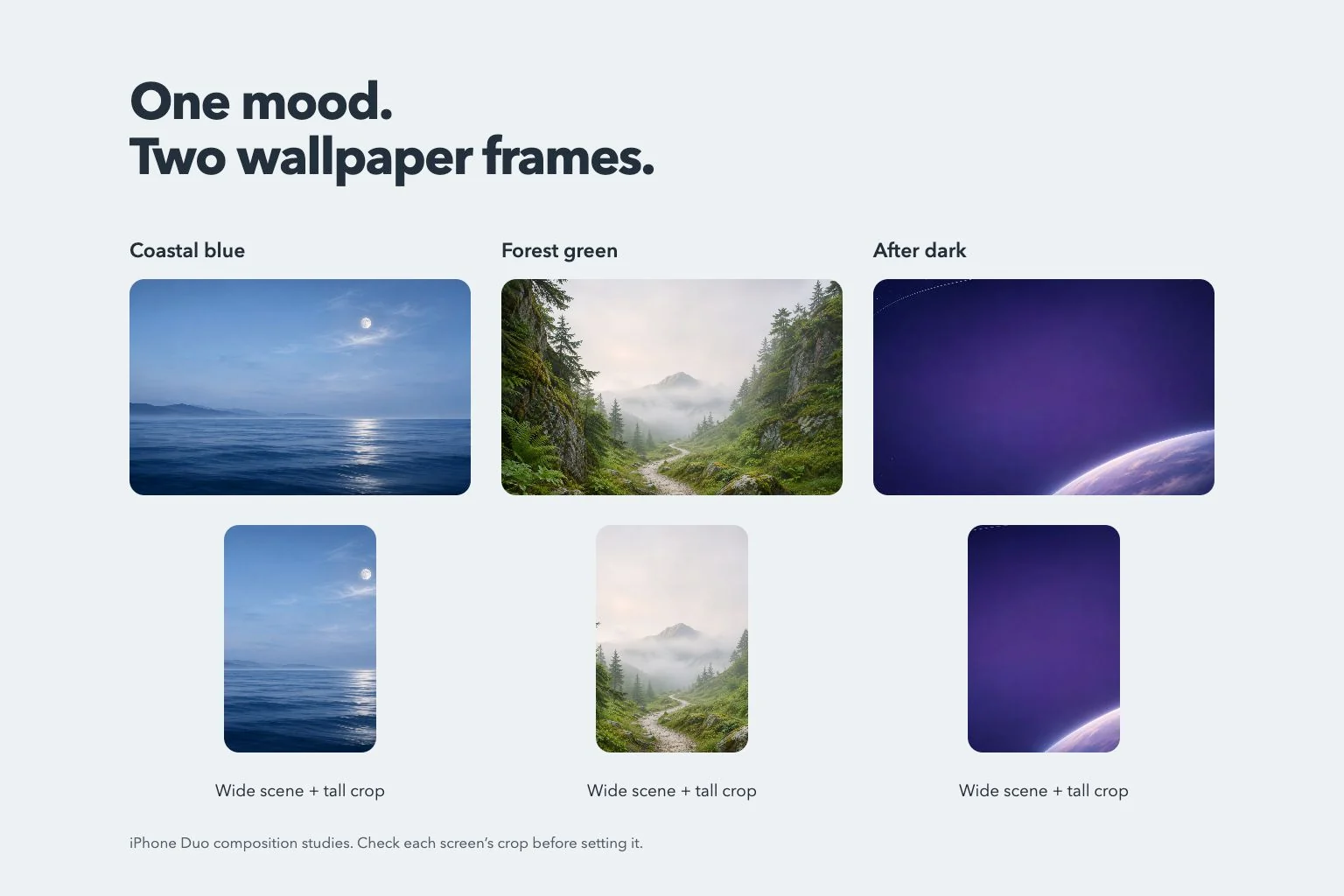
Choose one visual connection between the two views, then check what each crop keeps visible.
 Gentheme
Practical answers and ideas for your next setup.
78 articles
Choose one visual connection between the two views, then check what each crop keeps visible.

Keep the huge silhouette readable and let a small shoreline explain its scale.

Use the contrast between warm morning light and cool trees to shape a readable film-inspired screen.
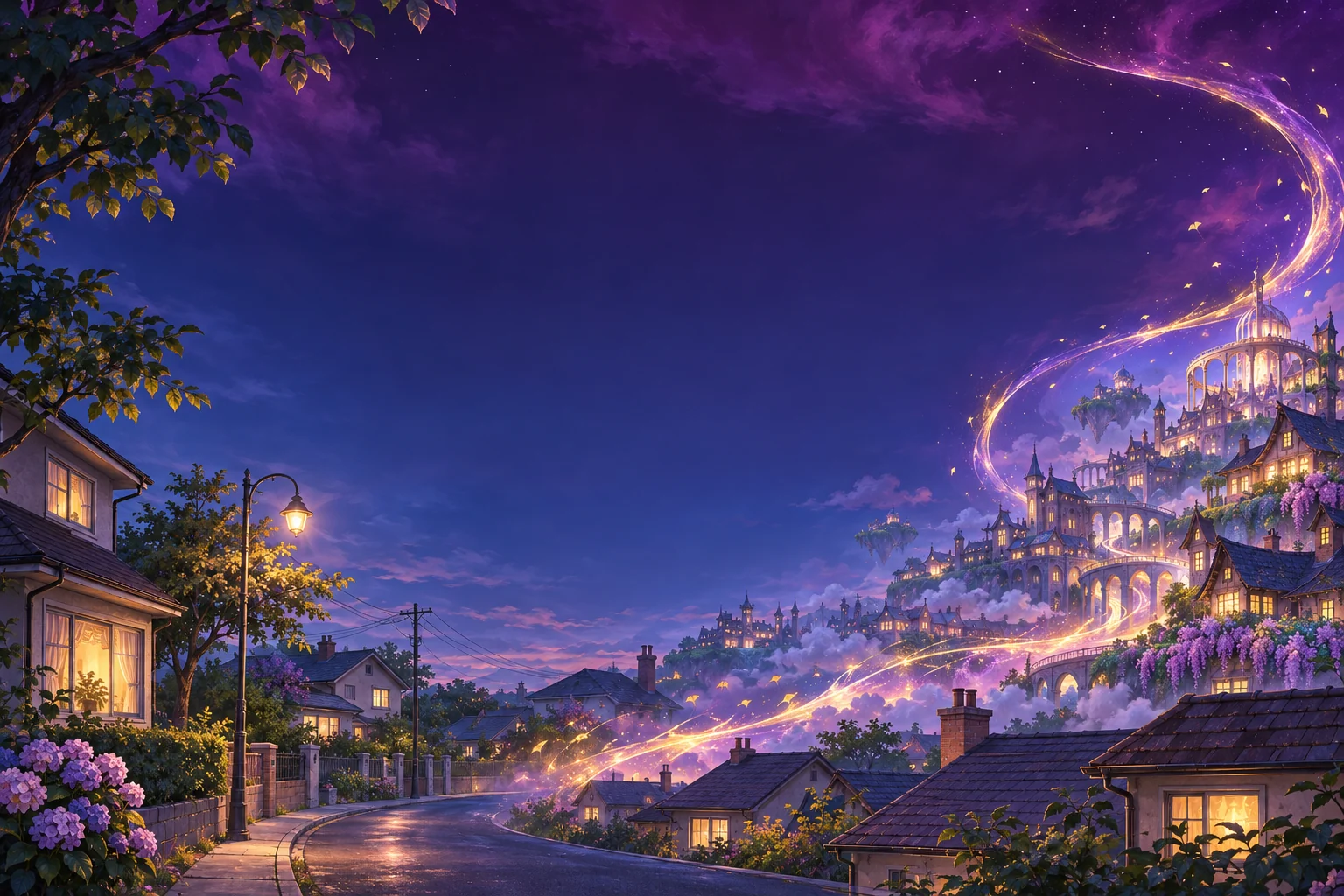
Let one stream of light connect the ordinary street and the imagined magical city.
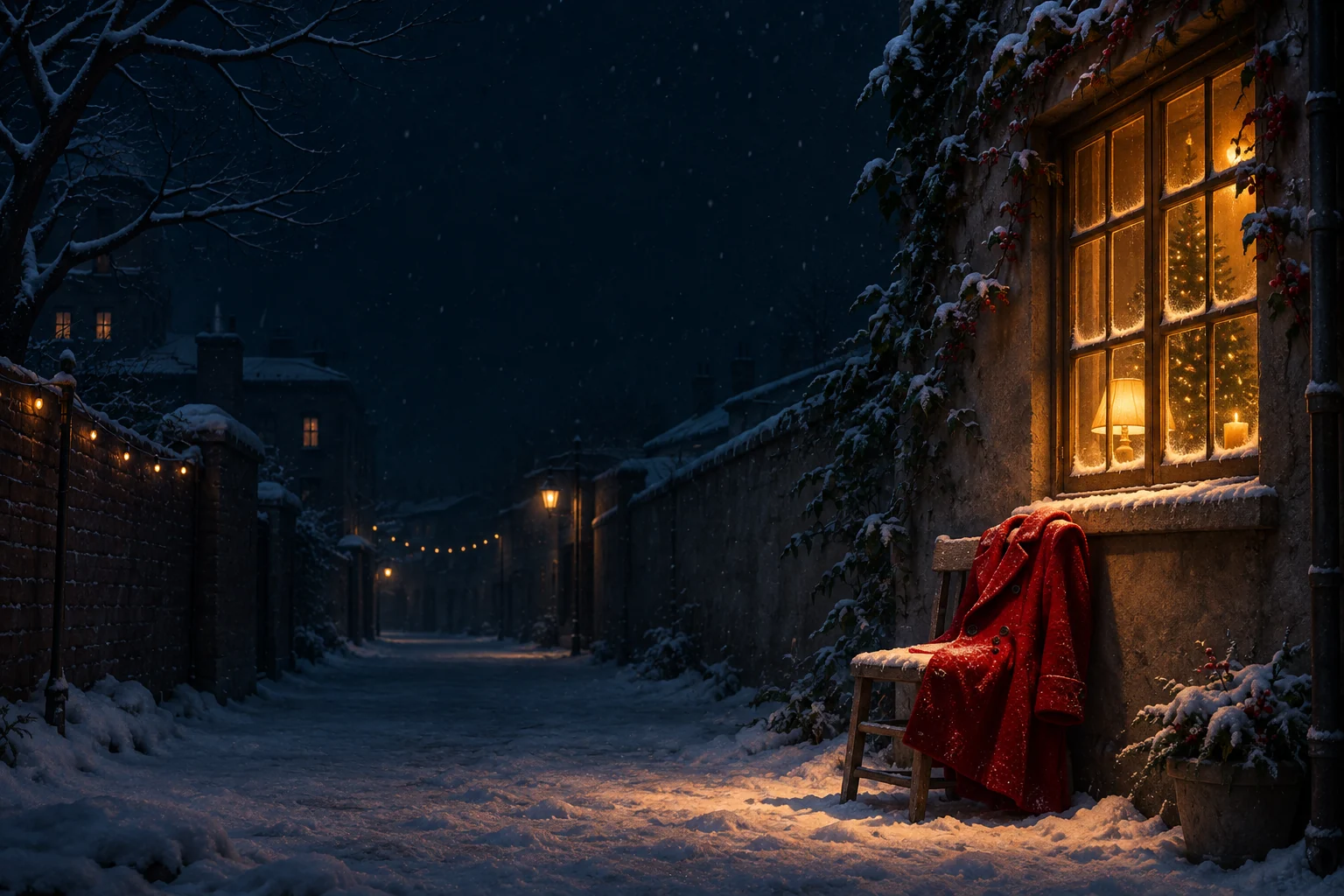
A small red accent and one bright window can carry a whole night scene.

Let the landscape carry the scale, with one clear figure and room for the time.

Home screen ideas
A team layout needs a clear hierarchy. Choose one anchor, separate the supporting shapes and test the phone crop.
Home screen ideas
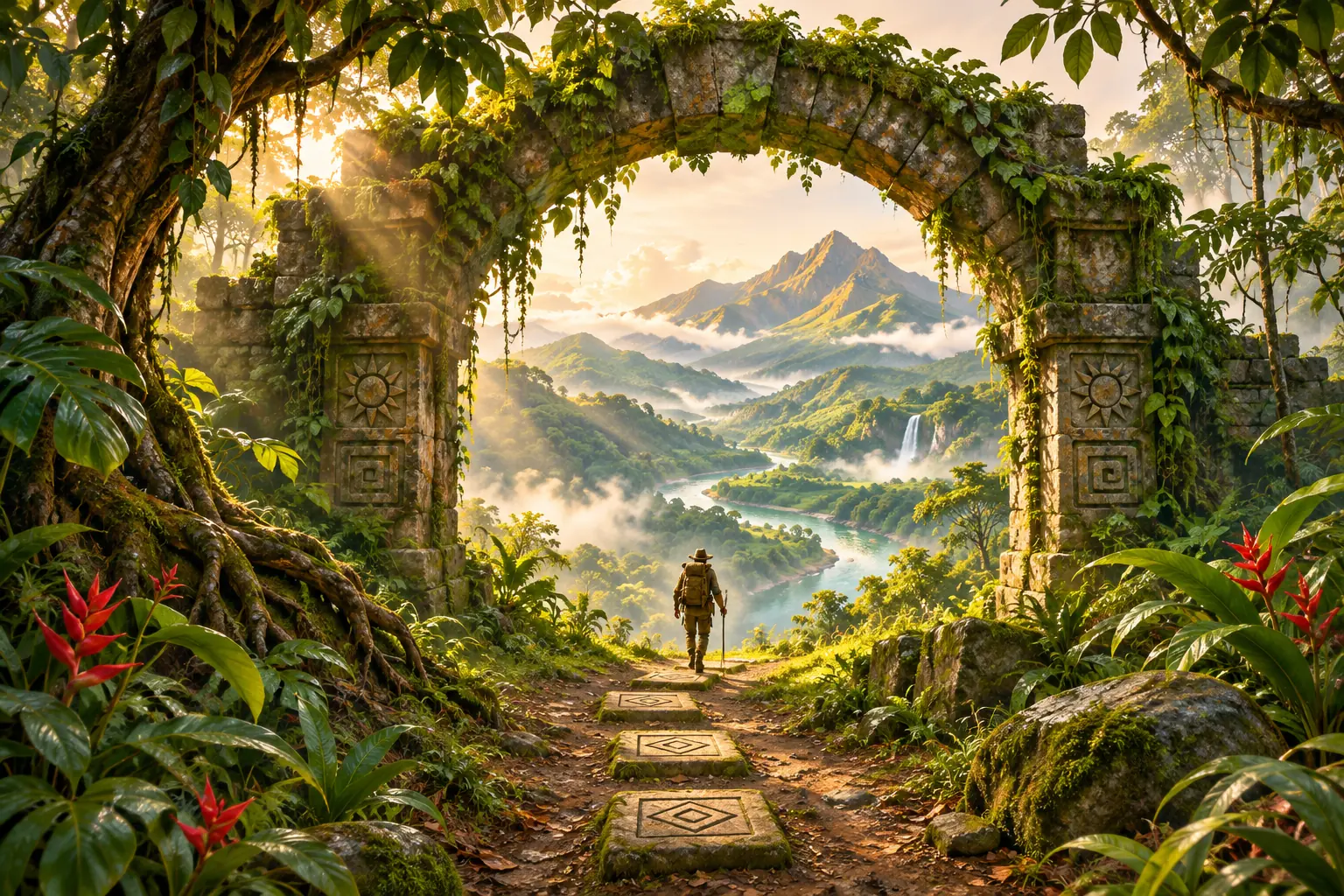
Choose a clear route through the jungle so the scene remains understandable inside a phone frame.

Use the contrast between cold ground and distant heat to give the scene direction.

Give the lion and the imagined world enough space to feel connected.

Let a small cat give the wider city scene a personal point of view.

Home screen ideas
Build a fan-inspired screen around one concert color story, then protect the parts you want to see.

Home screen ideas
Use a favorite musical mood to choose the color, image scale and space around your wallpaper.
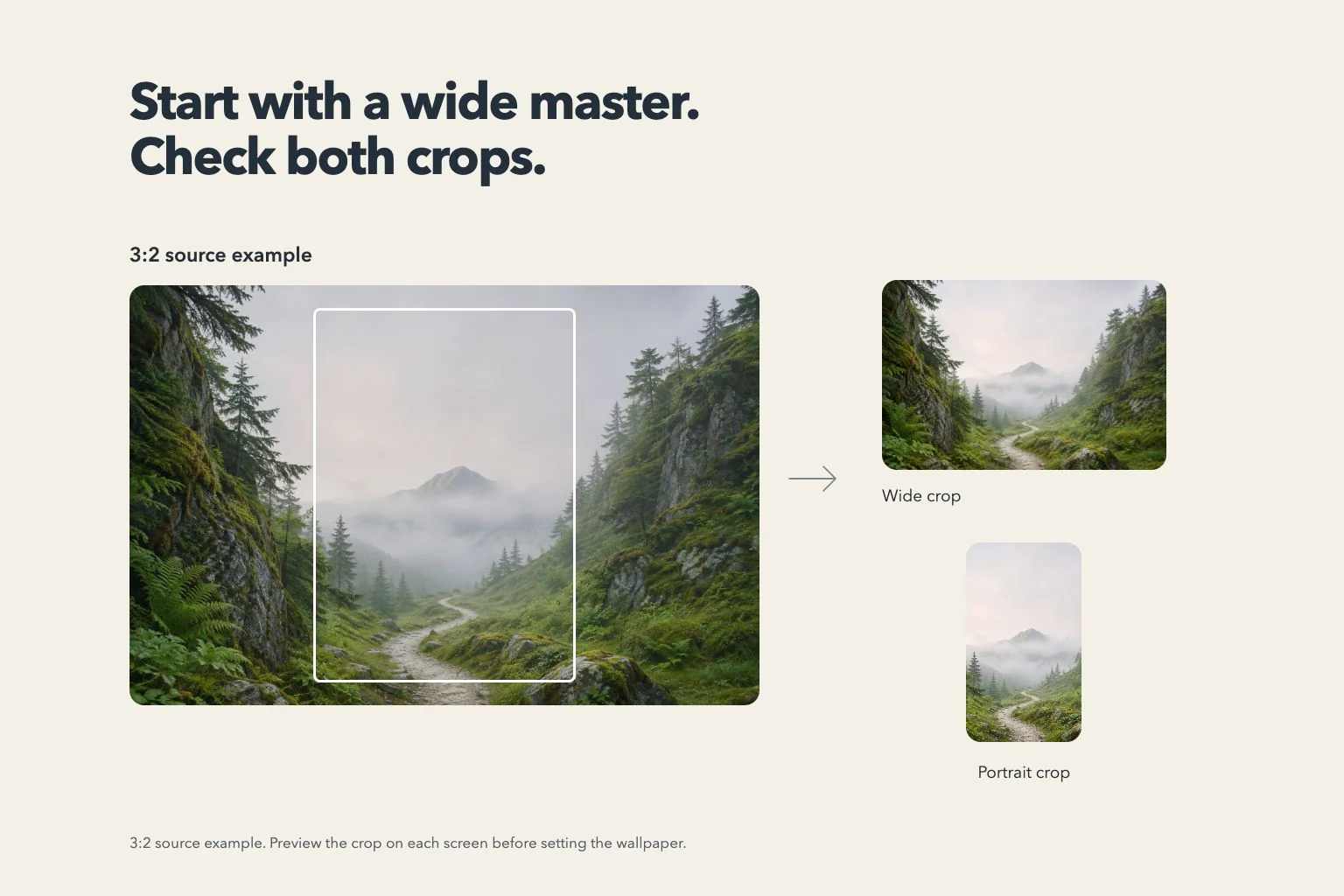
Choose enough source detail and crop room, then judge the result in the actual wallpaper preview.

Home screen ideas
Group photographs need a wider safety margin. Plan the crop before placing widgets over the image.
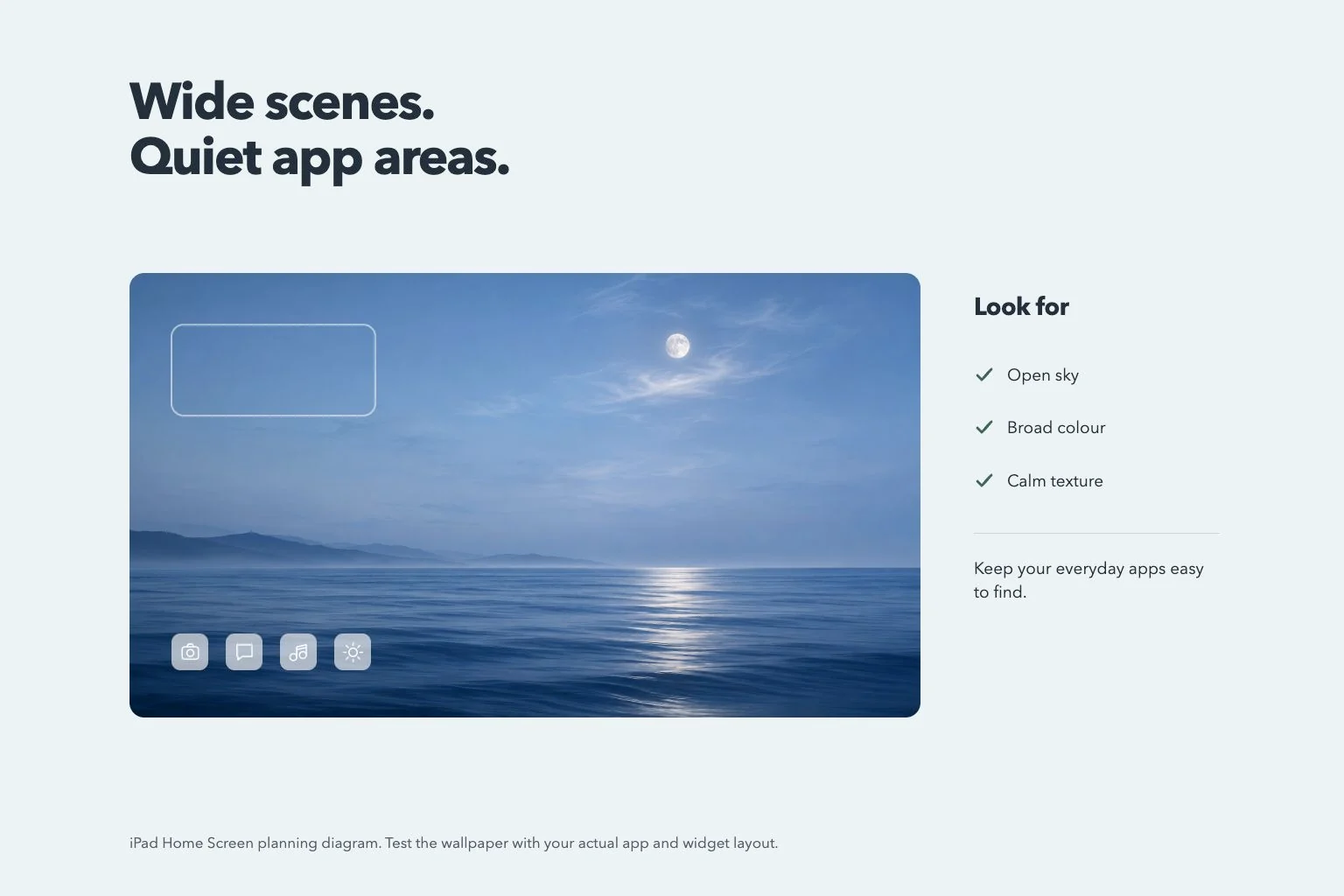
Use the wider frame for a scene with depth, then test the part that sits behind your everyday controls.
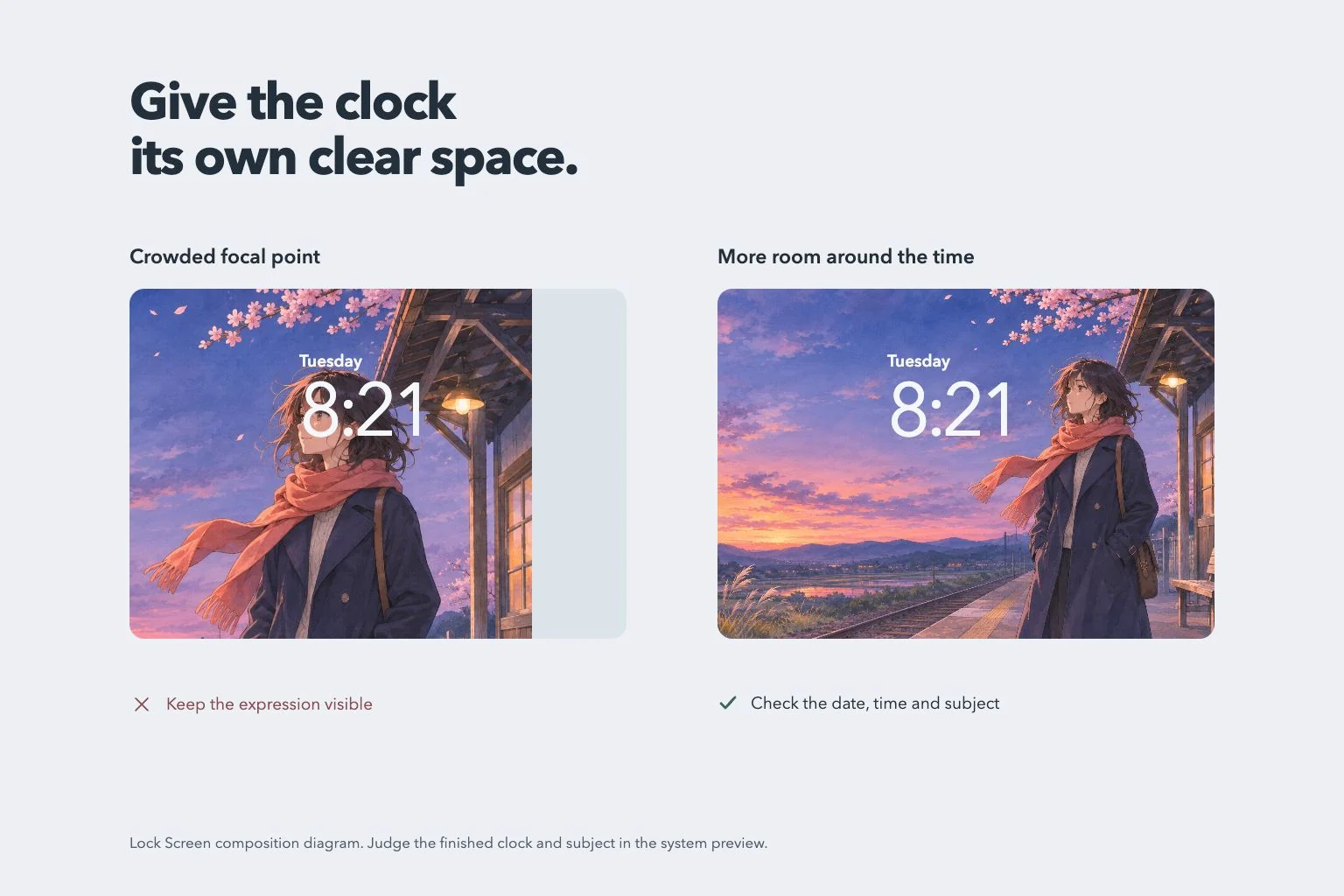
Plan the subject and the clock together, then review the actual Lock Screen with notifications visible.
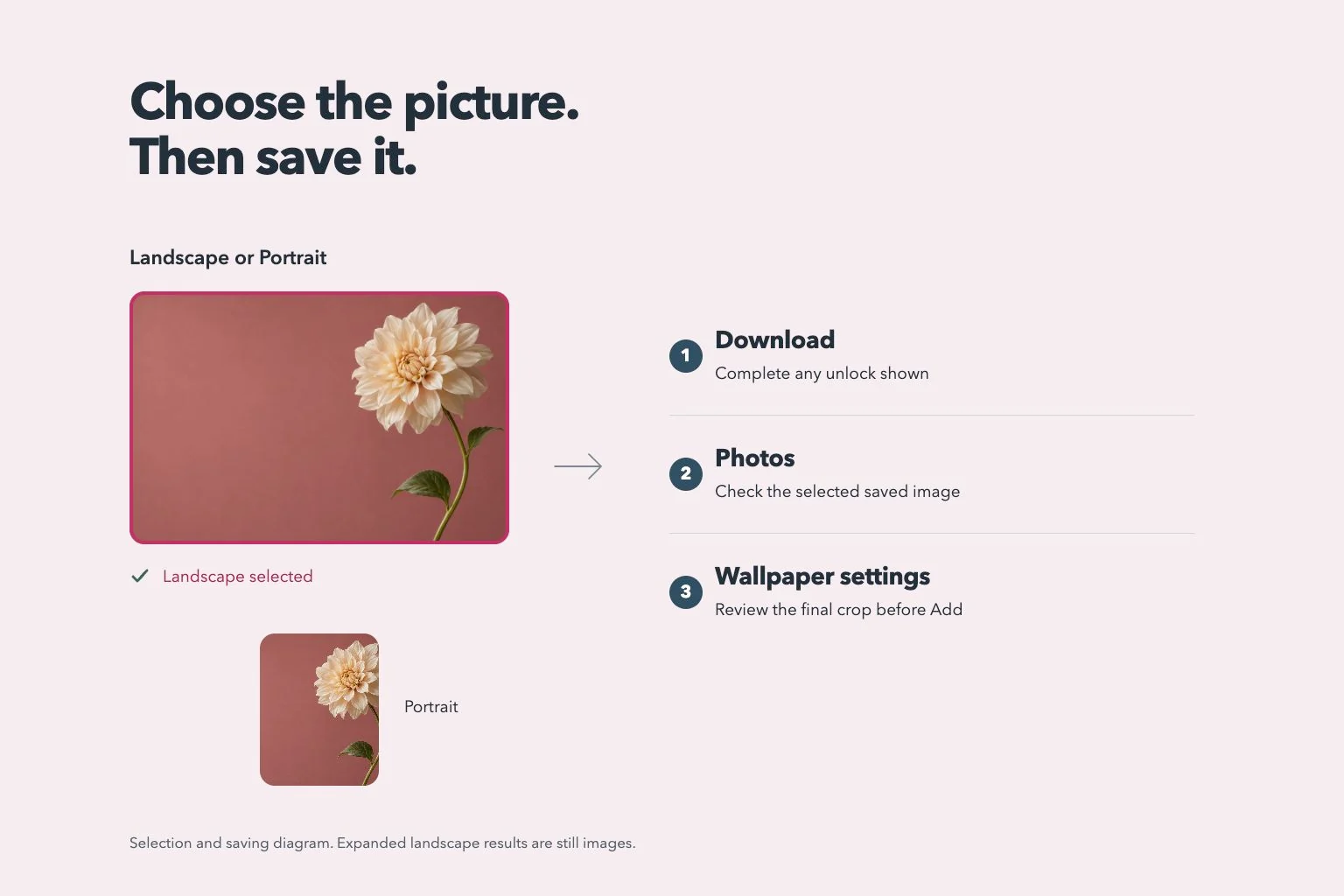
Check the selected image before Download, then confirm the saved file and its final crop.
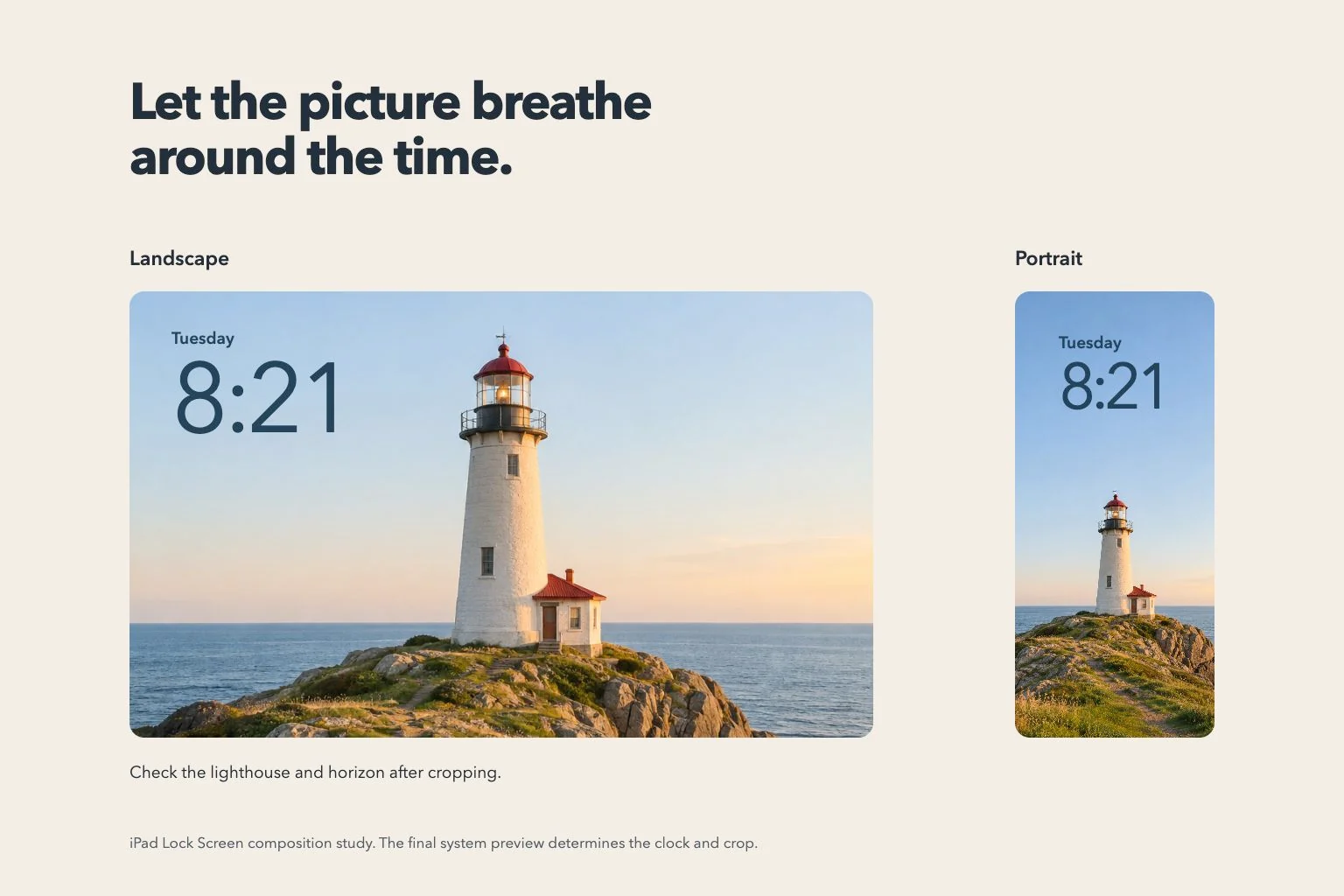
Choose a picture that keeps its character in both orientations, then customize the clock on your iPad.
Home screen ideas
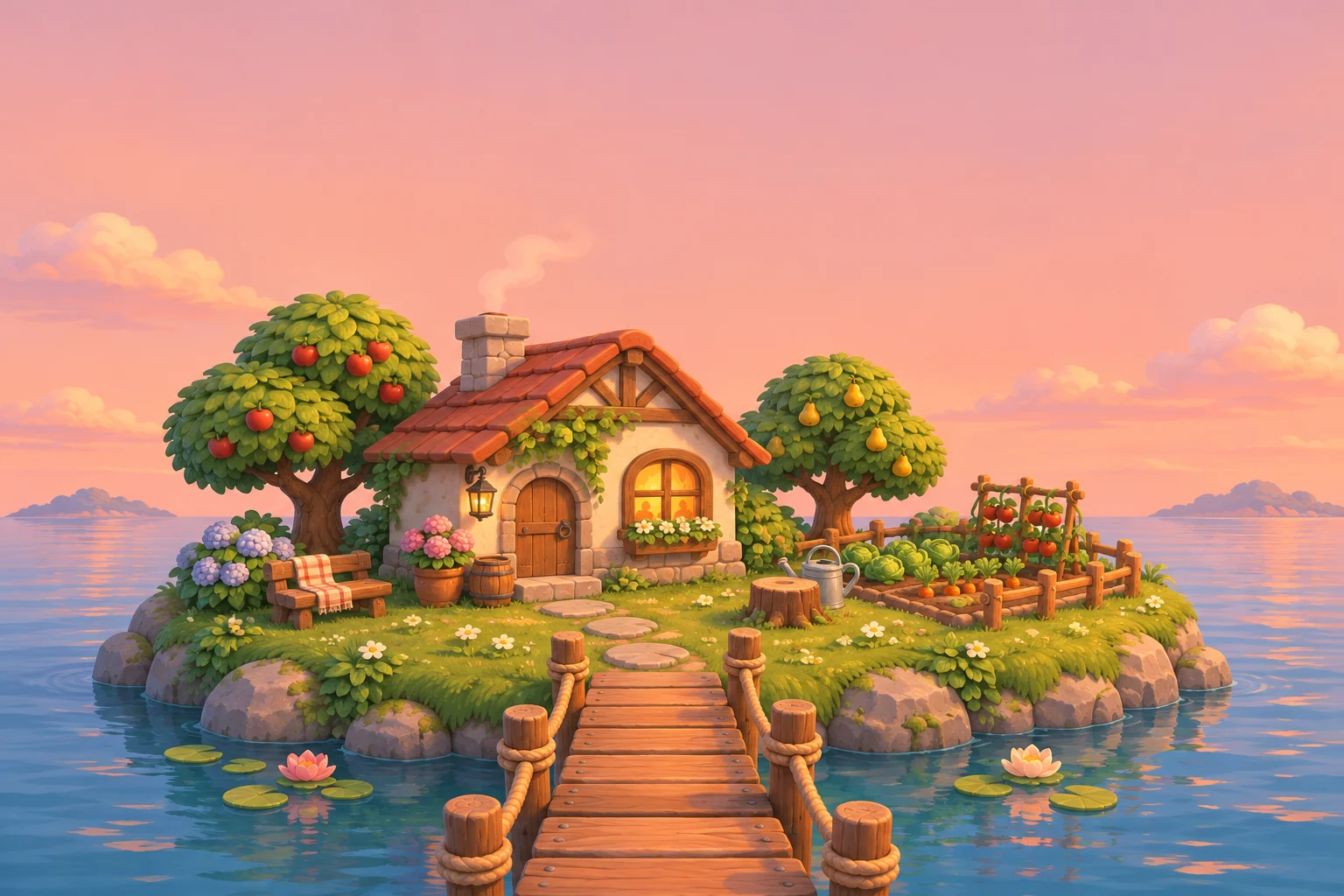
Choose a small world with one clear destination and enough quiet background for everyday screen elements.
Home screen ideas
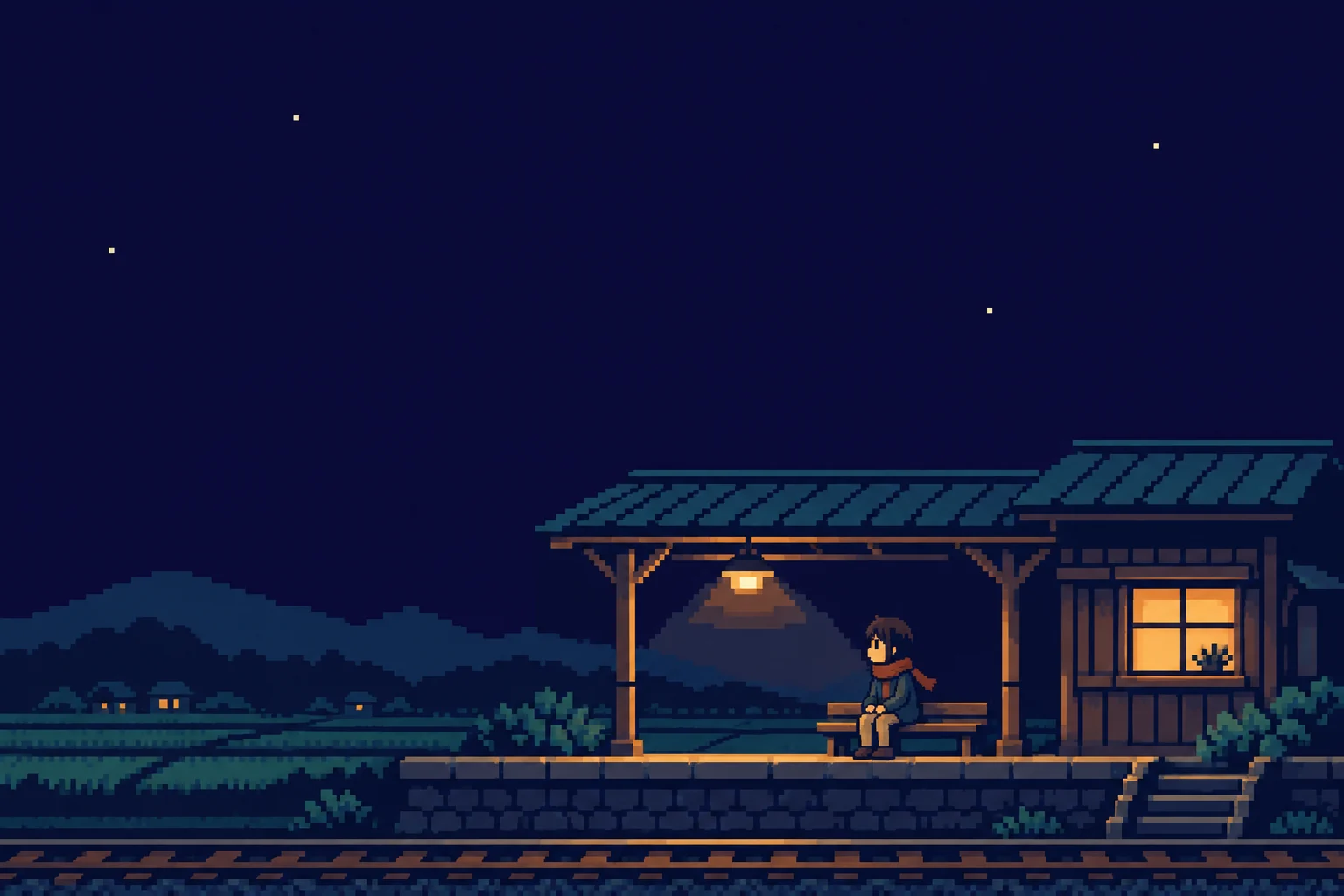
Start with a readable pixel scene and check how the phone scales it before judging the final result.

Home screen ideas
A strong poster composition can work on a phone when its subject and open space survive the narrower frame.

Home screen ideas
Use the shape of the pitch or a favorite football memory to give the screen one clear focal point.

Let one pair of cherries carry the color and keep the rest of the screen easy to read.
Home screen ideas
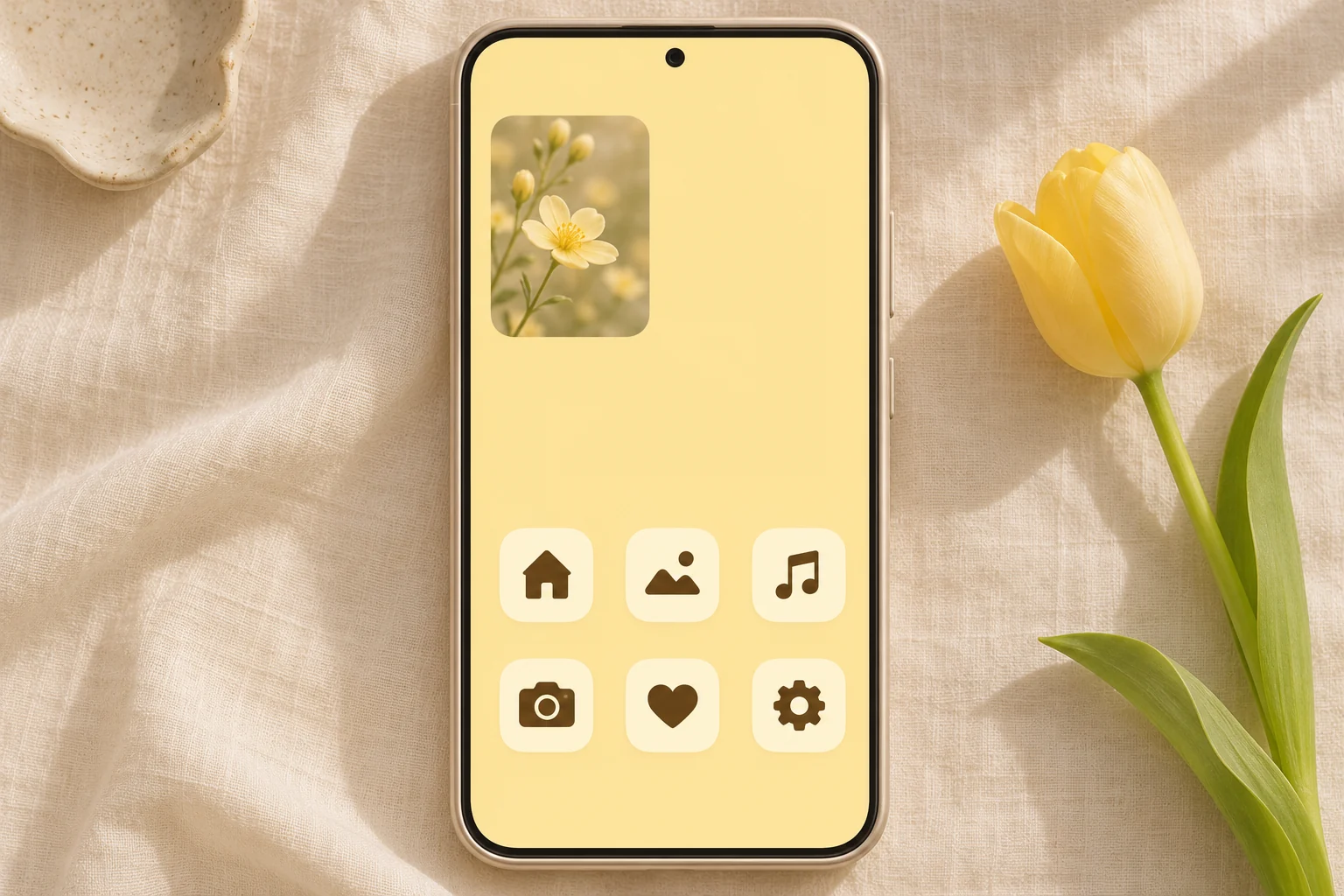
Use a warm yellow base, then give the icons enough contrast and the wallpaper enough breathing room.
Use the depth of polished stone to give a green screen texture without filling it with leaves.

Let the cloth texture carry the style and keep its stitching away from small text.
Choose one constellation motif and let the surrounding night sky do the rest.

Choose one seasonal subject and make it recognizable in the actual phone crop.
Start with the way your family celebrates and give one festive detail a clear place on screen.
Home screen ideas
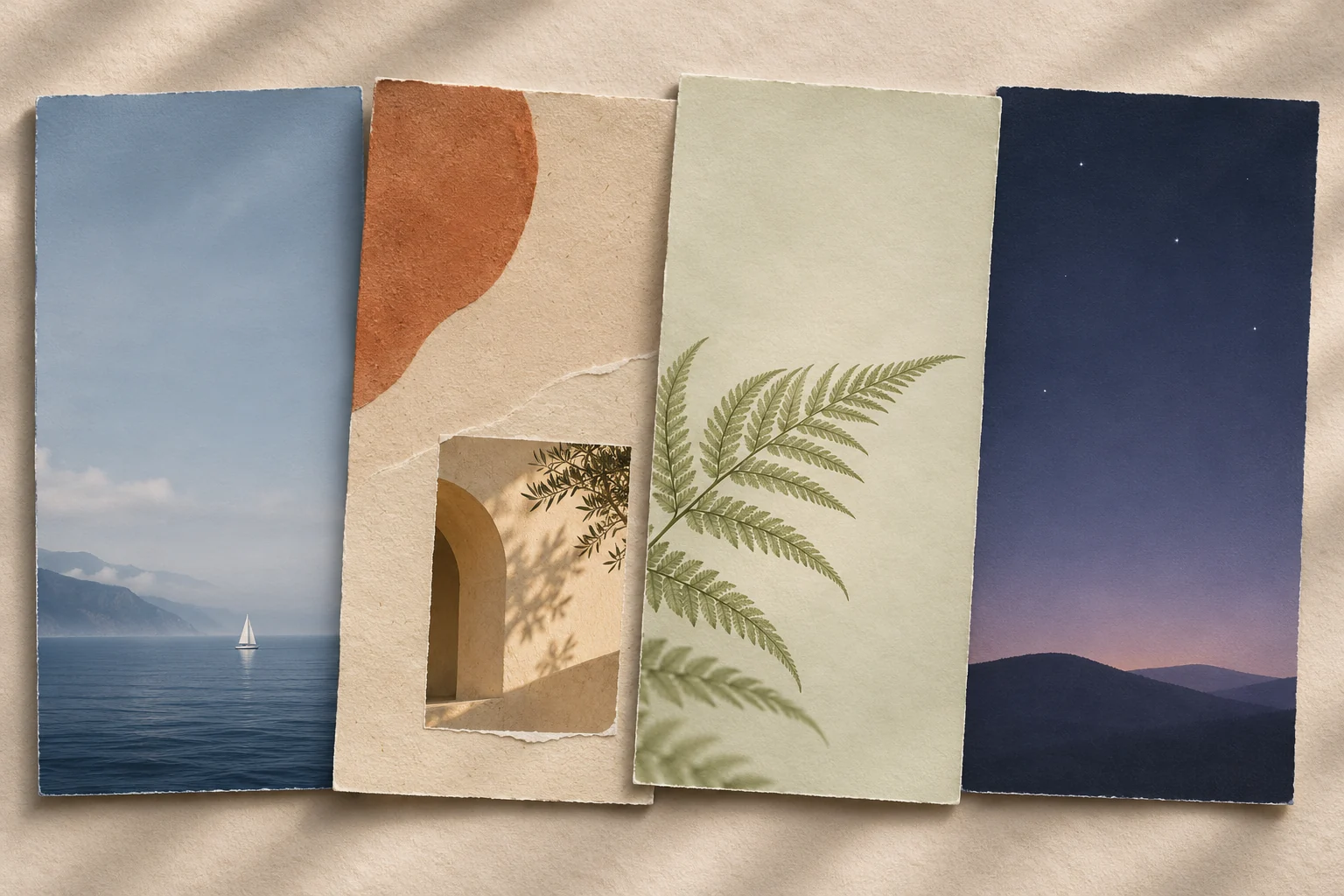
Start with a scene, a material or a color story, then give the clock and daily apps their own space.

Build the screen around a cat’s expression, then give its ears, whiskers and tail enough space to stay visible after setting the wallpaper.
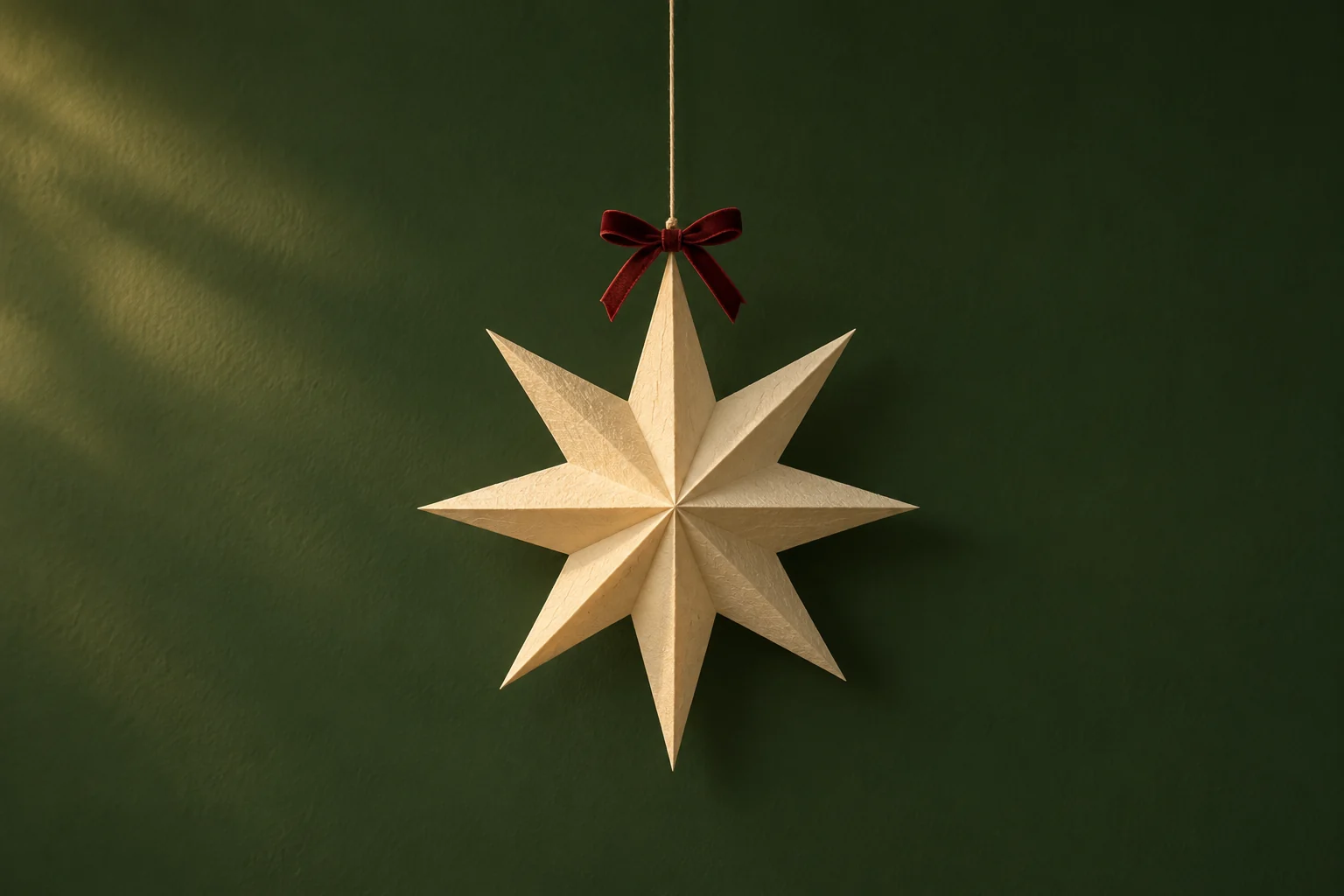
Choose one festive detail to carry the screen, then decide how it will work on the Lock Screen and behind your apps.
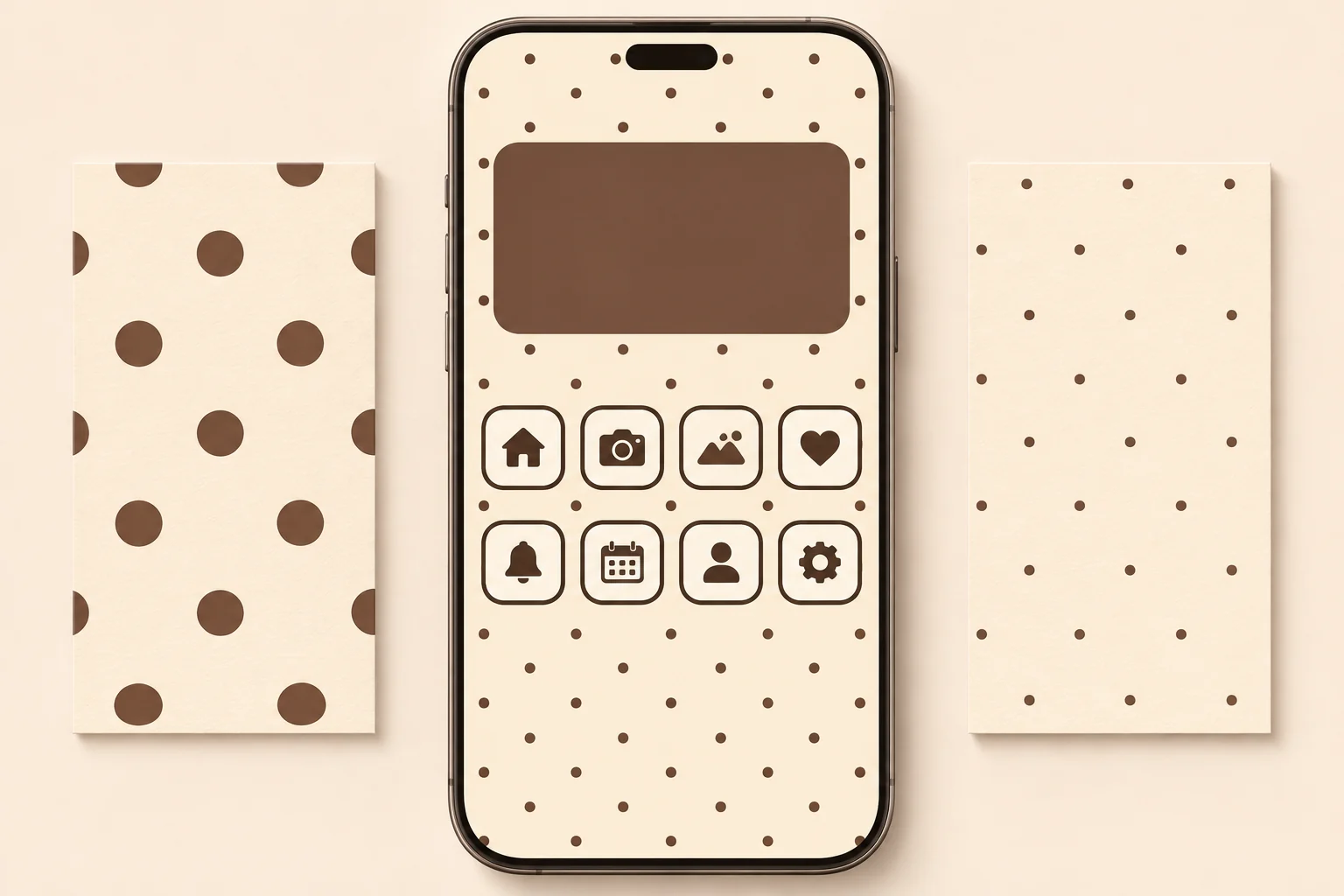
Home screen ideas
Judge the dots against your actual icon size, then choose a pattern density that leaves breathing room.
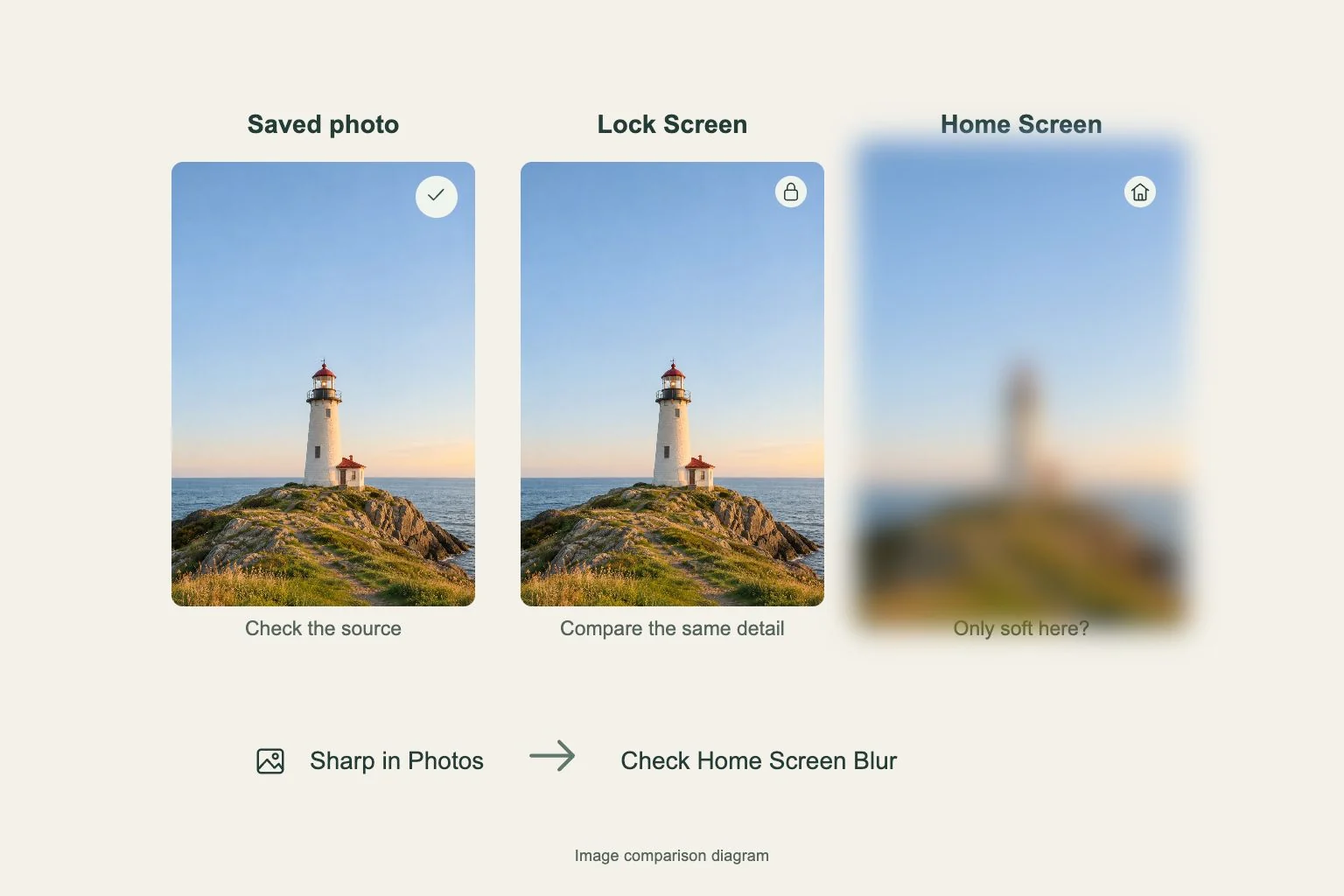
Wallpapers
Compare the saved photo with both screens before changing your wallpaper settings.
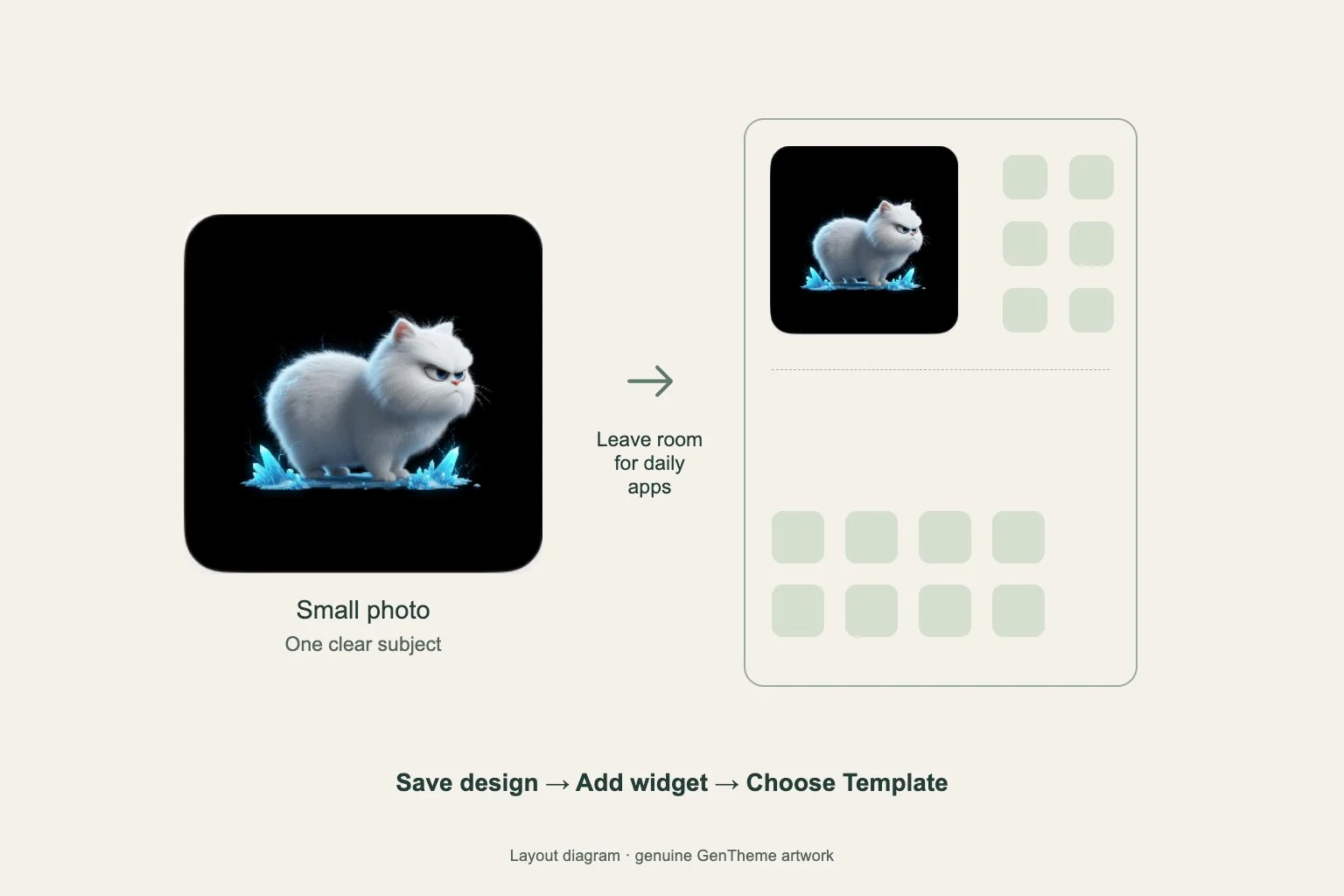
Start with one image-led widget, then check its crop and background together with the wallpaper and the apps you use.
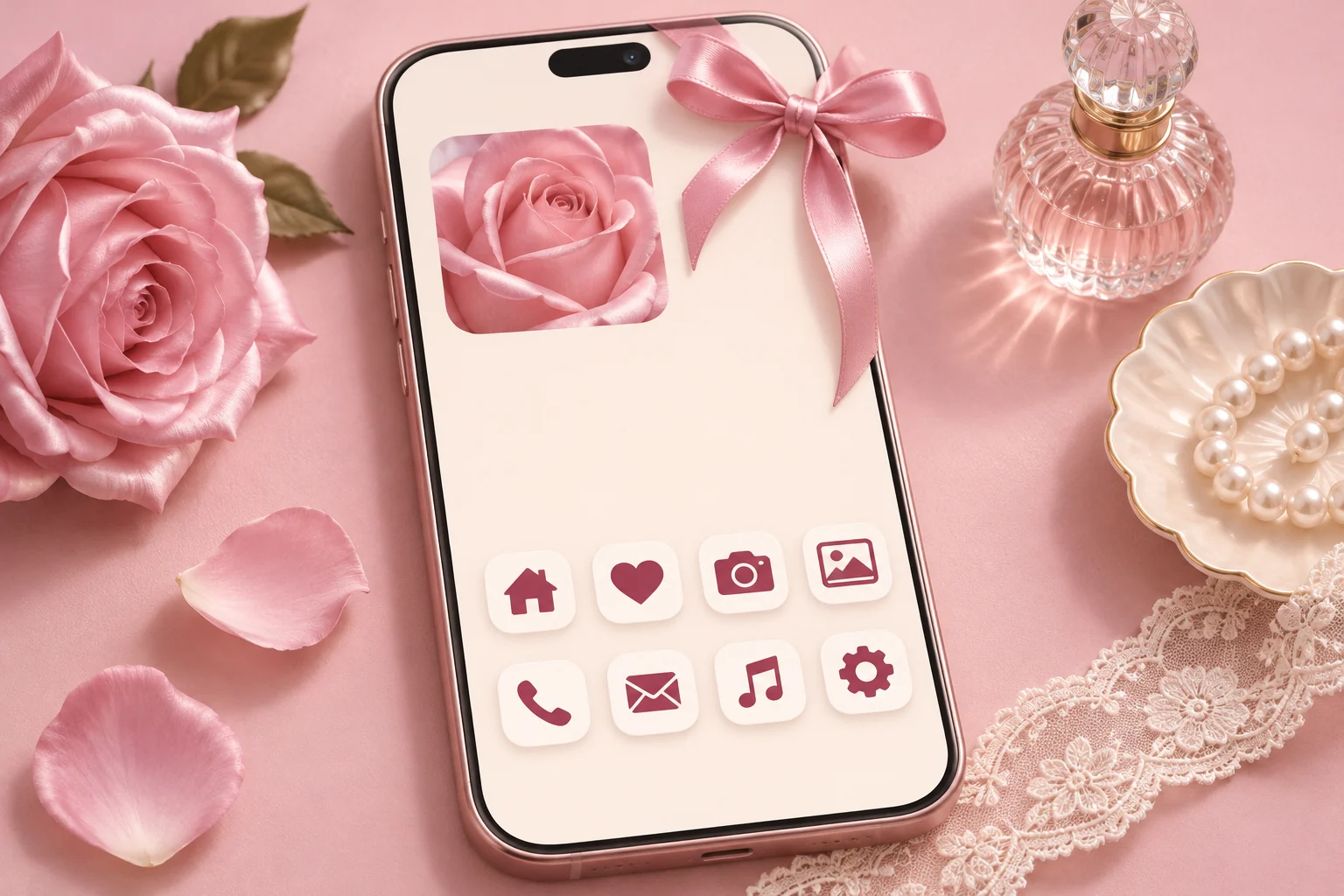
Home screen ideas
Give one bow the main role, then use ivory space and darker rose details to keep the page legible.

Choose your shade of blue first, then check how water, sky or a gradient sits behind the screen.
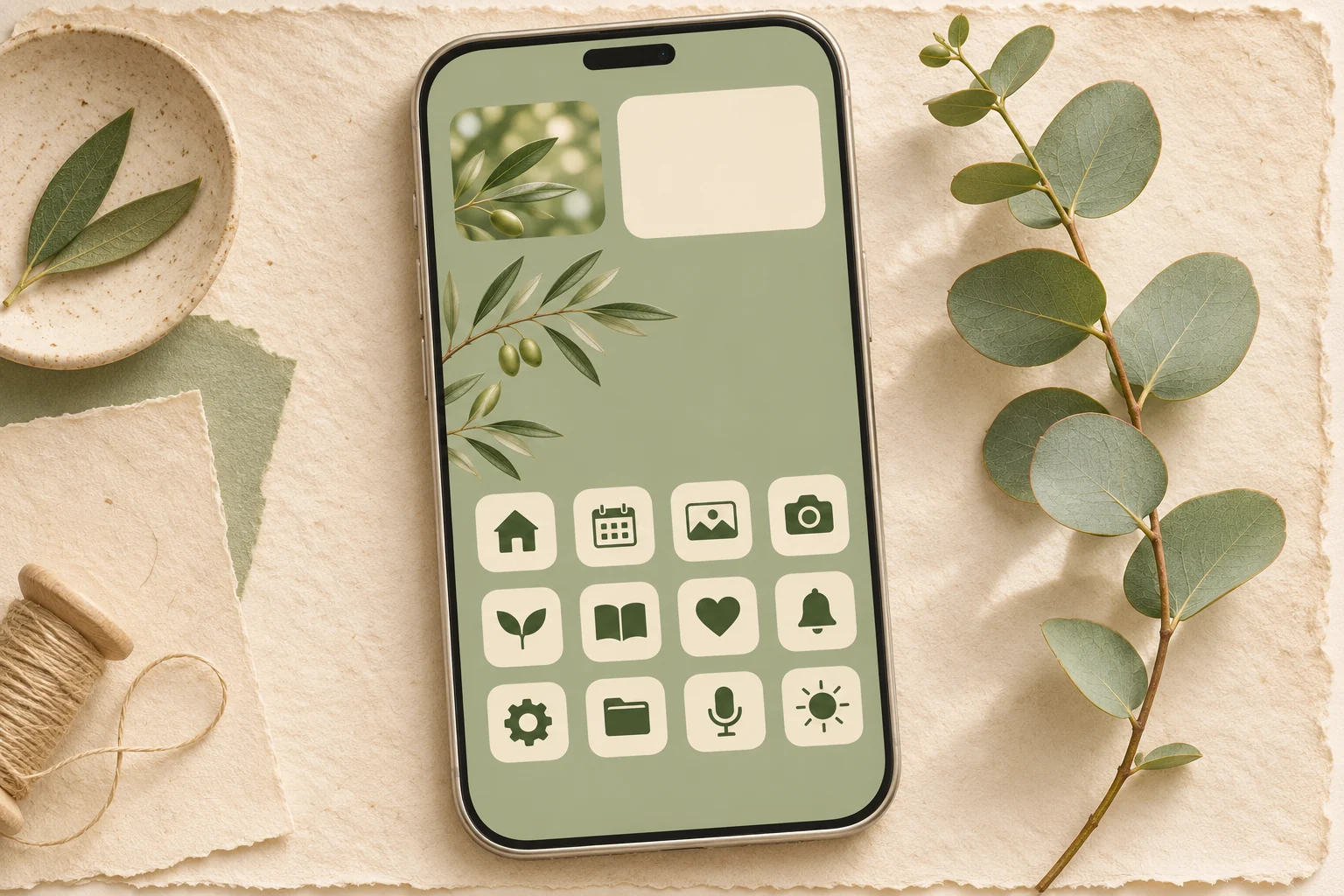
Home screen ideas
Match the gray undertone in your greens and give one leaf image room to stand on its own.
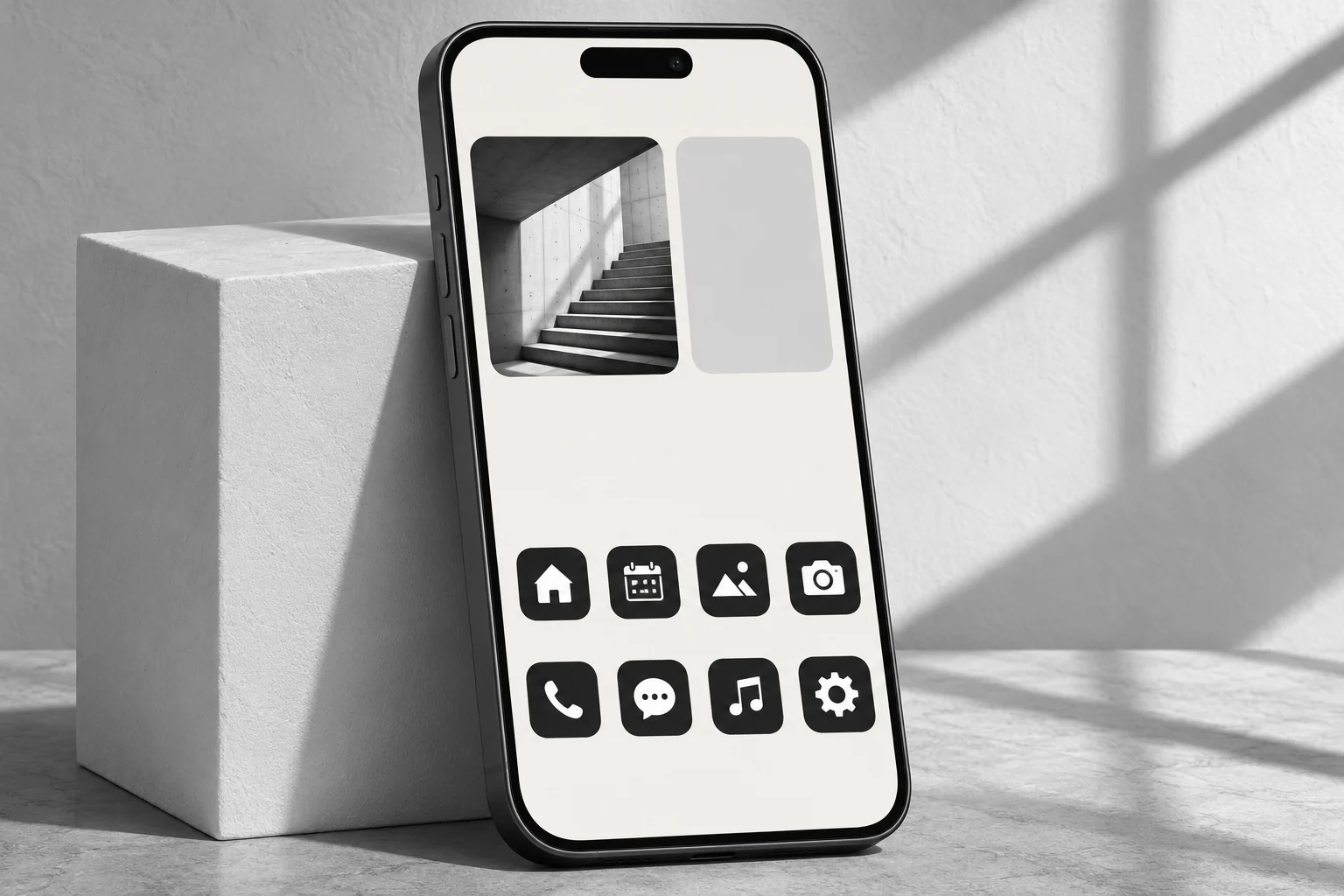
Home screen ideas
Use large areas of quiet tone and distinguish apps through shape, position and readable labels.
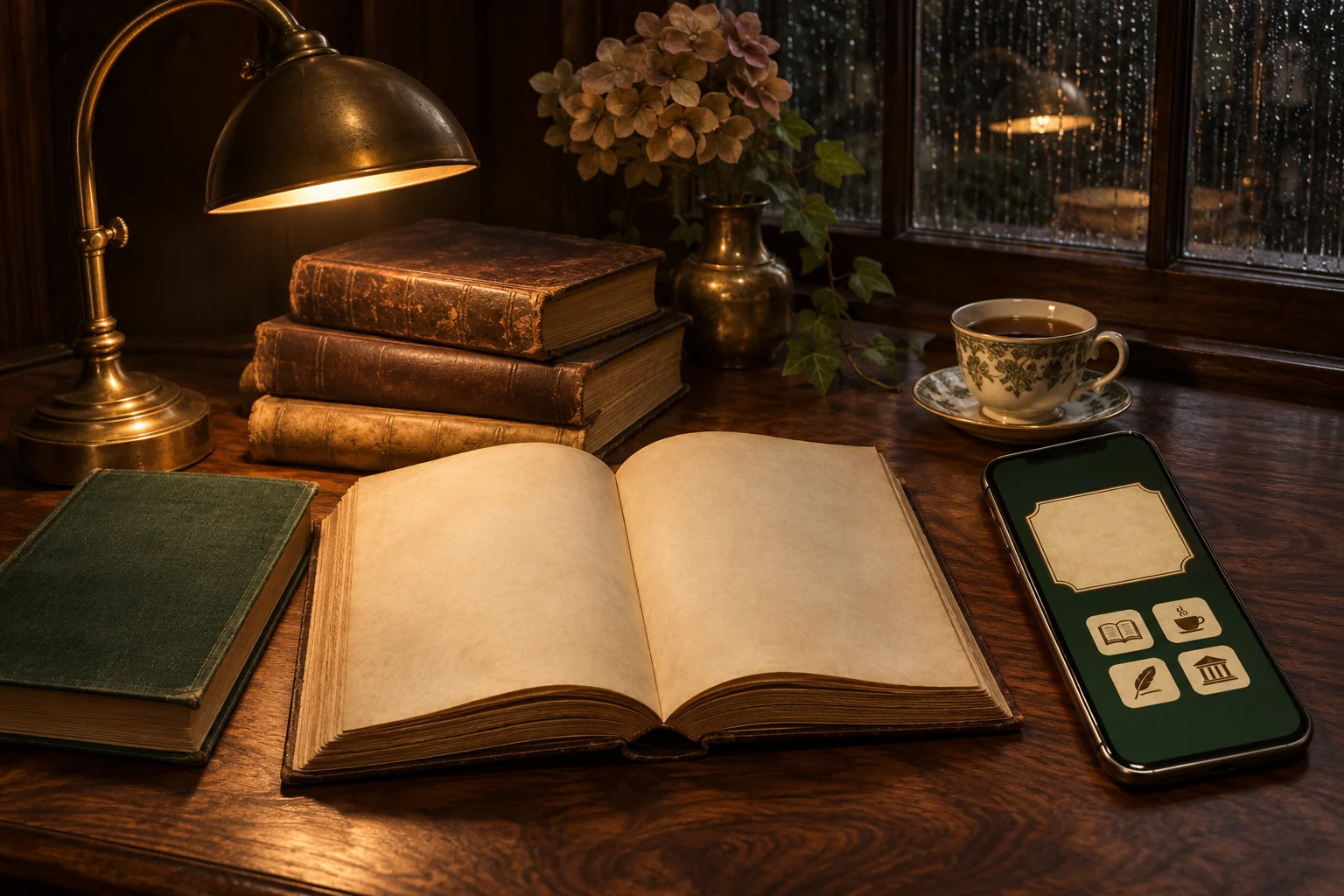
Home screen ideas
Build the page around one reading-room detail and let parchment-colored information stand out from dark wood.
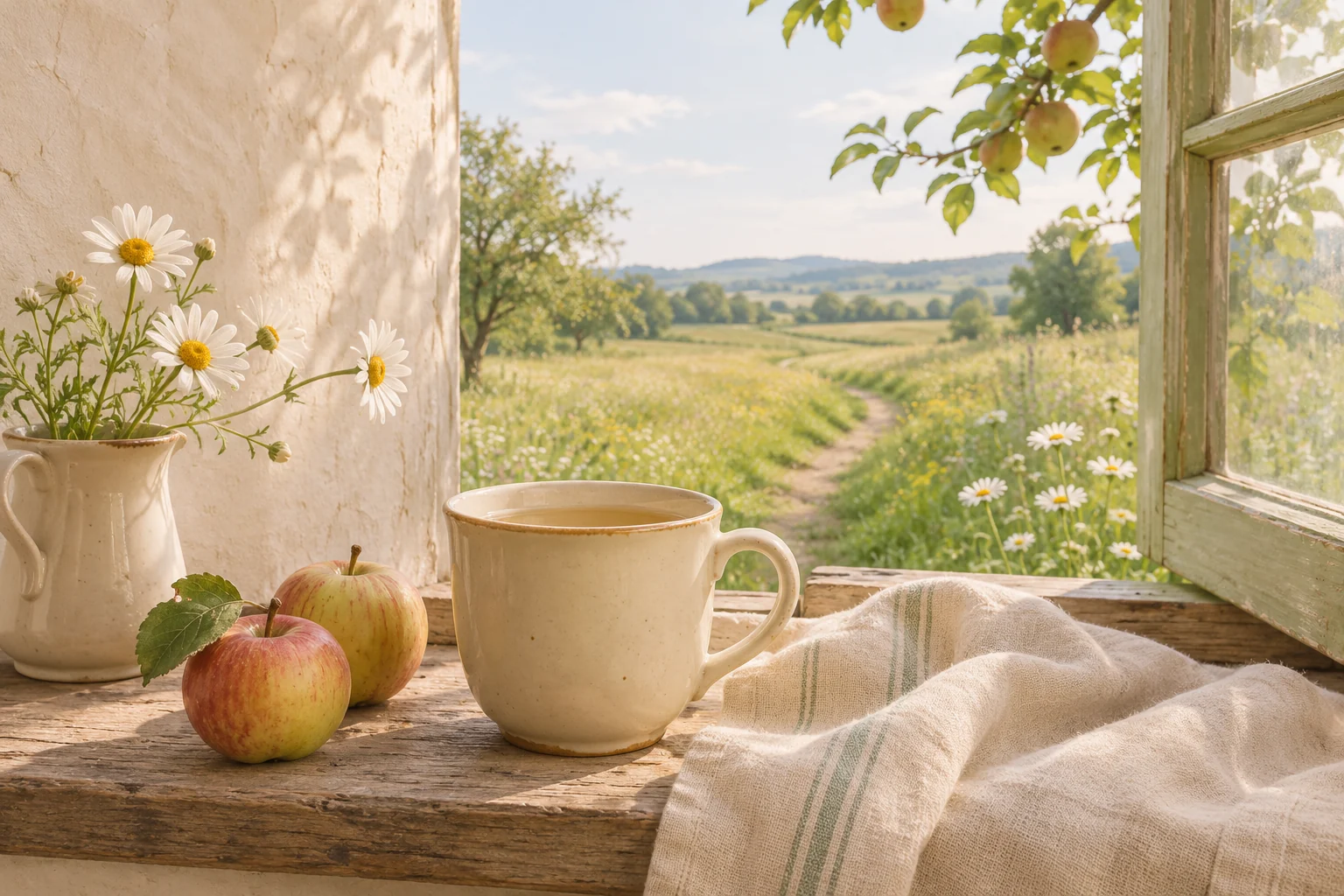
Choose one small rural scene and keep its everyday details large enough to enjoy on a phone.

Choose one shiny focal shape and a controlled sticker cluster, then leave an open route for information.

Home screen ideas
Use a bright sky-and-water scene, then give the glossy details a limited part of the page.

Treat the position of the lightest color as part of the layout, then inspect the file for visible bands.

Choose how blue or red your purple should feel, then keep highlights away from small screen text.

Home screen ideas
A character portrait, a scene and a graphic panel each need different amounts of space. Plan the crop around the image’s focal point.

Landscape photos need a new frame on a phone. Follow the shape of the scenery and keep enough surroundings to preserve its sense of place.

Home screen ideas
Control the brightest objects and the density of stars before placing anything over the wallpaper.

The scale and direction of flowers matter as much as their color when the image sits behind an app grid.
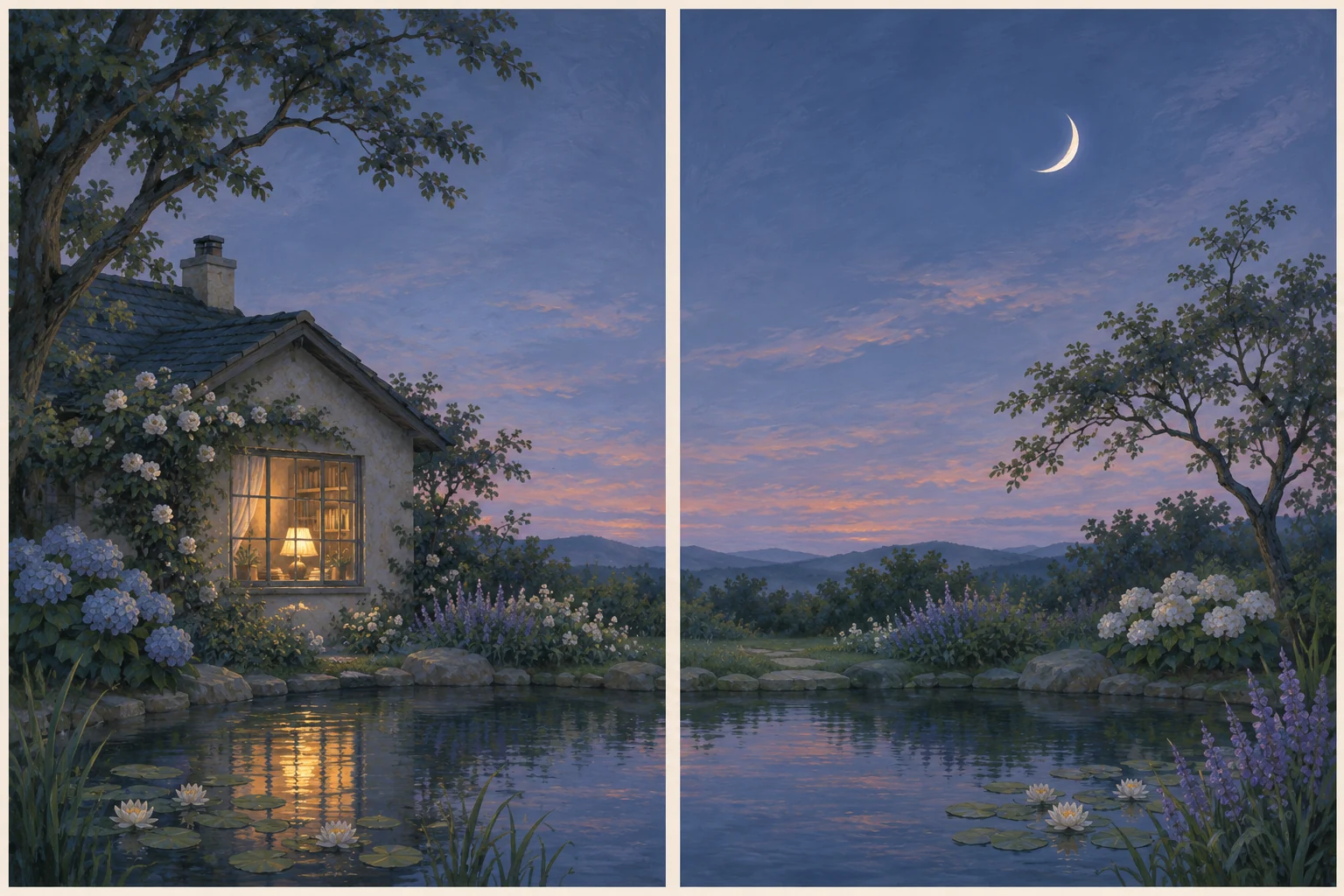
Home screen ideas
Choose a connection that still makes sense when the phones are apart and their screens use different crops.

Build a winter screen through light and texture, then test the contrast around your clock and app labels.

Give the season a clear visual anchor and keep the surrounding screen usable as leaves, weather and your own preferences change.

Home screen ideas
Decide whether you want a countdown-night look or a screen that will feel right throughout January.
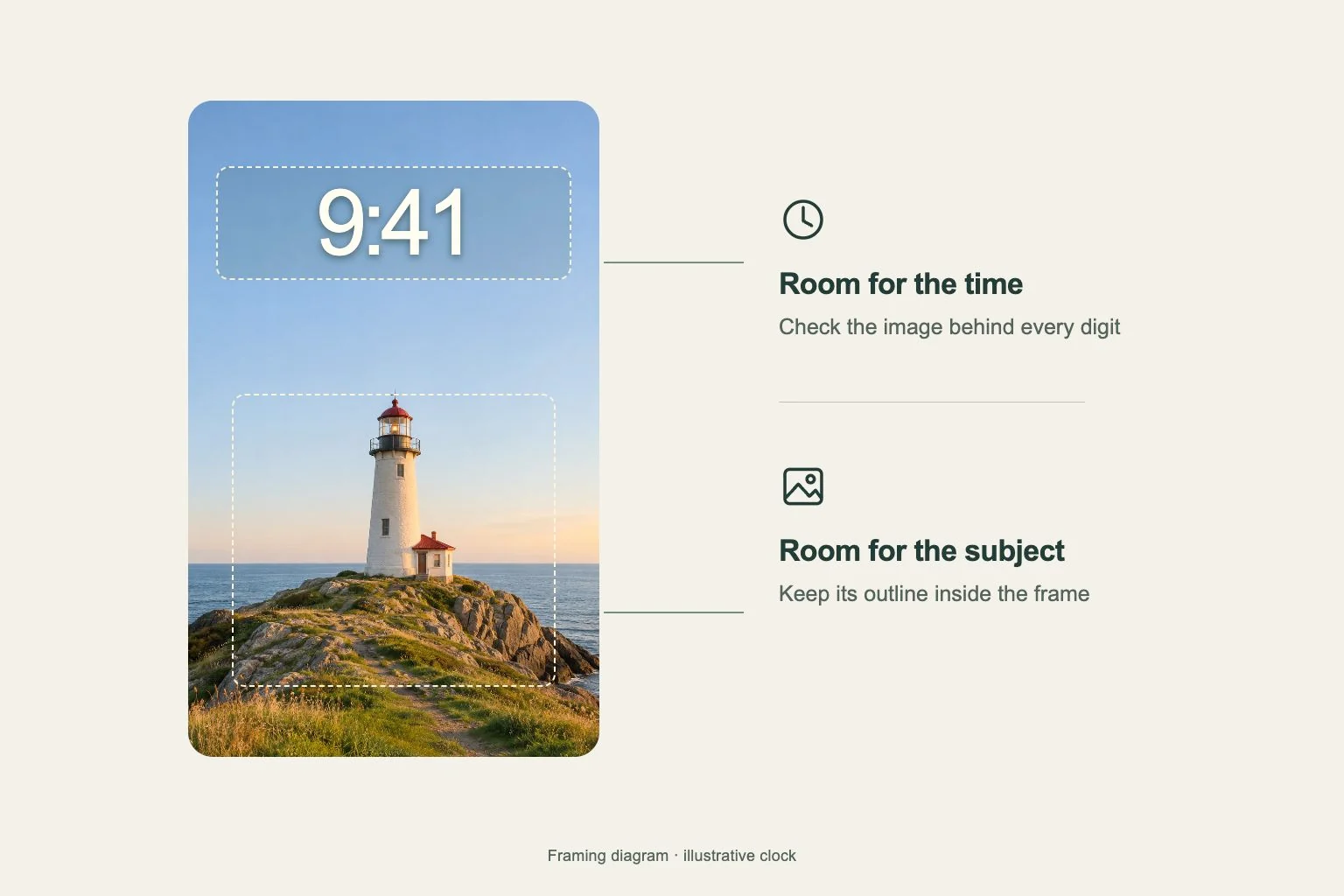
Choose the clock’s reading area and the picture’s focal point together so both remain clear when you wake the phone.
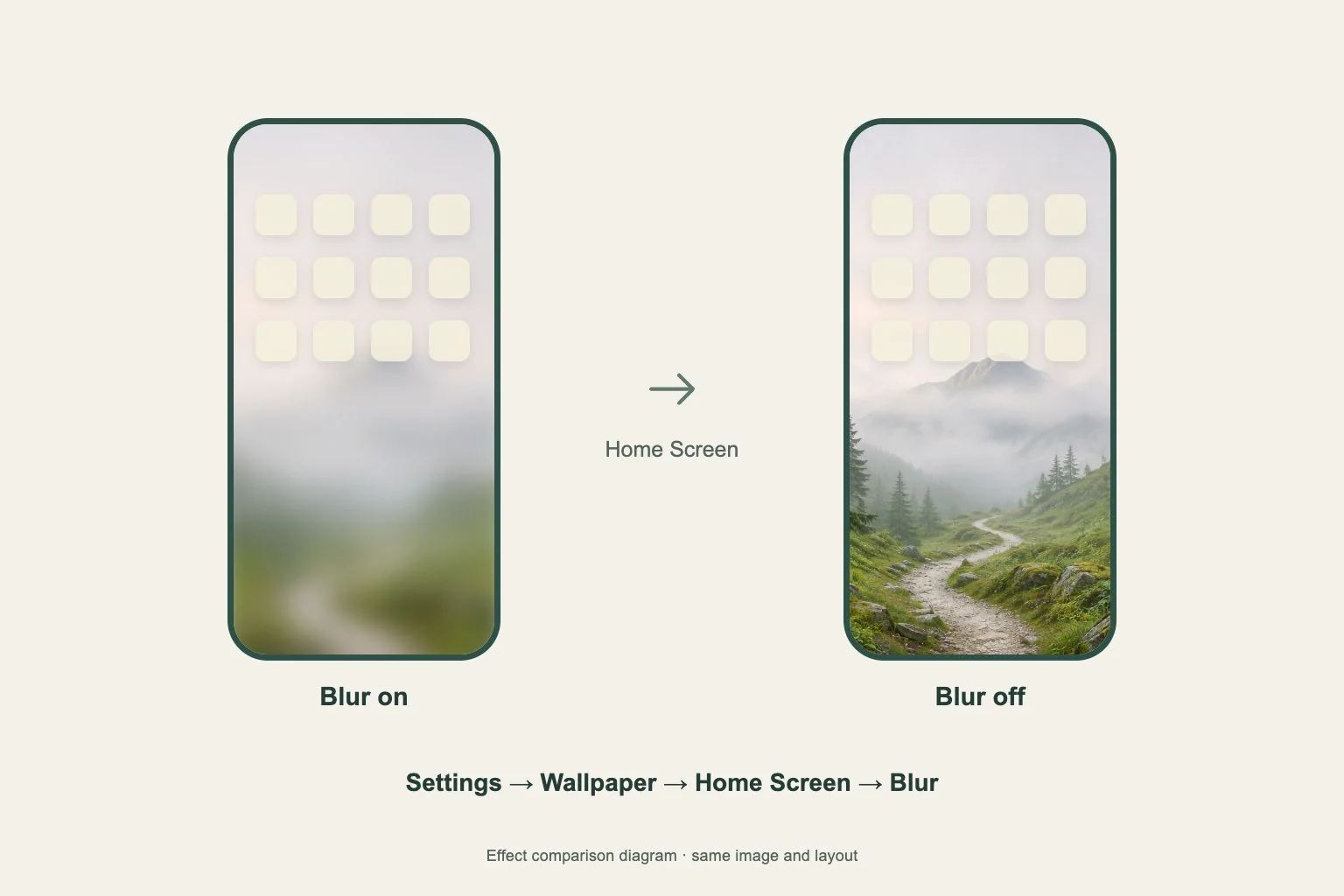
Edit the Home Screen side of your current wallpaper pair to restore visible image detail.
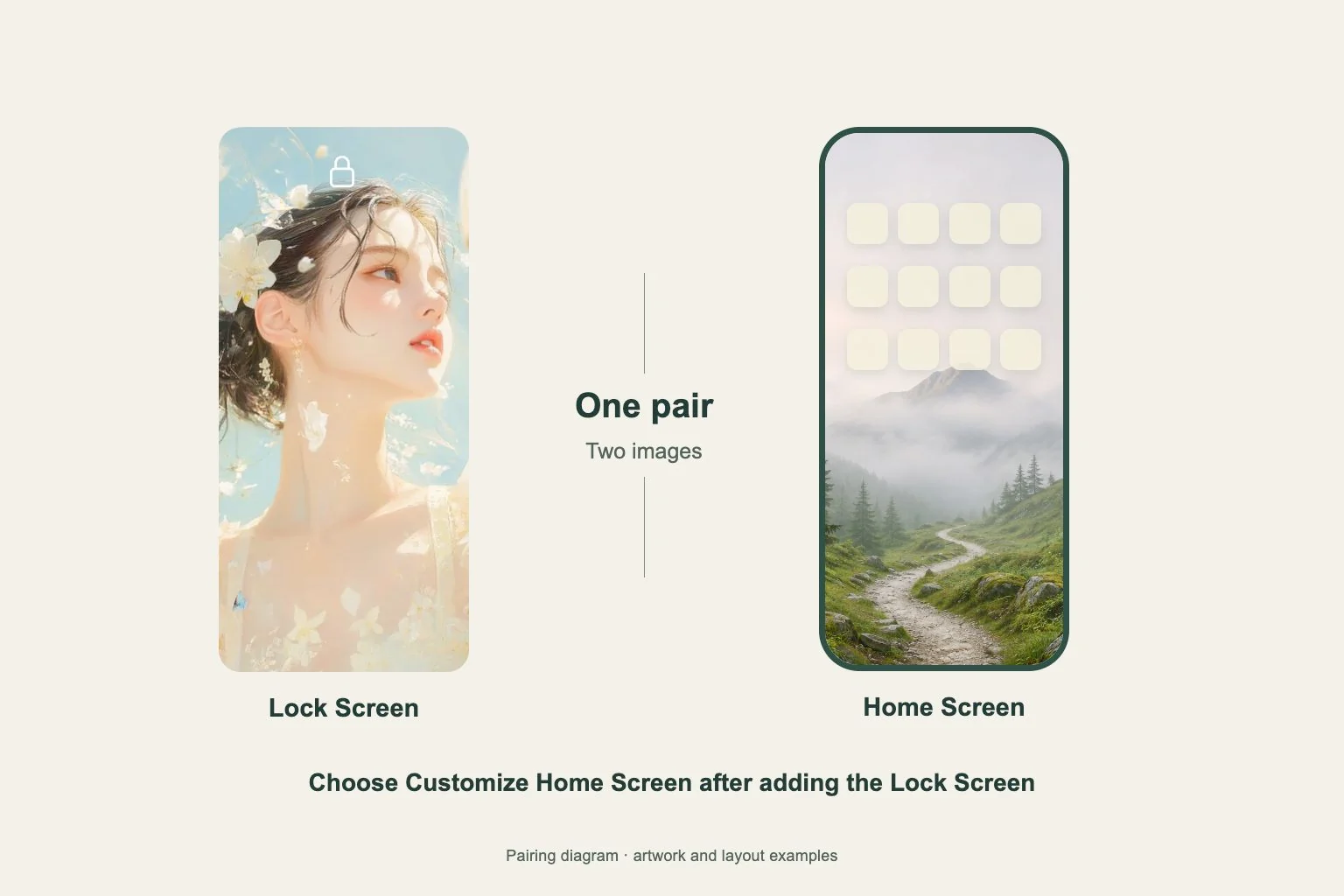
Use Customize Home Screen when the Lock Screen and app page need different images.
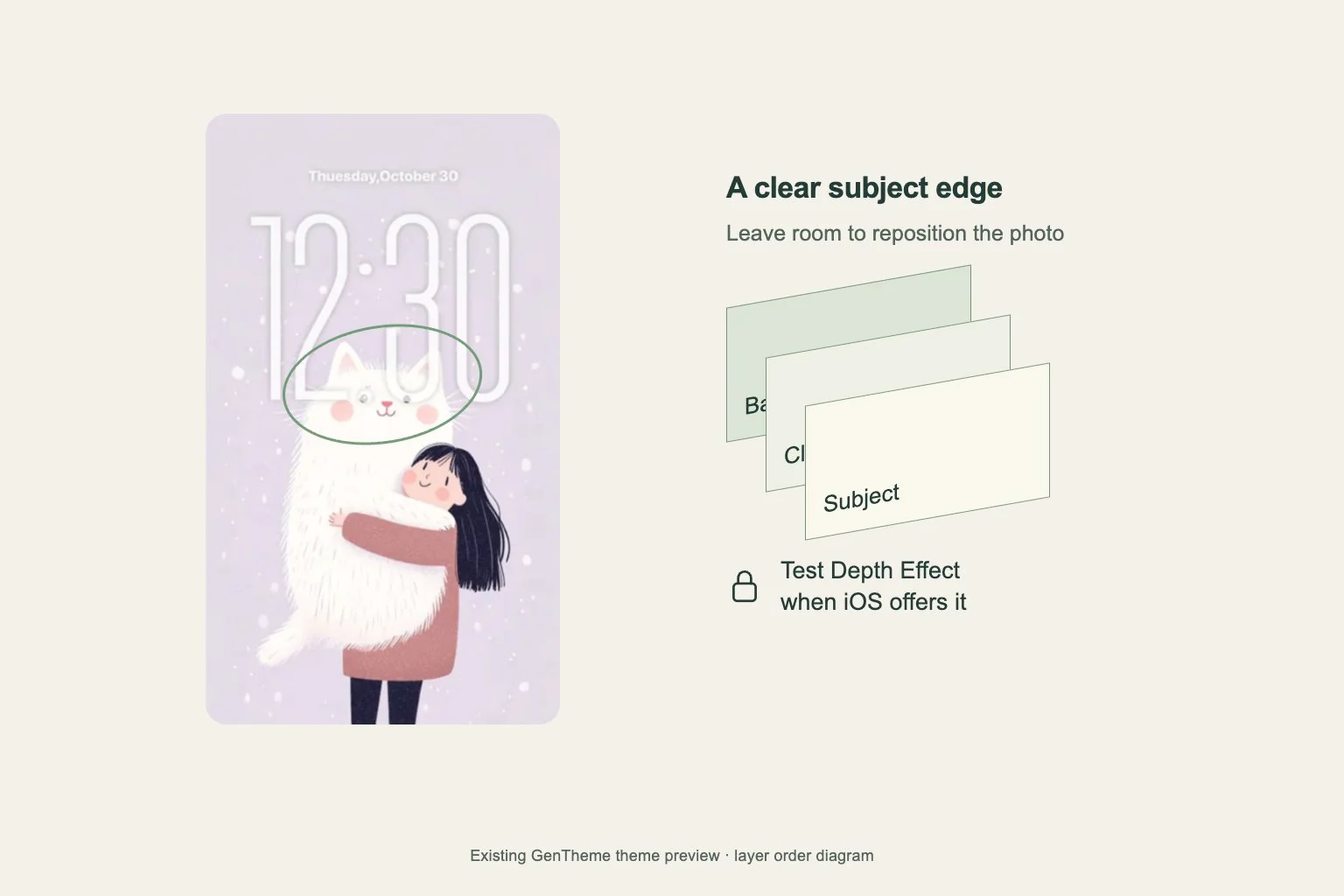
Start with a clearly separated subject and test the effect in the iPhone Lock Screen editor.
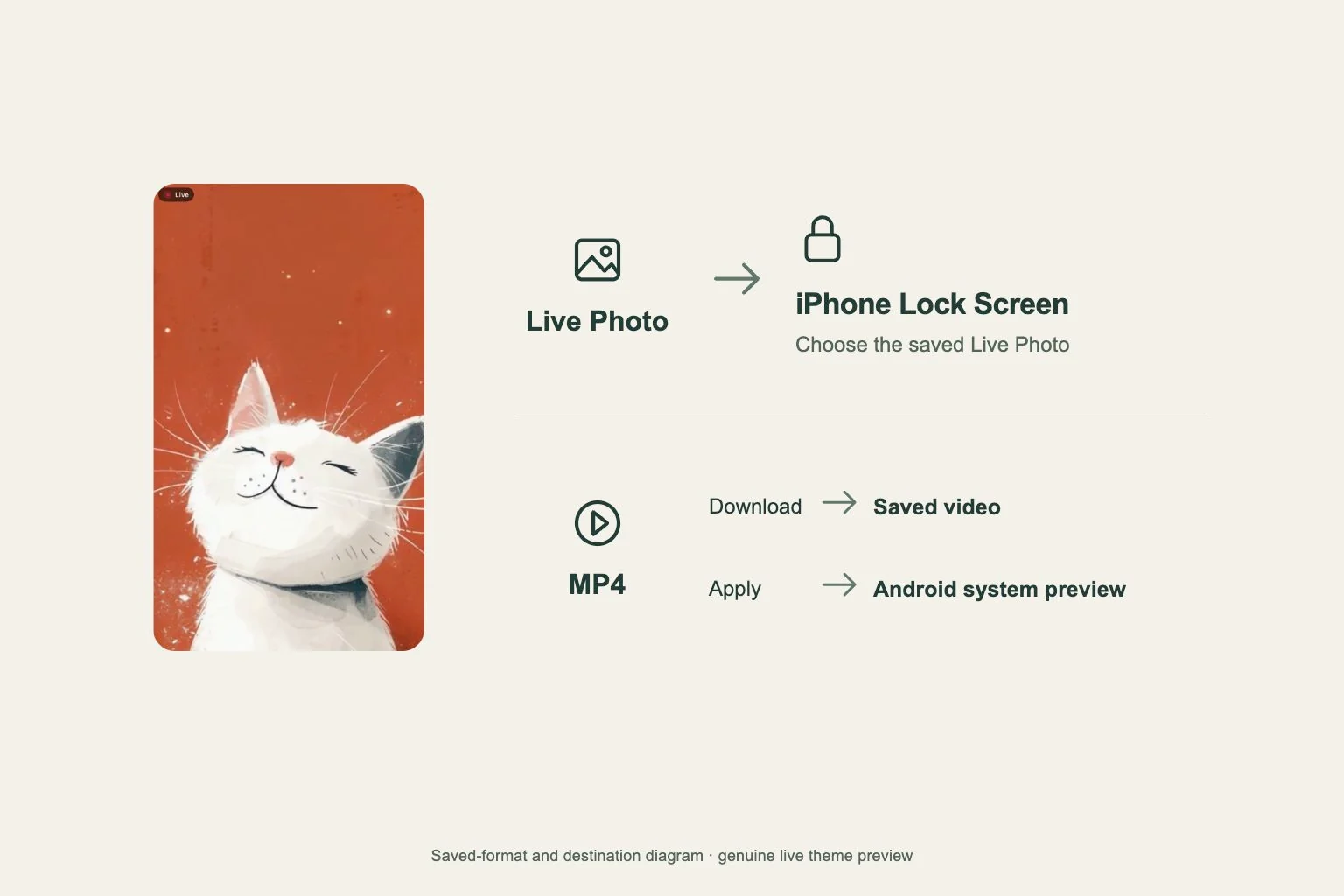
Choose the saved format and setup route for the screen and device you want to use.
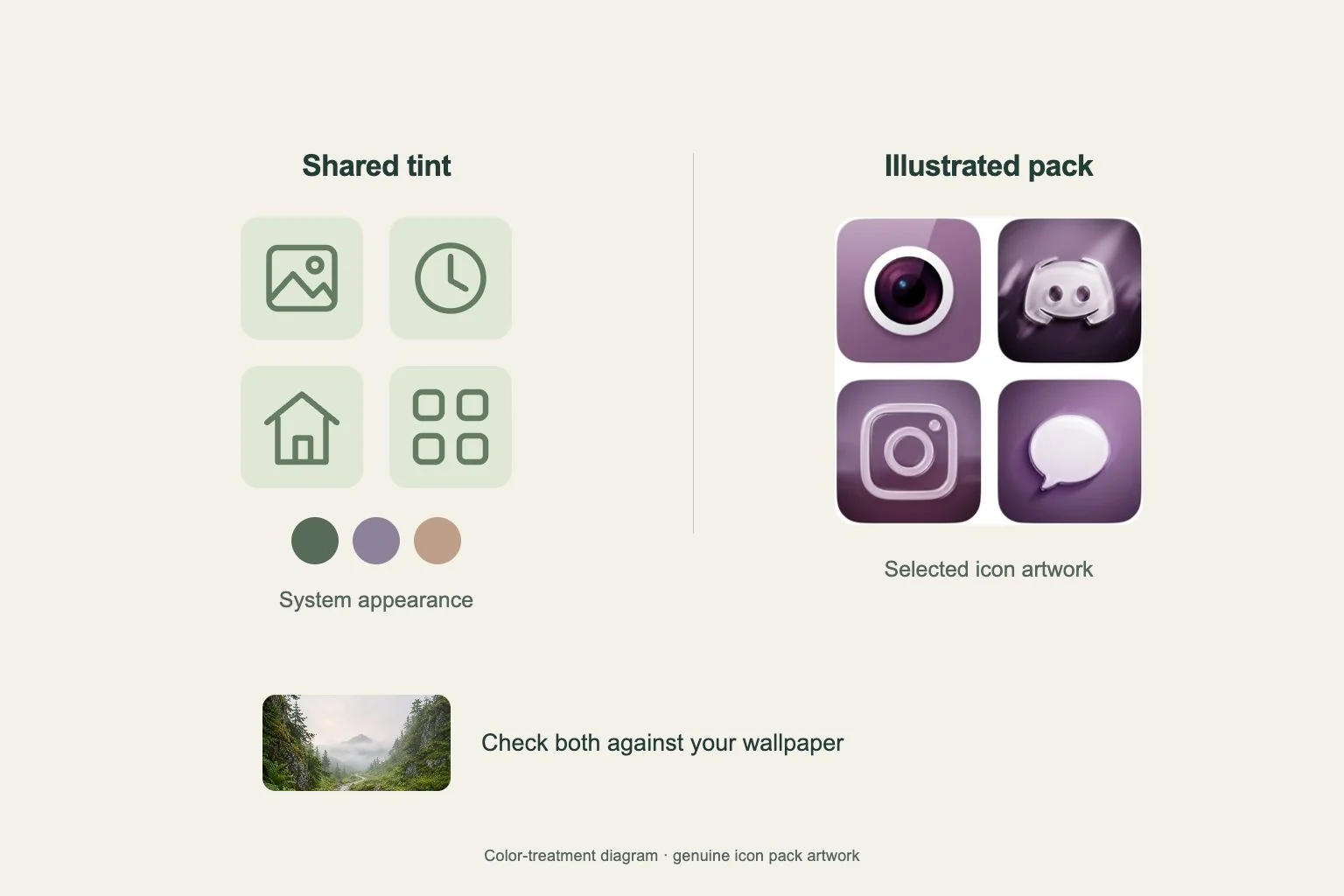
Choose the color treatment first, then check how your everyday apps and widgets look together.
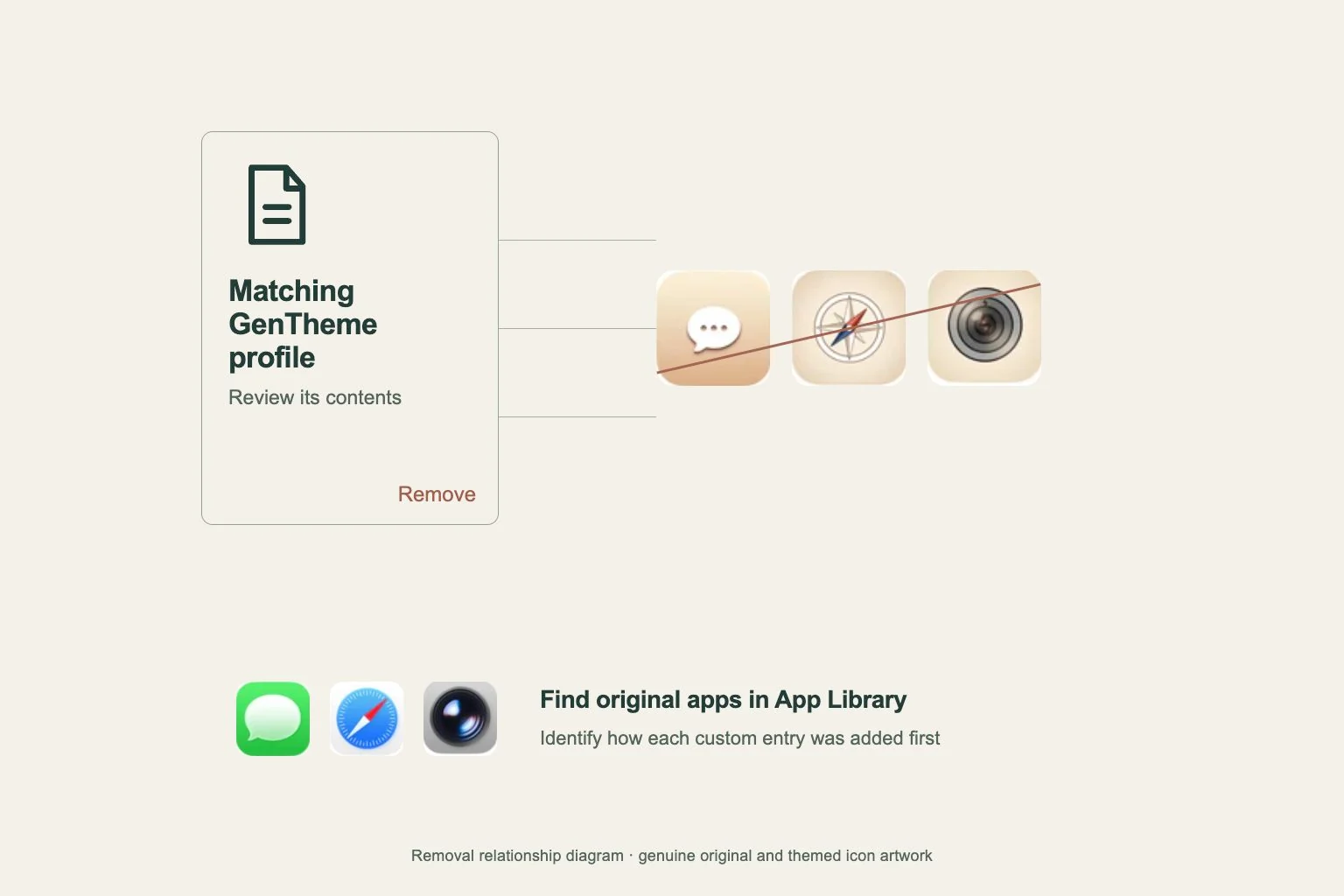
Identify how an icon was added before choosing an individual removal or the matching profile.
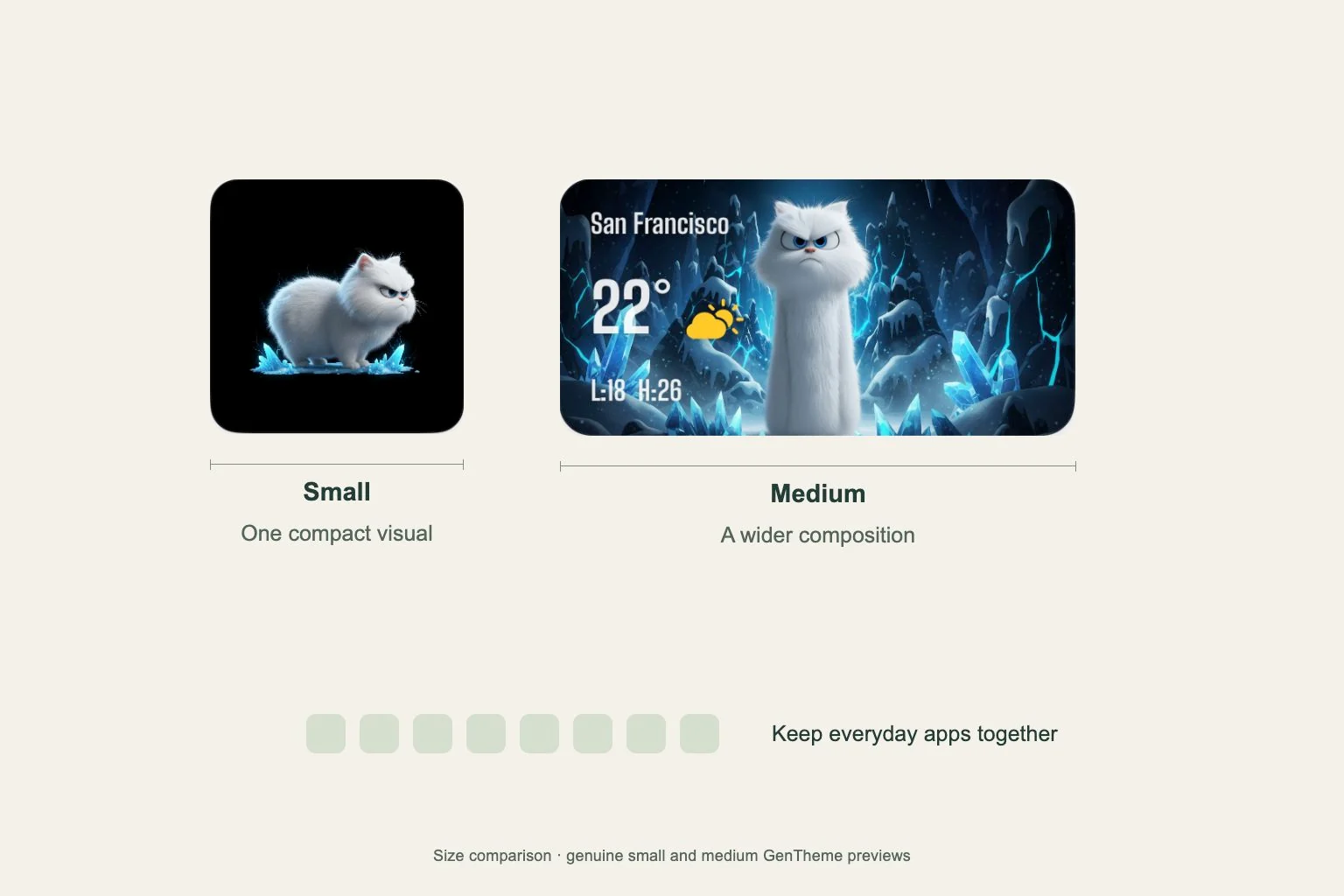
Choose the available widget family for the information you need, then test its space on the page.
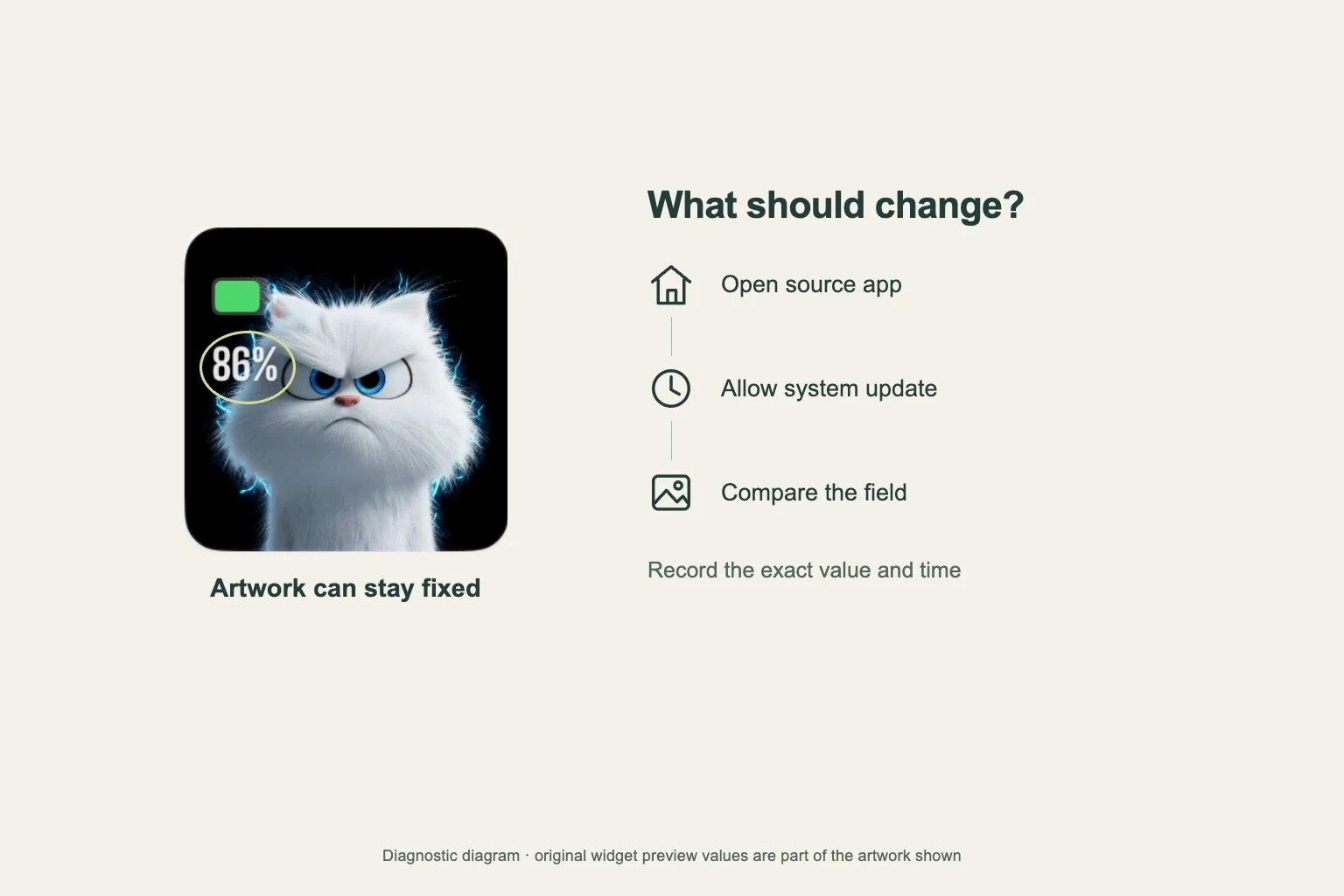
Check the specific information that is stale, then compare it with the app before replacing the widget.
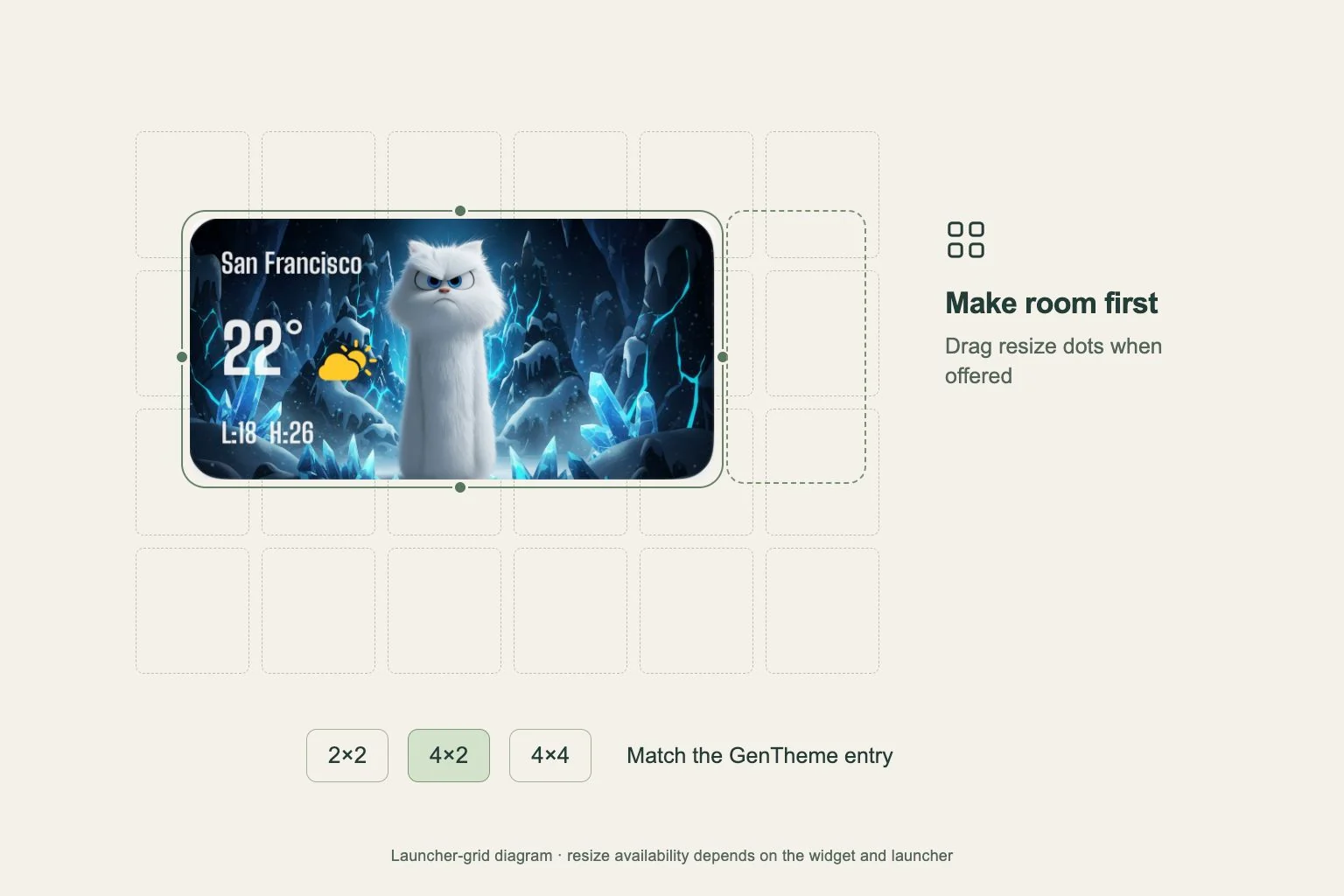
Check whether your widget supports resizing, then compare its contents at the final launcher size.
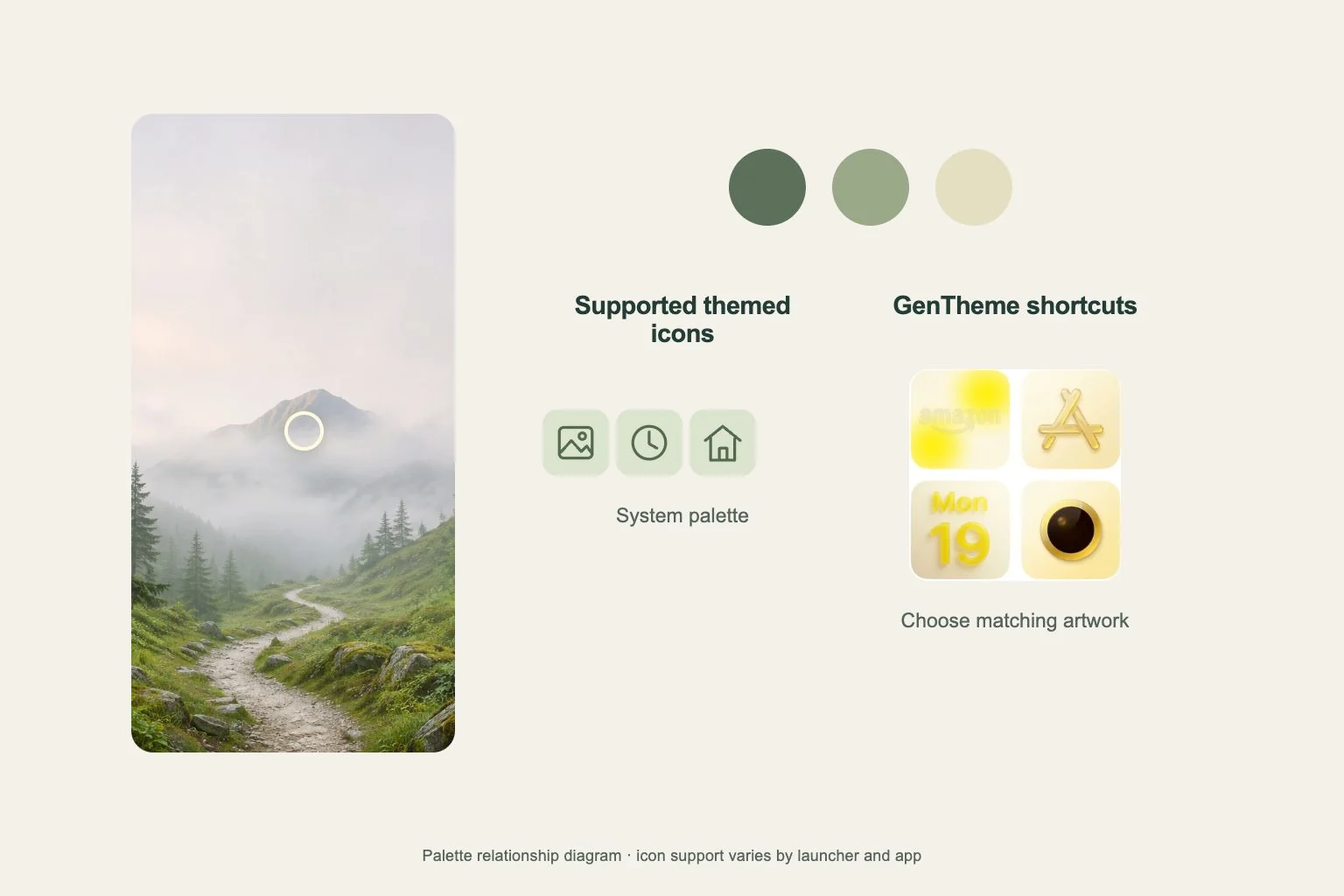
Set the wallpaper first, then compare system color controls with the icon artwork on your actual launcher.
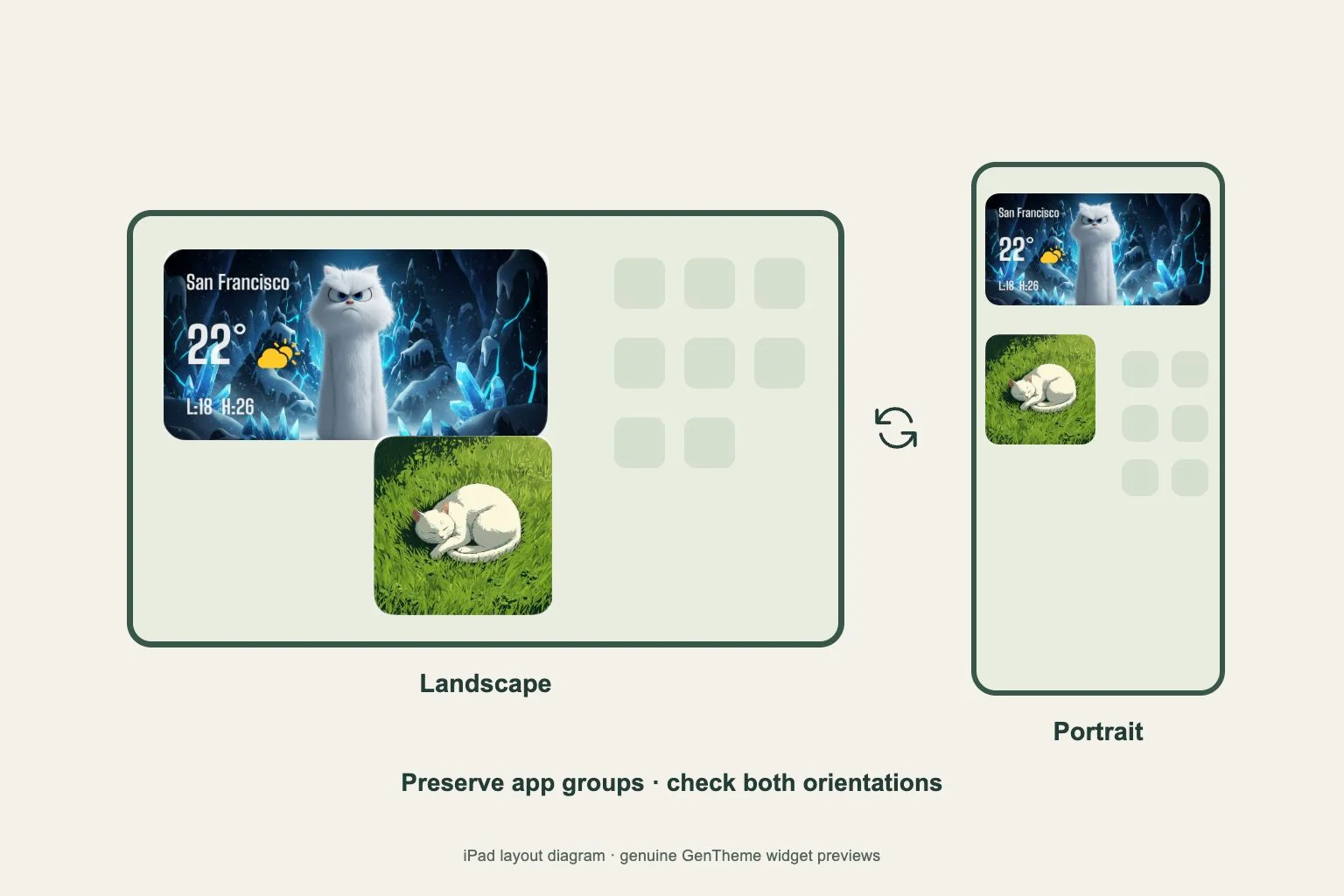
Choose a few useful widgets, preserve room for app groups and check the page in both iPad orientations.
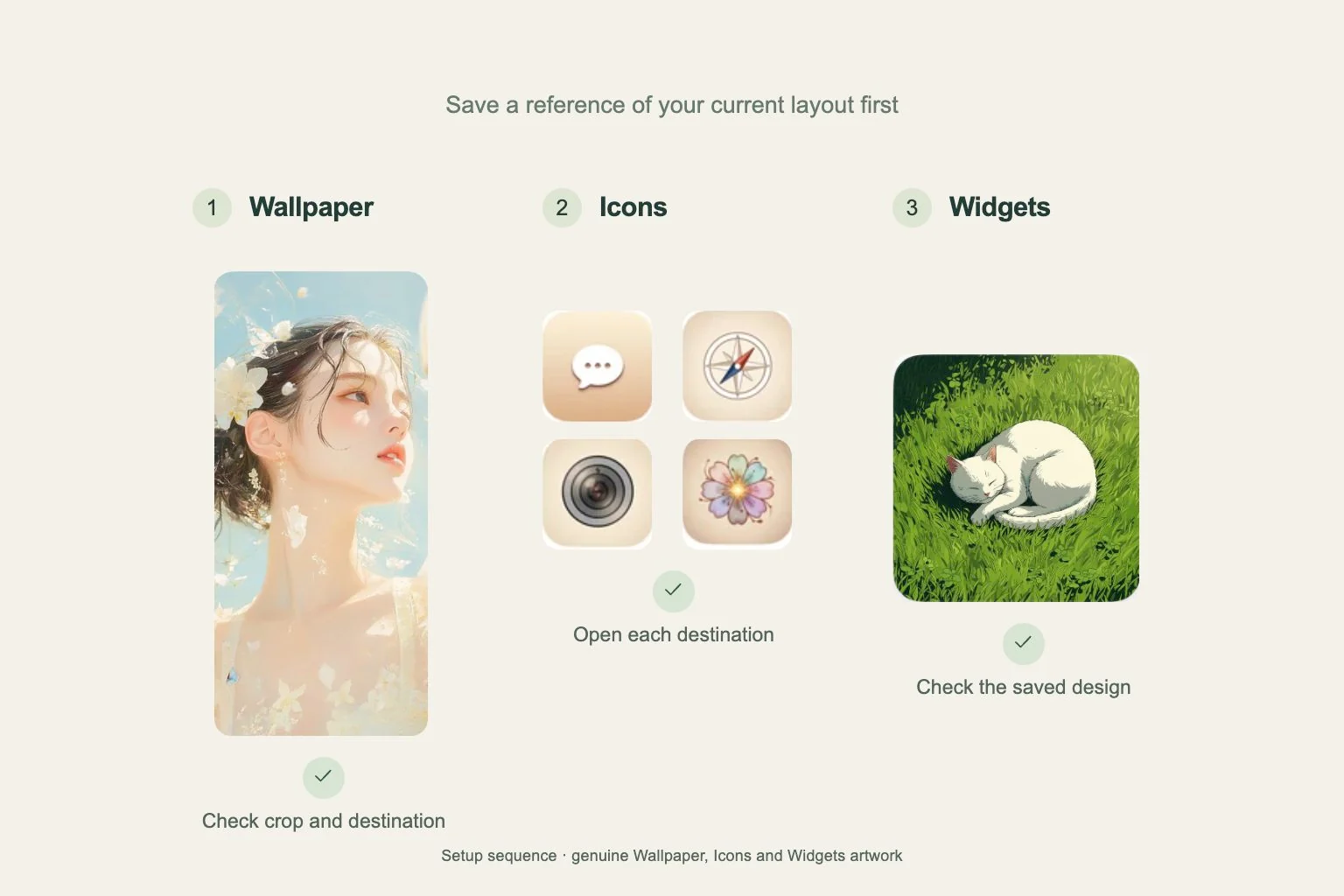
Save a reference of your current layout, then check Wallpaper, Icons and Widgets in order before using the new page.
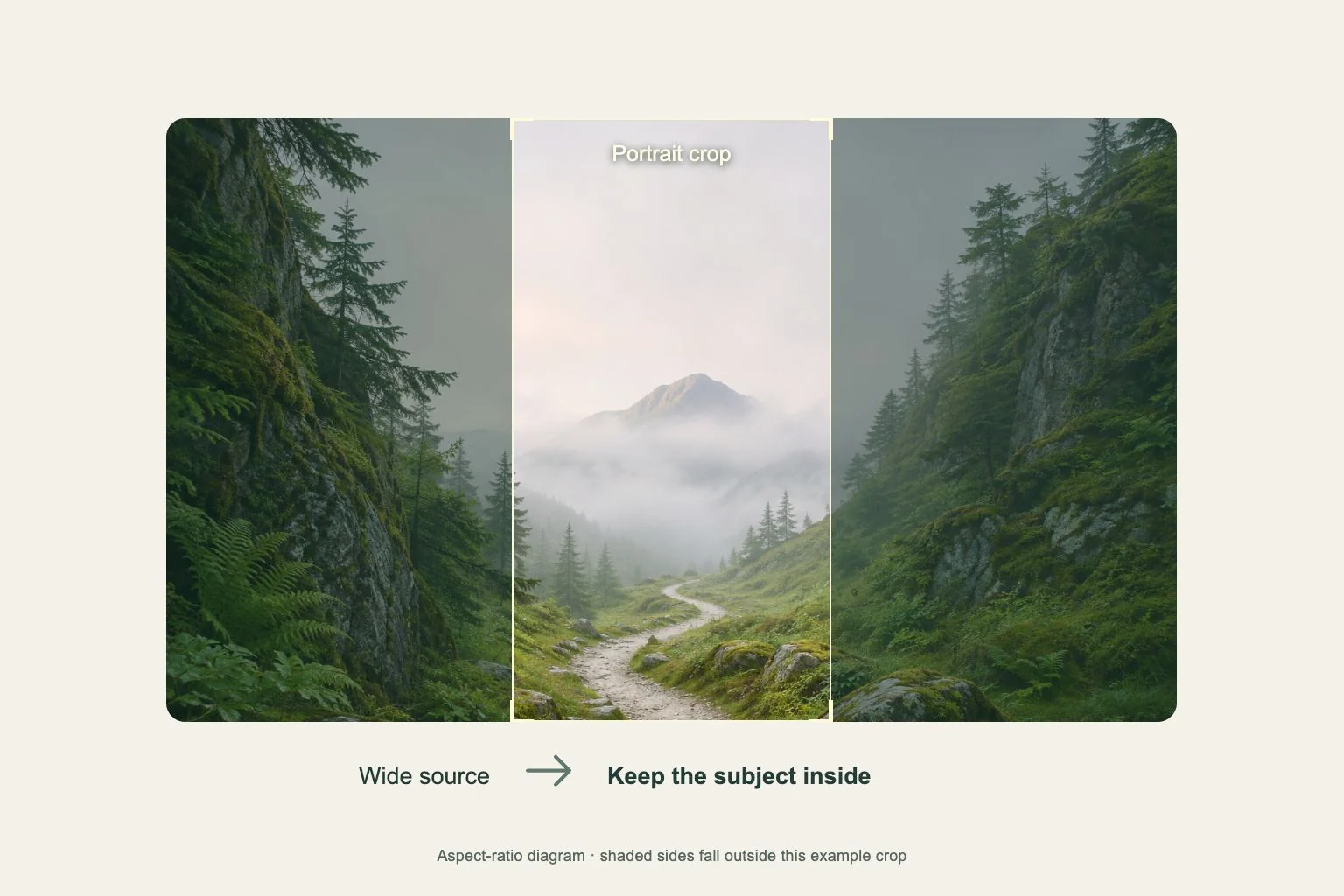
A wallpaper can look different in the gallery, the system preview, and the finished screen. Check each stage before choosing another image.
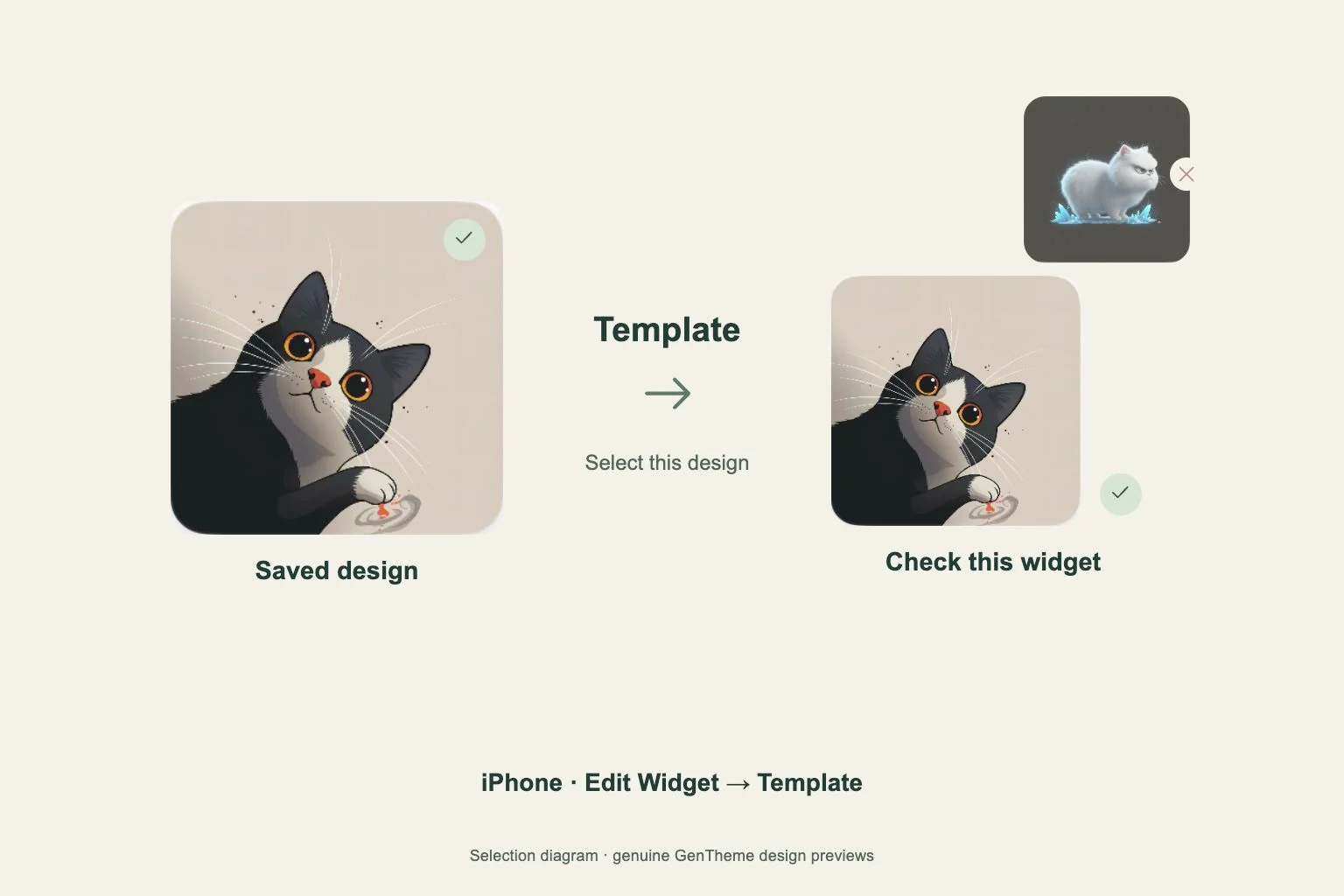
Check the saved design and the widget on your screen separately. iPhone uses Template selection, while Android needs a fresh Apply and timely confirmation.
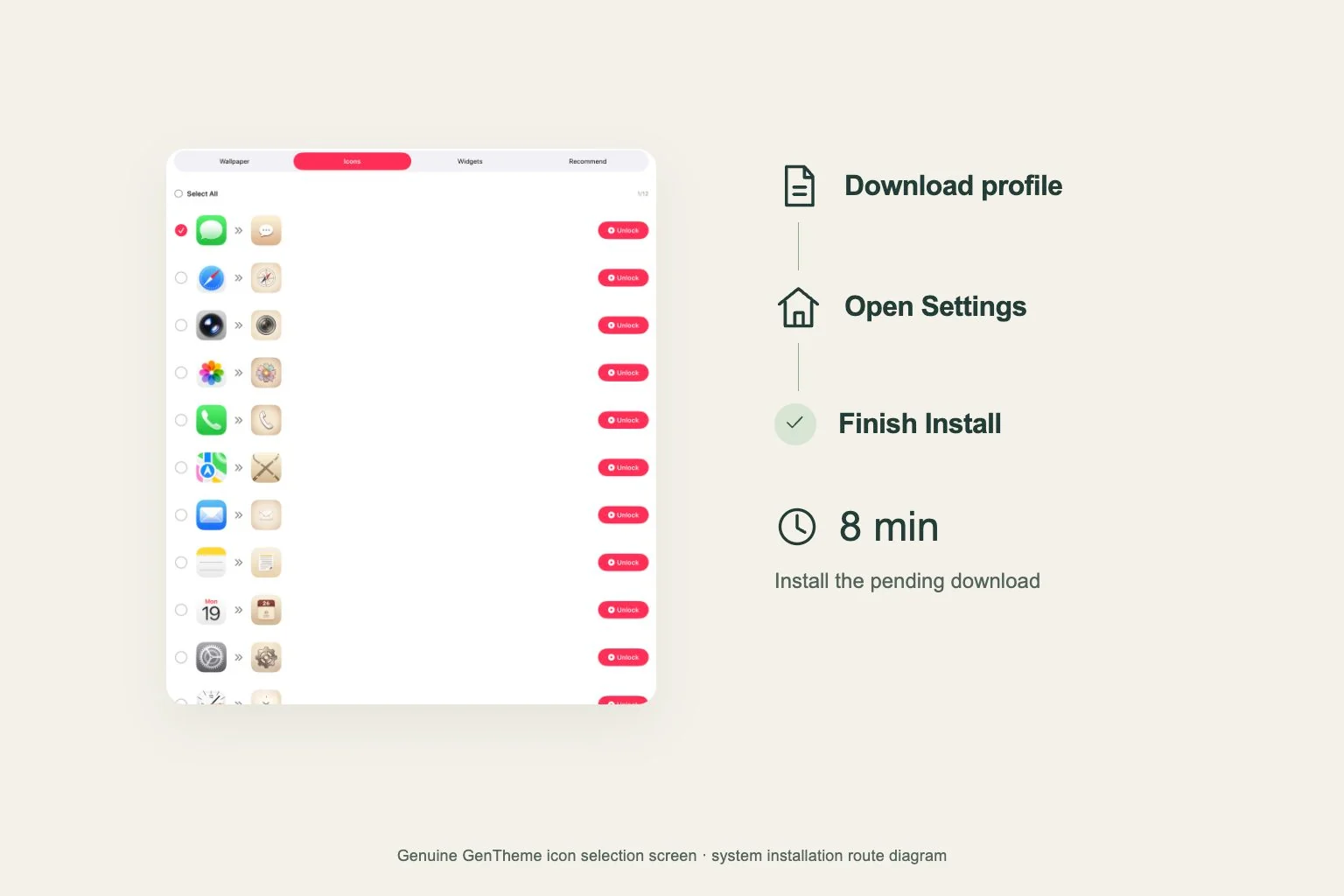
After allowing the profile download, continue to Profile Downloaded in Settings. Install within 8 minutes, then check the web clips added to your Home Screen.
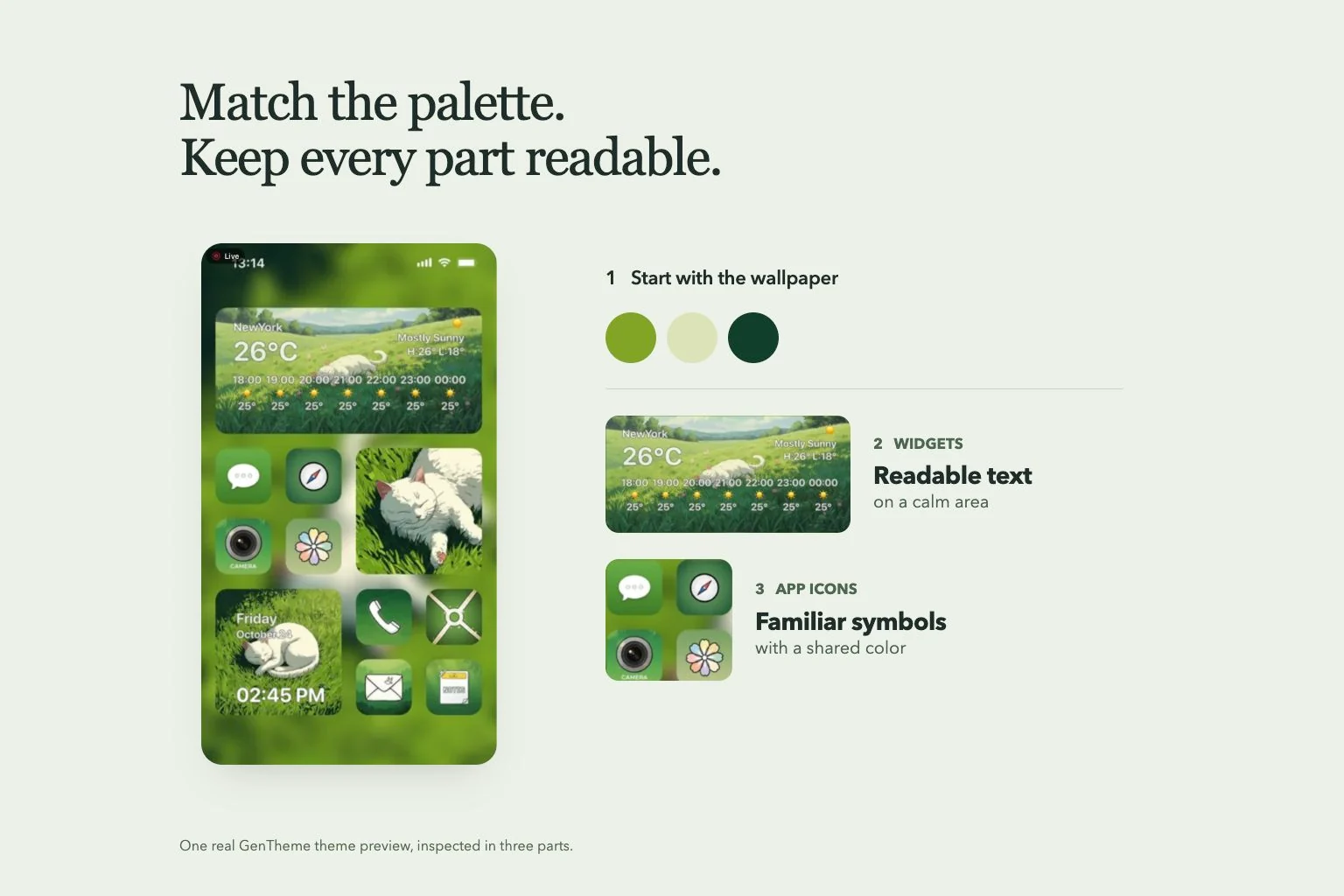
Home screen ideas
Choose a wallpaper first, borrow its colors selectively, and check the finished layout with the apps you actually use.
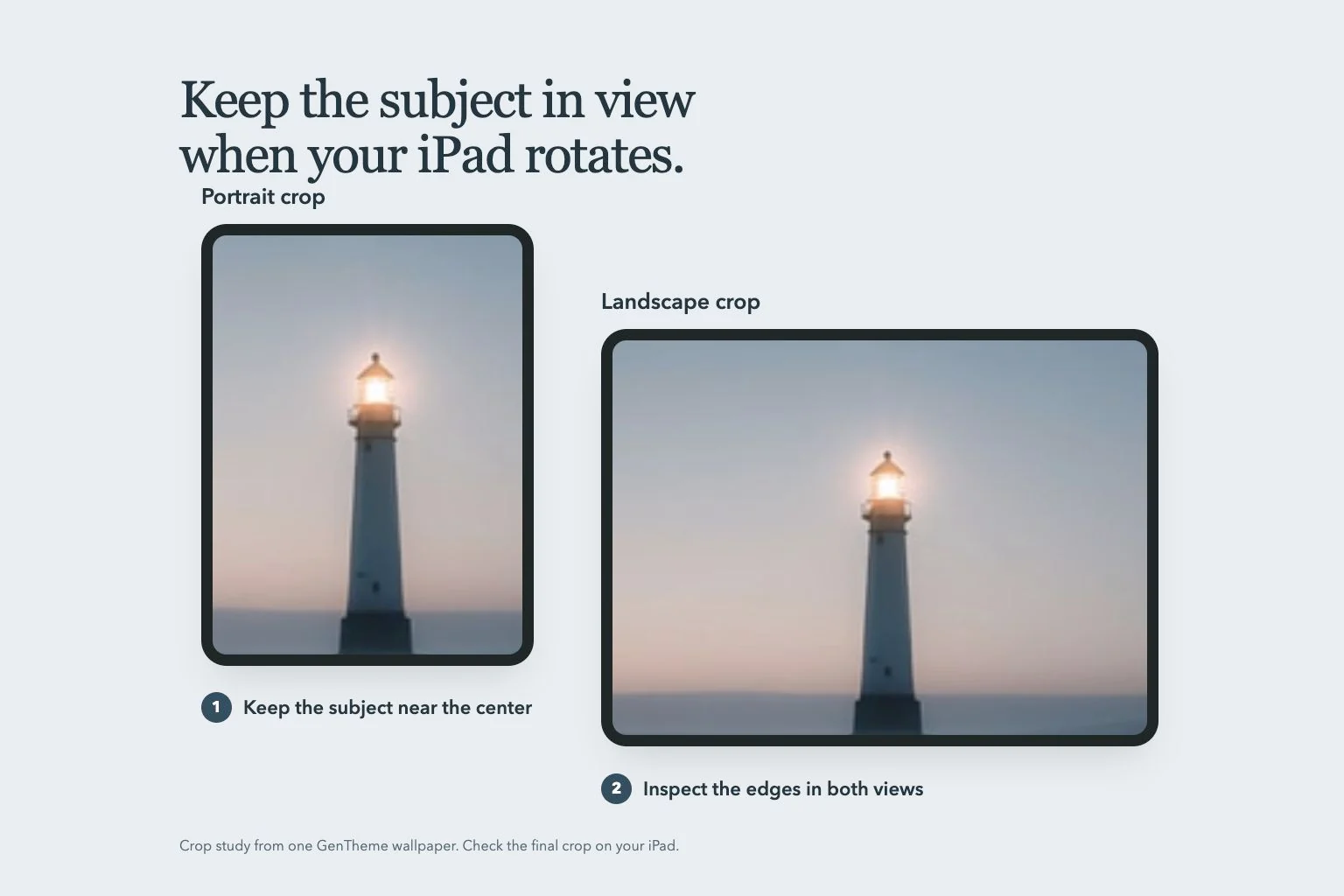
An iPad wallpaper needs room around its subject. Check both orientations and both screens before settling on the crop.
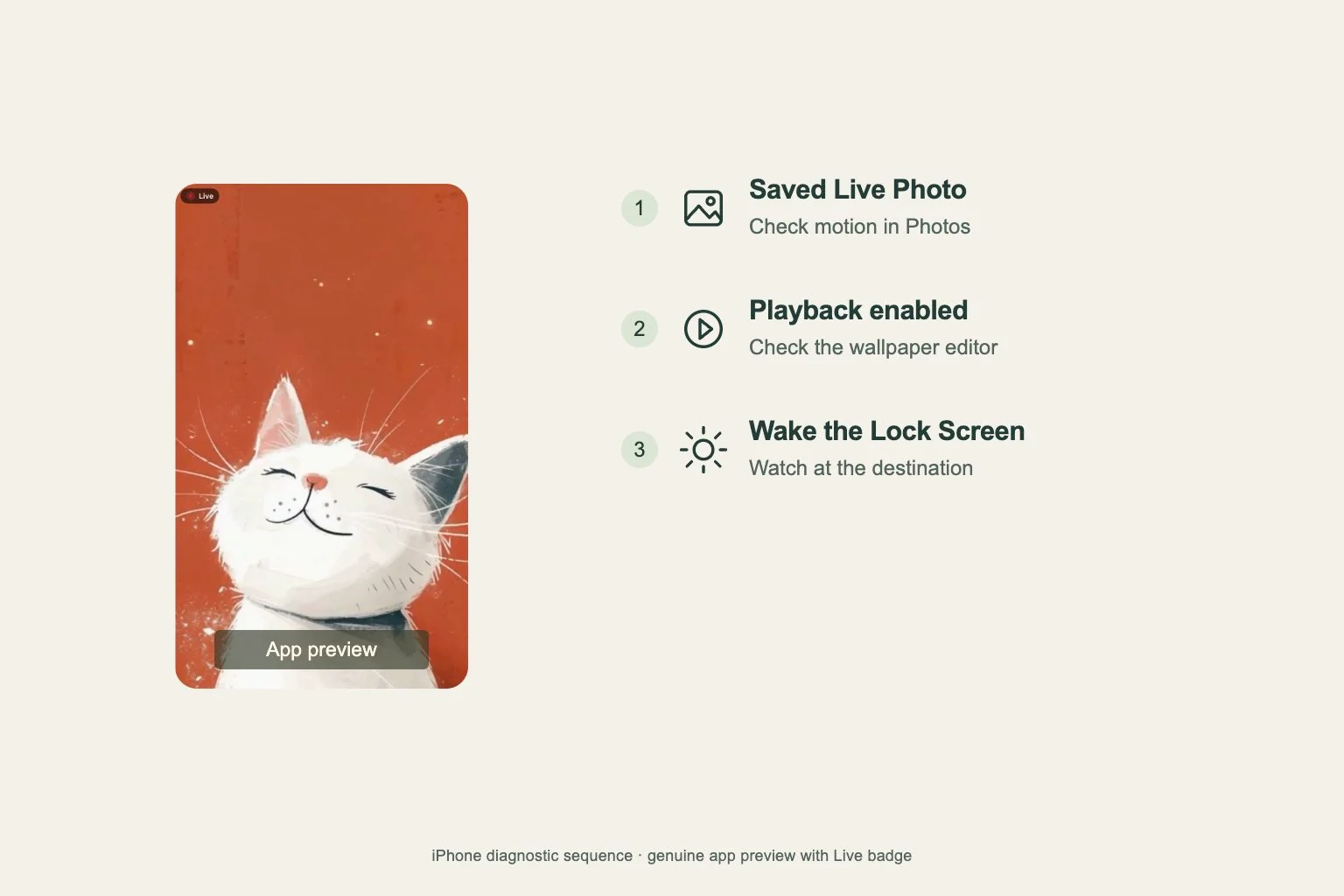
Check the export, the system playback control, and the screen where you expect motion. iPhone and Android use different installation flows.
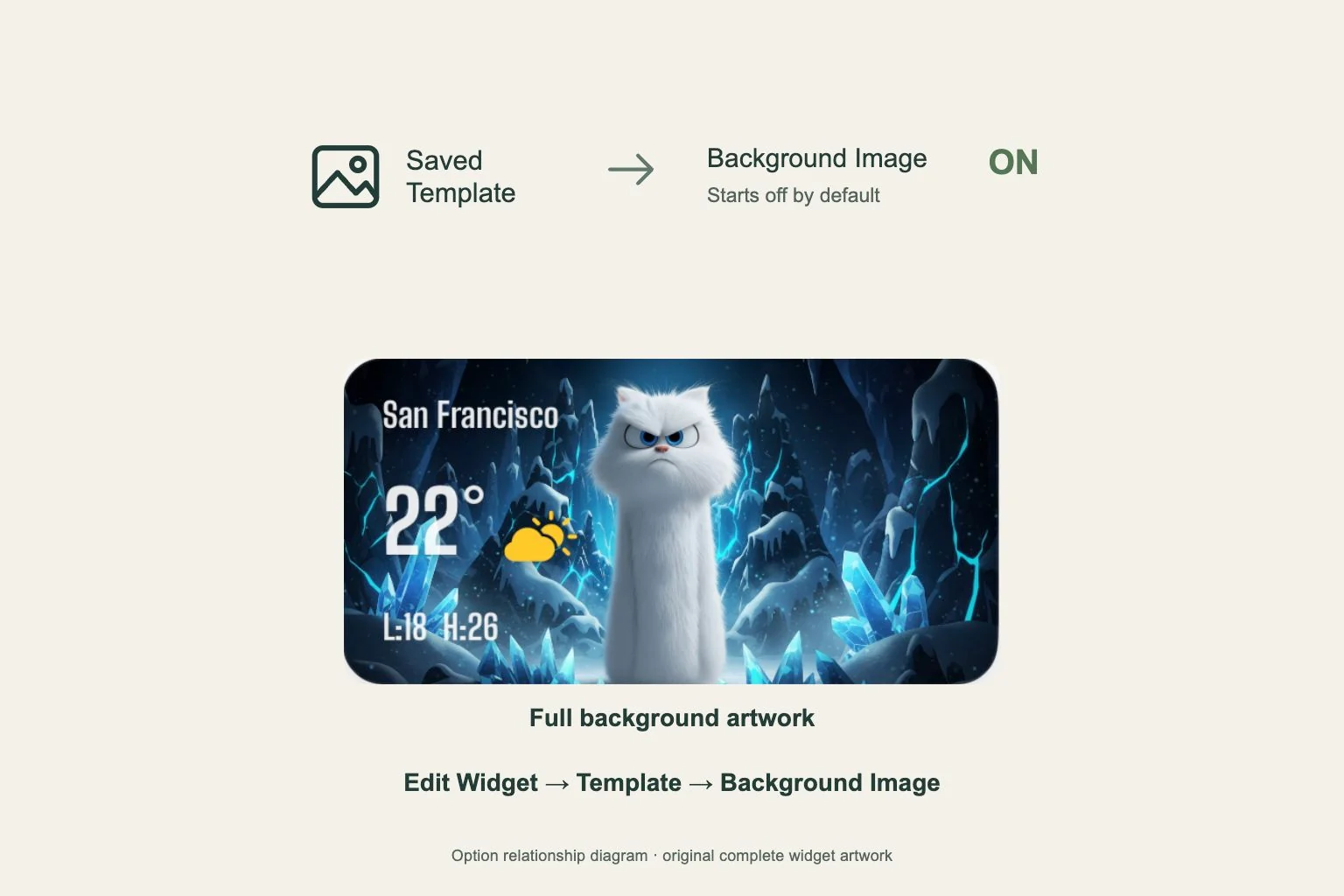
Background Image starts turned off. Select your saved Template first, then enable the option when you want the full artwork on your Home Screen widget.
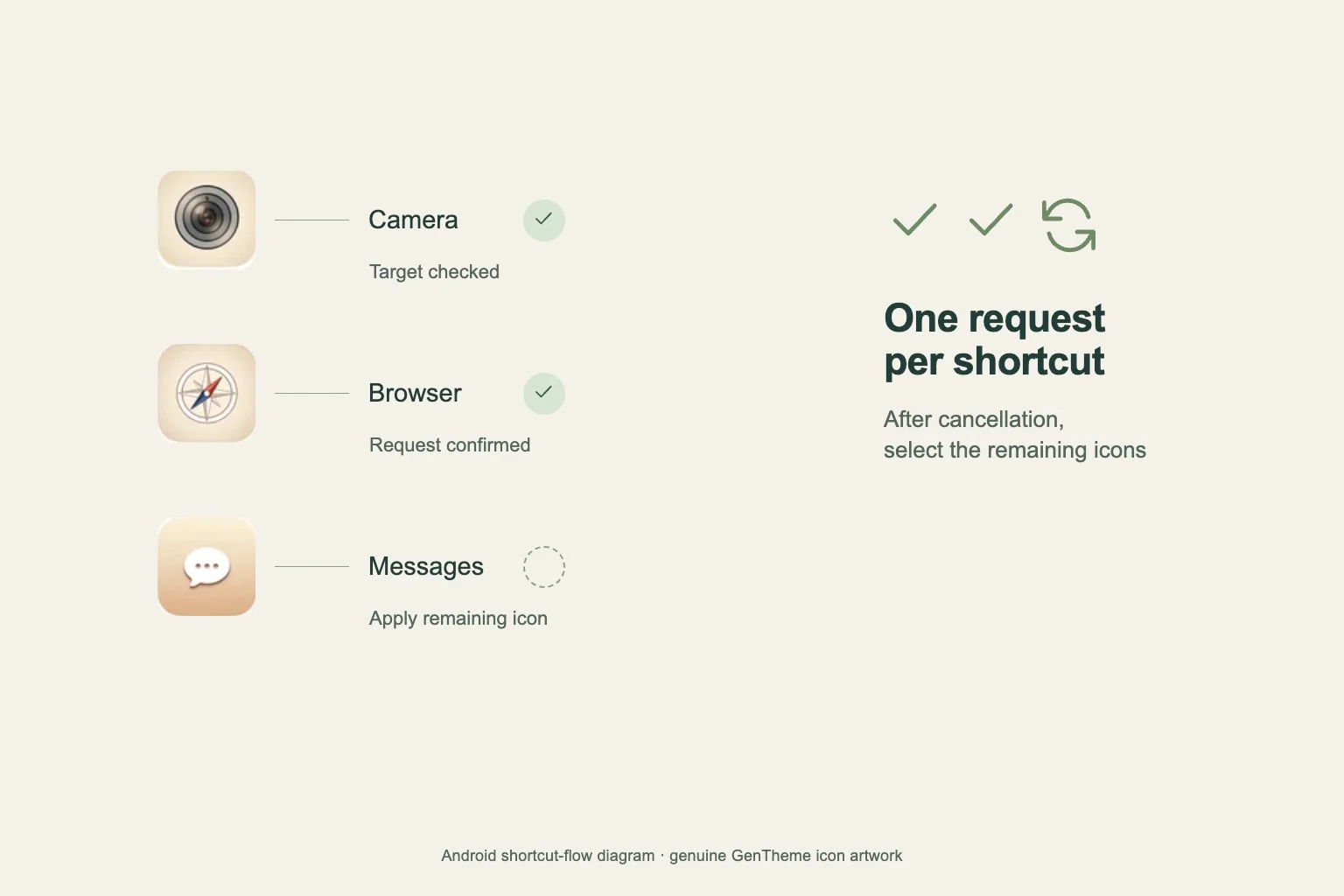
Each selected icon needs a target app and a home-screen shortcut confirmation. After a cancellation, select the remaining icons and apply them again.
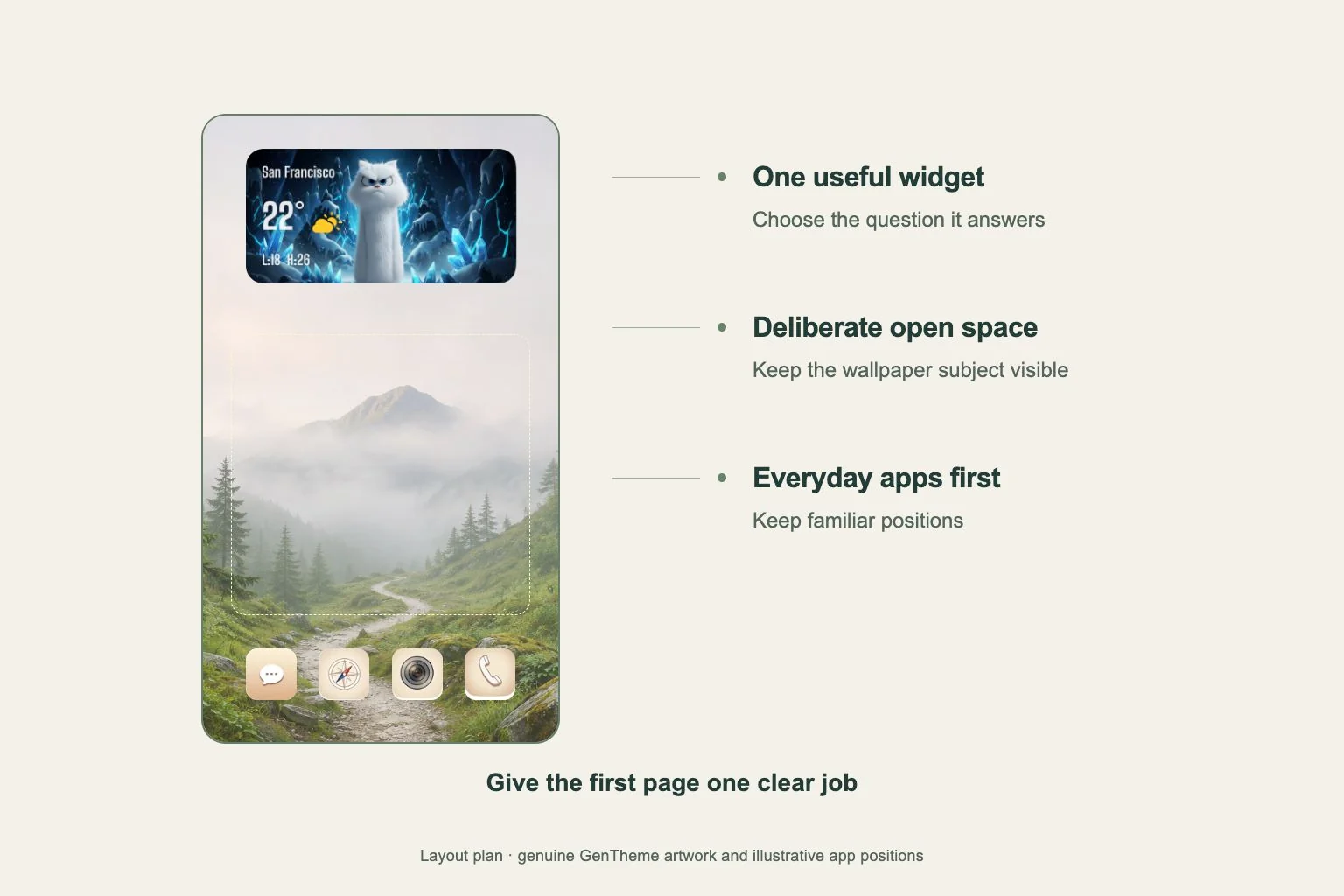
Home screen ideas
A practical minimal layout starts with the tasks you repeat, then makes space for the wallpaper and information you want to see.
Home screen ideas
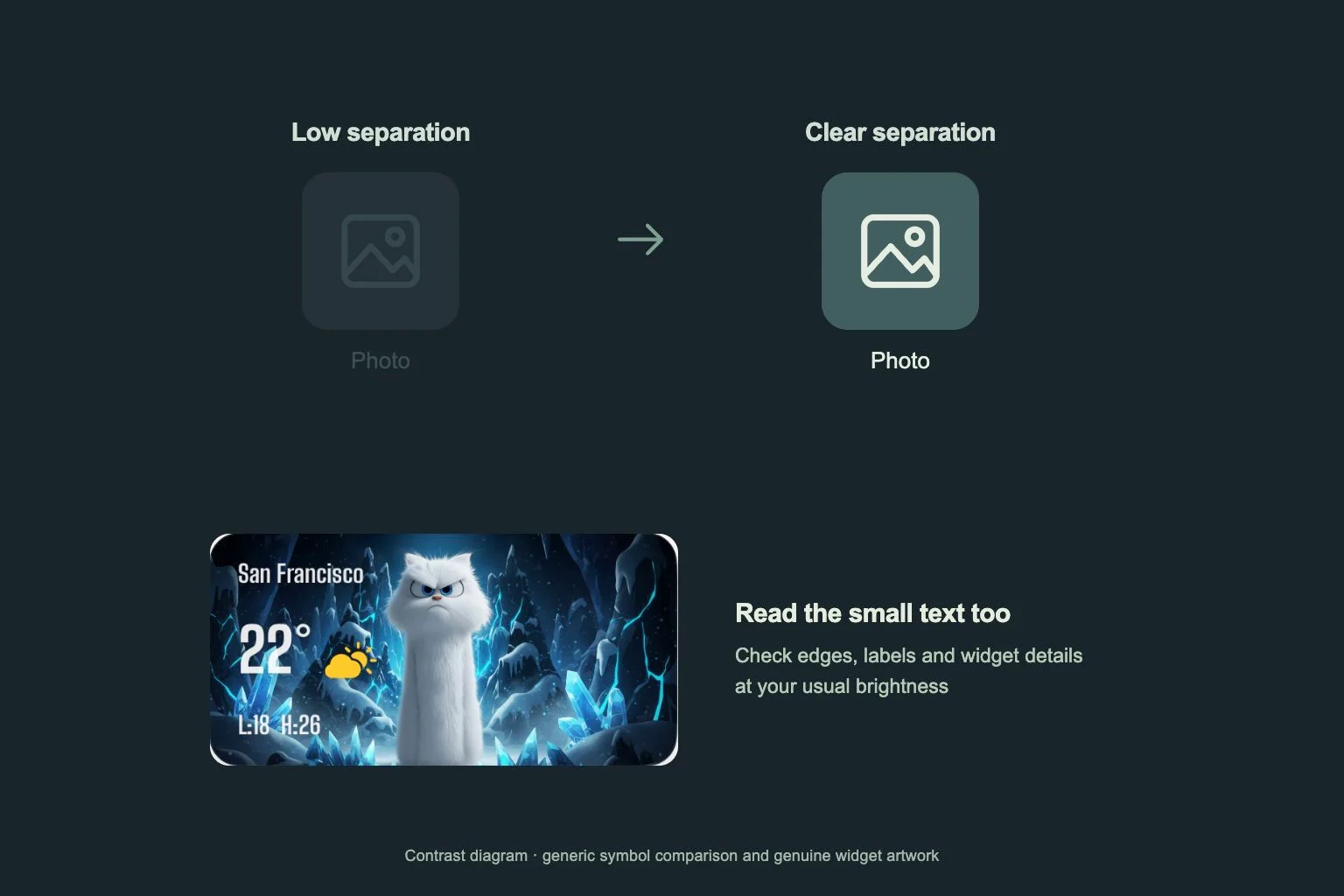
A dark layout needs visible icon shapes and readable text across the whole page. Check the crop, widget background and everyday viewing conditions.
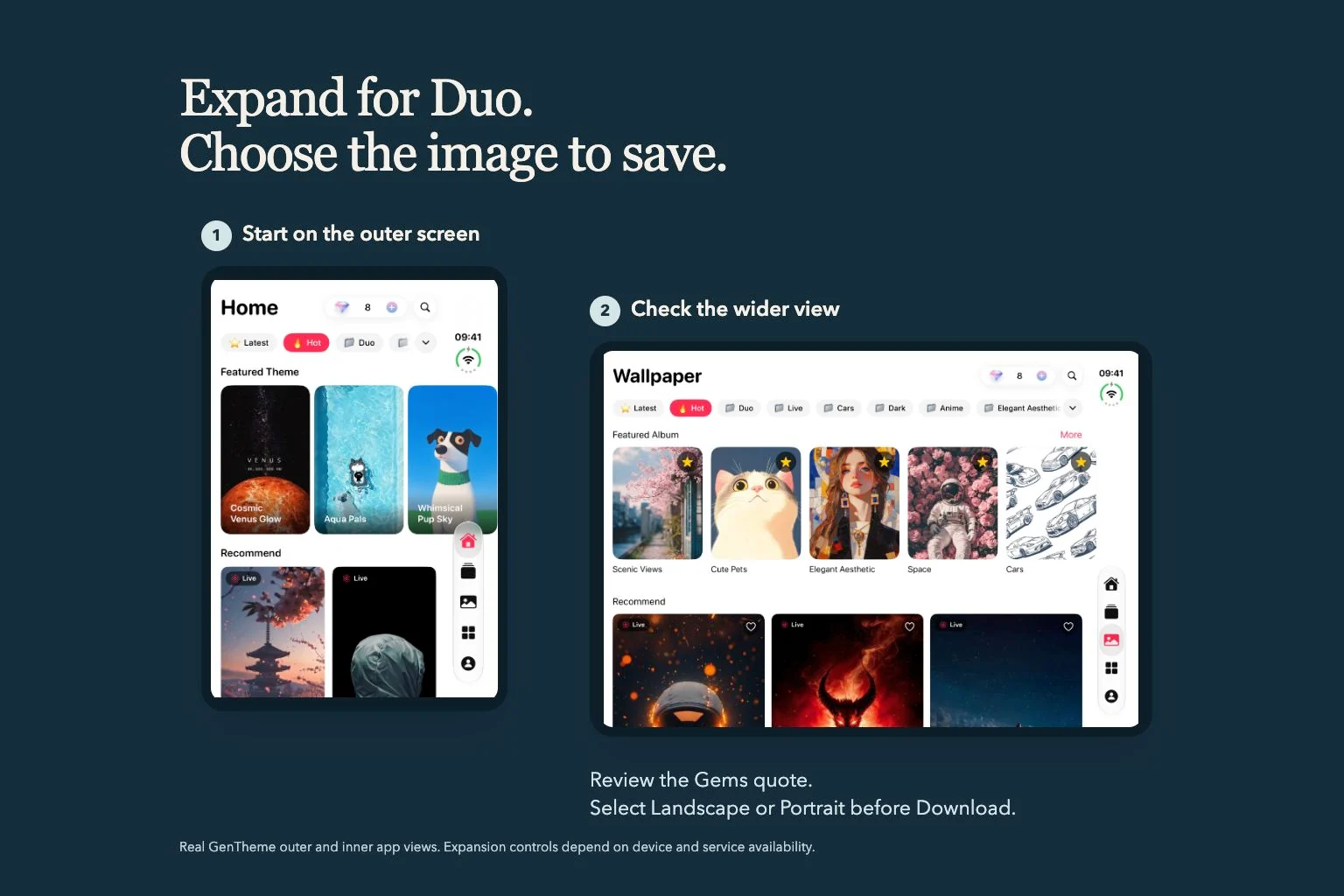
Duo expansion adds a wider still-image choice to a wallpaper. Availability, the generation quote, and the selected download each need a quick check.
Themes, wallpapers, widgets & icons

