Gentheme
Give the first page a clear job
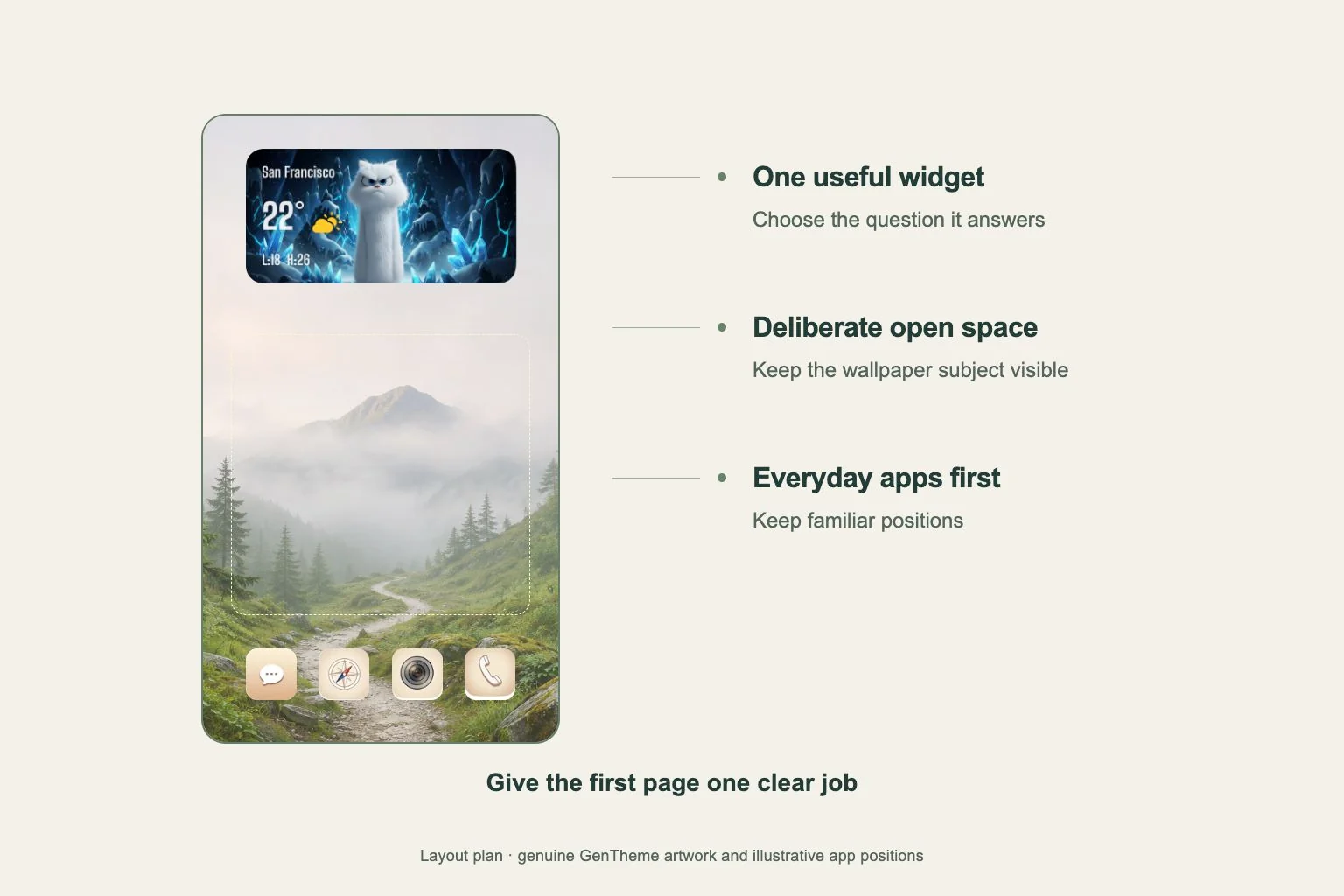
List the apps you open during an ordinary morning, commute or evening. Put the ones you need immediately on the first page. Group occasional tools elsewhere, using page roles such as everyday essentials, work or entertainment to guide your choices.
Try keeping familiar positions for your most frequent actions. If you always look in the same corner for messaging or maps, preserve that location during the redesign. You can judge the layout more fairly when its new appearance does not also require learning every position.
Choose empty space deliberately
Look for a wallpaper with an area that can sit behind labels without competing with them. A soft gradient, broad sky or plain section of a photograph can provide that space. Preview the crop with your actual icon arrangement before committing.
Leave the wallpaper subject visible where possible. You might group icons below a horizon or place a widget beside a portrait. If the crop forces important details under text, try another image or a different arrangement before adding more decoration.
Keep widgets that answer a question
Choose a widget because you want its content on the page. Decide what you expect to read before choosing its visual style. If two widgets repeat information you already see, try removing one and using the space for a clearer layout.
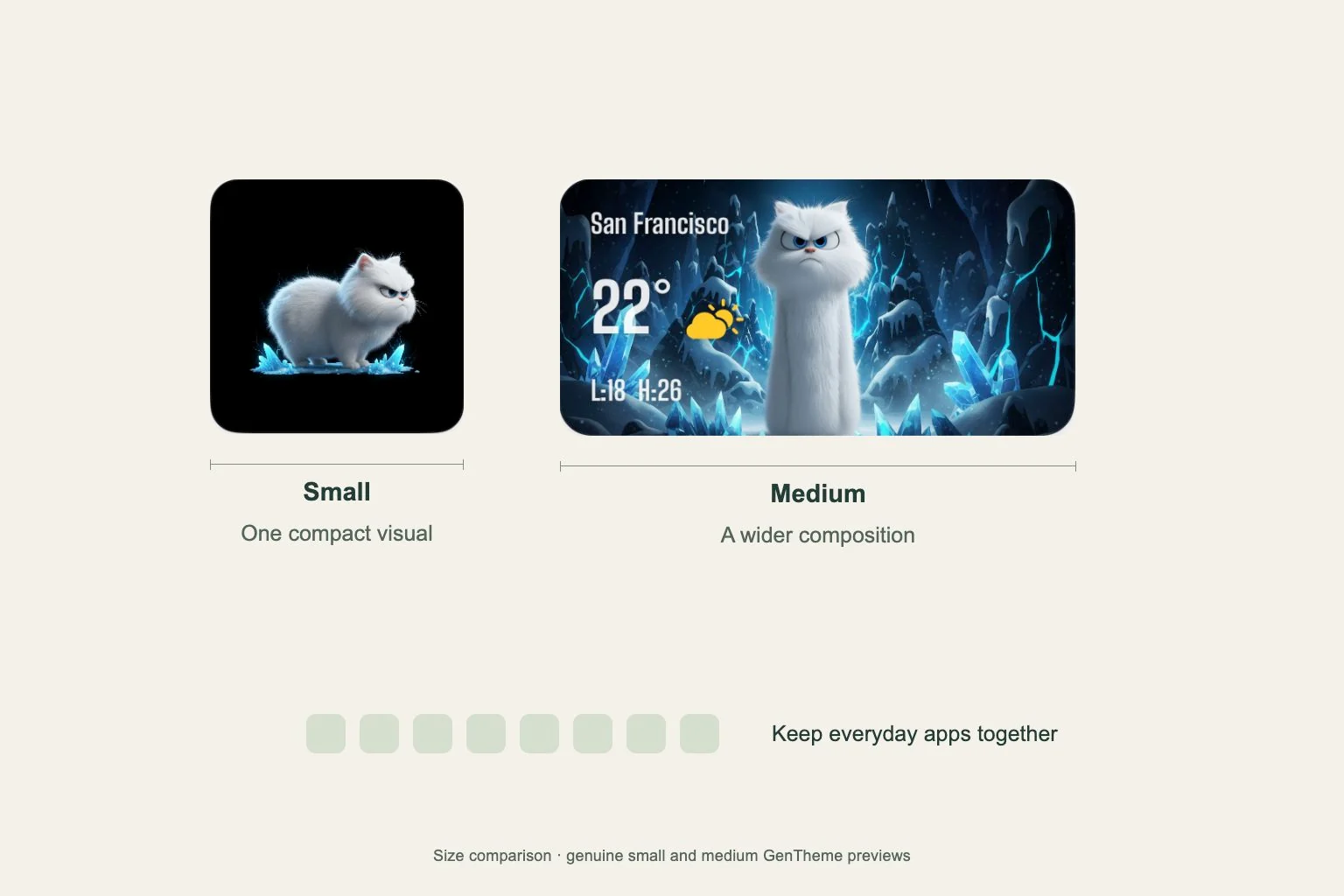
Check the available Gentheme widget types and sizes on your platform. On iPhone, add an offered small or medium Clear Widget or Liquid Glass Widget and select your saved Template. On Android, manual placement uses the matching 2×2, 4×2 or 4×4 widget.
Install a small selection and test it
Wallpaper, Icons and Widgets have separate steps in a Gentheme theme. Begin with the parts your planned page needs. On iPhone, finish the icon profile installation in Settings. On Android, check each selected icon’s target app and confirm its shortcut request.
Use the finished page for everyday tasks before expanding it. Note any app that takes repeated searching and any text that is difficult to read. On Android, resize a widget only when its outline offers resize handles. Adjust the arrangement to the options your phone provides.