Gentheme
Try a coastal blue composition
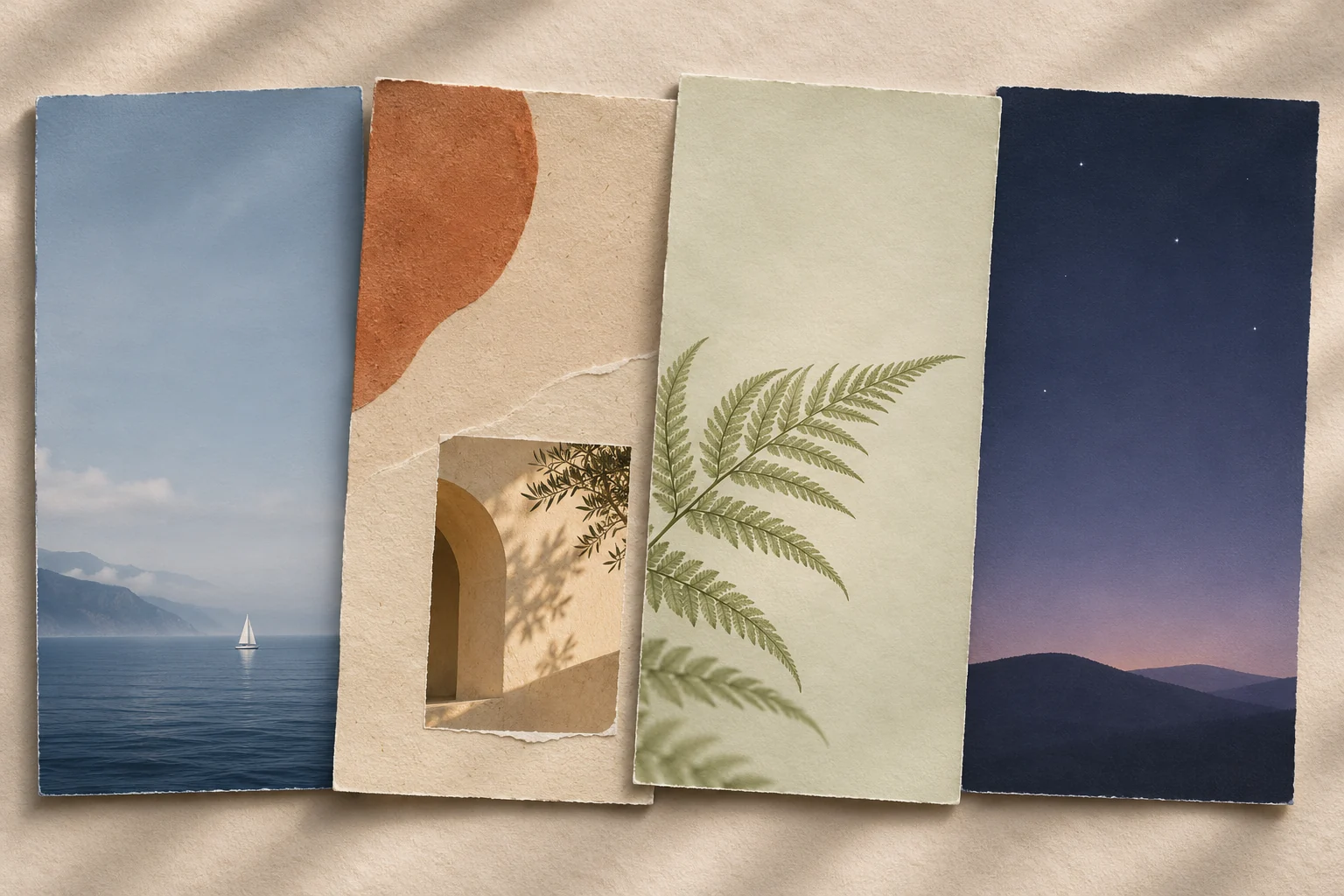
A coastal wallpaper can use mist blue, chalk white and a little navy. Look for a small sail, a distant pier or a low horizon with open sky above it. This gives the image a clear subject while leaving room for the Lock Screen clock.
For its Home Screen companion, choose a close view of calm water or a plain mist-blue image. Carry navy into icon symbols and one widget heading. Keeping the scene on the Lock Screen lets the second image work with a fuller app grid.
Build a warm paper collage
Combine an oatmeal background, one terracotta shape and a small photograph with warm light. Leave visible paper around each piece. A collage reads more clearly when its elements have different sizes, with one photograph doing most of the visual work.
Keep printed words away from the clock and app labels. If you love a handwritten note, position it in the lower half of the Lock Screen and check that notifications can cover it comfortably. Use a quieter paper texture behind your apps.
Choose a botanical or night-sky direction
For a botanical page, try pale sage with a fern entering from one edge. Cream icon backgrounds and deep olive symbols can echo the image. Place a rectangular information widget where the wallpaper has the least leaf detail.
A night-sky alternative can use ink blue, muted violet and a few widely spaced stars. Put the brightest star cluster away from the clock. On the Home Screen, keep any moon or constellation outside the area occupied by your most-used icons.
Turn one idea into a usable pair
Choose your favorite direction and preview two related images together. Check their color temperature, the size of the subject and the amount of empty space. A close-up and a wider view of the same material can make a coherent pair without repeating a crop.
When using Gentheme on iPhone, save your selected wallpaper through Download and complete any unlock shown. Follow the wallpaper guide to set the saved image in Settings. Review the final clock, app names and widget text on the phone before deciding which details to keep.