Gentheme
Build around a task instead of filling the page
For a useful iPad widget layout, start with one task such as studying, planning your day or reading. Choose the information you want to see before opening an app, then reserve space for the apps that complete that task. The larger screen can still become crowded.
Sketch a simple arrangement with one main information area and a group of related apps. Place decorative content where it does not break that group. This makes it easier to judge whether a large widget earns its space through everyday use or simply fills an empty corner.
Choose the sizes actually available
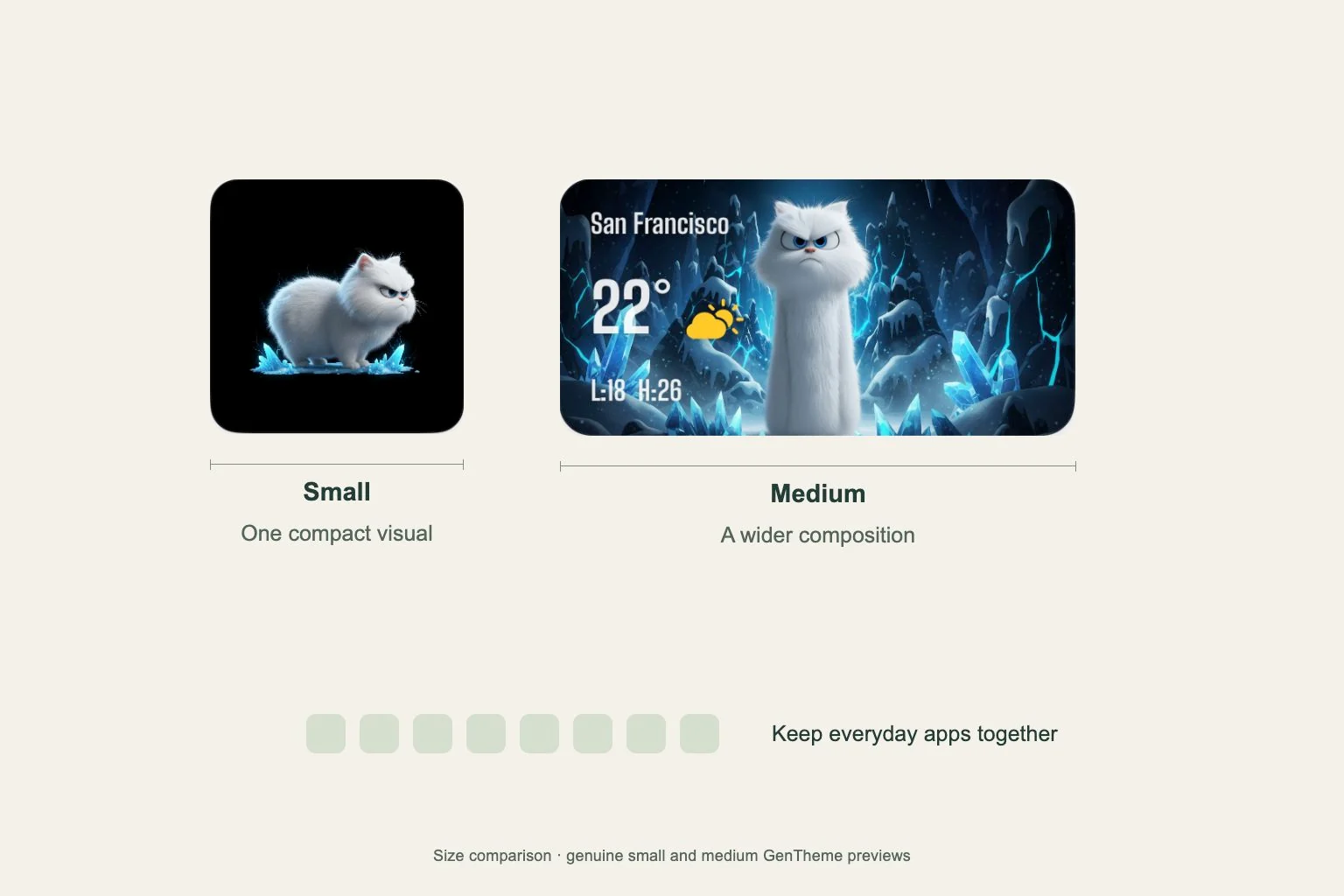
Open the iPad Home Screen widget gallery and inspect the installed app’s choices. Size availability depends on the app. An iPad’s larger screen does not automatically give every widget an extra-large version, so plan from the previews shown on your device.
For Gentheme, save a Home Widget design and wait for Widget Added! before placement. The documented Clear Widget and Liquid Glass Widget families offer small and medium options, with small photo variants. Use the gallery to confirm the families and sizes available in your app version.
Place the widget and preserve app groups
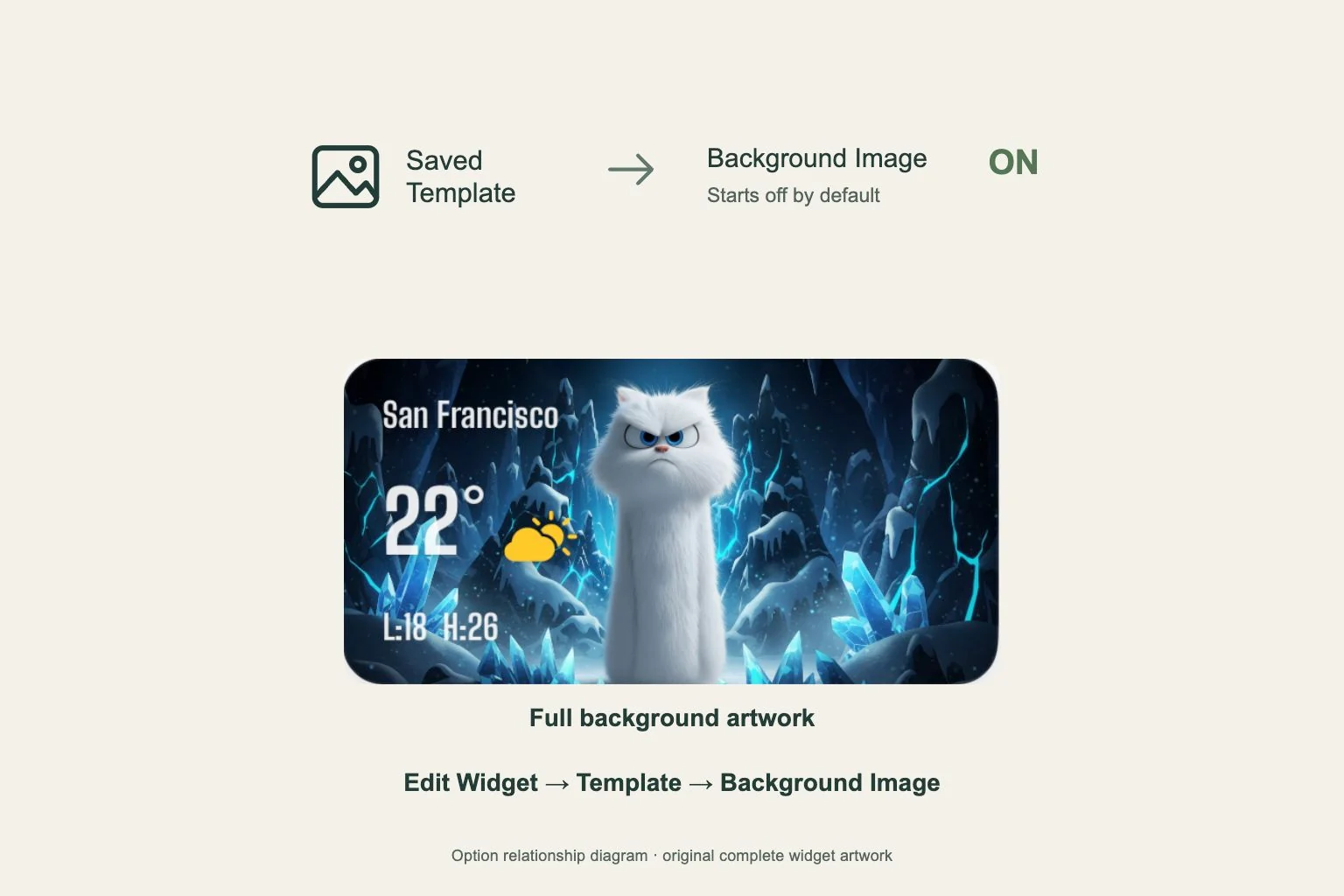
Touch and hold the Home Screen background, choose Edit > Add Widget and find Gentheme. Add an available size, then use Edit Widget > Template to select your saved design. Finish the edit before judging the text and spacing at your normal viewing distance.
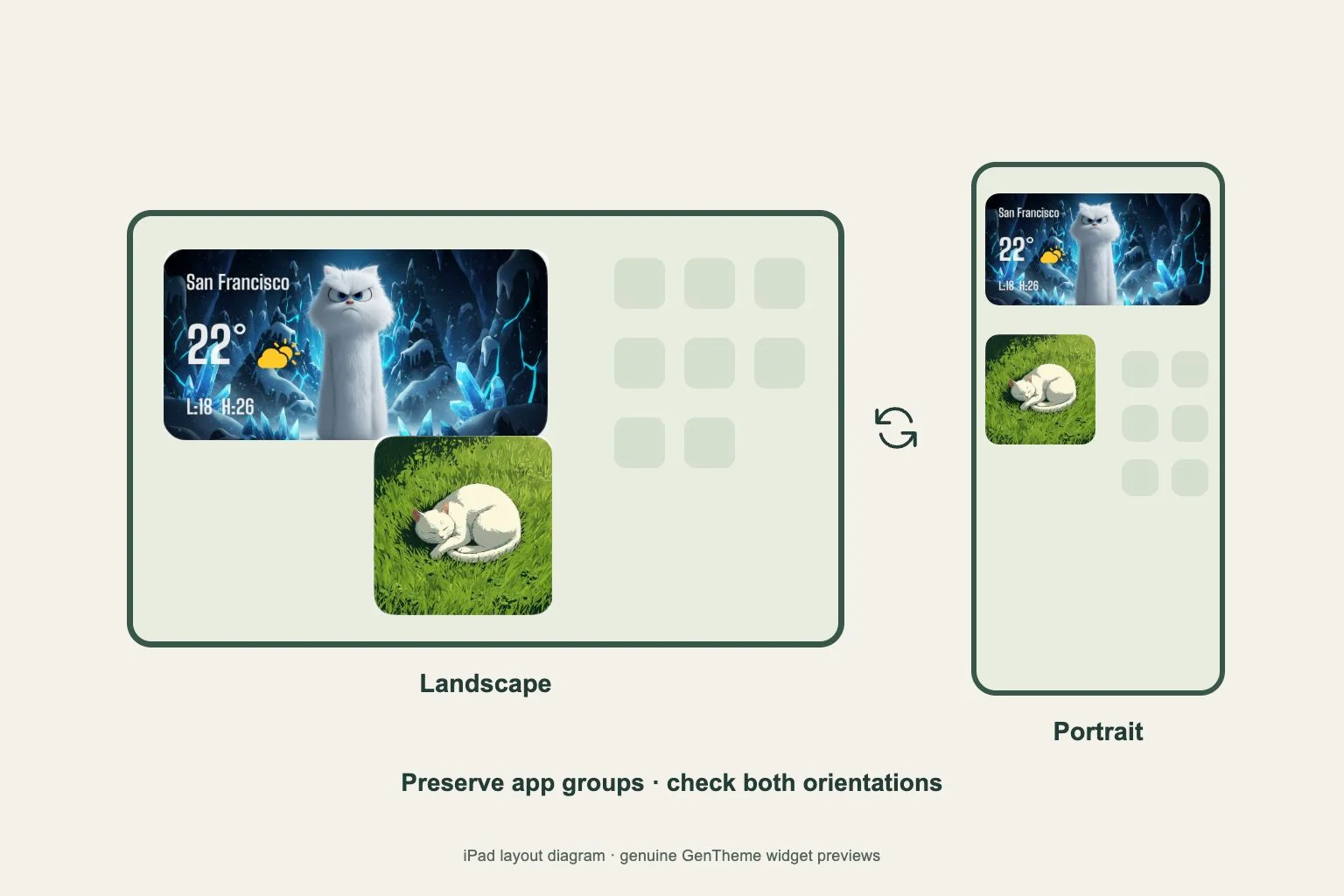
To rearrange items, enter Home Screen editing and drag a widget or app to a new place. Apple also allows dragging an item toward the right edge to another page. Move a related app group together when possible so adding a wide widget does not scatter frequently used apps.
Test portrait and landscape as working layouts
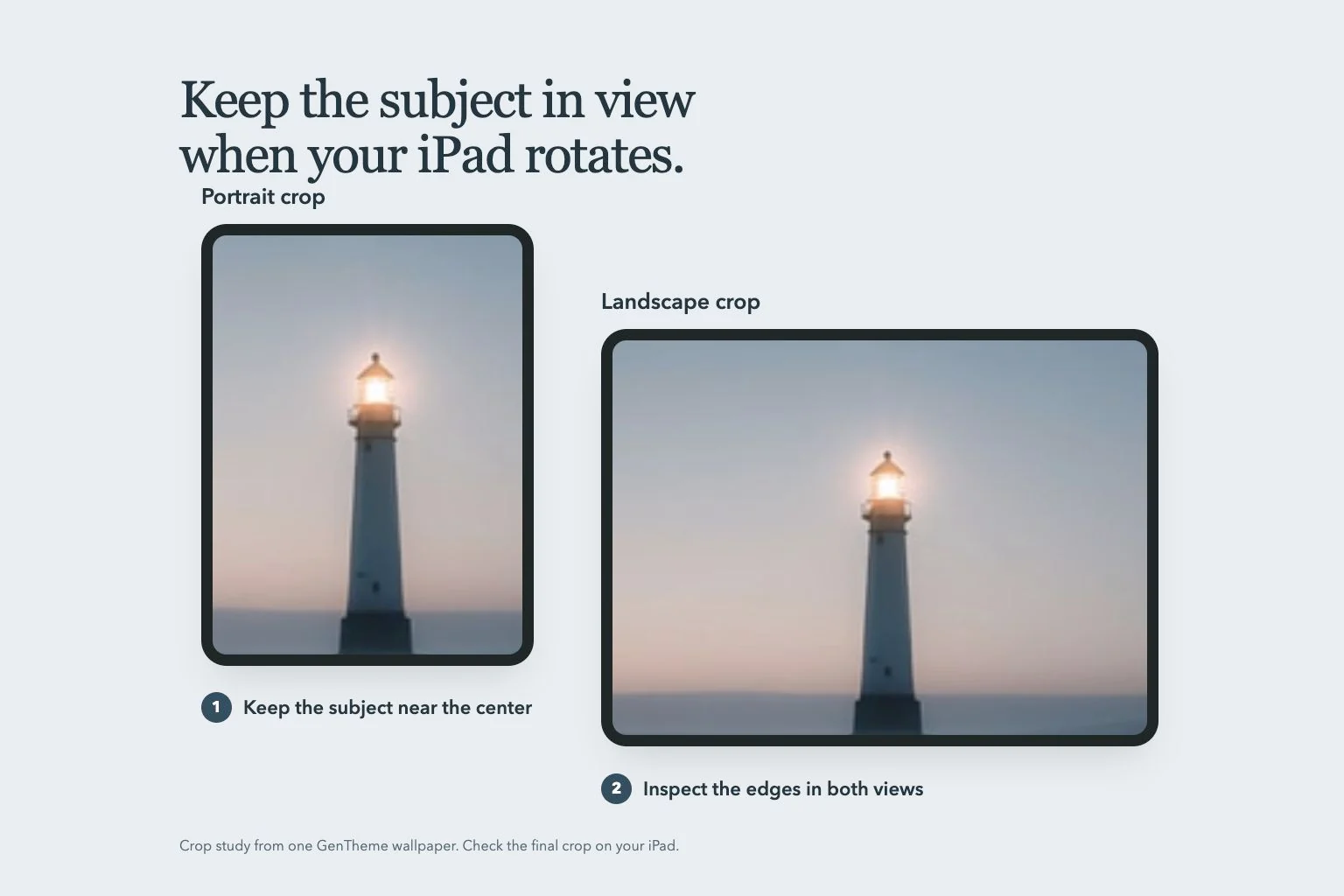
Turn the iPad into each orientation you actually use and inspect the page after it settles. Check the widget text, app grouping and route to your next task. Make a screenshot of each orientation so you can compare the arrangement after another adjustment.
Try opening a related app, returning to the widget and switching to your next app. If the page feels busy, remove one lower-priority widget or move it to a second page. Check both orientations again before treating the layout as finished.