Gentheme
Check the target before applying
Open the icon pack and review the icons you selected. Tap an app entry or its pencil icon to open Choose target app, then pick the installed app that the new icon should open.
Check entries carefully when apps have similar names or artwork. For an icon that opened the wrong app, return to this target selection and choose the intended app before you run Apply again for that icon.
Finish every home-screen request
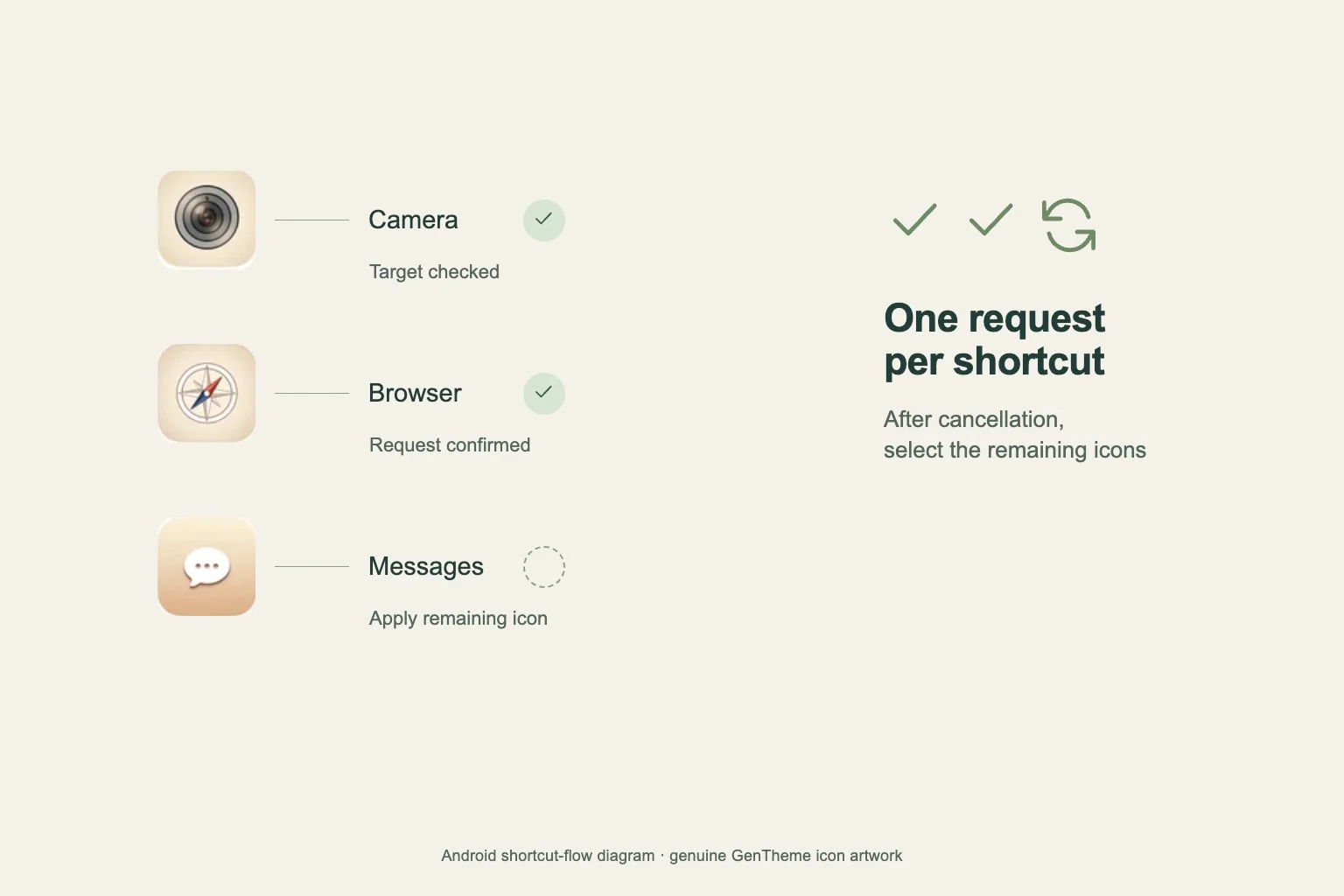
After Apply and any required unlock, your home-screen app handles the shortcut requests. Confirm each request as it appears, then wait for the next selected icon. Check the Home Screen once the requests finish.
The confirmation wording and placement controls vary by phone manufacturer and home-screen app. Follow the request shown on your device. A batch of selected artwork can produce several separate shortcut confirmations to complete.
Resume the icons left after a cancellation
Canceling one shortcut request stops the current batch. Look at the Home Screen and identify the icons that were successfully added before the cancellation. Then return to the same Gentheme pack to prepare the remaining selection.
Use Deselect All if that makes the selection easier, then choose only the missing icons. Review their target apps and tap Apply again. Confirm each new request through the end of the batch to finish adding the remaining shortcuts.
Test a small group before arranging a page
Open a few newly added icons and check their destinations. Starting with a small selection makes it easier to spot a target that needs correction and to track which shortcut requests have already been confirmed.
If a placed shortcut has the wrong target, remove that shortcut from the Home Screen using your phone’s Remove control. Correct its target in Gentheme and apply that icon again, then check the newly added shortcut.
Organize the shortcuts you have checked
Touch and drag a confirmed shortcut to the position you want. Android also supports grouping Home Screen items into folders. Available controls and page arrangements depend on the home-screen app you use.
For a theme’s icons, open its circular download arrow from Home, choose Icons, select the desired entries and tap Apply. Use the same target checks, individual confirmations and remaining-icon retry process for that selection.