Gentheme

Decide what tells the story
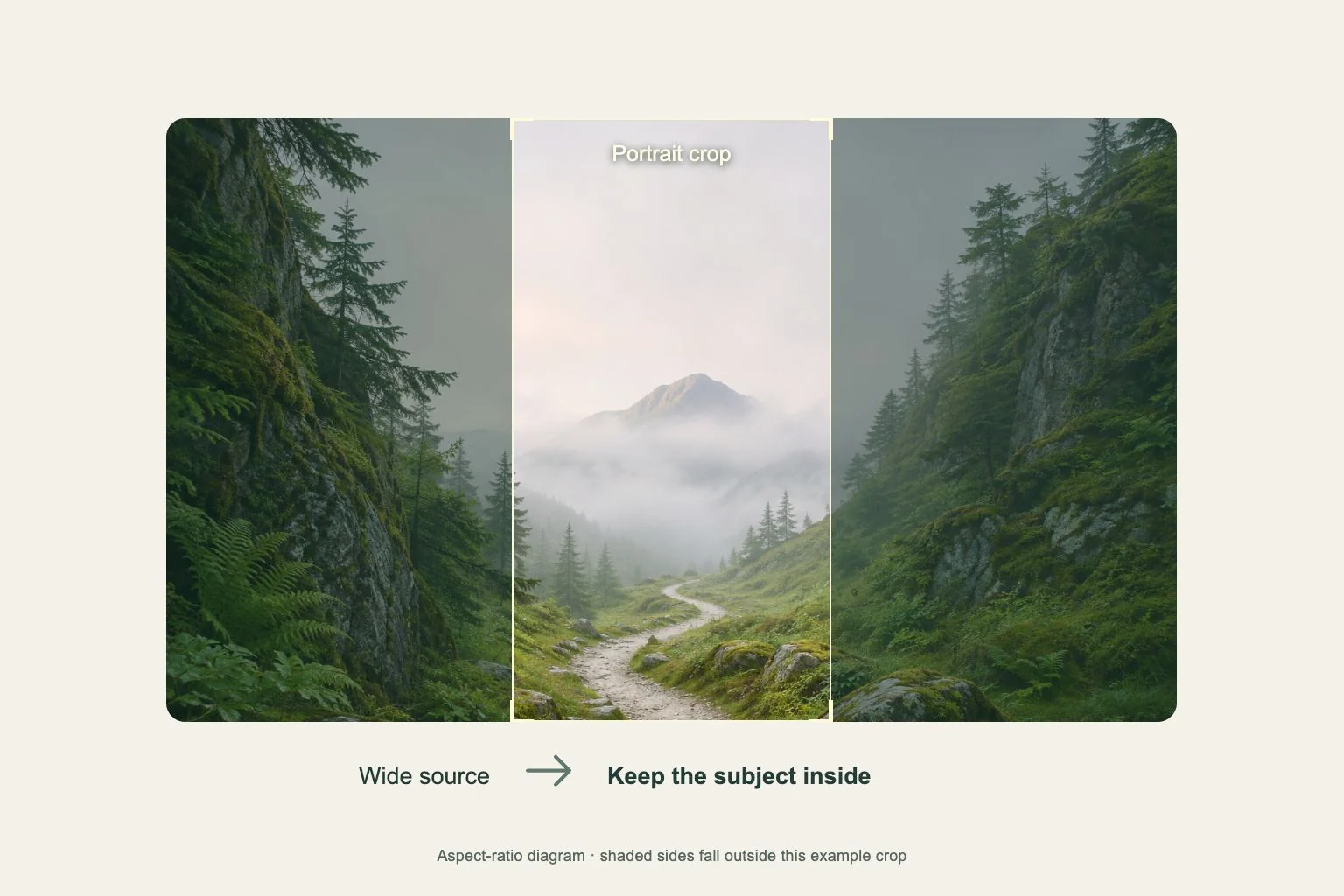
Start with your own artwork or a favorite character image. Identify the detail that makes it meaningful, such as a character’s expression, a distant train or a dramatic coat silhouette. That detail becomes the part you protect when the phone crops the edges.
A portrait works when the face has room around it. A scene needs enough surroundings to explain the moment. If the strongest part is a tiny figure within a wide landscape, compare a portrait-oriented source before enlarging the landscape until the scene loses its context.
Make the gaze and action fit the frame
A character looking toward the center can make a side-positioned portrait feel balanced. Leave space in front of the face. For an action pose, keep the important hand, prop or movement line in view so the image still reads after the sides are trimmed.
Imagine a character standing on the right against a broad dusk sky. A small widget on the opposite side can balance the scene where your phone’s grid allows it. Check the real grid before committing, because a gallery mockup may use different icon spacing.
Give graphic details a separate role
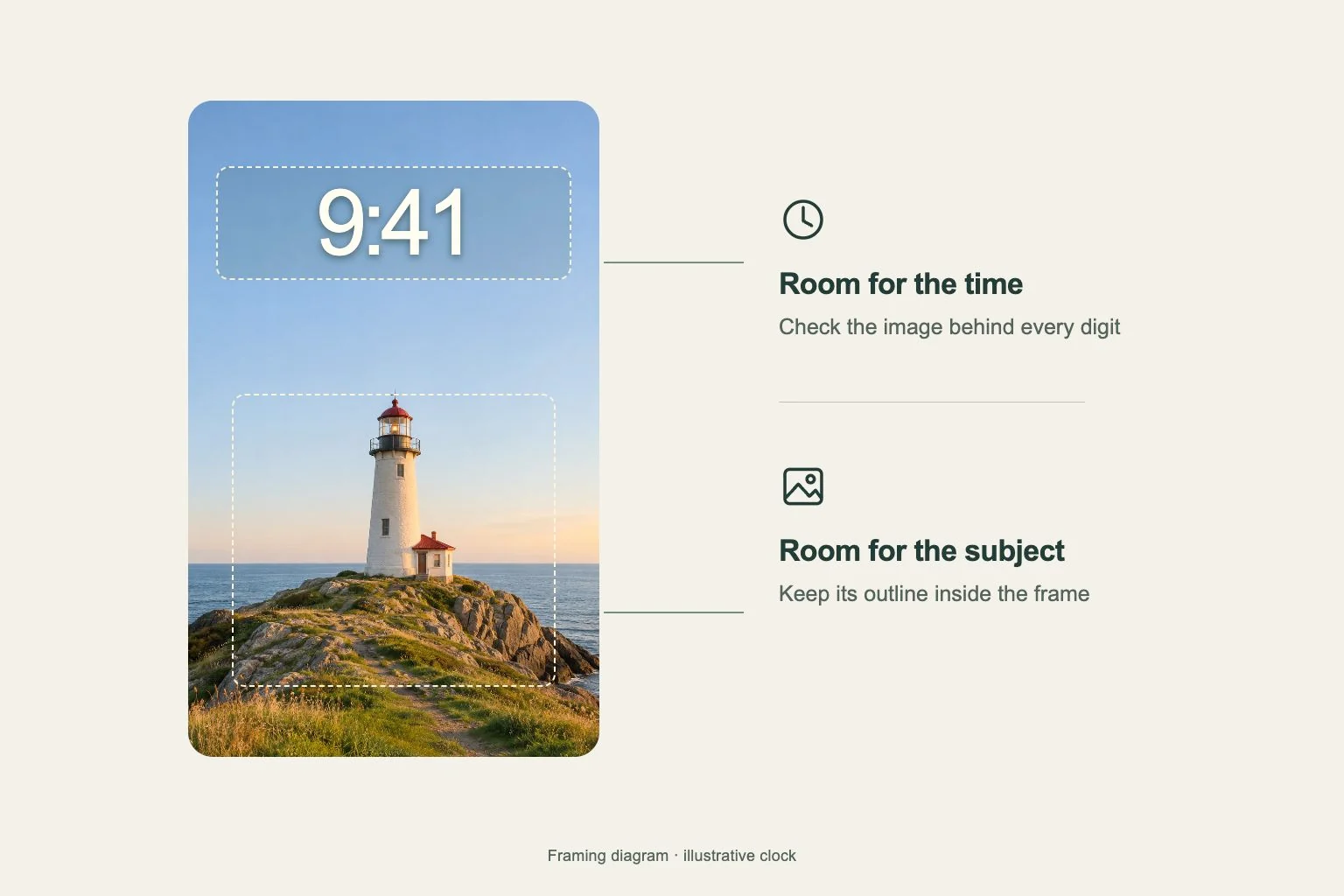
Anime artwork can contain strong outlines, subtitles, emblems and bright effects. Keep the most detailed version for a screen with enough open space around those elements. Decorative writing near the system date or time can create two competing things to read at once.
For the Home Screen, try an image from the same image set with a simpler background. Repeat one accent from the character’s clothing in the rest of the page. A navy scene with one coral accent leaves more room for recognizable apps than several equally bright blocks.
Preview the character with the real interface
With a Gentheme wallpaper, follow the device-specific download or apply instructions and check the image you saved. Use the system preview to see where the clock, app labels and widgets sit. Adjust the crop with the important story detail still in mind.
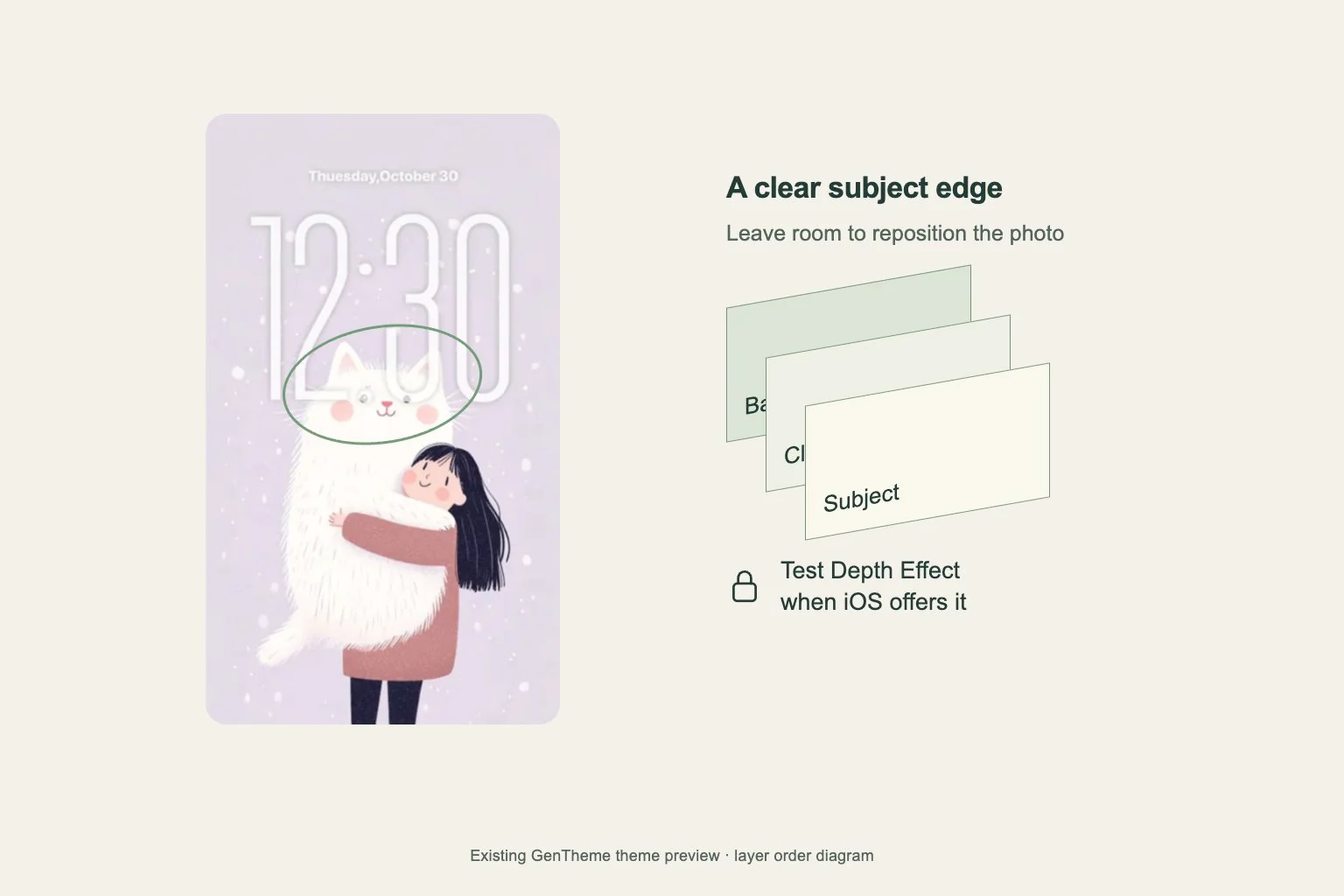
Look at the finished screen from your normal viewing distance. Confirm that the eyes, hands and silhouette remain understandable, then find your everyday apps. If a useful widget covers the face, change the image’s screen role or crop and review again before rearranging the whole page.