Gentheme
Start from the sizes the app offers
An iPhone widget can use only the sizes its app provides. Open the Home Screen widget gallery and compare the available previews before planning your page. A design shown inside an app does not mean every system widget size is offered for it.
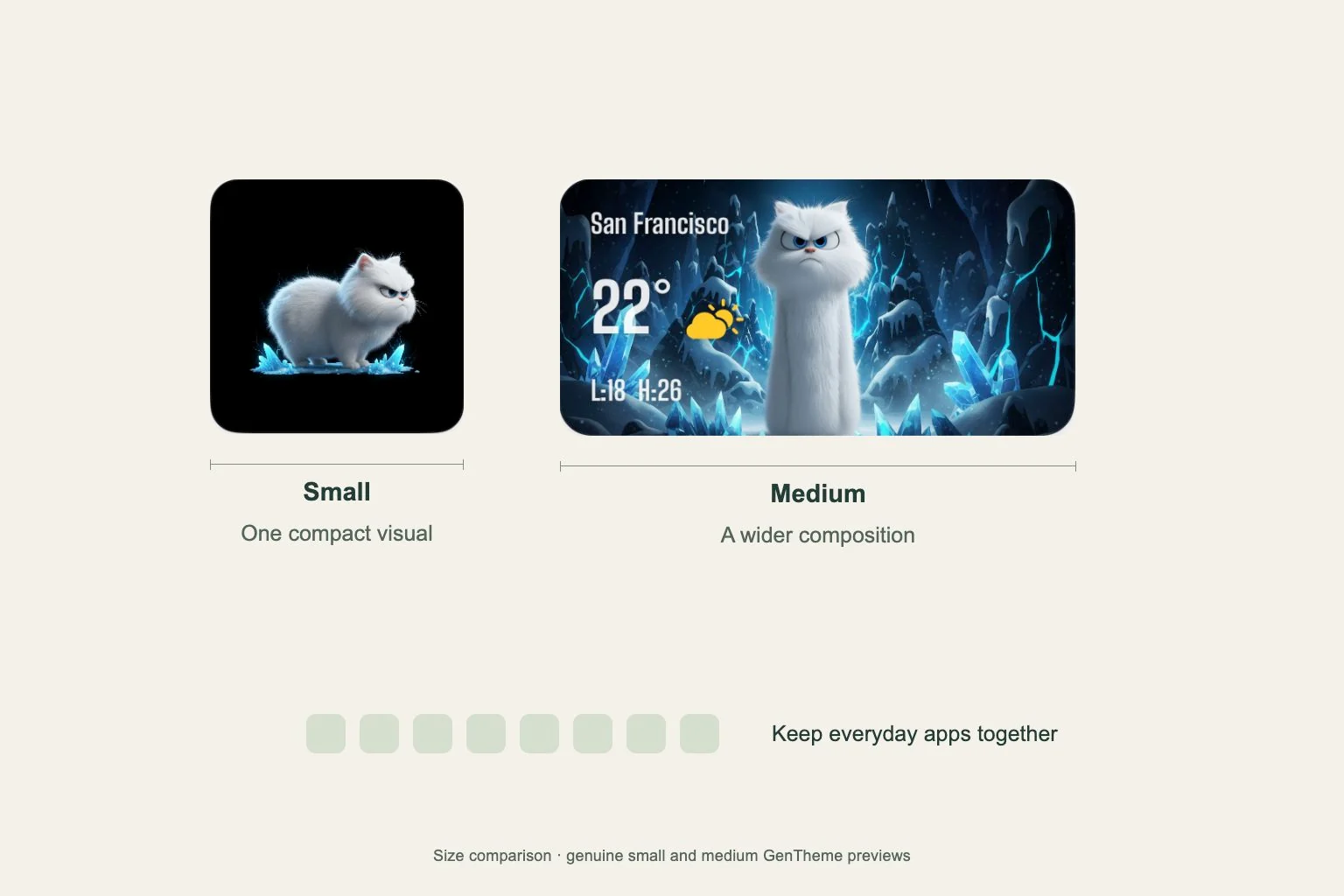
In Gentheme, the documented Clear Widget and Liquid Glass Widget options include small and medium sizes, while photo variants use small. Check the gallery for your installed app version. Choose the type and size together, since a larger rectangle may belong to a different widget family.
Match size to the viewing task
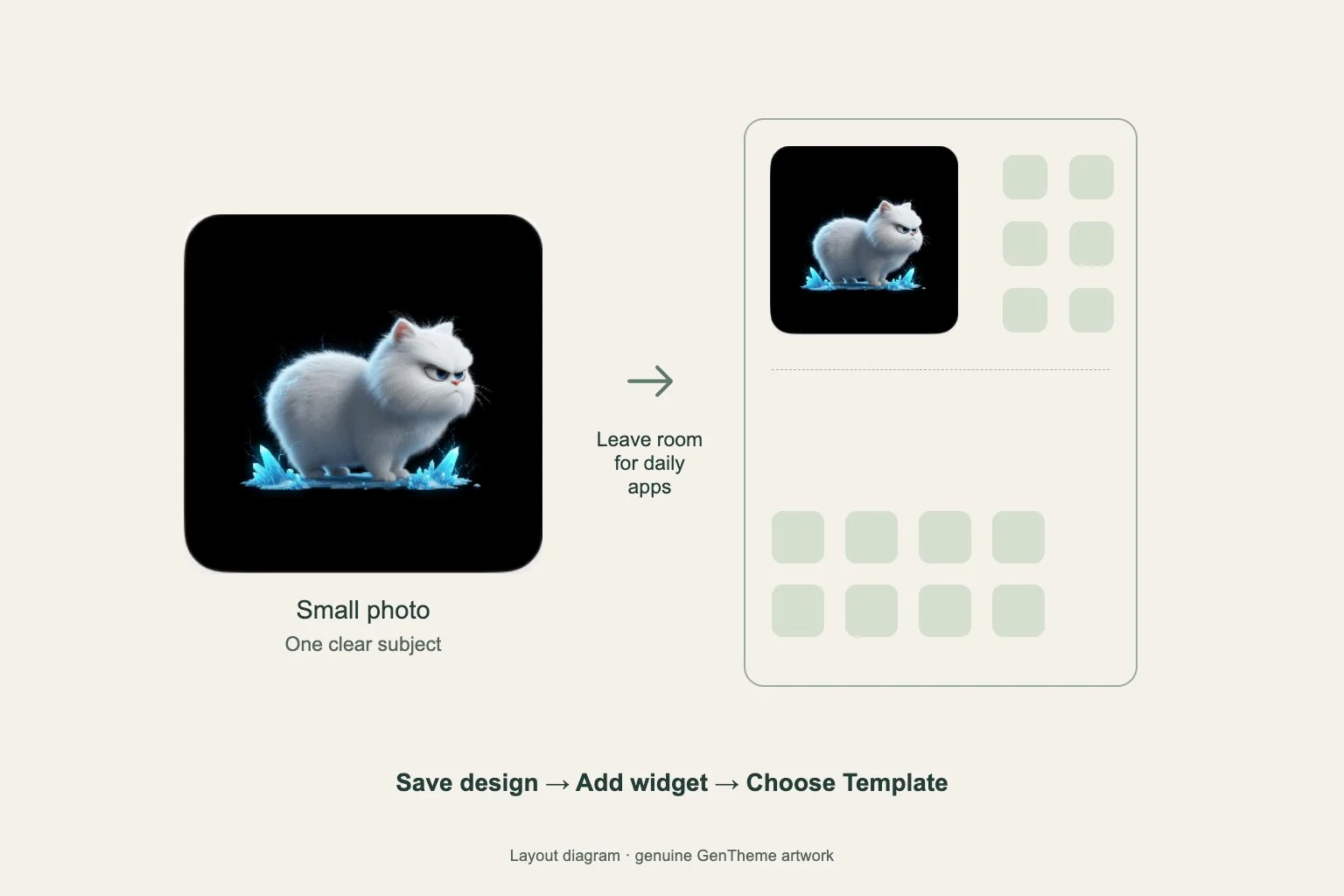
Use a small widget for one compact visual or a brief item you can recognize at a glance. Choose a medium design when its wider composition gives the content enough room. Compare the actual preview rather than assuming that a bigger widget always reveals more information.
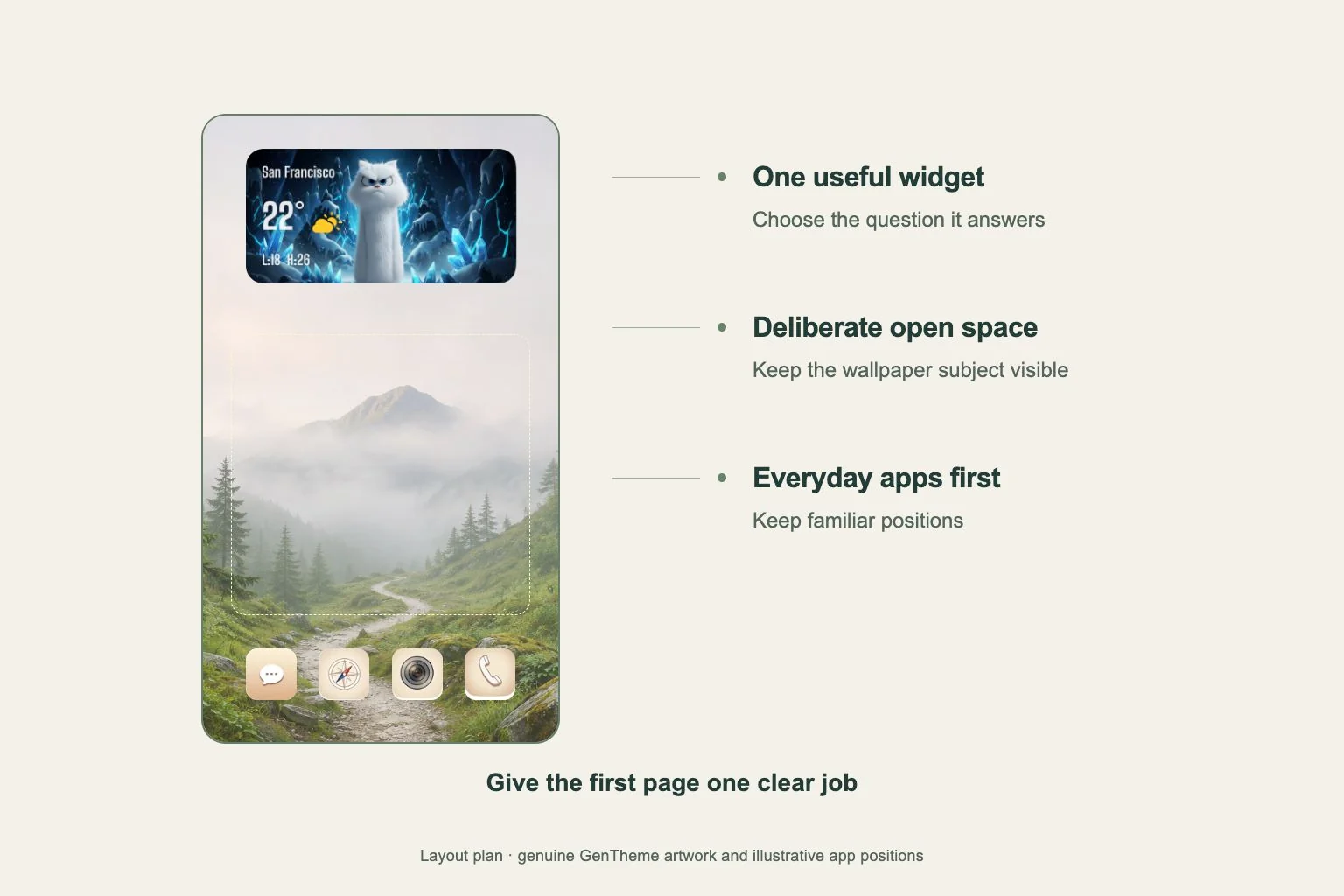
Place a candidate beside the apps you open most. If it moves an essential app to another page, decide whether the widget saves enough effort to justify that space. Two decorative widgets can have very different costs when one interrupts a familiar app group.
Add a supported replacement size
Touch and hold an empty Home Screen area, then choose Edit > Add Widget. Find Gentheme, select the supported family and size, and tap Add Widget. For a saved design, use Edit Widget > Template after placement and make the relevant selection.
Some iPhone widgets offer size choices directly in their long-press menu. Use those choices when shown. If your widget does not offer the size you need, return to the gallery and add an available alternative. Keep the earlier widget until you have checked the replacement.
Check the arrangement during real use
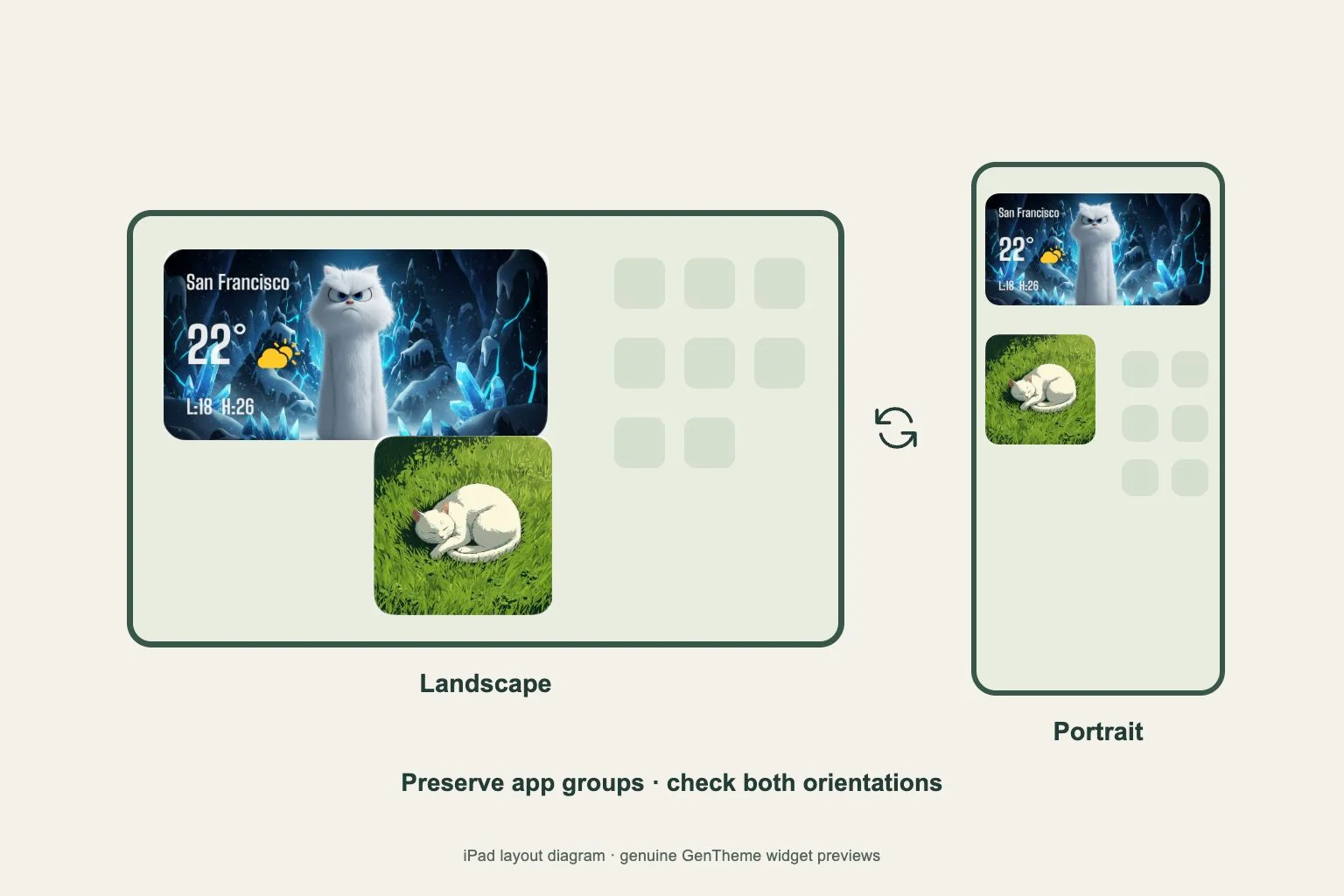
Leave editing mode and read the widget from your usual viewing distance. Check small text, clipped artwork and the relationship to app labels. A layout that looks balanced while icons jiggle can feel crowded once you start searching for a frequently used app.
Try one normal task sequence, such as opening messages, checking the widget and returning to your next app. Move the widget if it interrupts that sequence. Keep a screenshot of the finished page so a later size change can be compared with a working arrangement.