Gentheme
Create the two-image combination
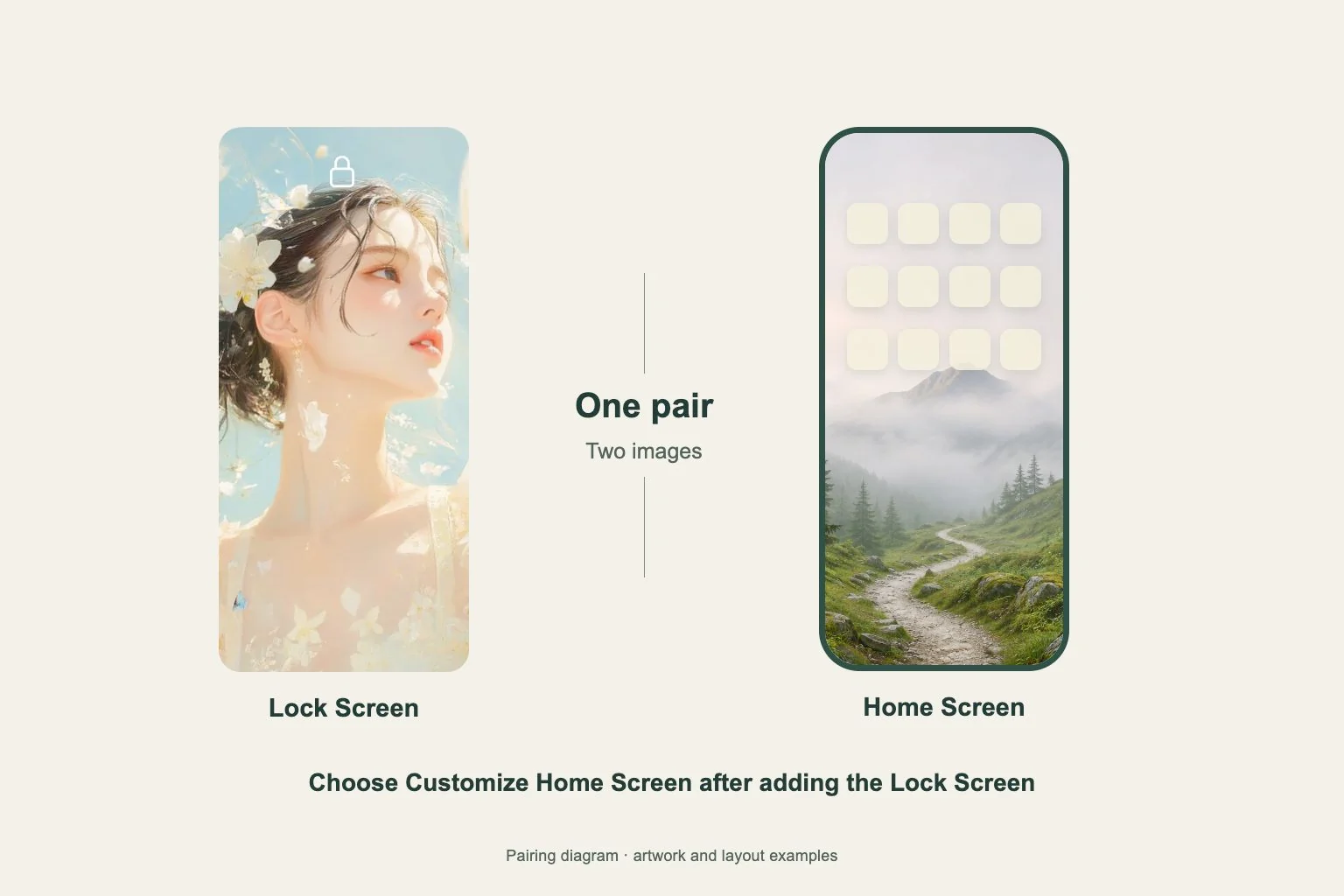
You can use different photos on the iPhone Lock Screen and Home Screen. Open Settings > Wallpaper > Add New Wallpaper, choose the Lock Screen image and tap Add. Choose Customize Home Screen to select a separate image for the page behind your apps.
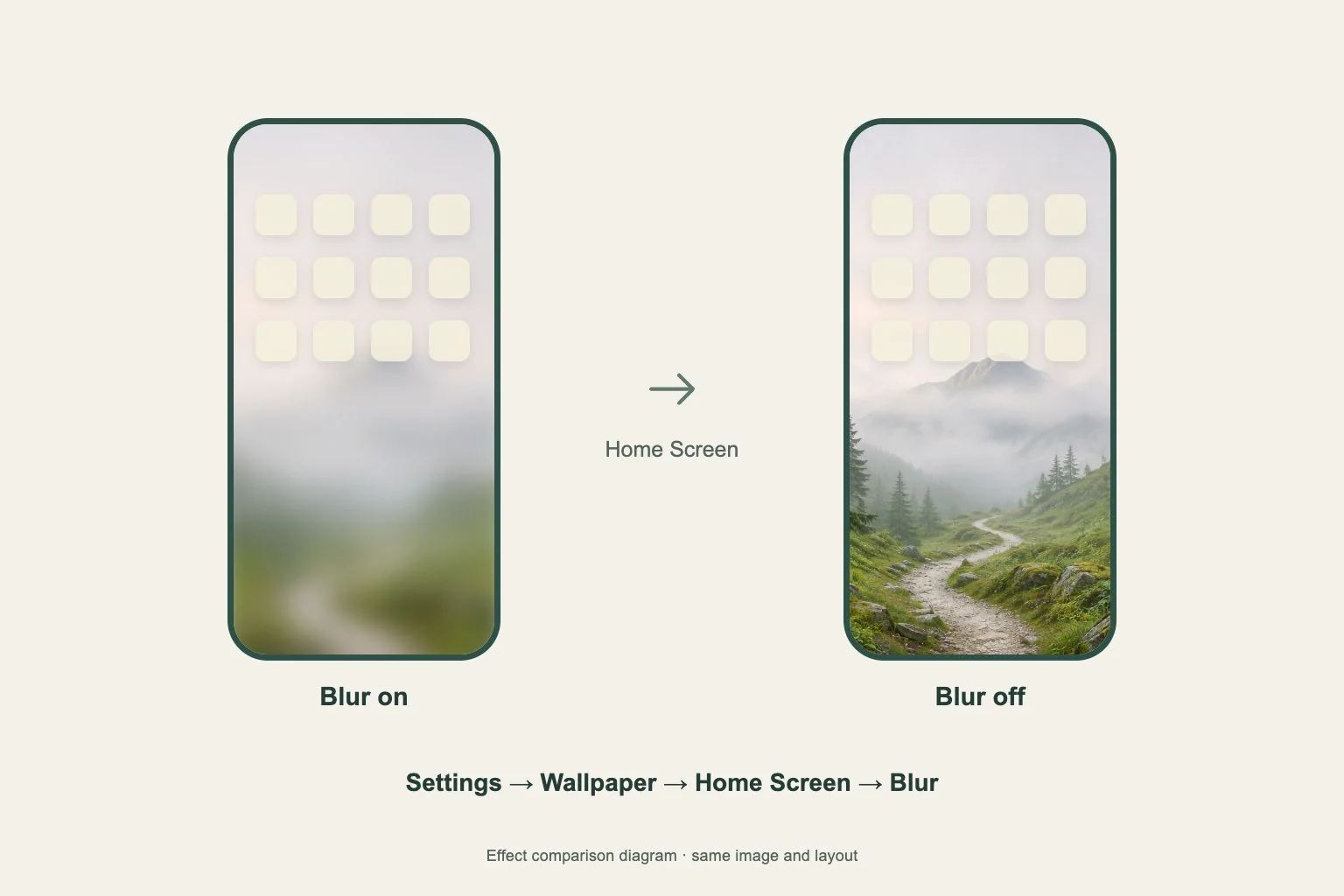
In the Home Screen editor, use the photo control to choose your second saved image. Check the preview and Blur setting, then finish. Choosing Set as Wallpaper Pair instead applies the new selection to both screens, so pay attention to this final choice.
Change one side of an existing pair
To replace only the Home Screen background, open Settings > Wallpaper and find the pair you use. Tap Customize under the Home Screen preview and select your replacement photo. This is a shorter route when the Lock Screen already looks the way you want.
To change the Lock Screen side, enter its own Customize preview. Read the labels before editing so the right image receives the change. Check the finished pair in Settings, then lock and unlock the phone to inspect both full-size screens.
Prepare two useful Gentheme images
Save both images from Gentheme before opening the system photo selector. Use Download and finish Get 2K HD Wallpaper where offered if you want the higher-resolution copy. Give the second save time to finish, especially when the two images have similar colors.
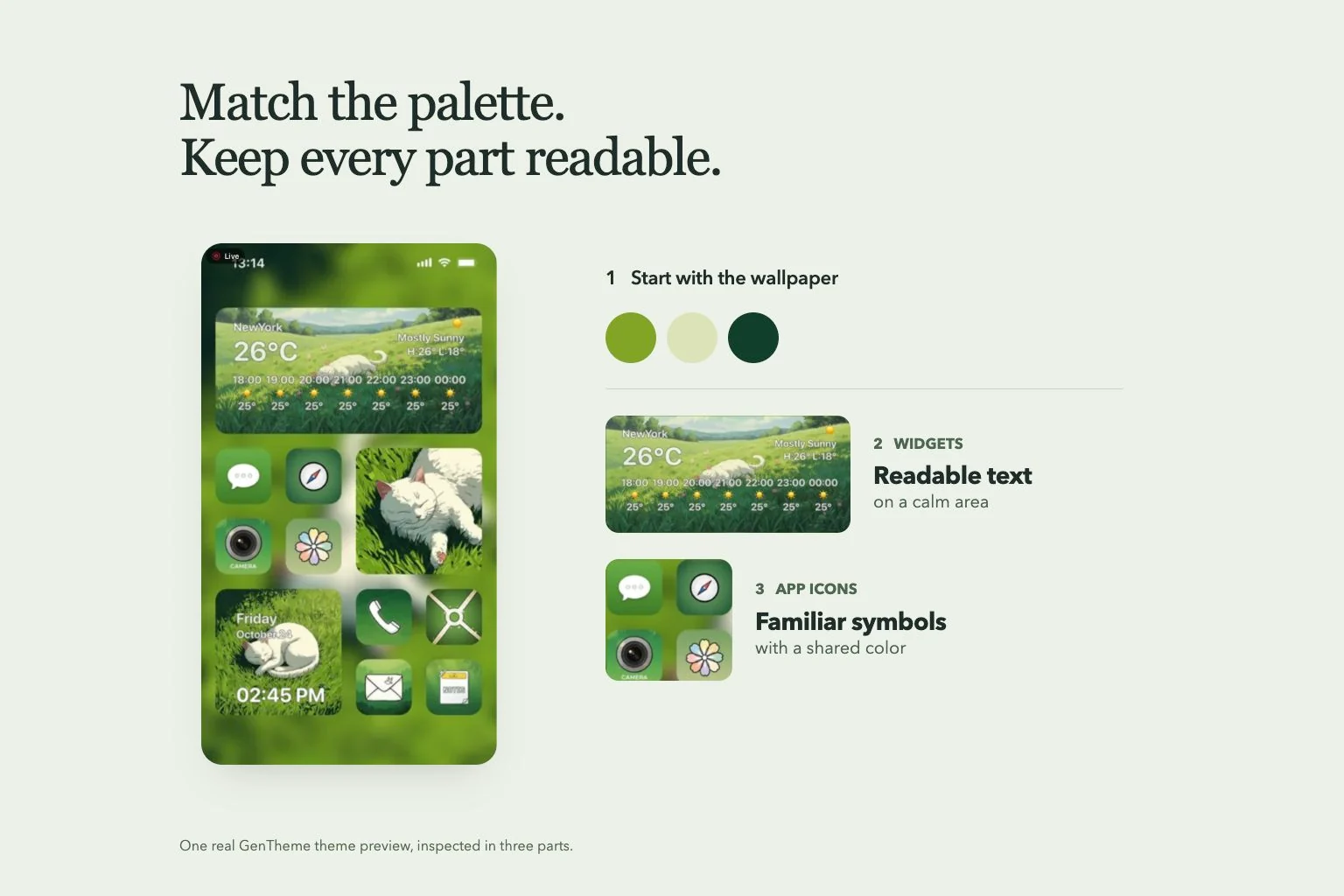
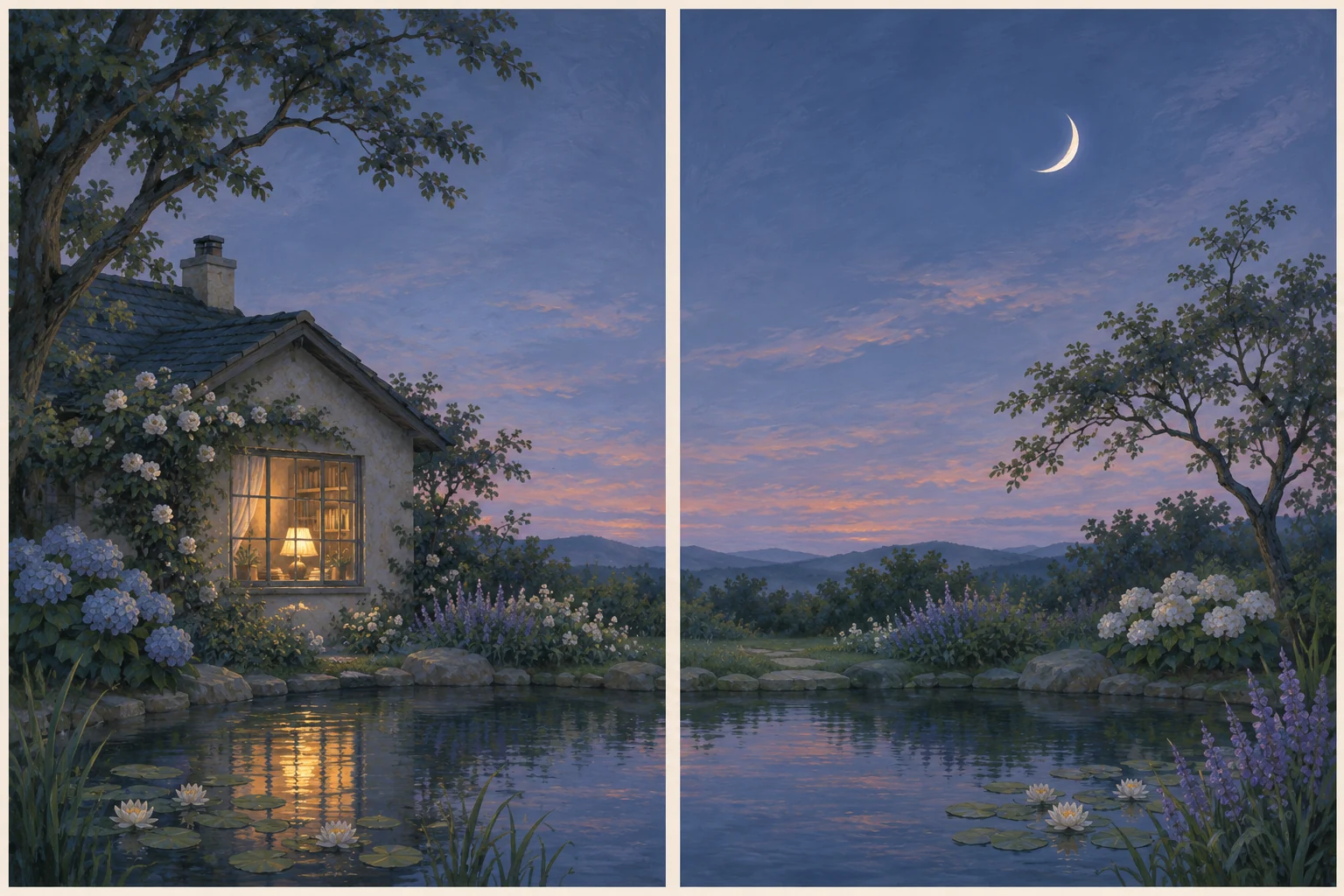
Choose the images by what will cover them. A Lock Screen portrait may have room for the clock, while a Home Screen background benefits from quieter areas behind labels. A shared background color can connect them even when the subjects are different.
Check changes that follow a Focus
If your images seem to switch back later, open the Lock Screen gallery and check which pair is selected. Apple lets a Lock Screen link to a Focus, so changing the active Focus can also change the wallpaper that is in use.
Edit the corresponding pair if you want its Home Screen to use the same second photo. Keep a screenshot of the pair you intended and test one Focus transition. This separates an incorrectly selected image from a correctly saved pair that becomes inactive.