Gentheme
Finish the Live Photo export on iPhone
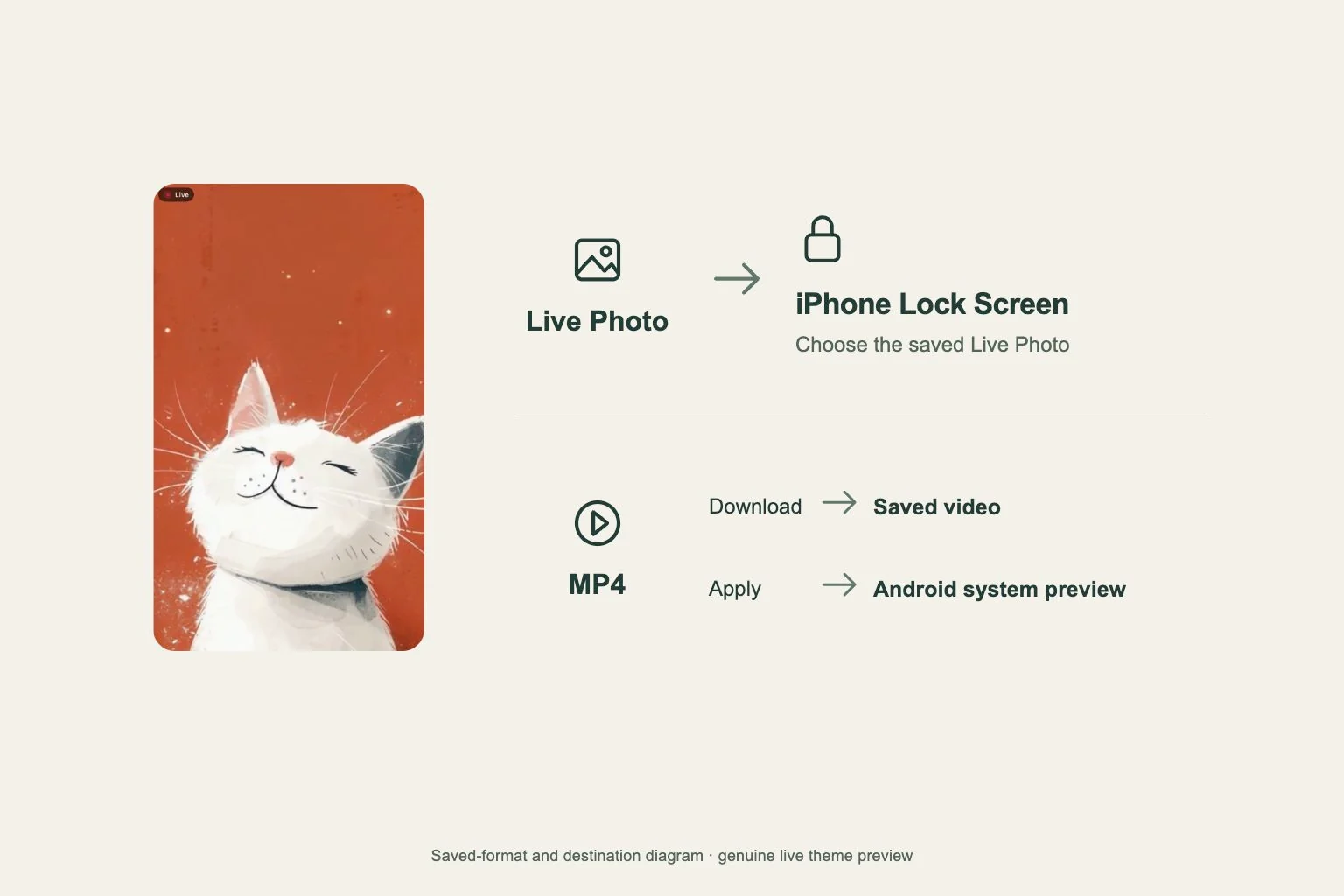
On the independent wallpaper page, Download first saves a 480P still. Continue with Get 2K HD Wallpaper, then Get Live Wallpaper when offered. The moving preview inside Gentheme and the files saved to Photos are separate parts of this flow.
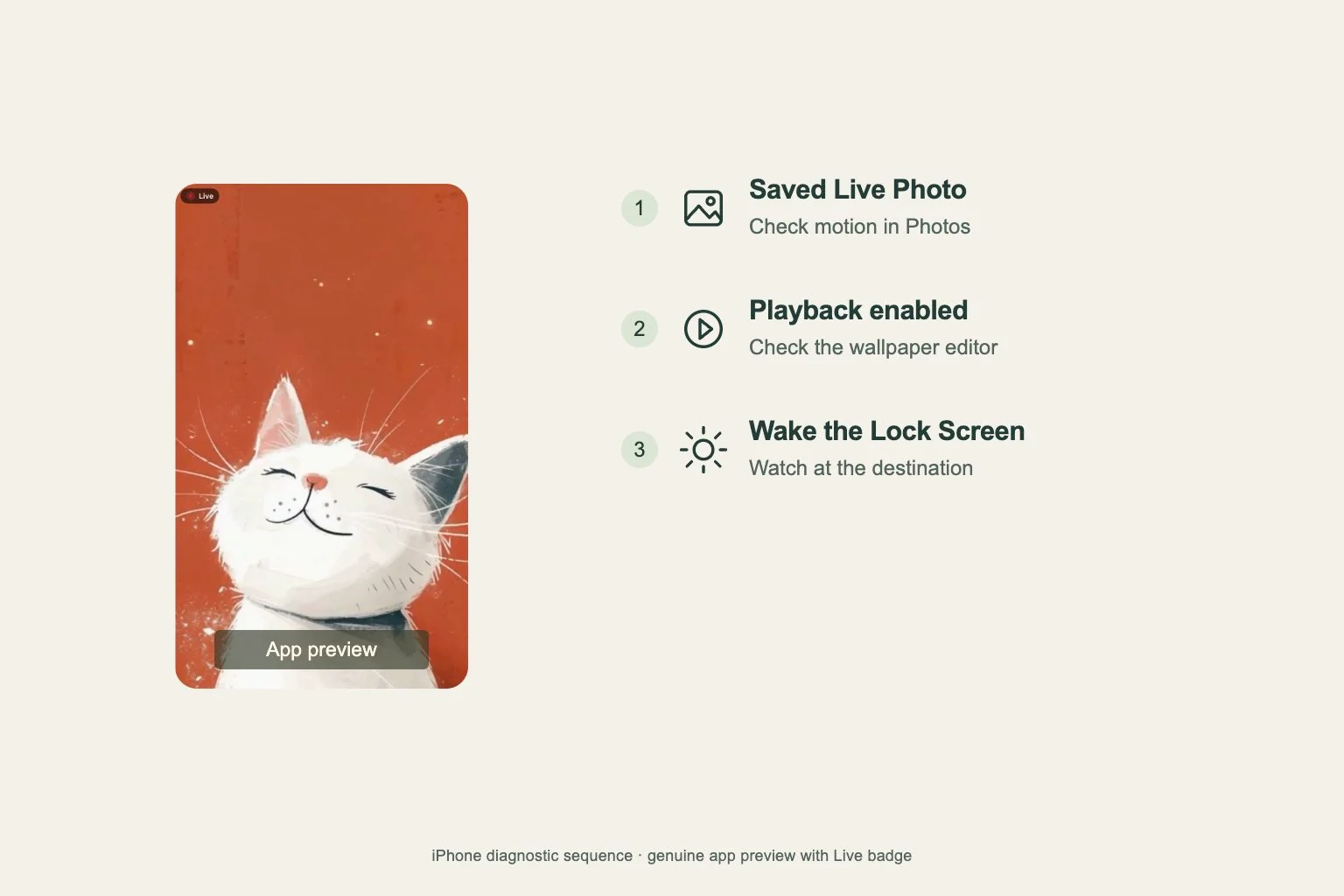
If a clip selector appears, choose the 2.5-second moment and tap Confirm Selection. Wait for conversion and saving to finish. Open the recently saved item in Photos and press and hold it to check the motion. Use this saved Live Photo for the next step.
Turn on playback in the wallpaper editor
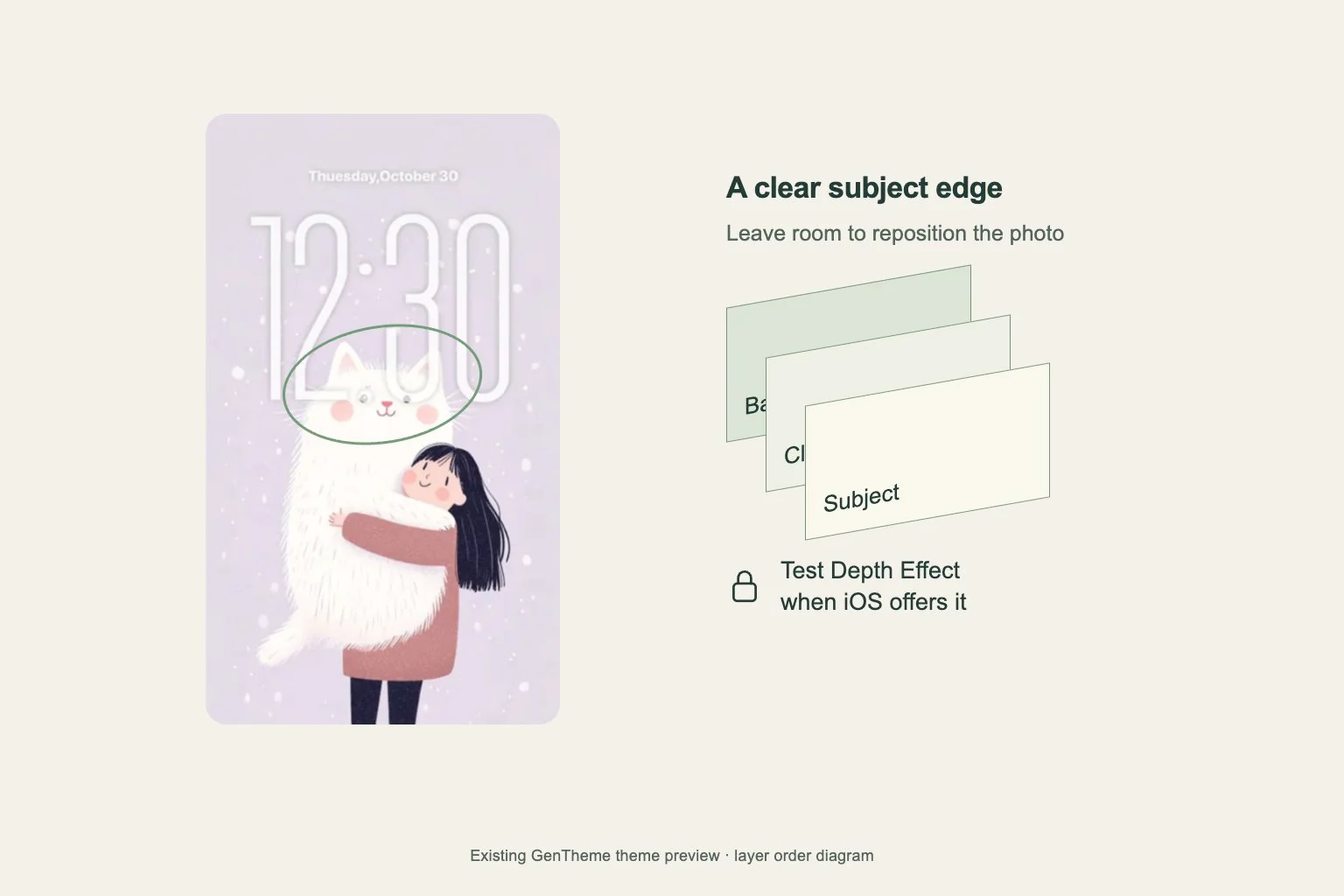
Apple documents Live Photo Lock Screen playback for iOS 17 or later. Availability also depends on the iPhone and the selected photo. Open Settings, Wallpaper, Add New Wallpaper, then Photos and Live Photo. Choose the exported item.
Check that the play button is on in the wallpaper editor, then tap Add. Use the screen choices presented by iOS to finish. If the editor cannot enable motion for this item, check the device and system version alongside the file you exported before trying another conversion.
Test when the Lock Screen wakes
Lock the iPhone, leave the display off briefly, and wake it again. This is the moment Apple uses for Live Photo wallpaper playback. Watch the Lock Screen as it appears, then repeat the test once if you missed the short movement.
If you need help, record the iPhone model, iOS version, and whether the saved item moves in Photos. Also note whether the wallpaper editor shows an enabled play button. These checks identify which stage needs attention and keep the next troubleshooting attempt specific.
Complete the Android system preview
On Android, continue through the still-image stages and choose Get Live Wallpaper when it is offered. In the Live Wallpaper sheet, choose Apply Wallpaper. Wait for the system live wallpaper preview, then complete the confirmation shown by your phone.
Download Wallpaper saves the video instead of applying it. If you saved a video, return to Gentheme and use the apply option to open the system preview. Destinations and confirmation labels vary by manufacturer and launcher, so check the choices on your device.