Gentheme
Build the composition around one subject
A lone tree, a large bloom or a person with space around them gives the Lock Screen a clear focal point. Begin with the part of the photo you want to enjoy. Keep surrounding texture quiet enough that the subject remains recognizable at normal viewing distance.
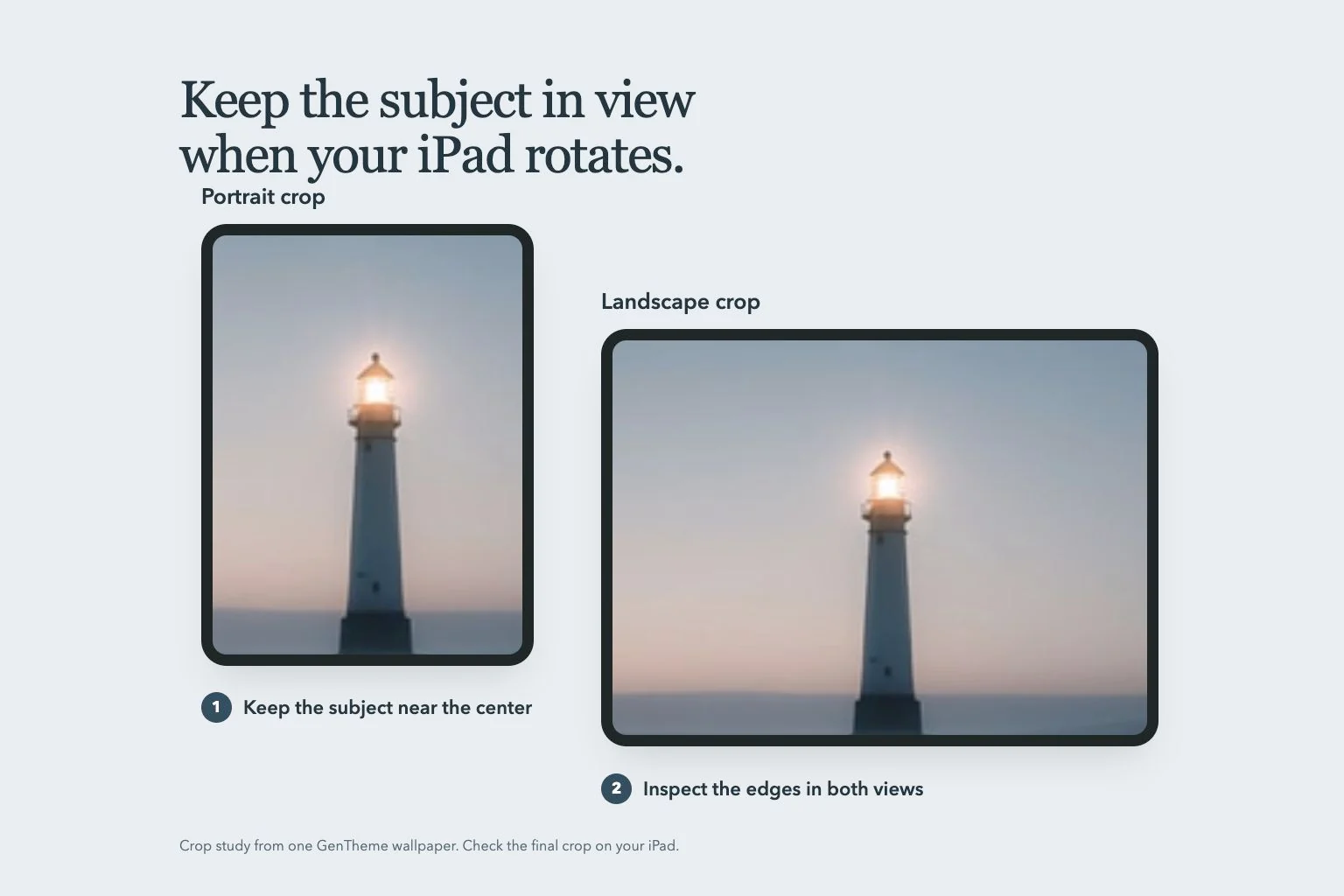
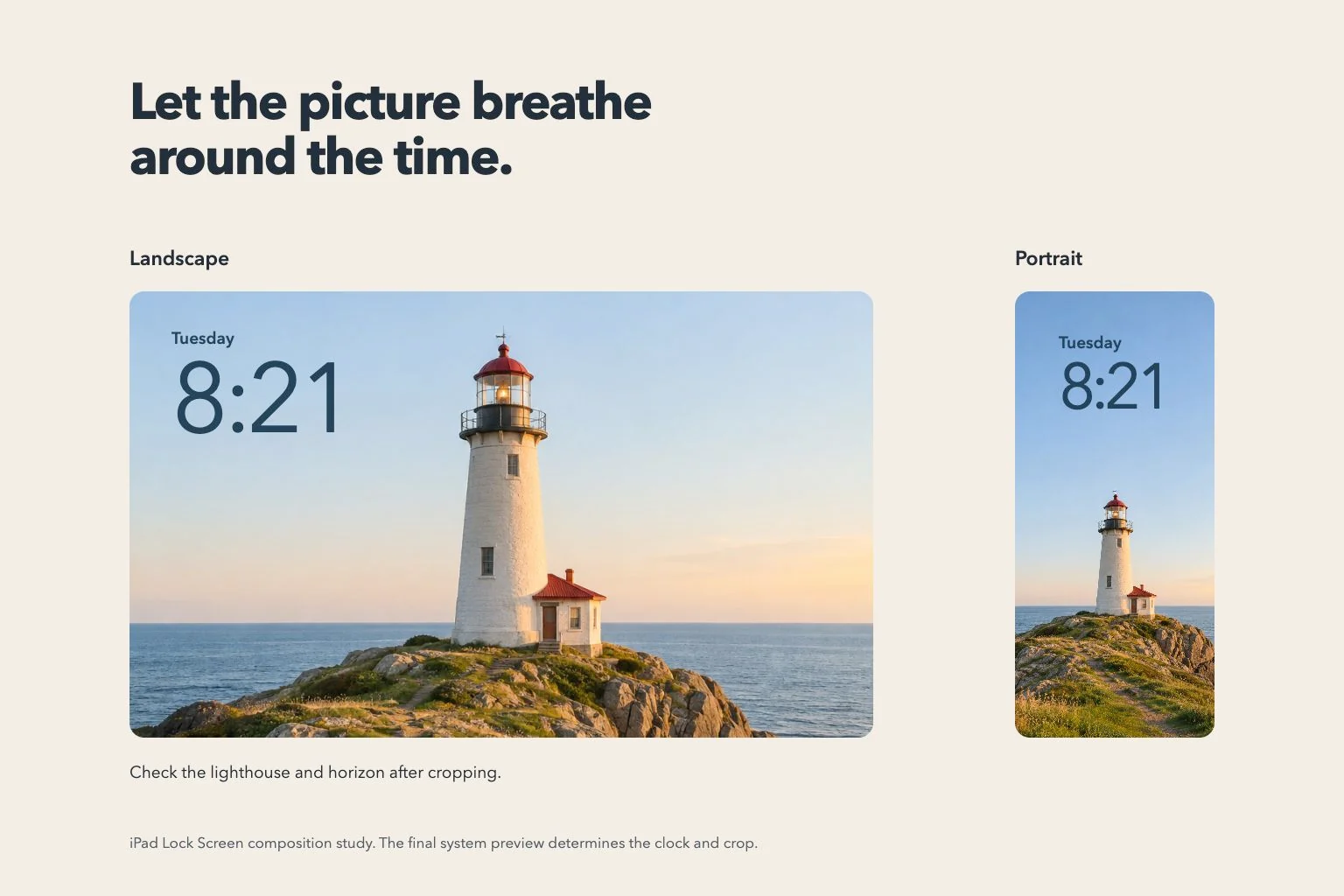
For a warm room example, place a reading chair beside a broad window and let the wall hold most of the empty space. The wide crop can reveal the room, while the vertical crop can keep the chair and window together. Check both before choosing your favorite frame.
Inspect the clock’s immediate background
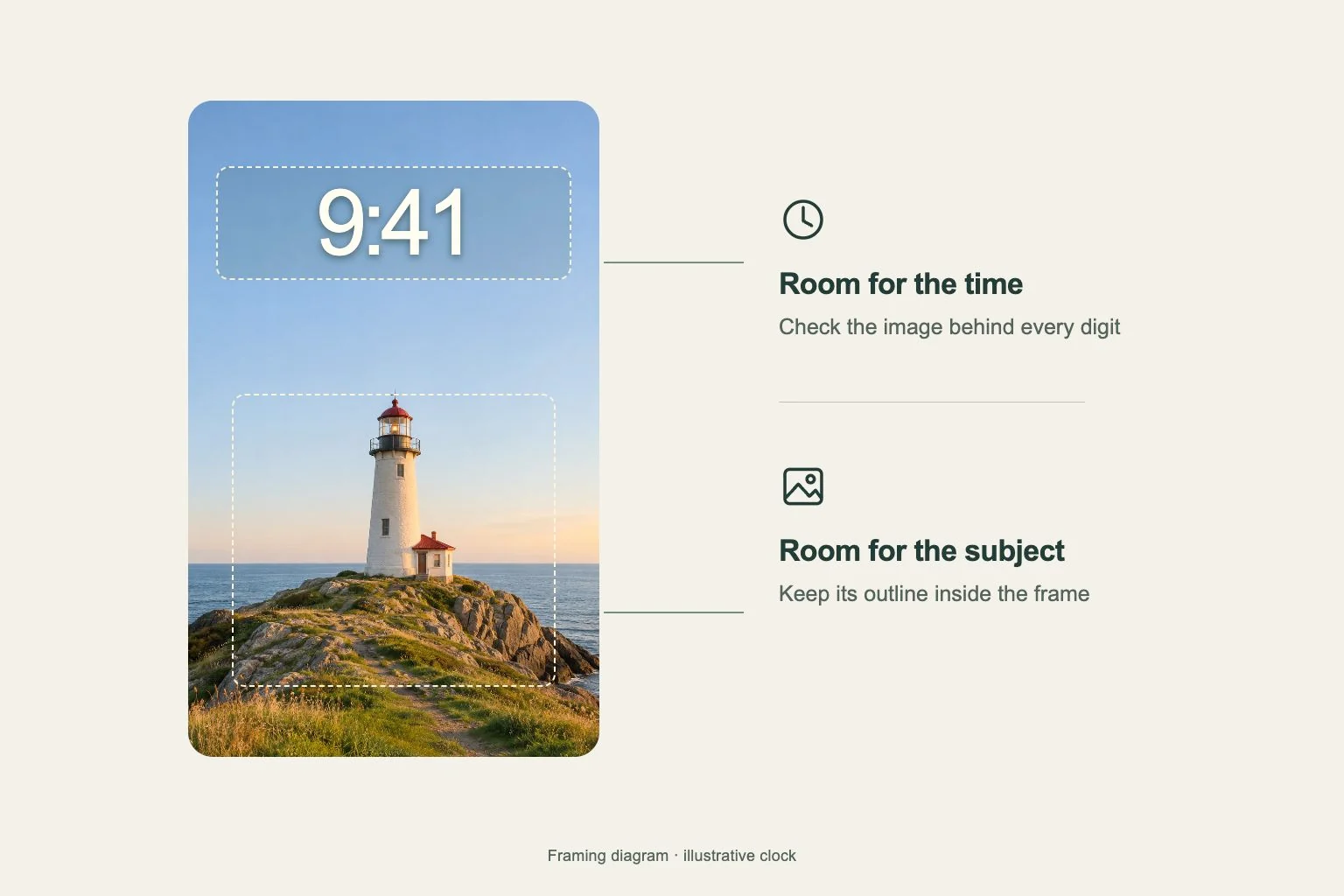
The picture’s overall brightness says little about the small area behind the time. A pale flower petal can disappear behind a light digit, while a dark branch can divide the same digit. Inspect that exact area when adjusting the picture and the clock’s appearance.
Try a photo with gentle color transitions near the top. Keep the busiest pattern lower or farther to one side. If the photo includes decorative words, read them alongside the system date and time so the two pieces of text each have a clear place.
Use the customization offered by your iPad
In the iPad Lock Screen gallery, create a new wallpaper or customize an existing one. Choose the photo and inspect the clock options available for that setup. Apple documents changing the time’s appearance, repositioning the photo and other controls that depend on the chosen wallpaper and supported device.
Make one change at a time and compare its effect on the subject. A taller time treatment needs more space than a compact one. Any available layering or spatial effect also needs checking on the actual screen, since the underlying photo and device affect the options shown.
Keep the saved source and review notifications
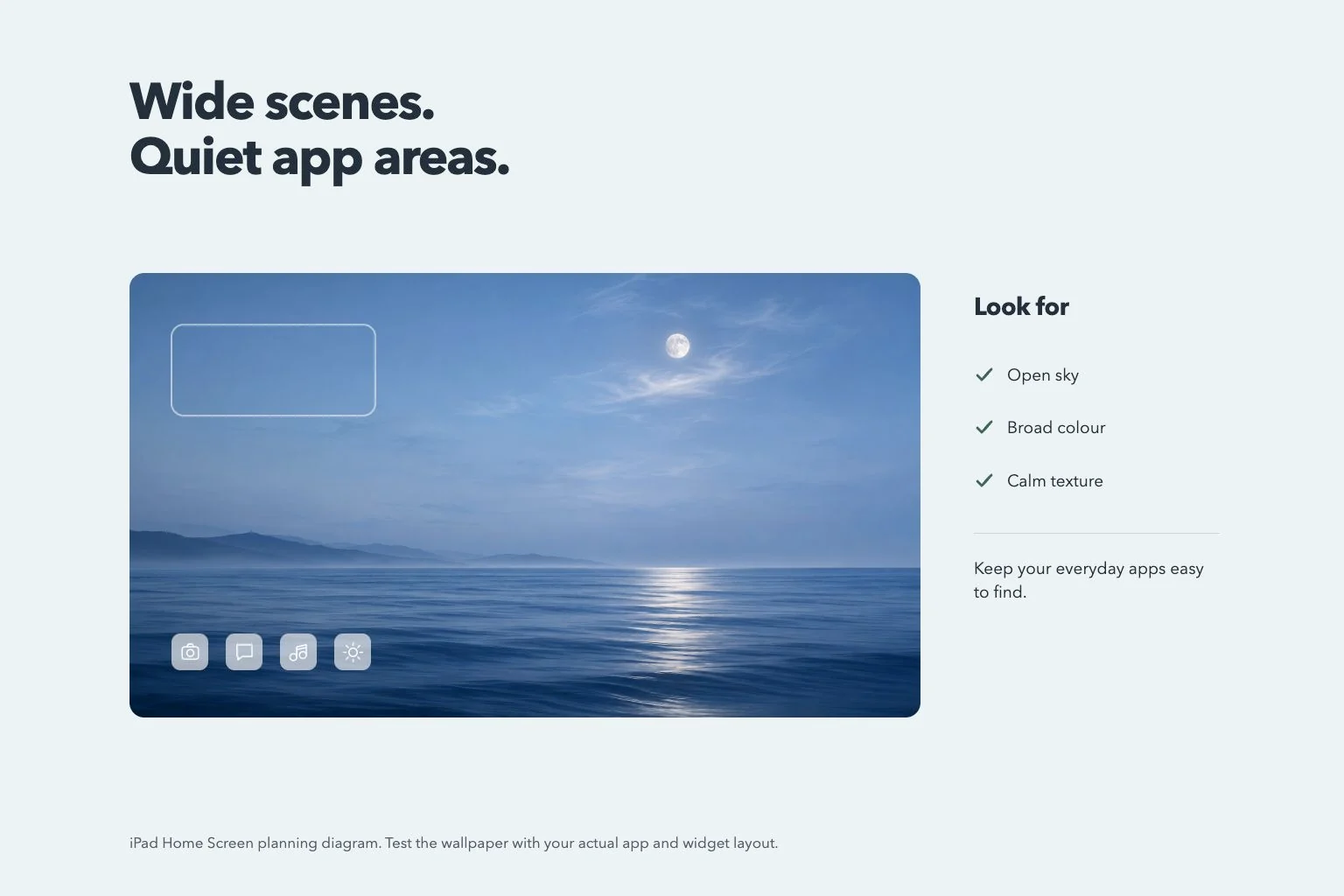
When choosing an image in Gentheme, use the wallpaper guide for the download or apply steps. Review the selected image and any confirmation shown. If a wide option is available for your iPad, inspect its edges and subject before saving it as another possible source.
After setup, check landscape, portrait and a screen with everyday notifications. Confirm that the clock remains clear and the picture still shows the detail you chose. Keep the original saved image so a later adjustment starts with the full composition and its available crop room.