Gentheme
Choose a decorative constellation direction
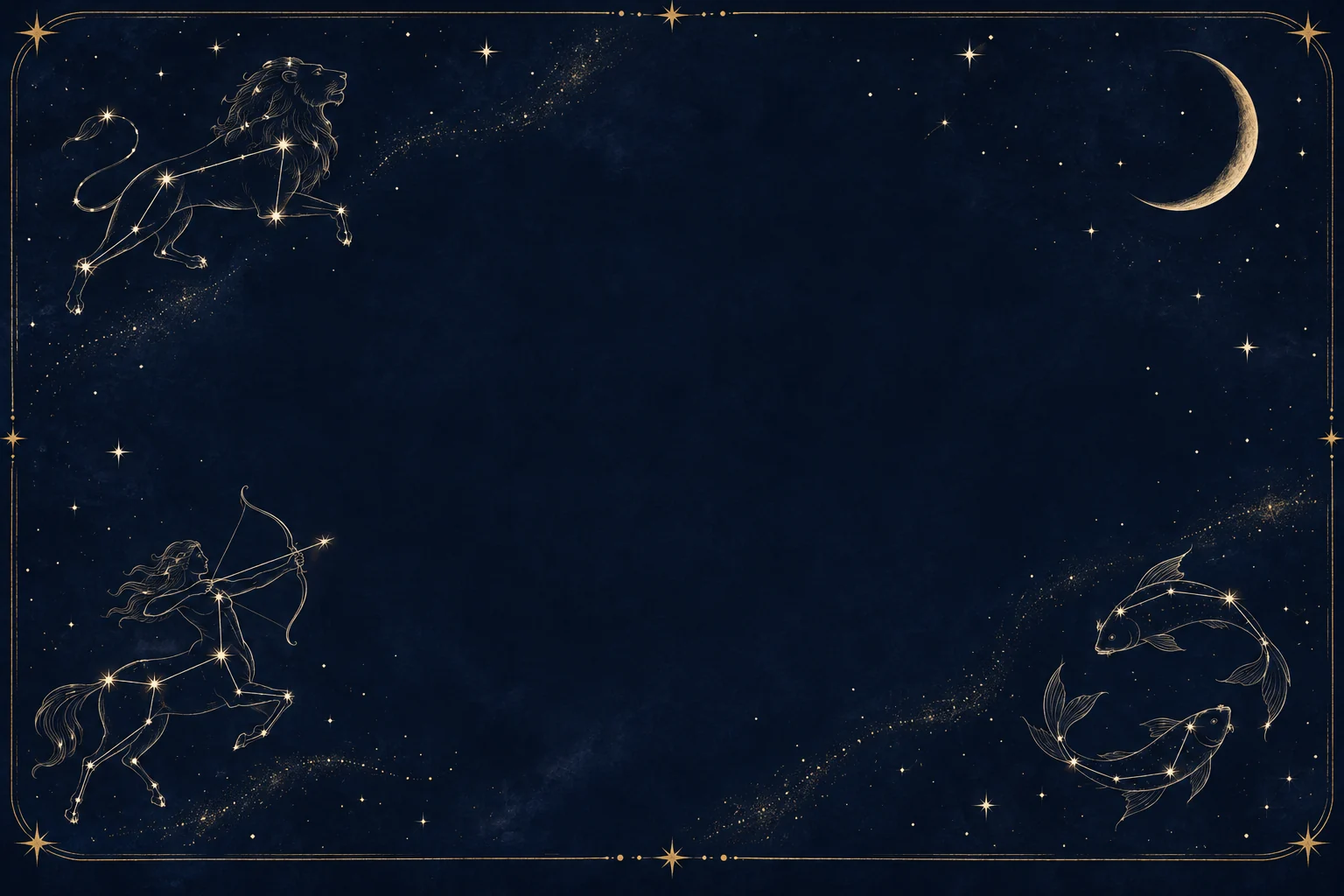
Decide whether you want a simple connected-star shape, an illustrated zodiac figure or a fine moon-and-stars composition. Pick one main motif before adding several symbols. A clear outline can be enough to personalize the screen even when the rest of the sky stays almost empty.
Treat a stylized zodiac image as decorative artwork. If the exact star pattern matters to you, compare it with a reliable astronomy reference separately. For a personal wallpaper, you can simply choose the linework and palette that you enjoy seeing when you wake the phone.
Leave the clock a calmer patch of sky
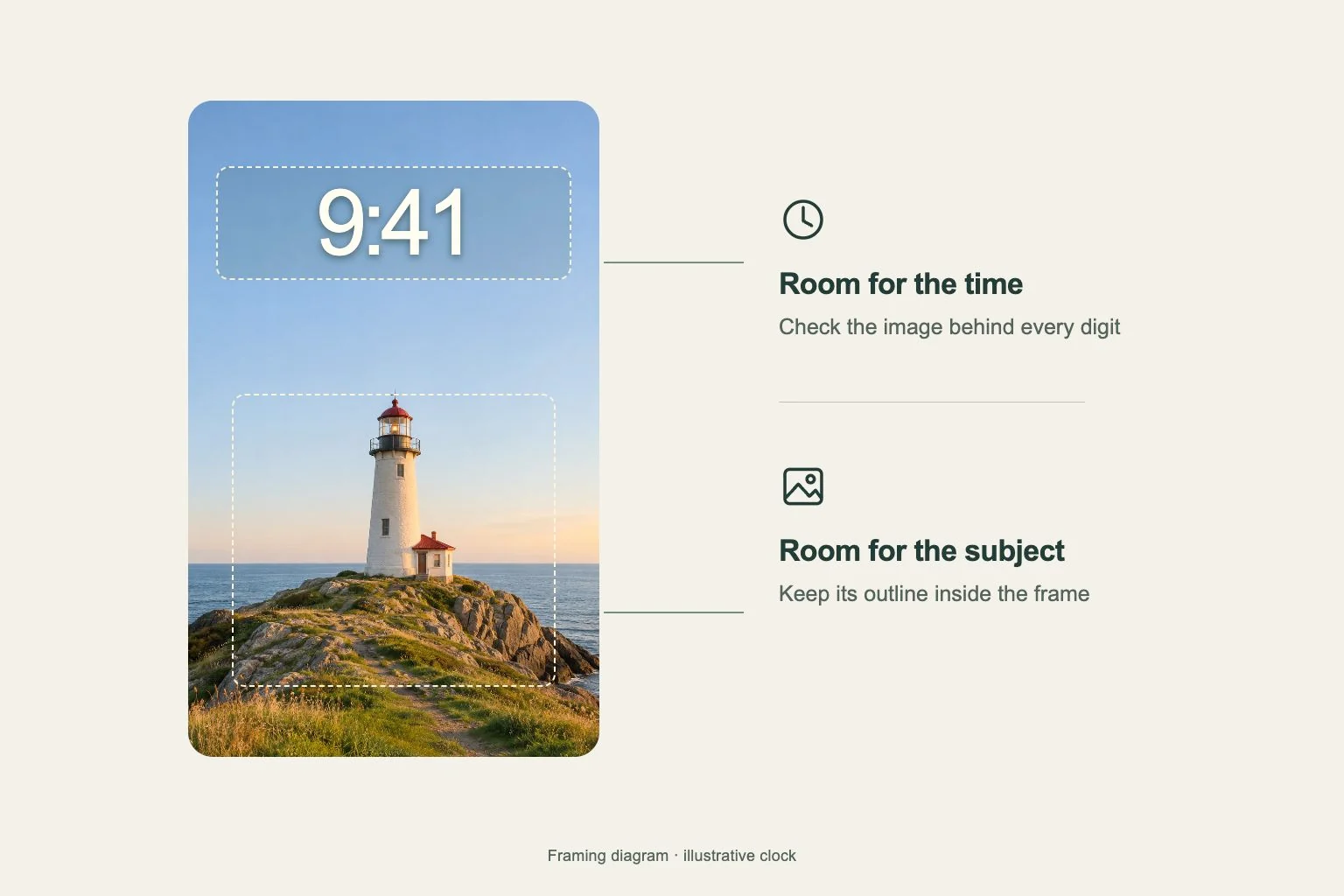
Put the largest constellation near a side edge or lower corner and check how much remains after a portrait crop. Keep important stars connected inside the visible frame. A decorative figure may become hard to recognize if the clock covers the small lines that define its shape.
Use fewer bright points around the date and clock digits. A star behind a colon or numeral can look like part of the interface. Preview the wallpaper with your actual system text before settling on the image, especially if thin gold lines sit against a very dark background.
Choose a night palette that supports app names
Navy with warm ivory can feel softer than a pure black field with brilliant white stars. Try a restrained gold accent if it matches your chosen artwork. Keep the central background even enough for the app names you need to read every day.
For the Home Screen, compare a quieter companion using the same navy tone and only a small crescent. Put the detailed zodiac illustration on the Lock Screen if your app page is full. A shared color can connect both screens while allowing each to have its own visual task.
Check the final crop and save your original
When using Gentheme, follow the relevant wallpaper download or apply guide and review any unlock shown. Confirm the saved file before setting it in the system preview. Move the crop gently so constellation edges and the crescent stay complete within the actual visible screen.
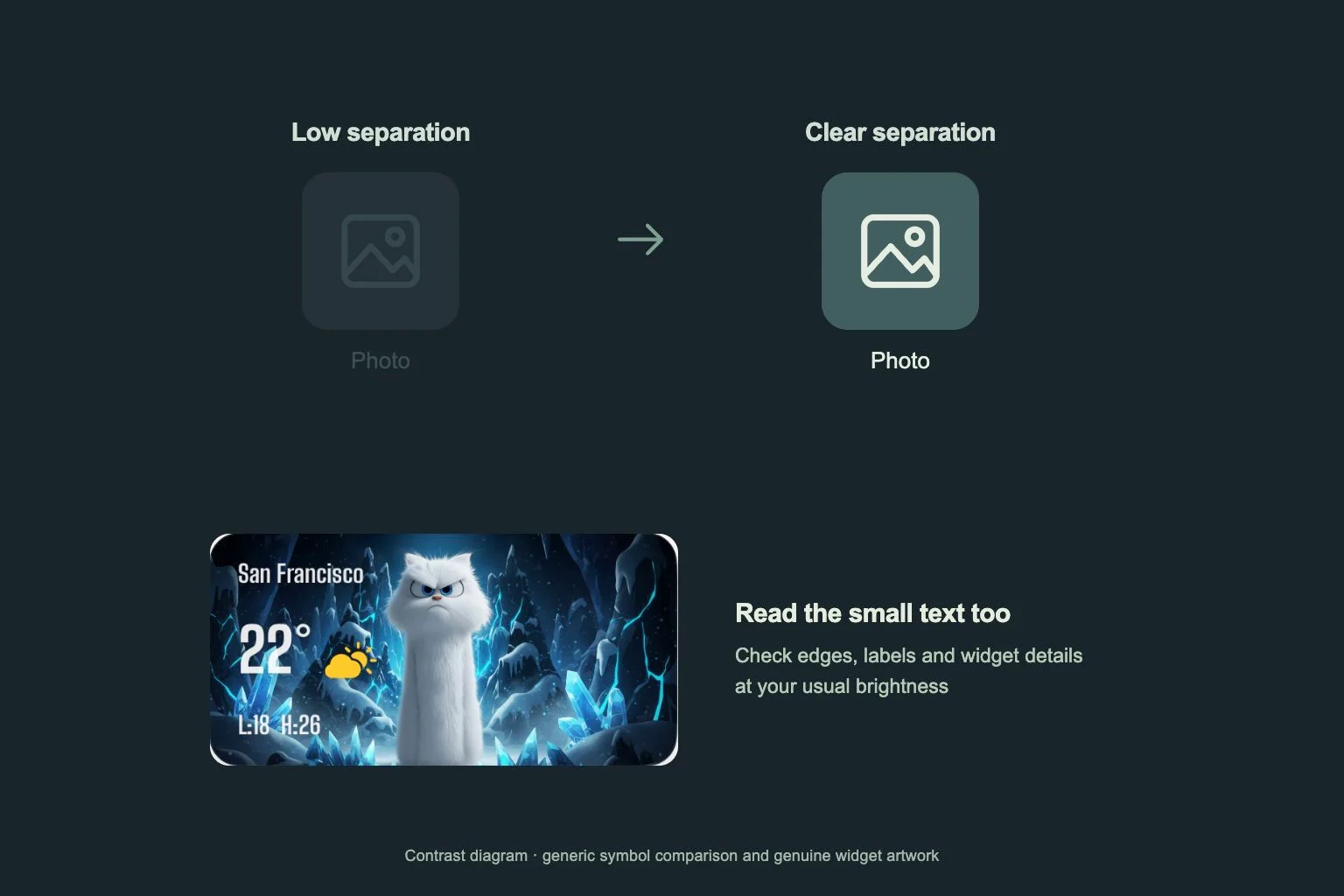
After setup, inspect notification badges, the smallest widget details and any point where a star overlaps text. Keep the original image if you want to adjust the composition later. A celestial design works best when its decorative lines remain clear and everyday information is easy to find.