Gentheme
Choose a scene that reads in large blocks
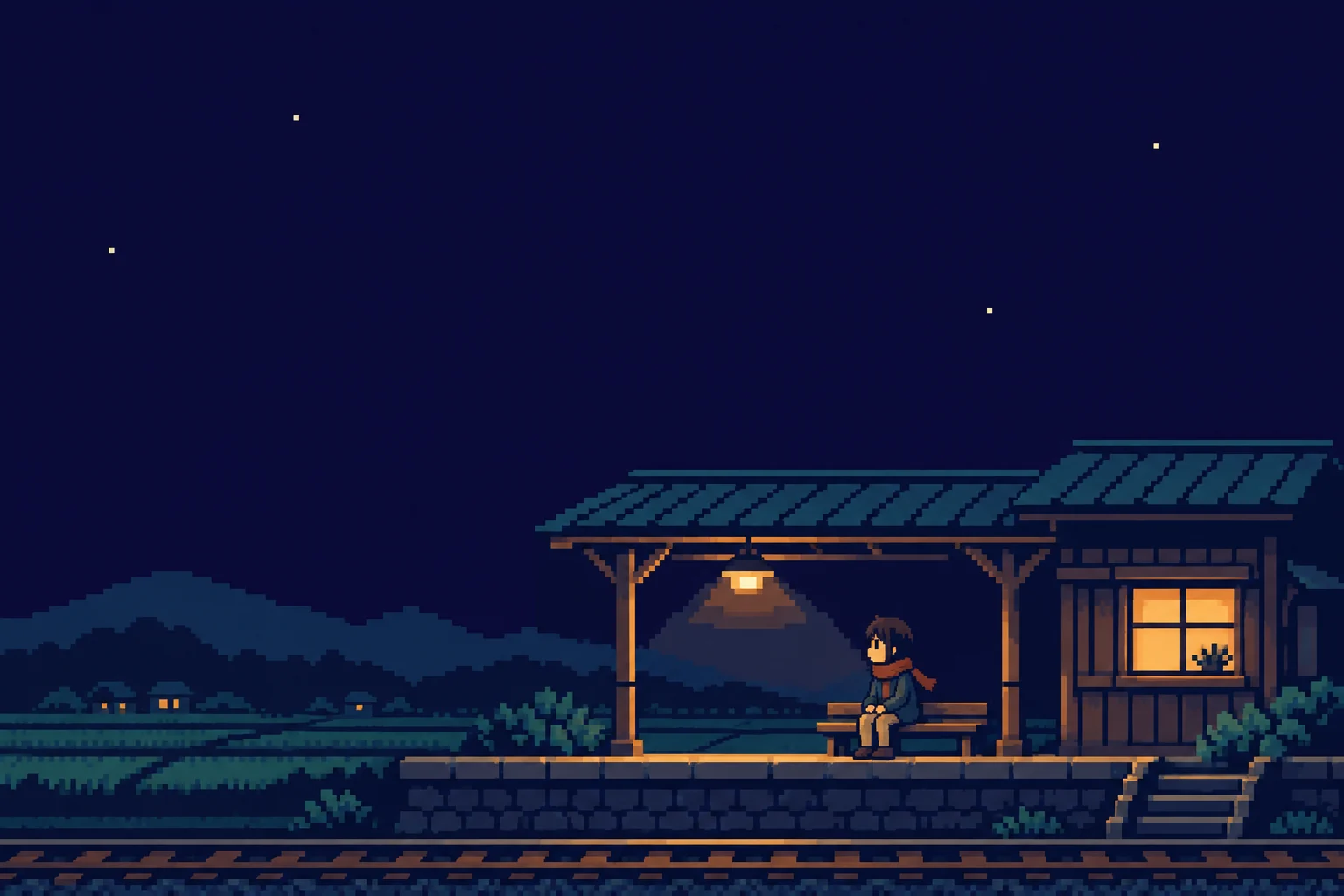
Pixel art wallpaper works well when a few shapes carry the scene. Try a small train station, a glowing window or a mountain behind one character. Look at the image as a thumbnail first. If the story depends on tiny signs and several scattered objects, it may become hard to understand behind apps.
The example uses a small night-time station with amber windows and a quiet indigo sky. Its visible square edges are part of the artwork. Keep the original export available, because a compressed messaging preview or a screenshot of a gallery can soften those edges before wallpaper setup even begins.
Check the crop without stretching the art
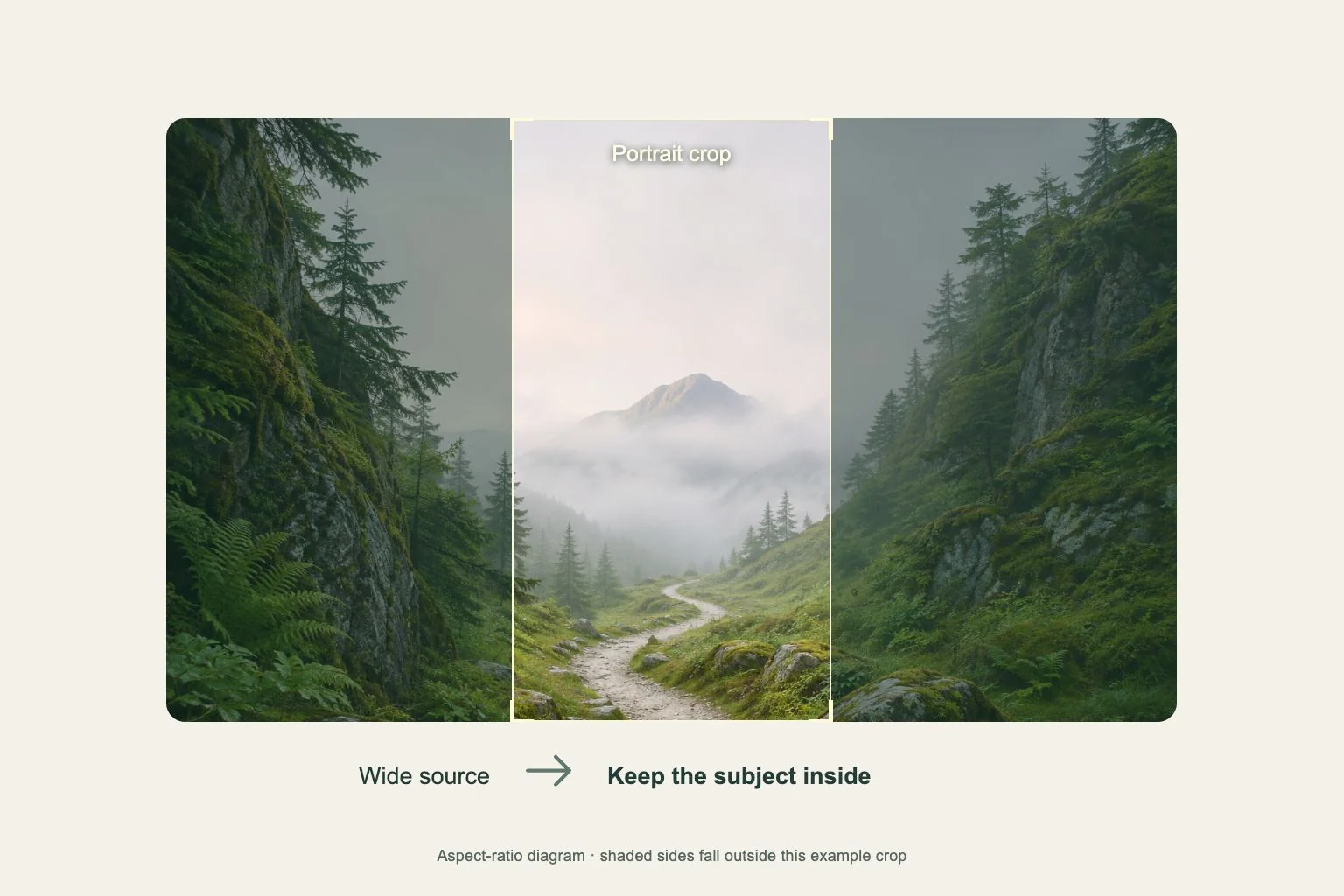
Fit the picture in the wallpaper preview and compare straight edges, steps and repeated squares. Keep the scene’s proportions consistent. Stretching a character horizontally changes the shape of each pixel block, while excessive zoom can remove the platform or roof that makes the subject recognizable.
Leave a clear area for the clock in the source composition. If a bright window lands behind a digit, move the crop slightly and inspect again. A broad sky is easier to work with than detailed brickwork when the phone places text across the upper portion of the image.
Keep app icons visually separate
A pixel-style icon set can echo the scene, but each app still needs a distinct symbol. Try a restrained palette with one accent color for the wallpaper and different readable shapes for your daily apps. Compare them at actual size before committing to a complete set.
A simpler companion made from the scene’s sky or ground colors can help a fuller Home Screen. Keep the detailed station on the Lock Screen if it needs more room. Widget text should remain readable on its own surface, especially when the background contains alternating bright and dark squares.
Compare the saved file with the finished screen
For a Gentheme wallpaper, use the wallpaper guide and inspect the download options available for the chosen image. Open the saved version in your photo library and compare a roof corner or a window frame with the wallpaper preview. Choose the intended high-detail file when several copies are present.
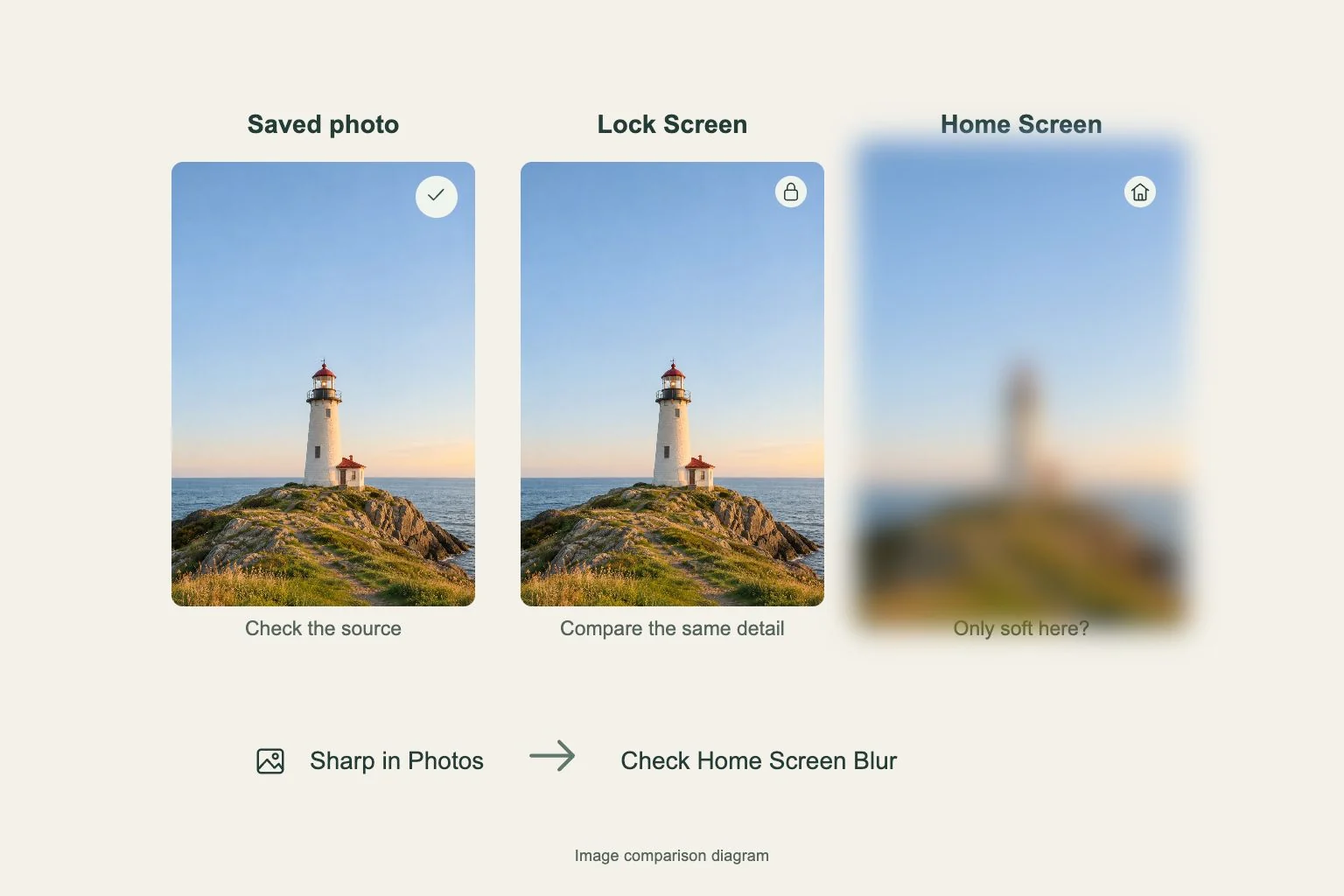
After setting it, check the scene at normal distance and close enough to inspect the pixel edges. The system can scale the image to fit the screen, so judge the actual result. If it looks unexpectedly soft, compare the saved source, crop and Home Screen blur separately before changing the artwork.