Gentheme
Look for the resize outline
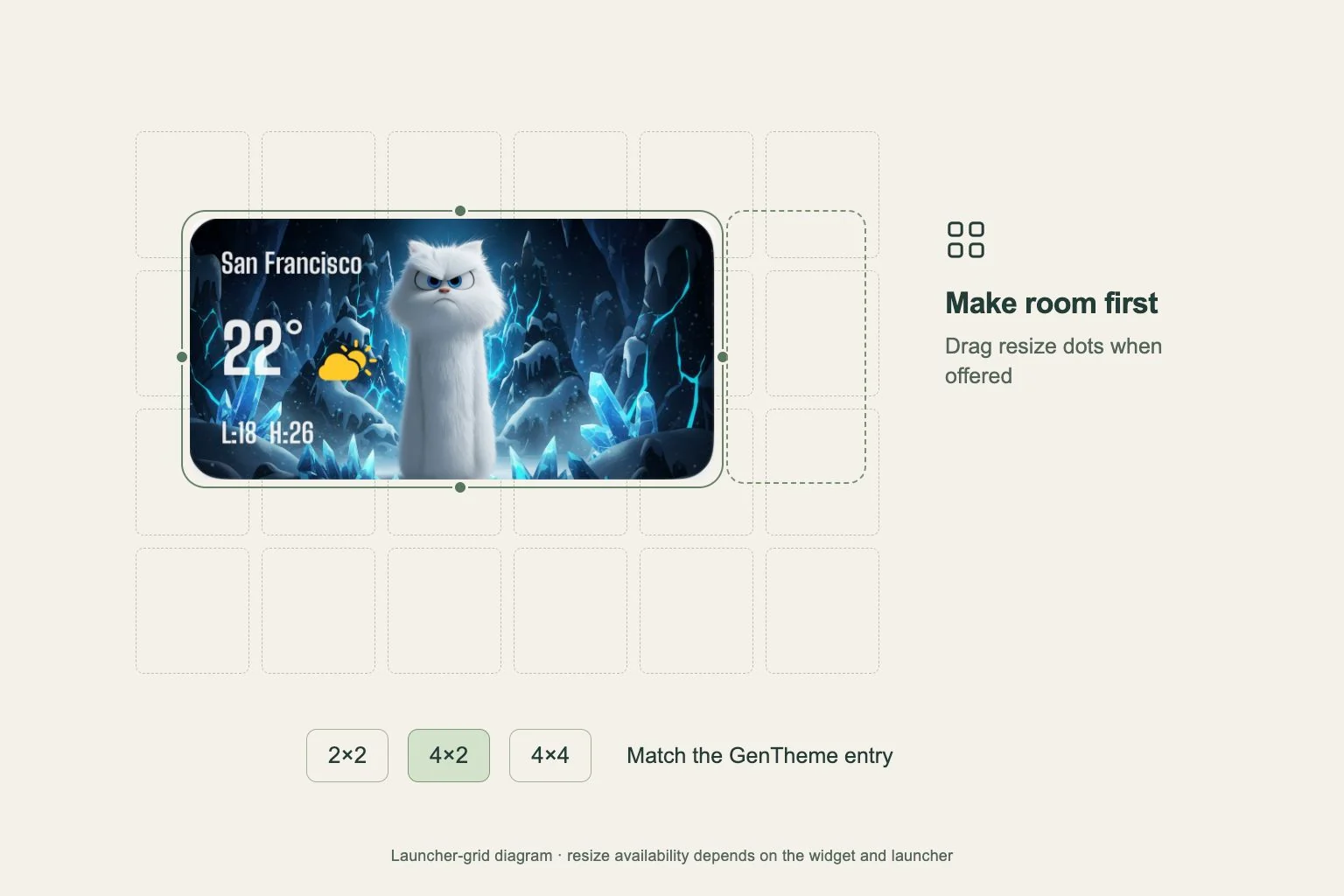
To resize a supported Android widget, touch and hold it on the Home Screen, then lift your finger. Google describes an outline with dots at the sides when resizing is available. Drag the dots and tap outside the widget when you are finished.
The exact controls depend on your phone’s Home Screen app and Android version. If an outline does not appear, inspect the launcher’s available widget actions and the app’s widget list. A supported alternative size may be provided as a separate entry rather than a draggable option.
Make room before changing the footprint
Move nearby apps temporarily or try the widget on a page with open space. A crowded page makes it hard to tell whether a size limit comes from the widget or from the available grid cells. Keep a screenshot before rearranging a page you use daily.
Resize one edge at a time when the handles allow it. If the widget stops growing, compare with the available space around it and the sizes listed for that app. Check the result after leaving editing mode, when the actual content and labels are easier to judge.
Start with the matching Gentheme family
For Gentheme, apply the intended design first. If the add dialog does not appear, touch and hold an empty Home Screen area, choose Widgets and find Gentheme. Choose the matching 2×2, 4×2 or 4×4 entry and place it on the page.
Complete manual placement within ten minutes of applying the design. Reapply first if that time has passed. Those numbers describe the available widget entries, while the physical result also depends on the launcher grid. Check offered resize controls after the matching widget has been placed.
Check the content after resizing
Look for clipped text, a squeezed picture or a large empty area around the artwork. A larger footprint can change the balance without making the design more informative. If a wide design looks cramped in a square space, try the matching wide entry instead.
If you change the launcher grid later, inspect your important widgets again. Keep the grid and widget family consistent while comparing sizes so only one variable changes. Record the phone model, launcher and widget entry when asking for help with a size that cannot be reached.