Gentheme
Match the file to its destination
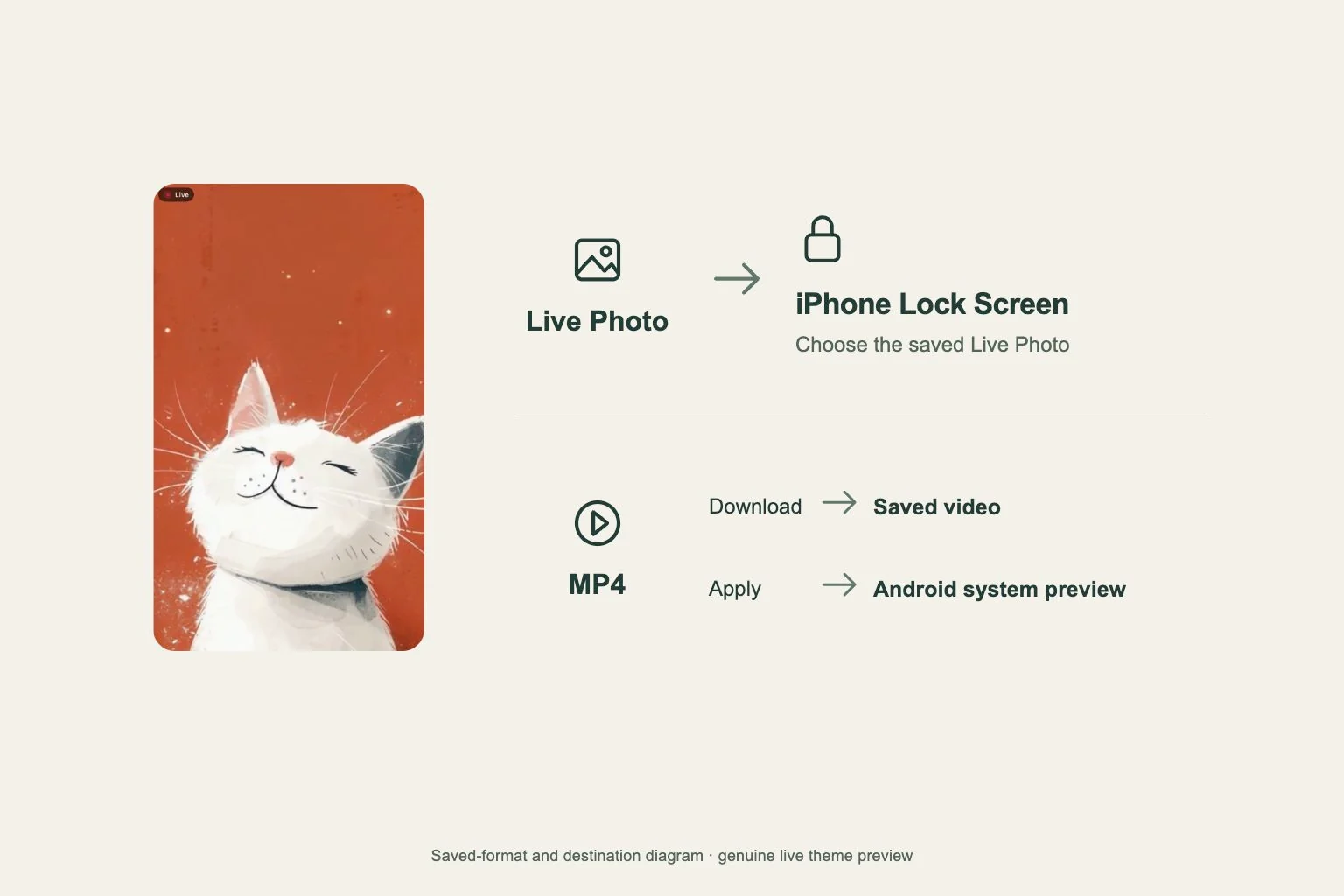
On iPhone, the moving wallpaper route uses a Live Photo saved to Photos and selected for the Lock Screen. An MP4 saved as a video is a different media item. Check what was actually saved before choosing it in wallpaper settings.
On Android, Gentheme separates applying the live wallpaper from downloading its MP4. Choose the action for your goal. A video saved in the gallery is useful to keep or view, while applying continues into the phone’s system live wallpaper preview and confirmation.
Use the iPhone Live Photo route
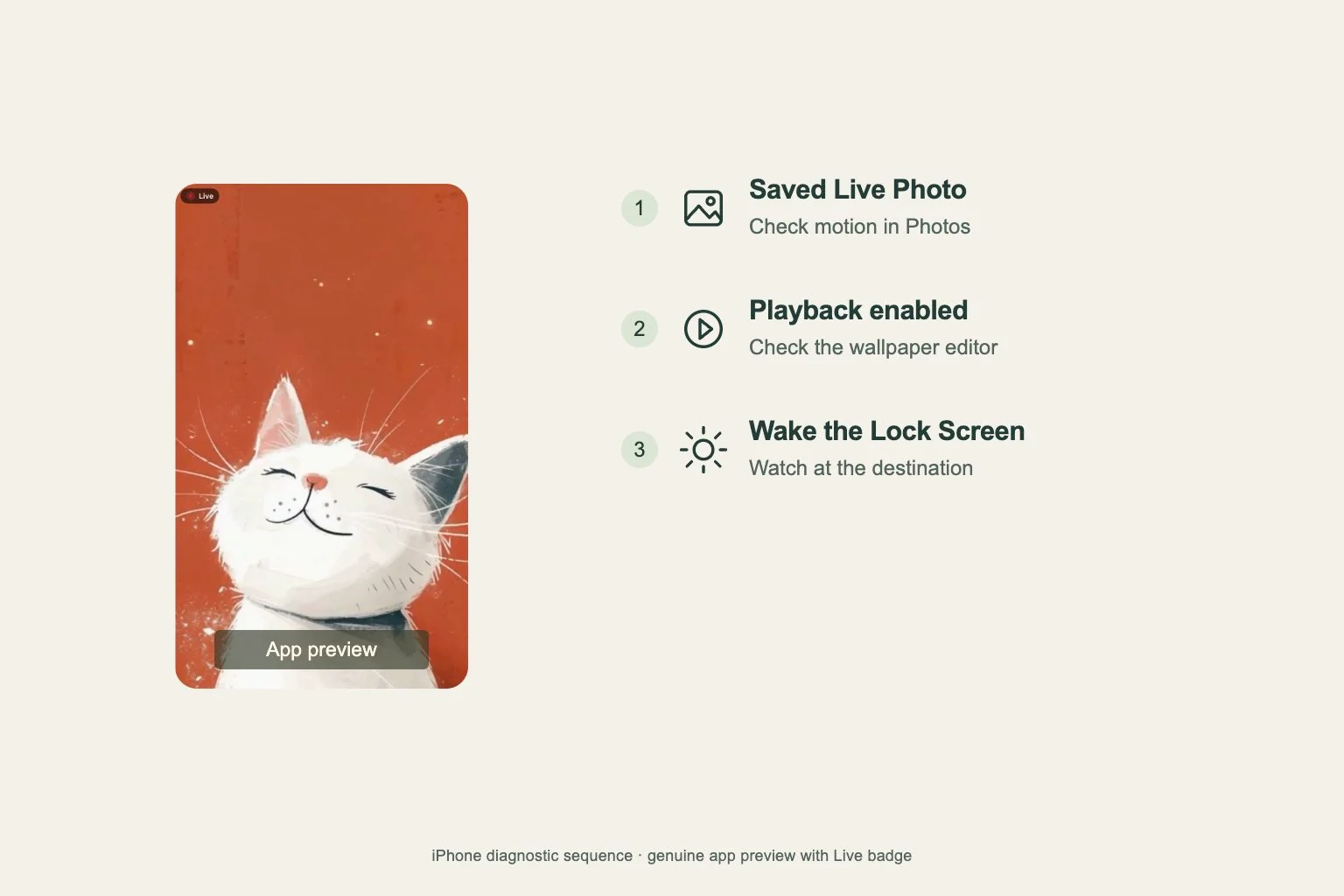
In Gentheme, open a live wallpaper and continue through Download, Get 2K HD Wallpaper and Get Live Wallpaper where shown. If the clip selector appears, choose the 2.5-second segment and confirm. Wait for the app to confirm that the Live Photo saved.
In Settings > Wallpaper > Add New Wallpaper, choose Photos and Live Photo, then select that saved item. Apple supports Live Photo Lock Screen playback on iOS 17 or later when the play option is on. Check the preview and complete the system setup.
Choose Apply or Download on Android
After the static stages, continue to Get Live Wallpaper where available. Choose Apply Wallpaper for the system live wallpaper preview, wait for the download and confirm the choice offered by the phone. Available target screens and motion behavior vary by device and Android version.
Choose Download Wallpaper when you want the MP4 file saved to the gallery. Complete any system share or save picker shown. If you later want it as wallpaper, return to the supported Apply route and finish its system confirmation rather than stopping at the saved video.
Make a short acceptance check
On iPhone, check the Lock Screen after waking the device. A wallpaper pair can put the same image on both screens, but Apple’s Live Photo playback instructions concern the Lock Screen. Judge the result at that destination and record whether the play option was available.
On Android, return to the target screen after confirming the preview. Note whether you used Apply or Download and whether a system confirmation appeared. Those details distinguish an unfinished wallpaper setup from a successfully saved media file and make a support report specific.