Gentheme
Start with the saved design
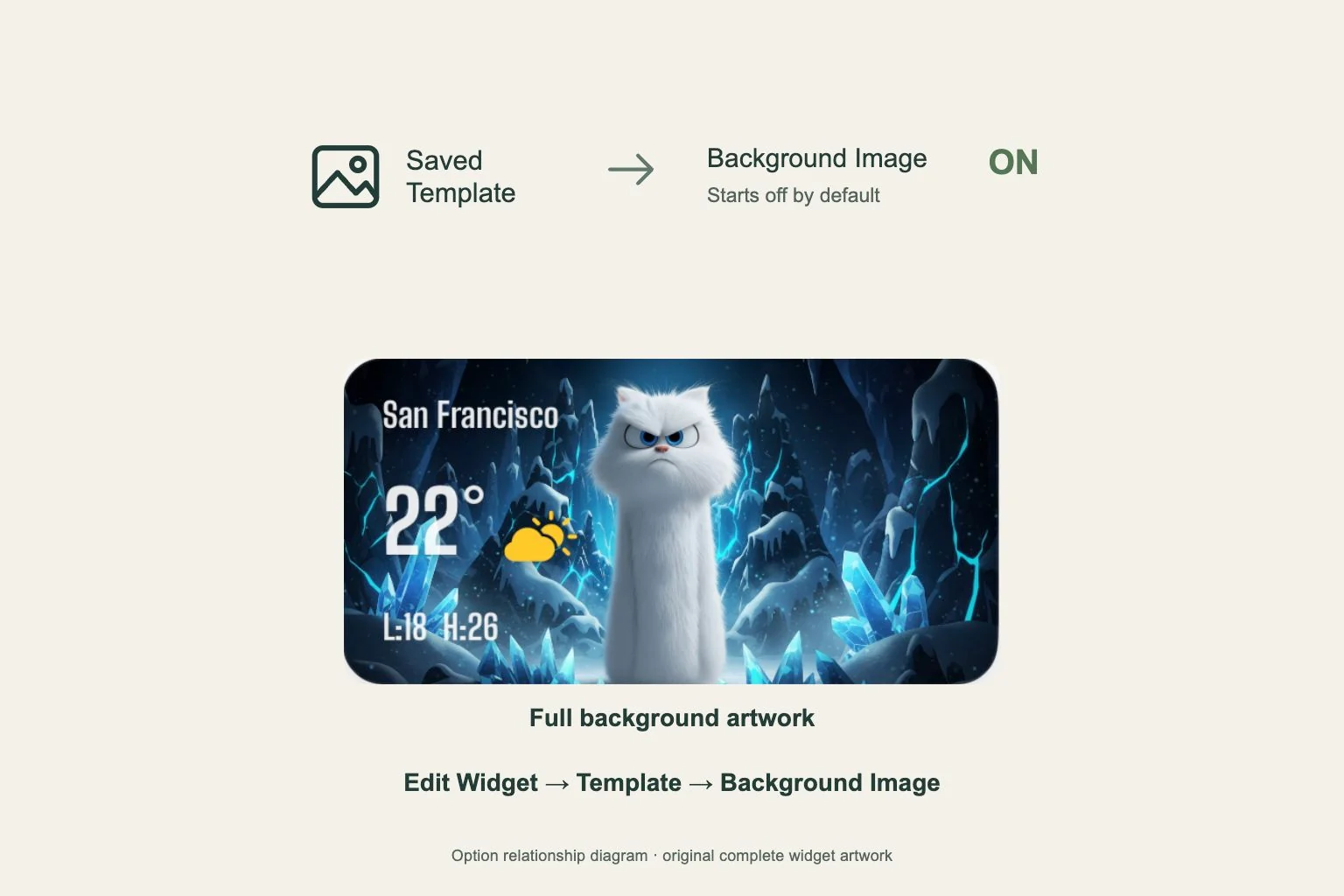
A widget can show the correct design while its full background image is hidden. Gentheme’s Background Image setting starts turned off, so the Home Screen result may look different from the artwork you saw in the app preview.
First identify the design you want to display. In Home Widget, finish any unlock and wait for Widget Added!. Check that the design appears in Mine before changing the widget on your screen.
Choose the artwork in Template
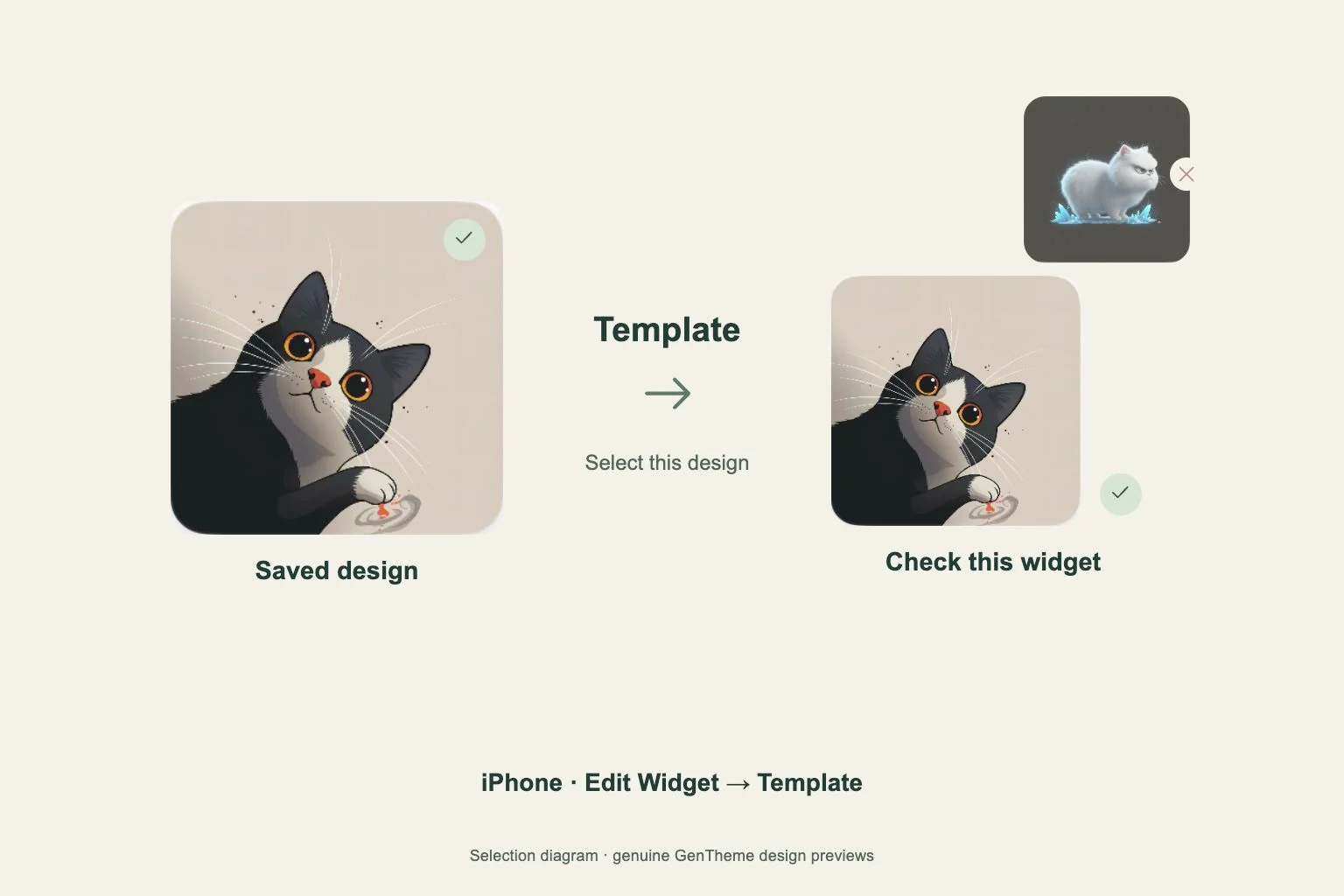
Touch and hold the Gentheme widget on your iPhone Home Screen, then choose Edit Widget. Open Template and select your saved design. This makes the artwork selection explicit before you adjust how its background appears.
Tap outside the settings and inspect the result. If you selected another design by mistake, reopen Template and correct it. Keep this check separate from the background toggle so you can see which change affects the result.
Turn on Background Image
Open Edit Widget again and turn on Background Image. Return to the Home Screen to see the complete background artwork with the selected template. Use this setting when the image itself is an important part of the design.
You can reopen the same settings and turn the option off whenever you prefer that appearance. Compare both states on the Home Screen, where the widget is displayed alongside your app icons and wallpaper.
Check the widget’s shape and size
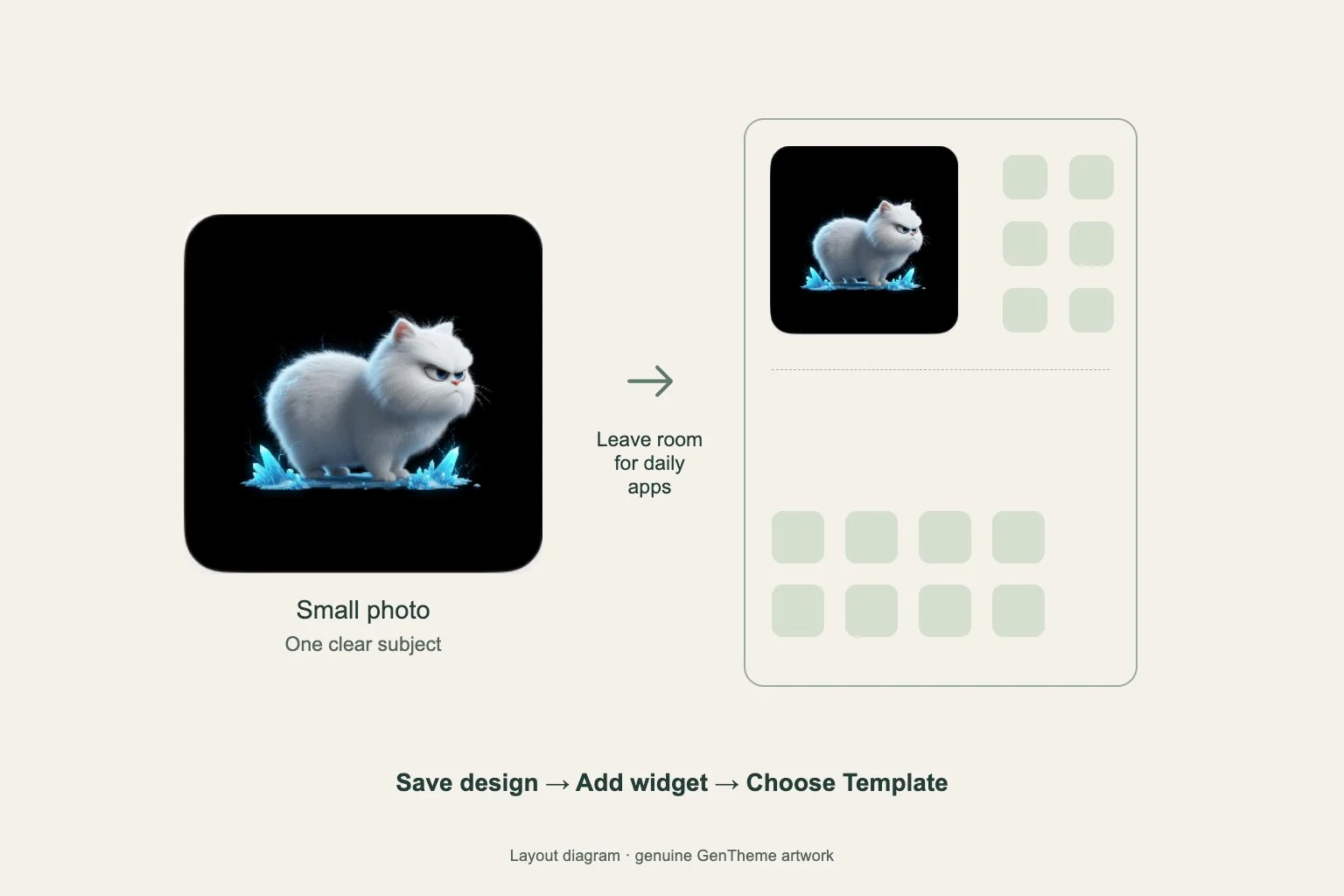
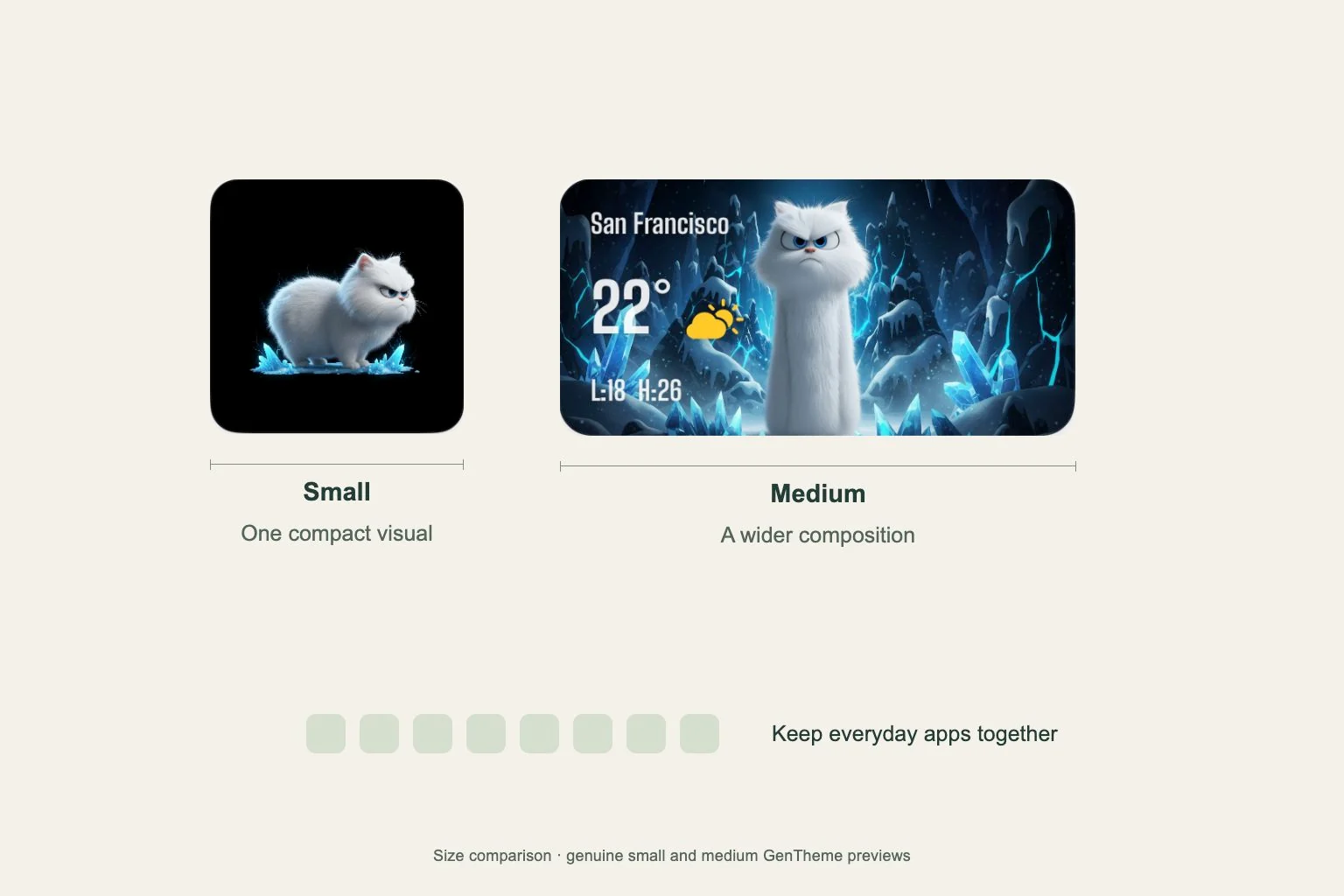
Gentheme’s Clear Widget and Liquid Glass Widget have available small and medium options in the iPhone gallery. Photo variants use the small size. Choose the type and size that suit the design and the space on your page.
When you add a different widget, choose its Template and check Background Image again. The gallery reflects the options registered by your installed app version. These Home Screen widgets require iOS 17 or later.
Compare one widget at a time
If you have several Gentheme widgets, adjust one first and review it on your usual Home Screen page. Check that the desired artwork is visible and that any text in the design is easy to read at that size.
Then repeat the setting on any other widget you want to adjust. Background Image is available through the iPhone Home Screen widget’s editing options. Use Gentheme’s separate LockScreen category when setting up its signature or custom-text widgets.