Build an iPhone home screen around your day.
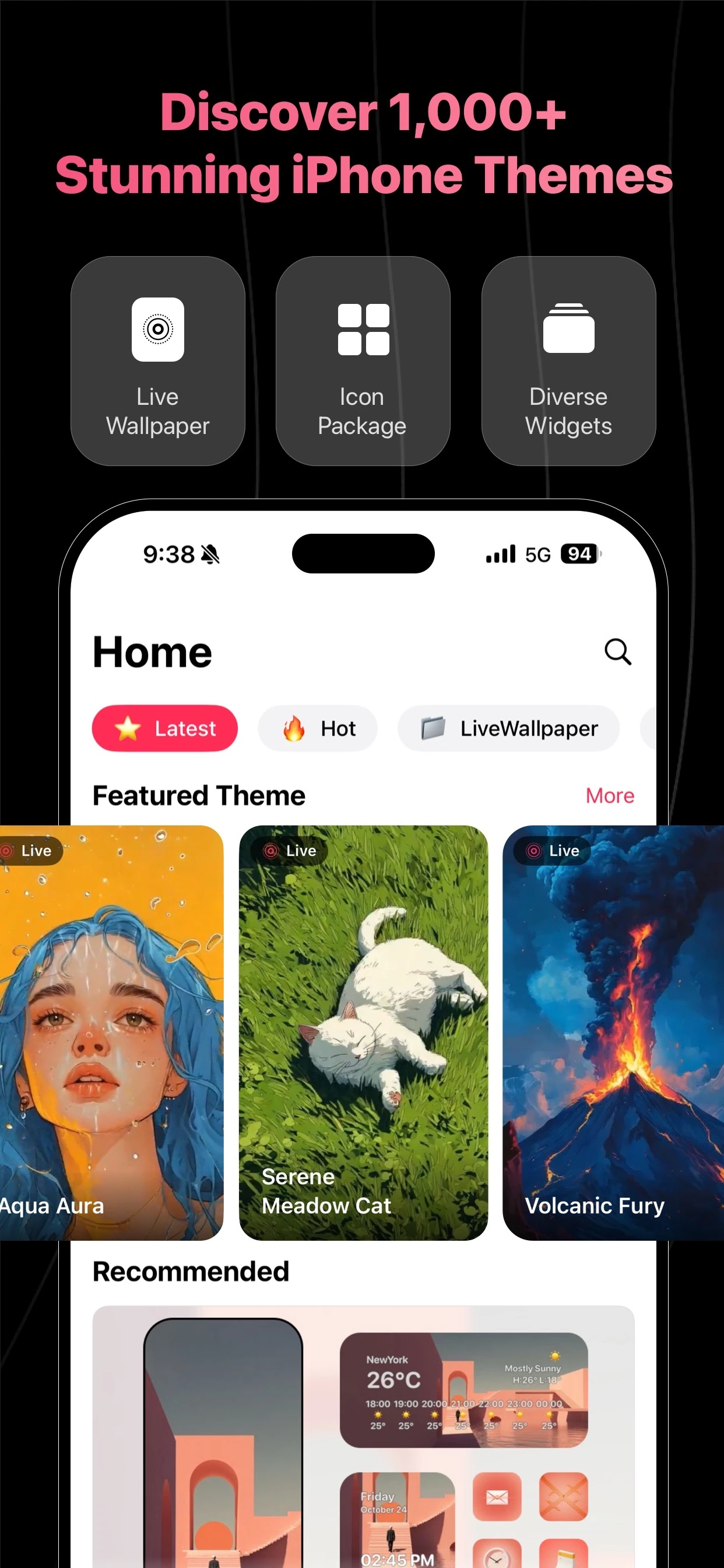
Start with the apps you reach for most, then choose a visual direction. Gentheme helps you discover wallpapers, matching icons and widgets so your iPhone can feel personal and stay easy to use.


1. Choose the wallpaper first
Find a wallpaper or coordinated theme in Gentheme. Follow the in-app steps to save and set the image, checking its crop on your iPhone so the clock and important parts of the artwork have space.
2. Add the icons you use most
Review a matching icon pack and select your everyday apps. Follow Gentheme’s iPhone installation guidance, then arrange the icons in familiar places. Test that each one opens the app you expect.
3. Leave space for useful widgets
Choose a photo, clock or weather widget that suits your layout, configure it in Gentheme and follow the placement instructions. Start with one widget and adjust the spacing before adding more.
A few useful answers
Where should I begin customizing my iPhone?
Choose one home-screen page and one wallpaper. Add a few matching icons and a widget, then use the layout for a day to see which details you want to keep or change.
Does a theme apply every part automatically?
Wallpaper, icons and widgets have their own setup steps. Use the guidance shown in Gentheme; available options can change with your iPhone model and iOS version. Check live wallpaper compatibility separately.

Get Gentheme
Themes, wallpapers, widgets & icons