Gentheme
Inspect the picture directly behind the time
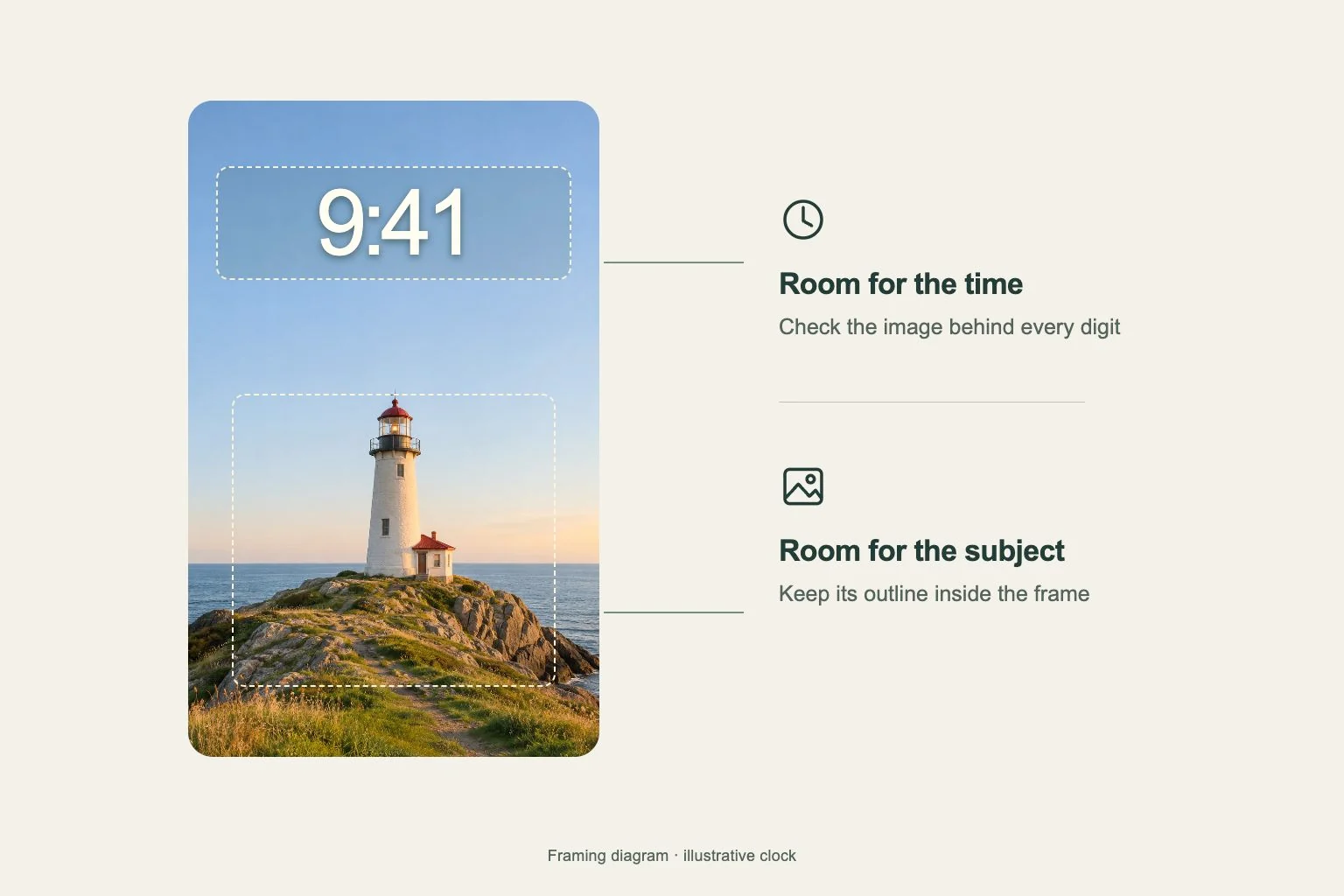
Open the image with the actual Lock Screen interface visible. Look at the patch immediately behind each digit. A bright cloud, a dark branch or a sharp building edge can make one number harder to read even when the rest of the scene looks calm.
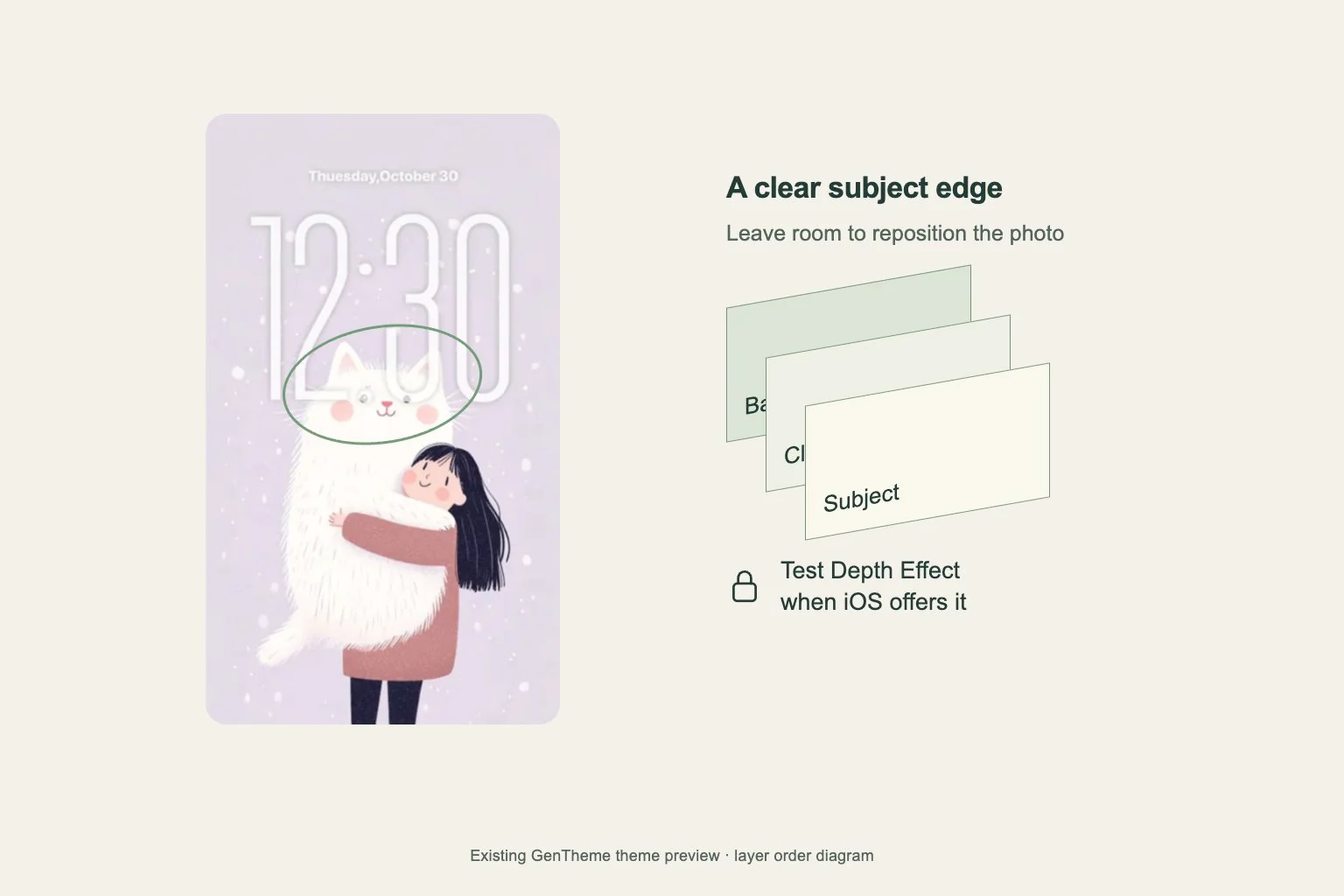
Try an architectural photograph with a broad shaded wall and one small window lower in the frame. The wall can carry the time while the window provides the visual focus. Try one of your own photographs and keep room to move it.
Change the framing before adding more elements
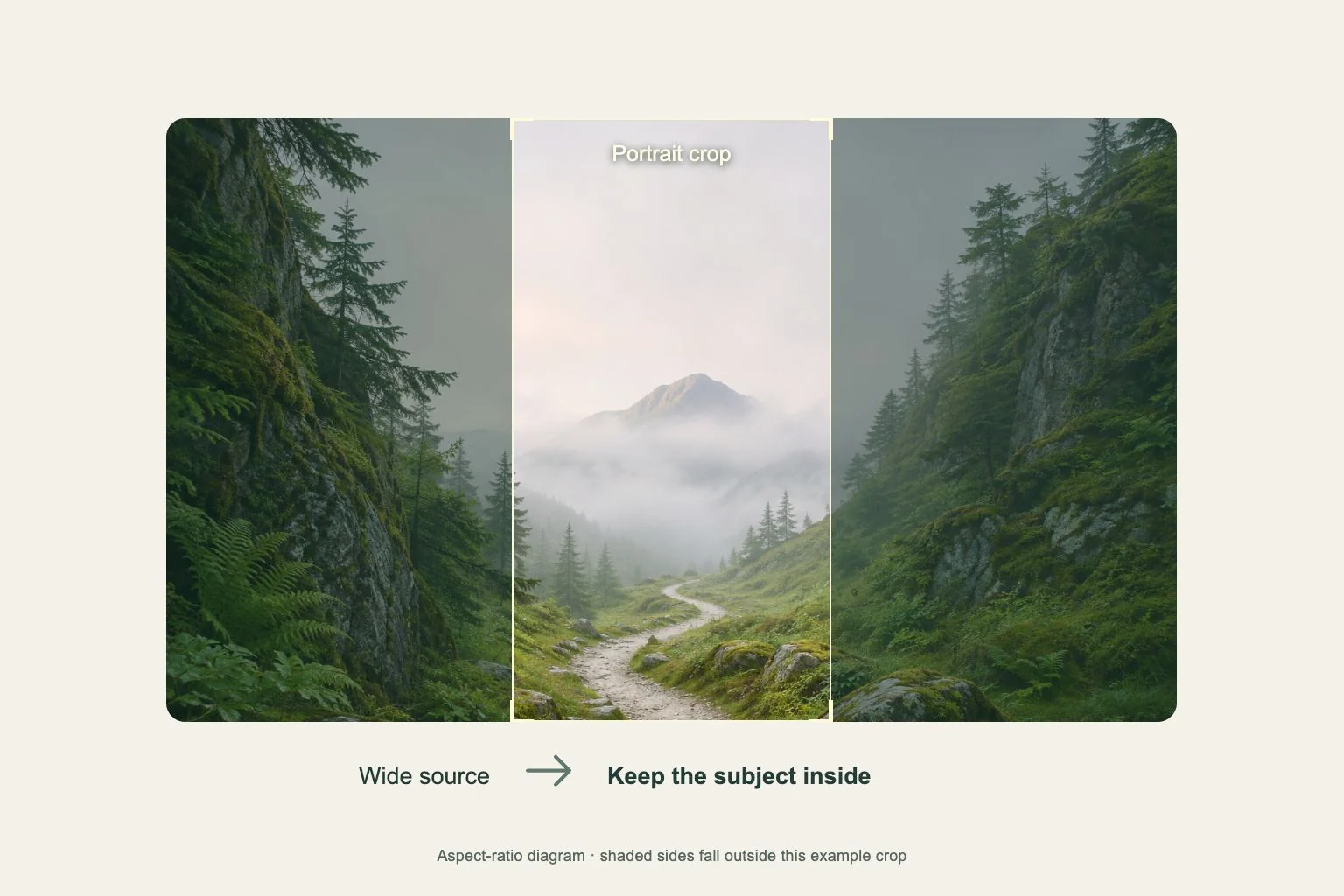
Move the picture so the main subject and clock each have space. Preserve the part of the image that tells you what it is, such as the top of a doorway or the complete outline of a person. Compare a wider crop before enlarging further.
If the wallpaper includes decorative numbers or a quotation, read those separately from the live time. A printed clock-like design can create an extra visual target. Choose a composition where the system clock remains easy to identify when you glance at the screen briefly.
Use the controls your phone provides
On iPhone, open Settings, choose Wallpaper and Customize beneath the Lock Screen preview. Apple provides controls for how the time is displayed. Compare the available choices against the selected image, then review the saved screen after making a change.
On Pixel, open Wallpapers & style from an empty Home screen area and check the Lock screen preview before applying. Clock options and layouts depend on the phone and system. Follow the controls actually shown on your device while watching how much space remains around the picture.
Check the complete screen after saving
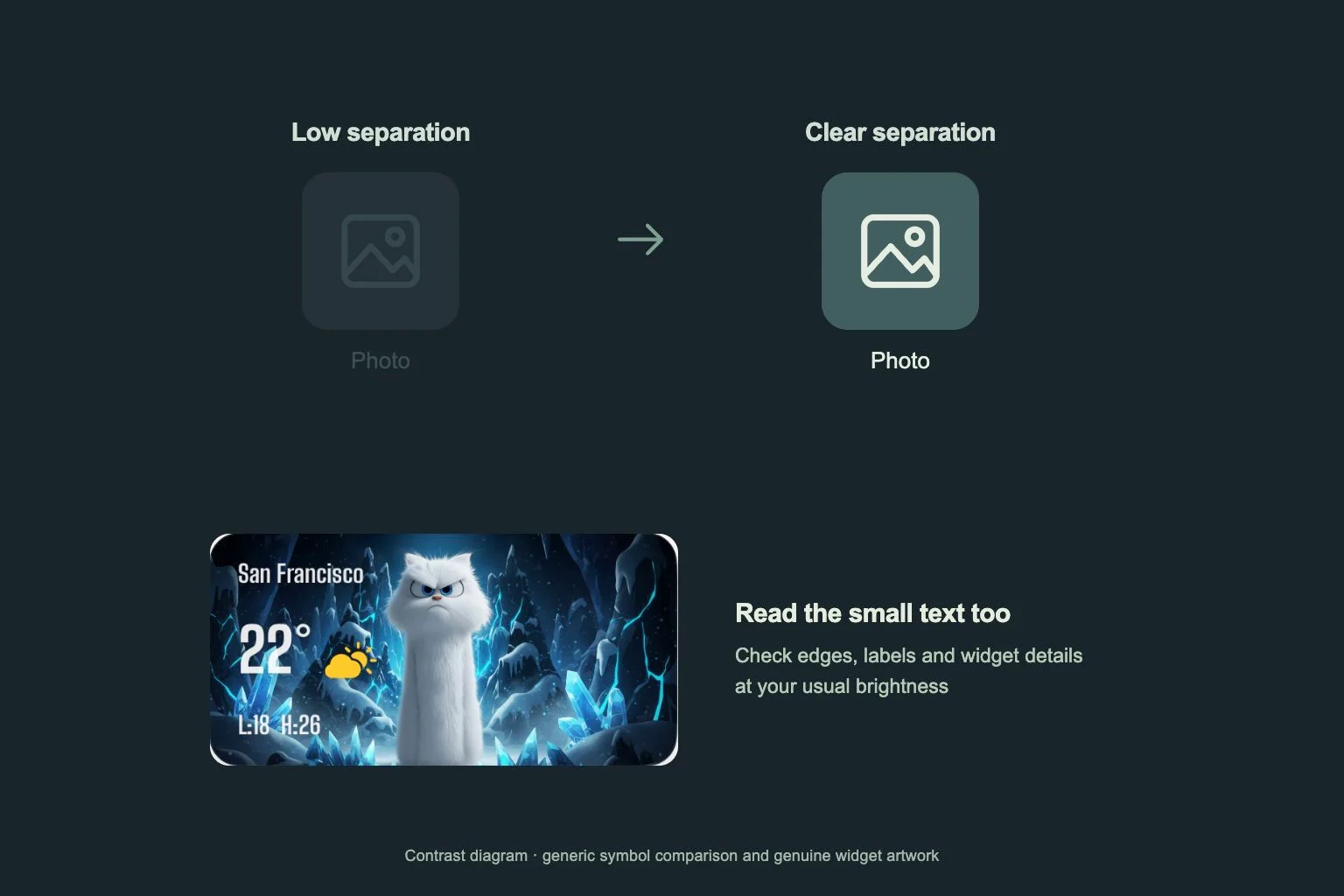
Add only the supported widgets you want to see, then review their text and the clock together. Let notifications appear during ordinary use and see whether the image’s important detail is still recognizable. Check at your usual viewing distance without studying the photo first.
For a Gentheme image, the linked wallpaper guide covers saving and applying before this final review. If the time remains difficult to read, compare another crop or a calmer image with similar colors. Keep the original download so you can return to the composition later.