Gentheme
Open the Home Screen preview
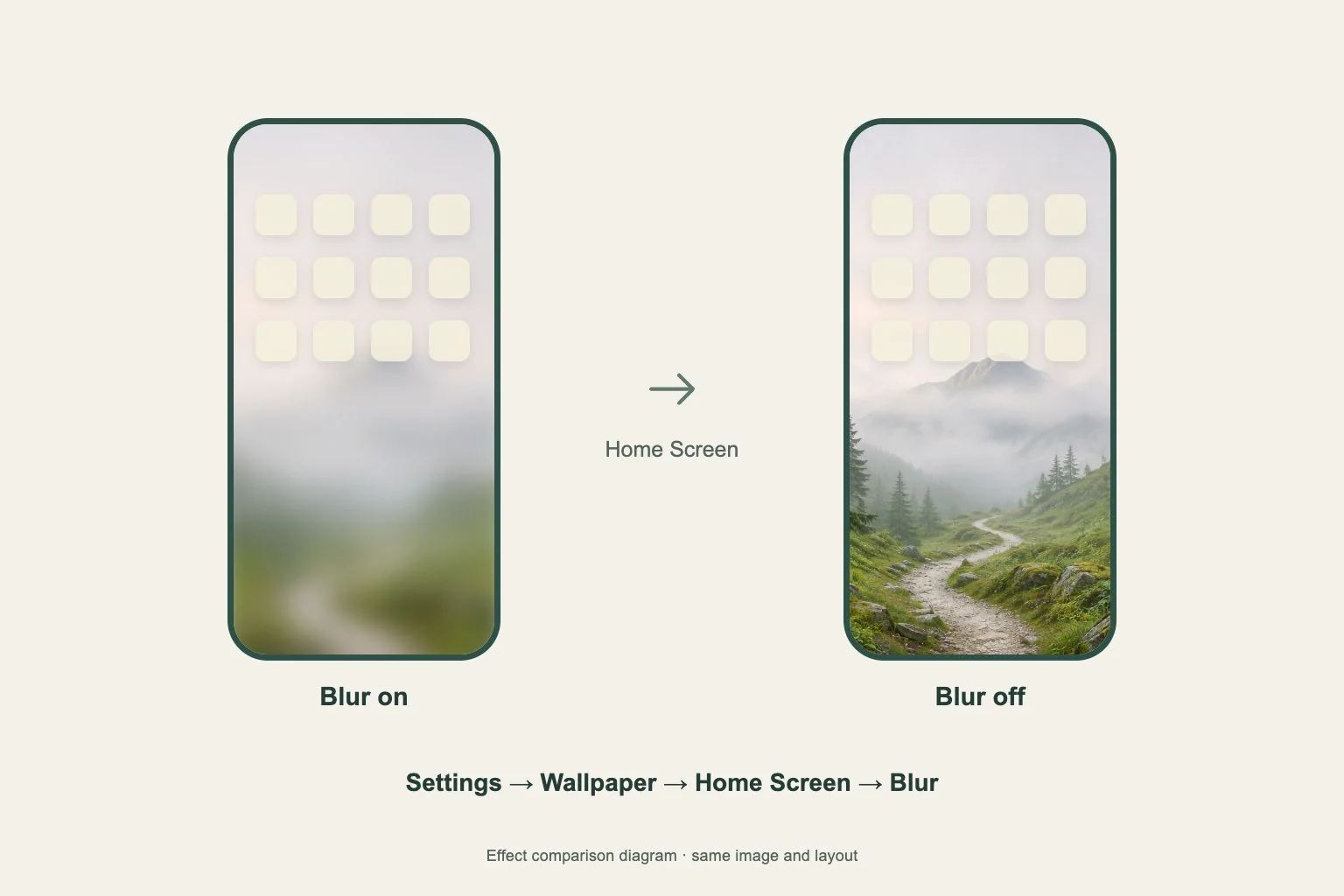
To remove intentional blur behind your iPhone apps, open Settings > Wallpaper and tap Customize under the Home Screen preview. Tap Blur to turn it off, then finish the edit. This controls the background shown behind your apps on that wallpaper pair.
Check the preview label before tapping. The Lock Screen editor contains different controls, so changing its photo or clock does not target this Home Screen setting. When several wallpaper pairs are saved, start with the pair that matches your current screen.
Choose the image behind the apps
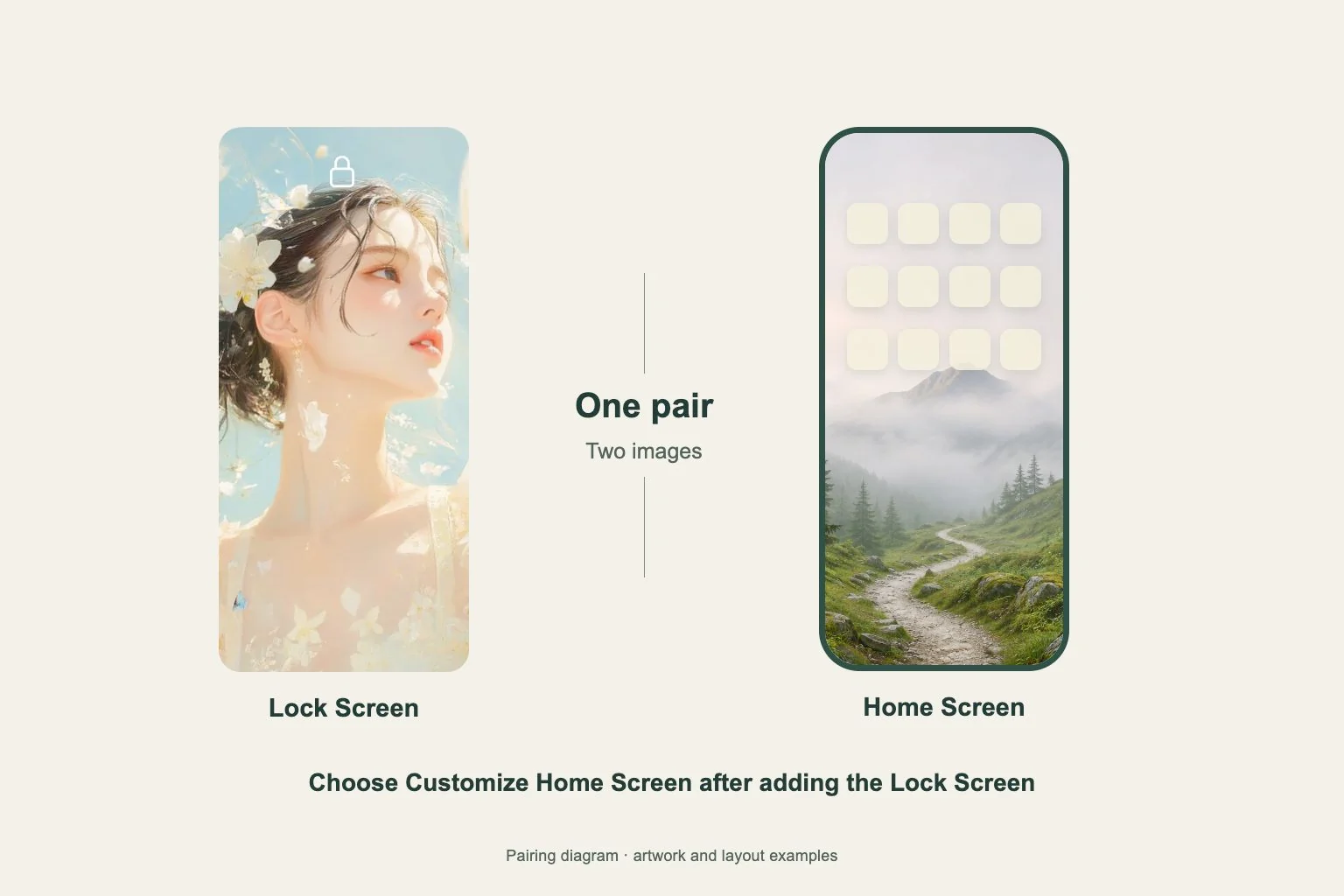
The Home Screen editor also lets you choose a color or a separate photo. If turning off Blur reveals an unexpected image, select the photo control and choose the saved image you intended to use. Inspect it before confirming your selection.
For a Gentheme wallpaper, finish Download and any Get 2K HD Wallpaper save first. Return to the system editor and choose the saved photo. An image visible inside Gentheme has to be saved before it can be selected from your photo library.
Decide how much detail the page needs
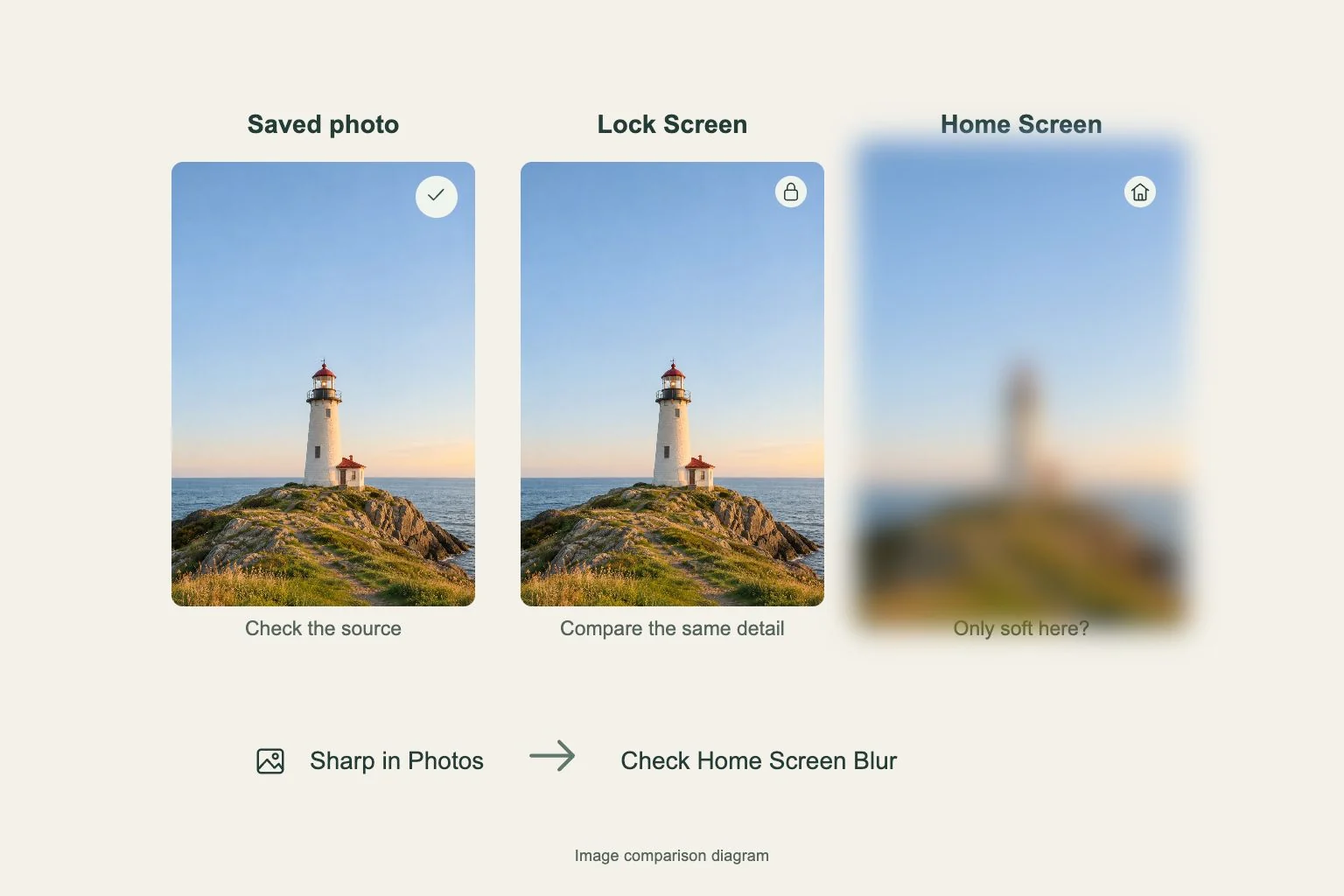
Turn Blur on and off while looking at the parts that sit behind your busiest app rows. Small lettering, bright highlights and thin lines in a wallpaper can compete with app labels. Compare both states using the same image and arrangement.
If the sharp version feels busy, try a separate Home Screen image with quieter areas. You can keep a detailed favorite on the Lock Screen and use a simpler image behind apps. Choose the version that lets you identify your daily apps comfortably.
Confirm the pair you use
After saving, leave Settings and check the actual Home Screen. Lock and wake the phone, then return to the page. This confirms both the background detail and the image you selected, rather than relying entirely on the small Settings preview.
If a different wallpaper returns when a Focus changes, check the Lock Screen gallery for that Focus-linked pair. Edit its Home Screen preview as well if wanted. Blur is worth checking on the active pair whenever two saved setups look different.