Gentheme
Check which effect you want
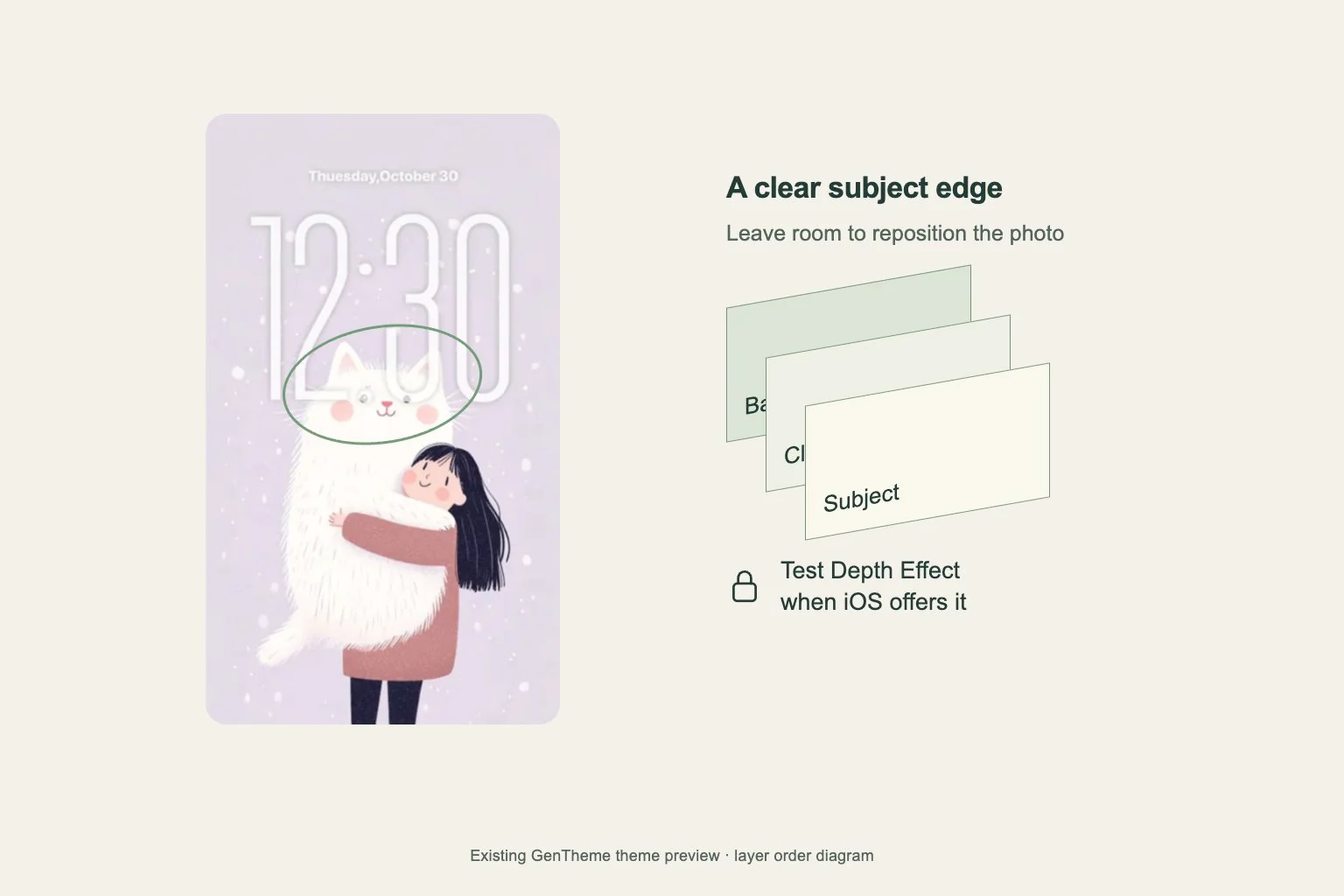
For an iPhone wallpaper with a subject layered around the clock, try Depth Effect in the Lock Screen photo editor. Apple makes wallpaper controls available according to the selected image. A photo that looks attractive in Photos may offer a different set of wallpaper options.
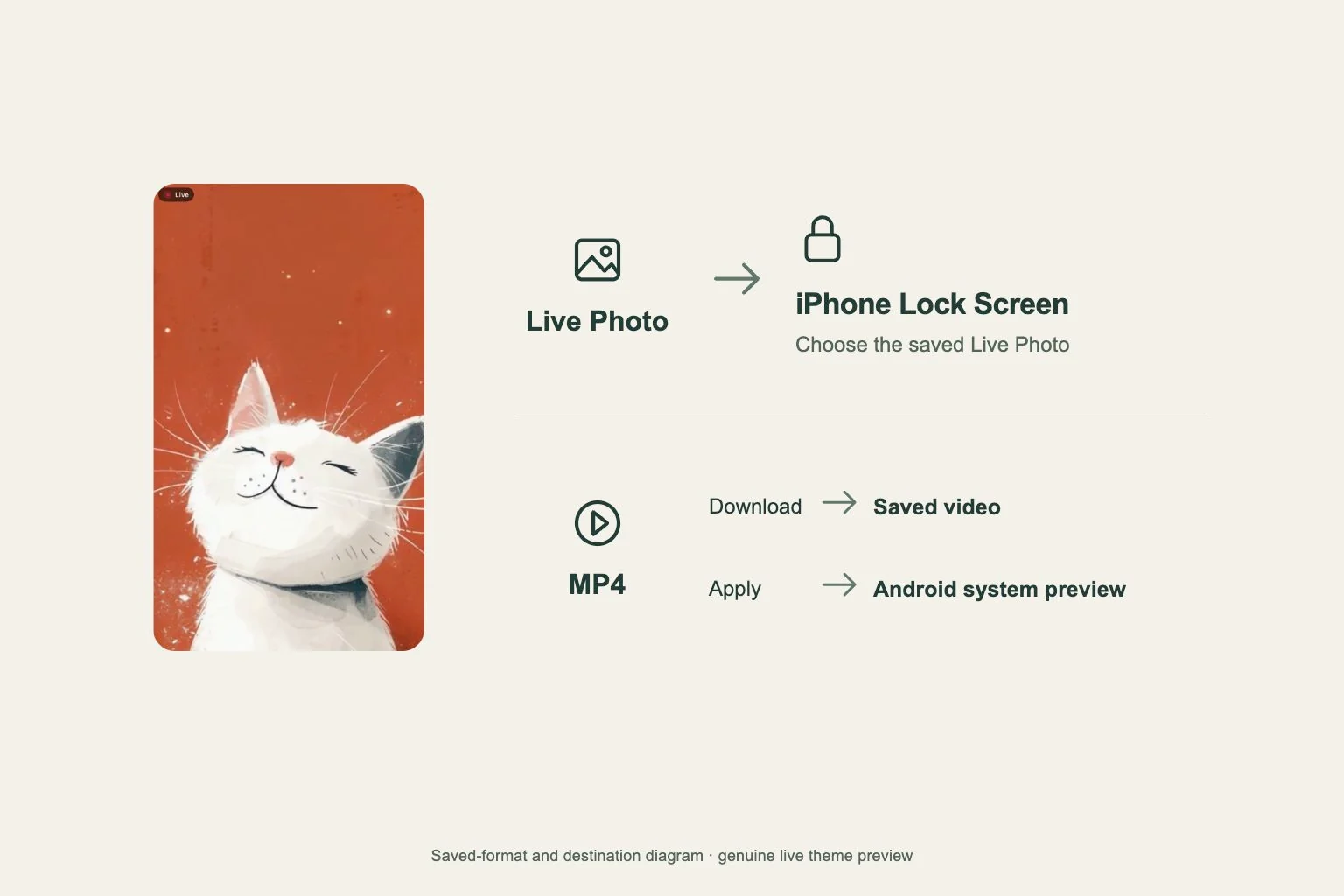
Layering, Live Photo playback and a spatial scene have different controls and eligibility. Decide whether you want a still subject overlapping the clock or motion when the screen wakes. This article focuses on the layered photo composition, so compare that result in the preview.
Choose an image with a readable outline
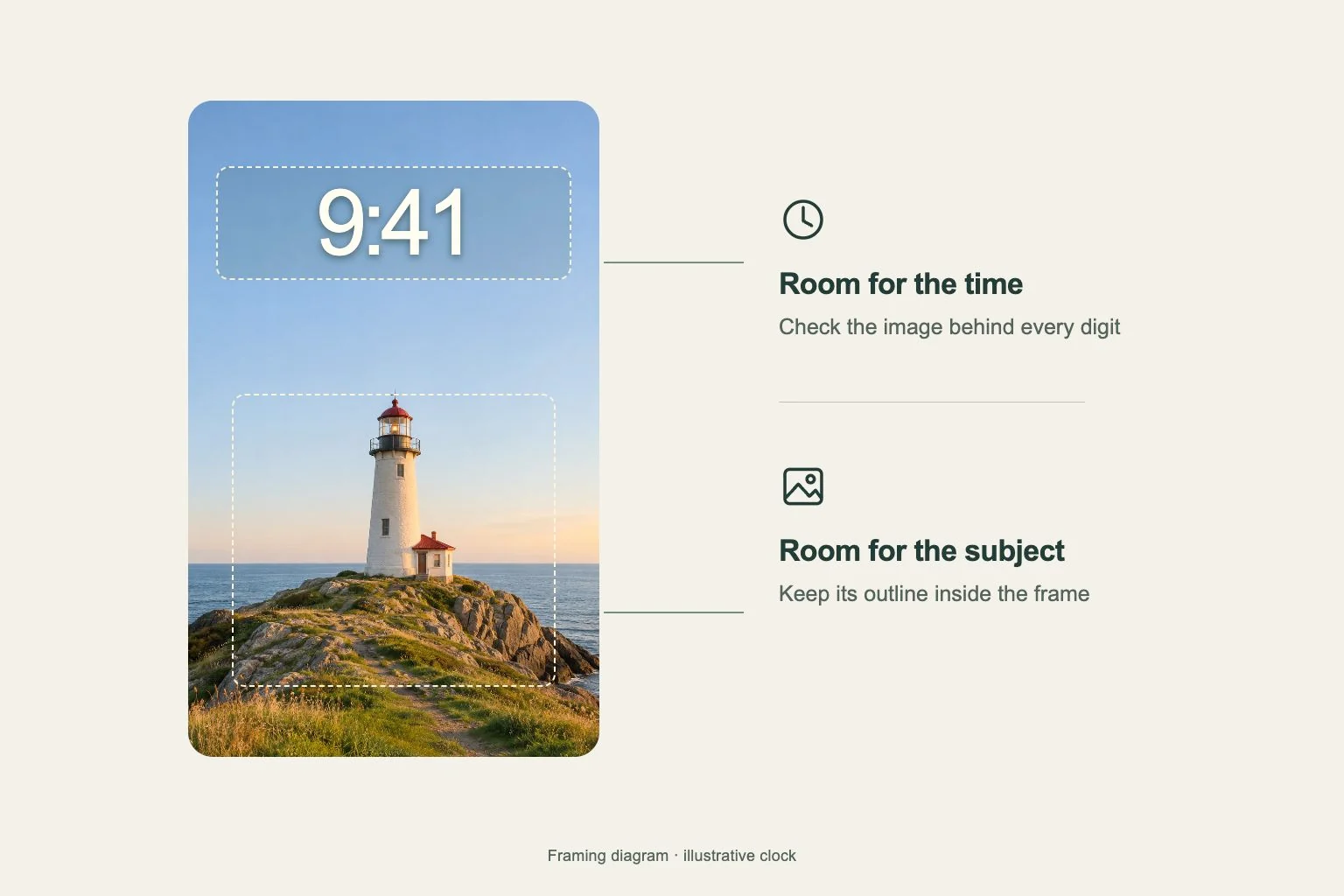
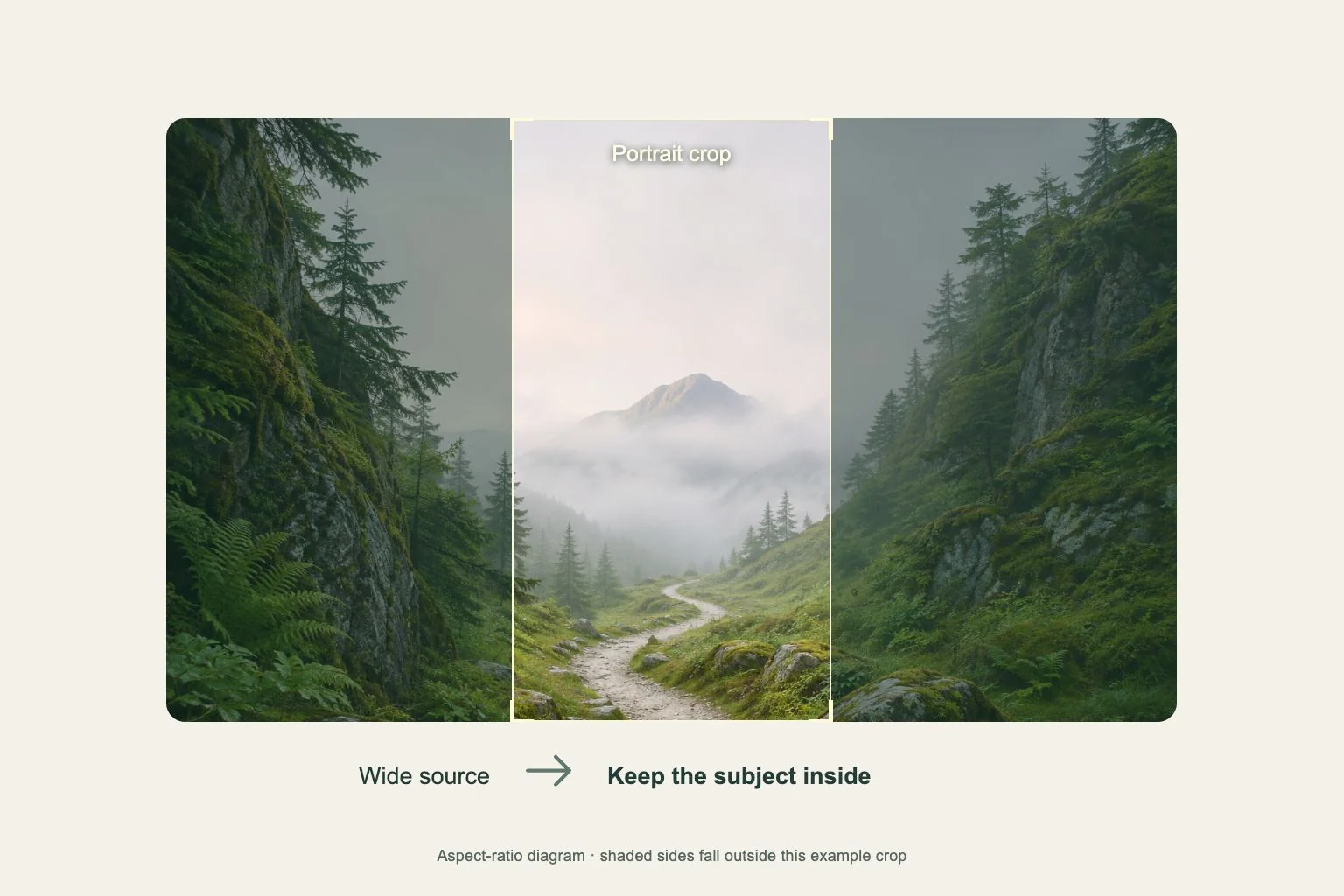
Start with a subject that has a clear edge against its background. A person against open sky or a single object against a plain wall is easier to judge than a crowd or dense pattern. Leave some surrounding area so you have room to position it.
Save the full Gentheme image first, using the 2K stage where available for more detail. The downloaded artwork does not guarantee that iOS will offer Depth Effect. Eligibility and the final layered rendering are decided in the iPhone wallpaper editor.
Try the control on a test Lock Screen
Open Settings > Wallpaper > Add New Wallpaper > Photos and choose your image. Reposition it in the preview. Look for Depth Effect, either as a button or inside More, when offered. Compare the clock and subject with the effect enabled and disabled.
If the control is absent or unavailable, try a different subject position and then a clearly separated second photo. Use a new test Lock Screen without widgets to keep the comparison simple. Treat the available controls on your device as the deciding evidence.
Choose a composition that still reads clearly
Look at the clock at normal viewing distance. A small overlap can frame the subject, while a large face or object near the digits may make the result harder to read. Move the photo and compare before settling on the dramatic version.
Finish the setup and check the actual Lock Screen. If the image works better without layering, keep the composition you prefer or choose another photo. Changing the image is often a more informative test than repeatedly downloading an identical file that already saved correctly.