Gentheme
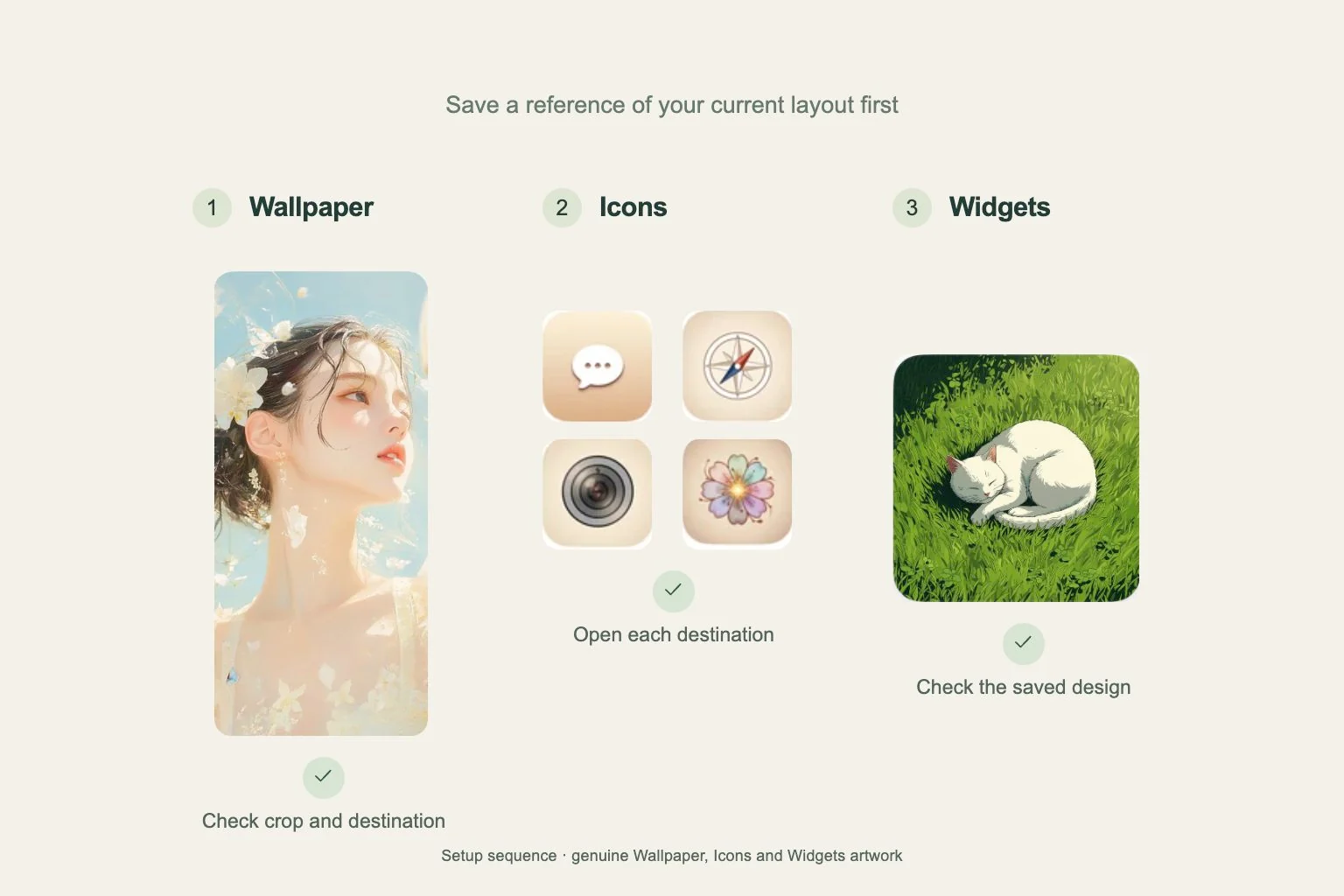
Record the layout and choose what to install
Take screenshots of your current pages so you can recall app positions and widget content. List the apps you need on the new first page. Check which ones have an icon you want to use and leave space for the widgets you plan to add.
Open the Gentheme theme from Home and tap the circular download arrow over its preview. Wallpaper, Icons and Widgets have separate installation steps. Work through them individually and check each result before moving on, so you know which part needs attention if something is missing.
Check the wallpaper at its destination
Decide whether the new image belongs on your Home Screen, Lock Screen or both. Preview the crop with the clock and app labels in mind. Inspect the top and bottom edges for a face or detail that would be cut off.
On iPhone, finish setting the saved image in the system wallpaper settings and check the chosen wallpaper pair or separate Home Screen. On Android, confirm the destination offered during Apply. If you chose Download, finish saving first and continue with your phone’s wallpaper controls.
Finish icon setup and test destinations
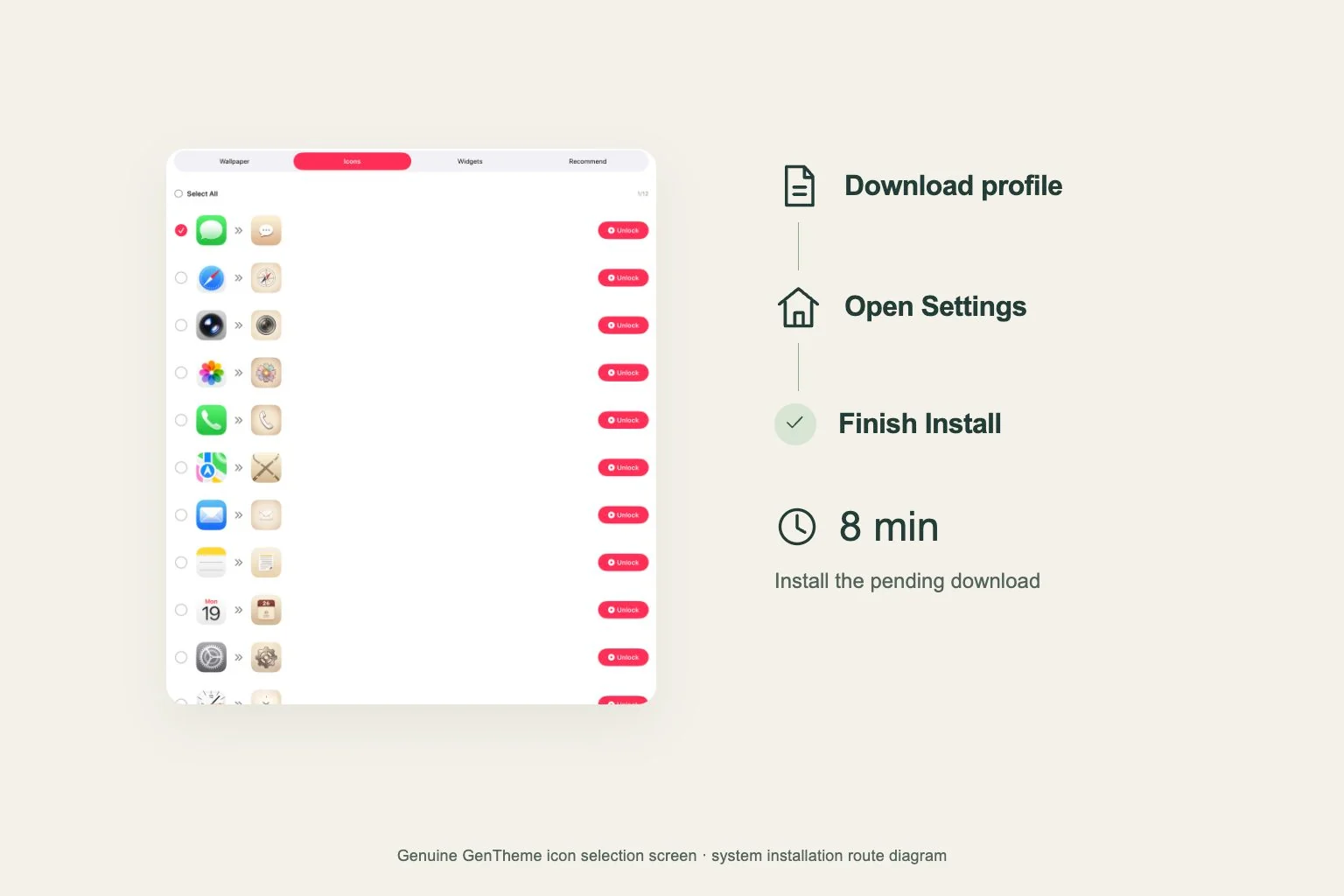
On iPhone, continue from the theme’s Icons selection through the profile download and installation in Settings. Download the profile again if the pending installation has expired. Apple deletes a downloaded profile automatically if it remains uninstalled for eight minutes.
On Android, select the icons you need and use Choose target app to check each installed destination. Confirm the shortcut requests. If you cancel a request, the batch stops. Select the remaining icons and apply again. Open the added icons before rearranging them.
Place widgets and walk through the page
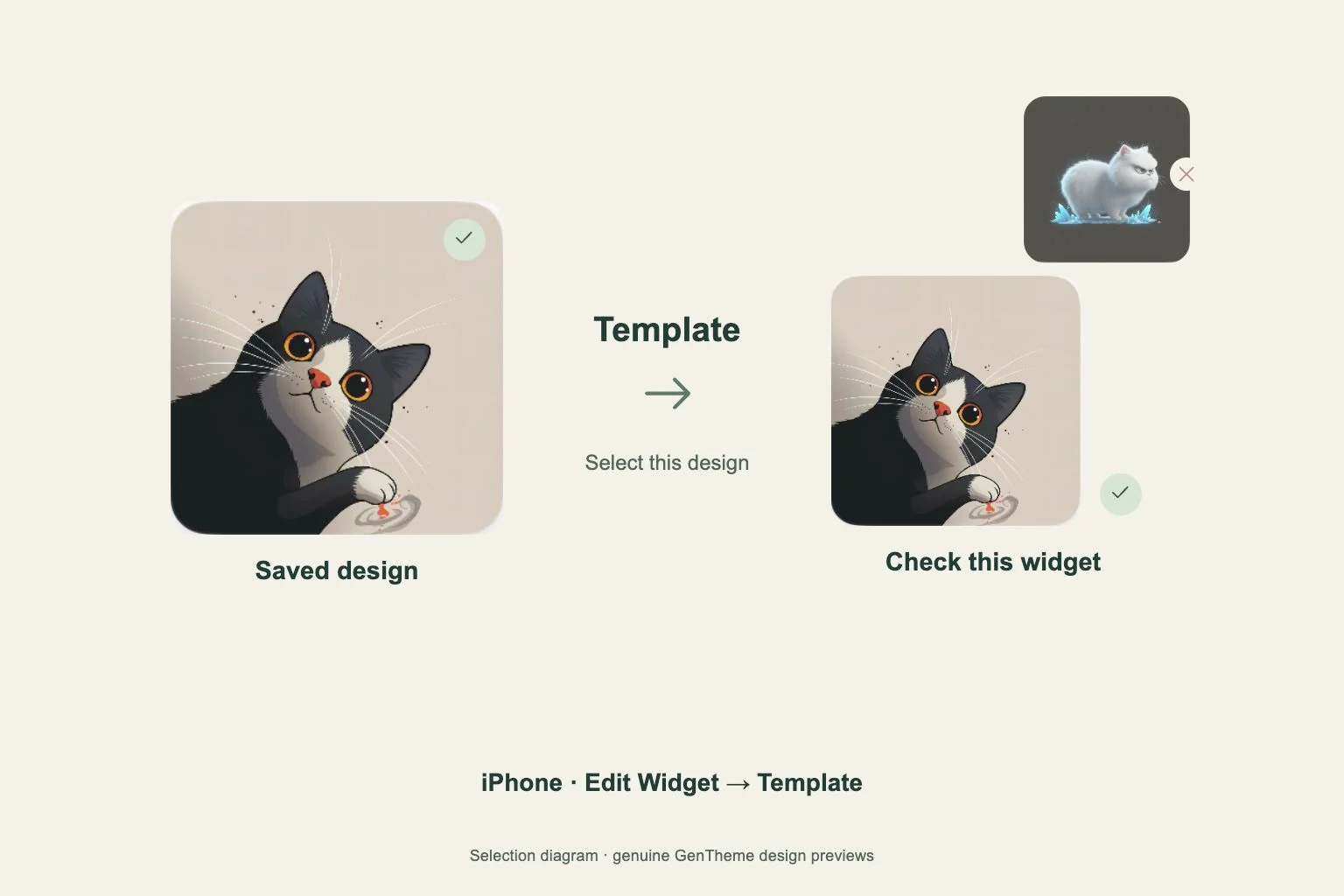
On iPhone, save the widget design, add an available supported type and size, then select the saved Template. On Android, confirm each addition or manually place the matching 2×2, 4×2 or 4×4 widget within ten minutes of applying the design. Reapply first if that time has passed.
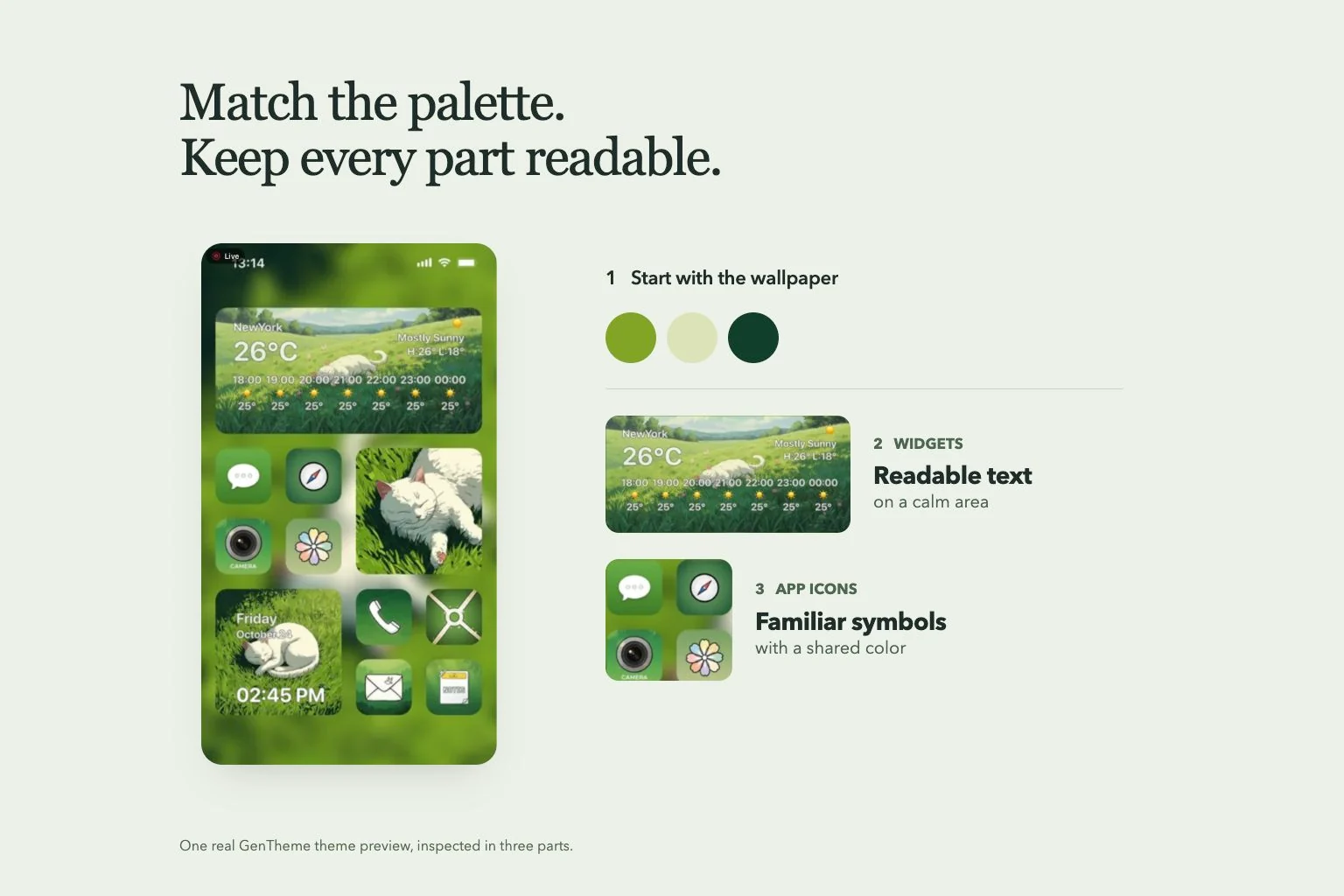
Return to the finished page and check the wallpaper crop, icon labels, destinations and widget content together. Try your usual tasks and compare the layout with your screenshots. If a widget shows the wrong design, revisit Template on iPhone or reapply and add the matching widget on Android.