Gentheme
Choose the image-led part of the page
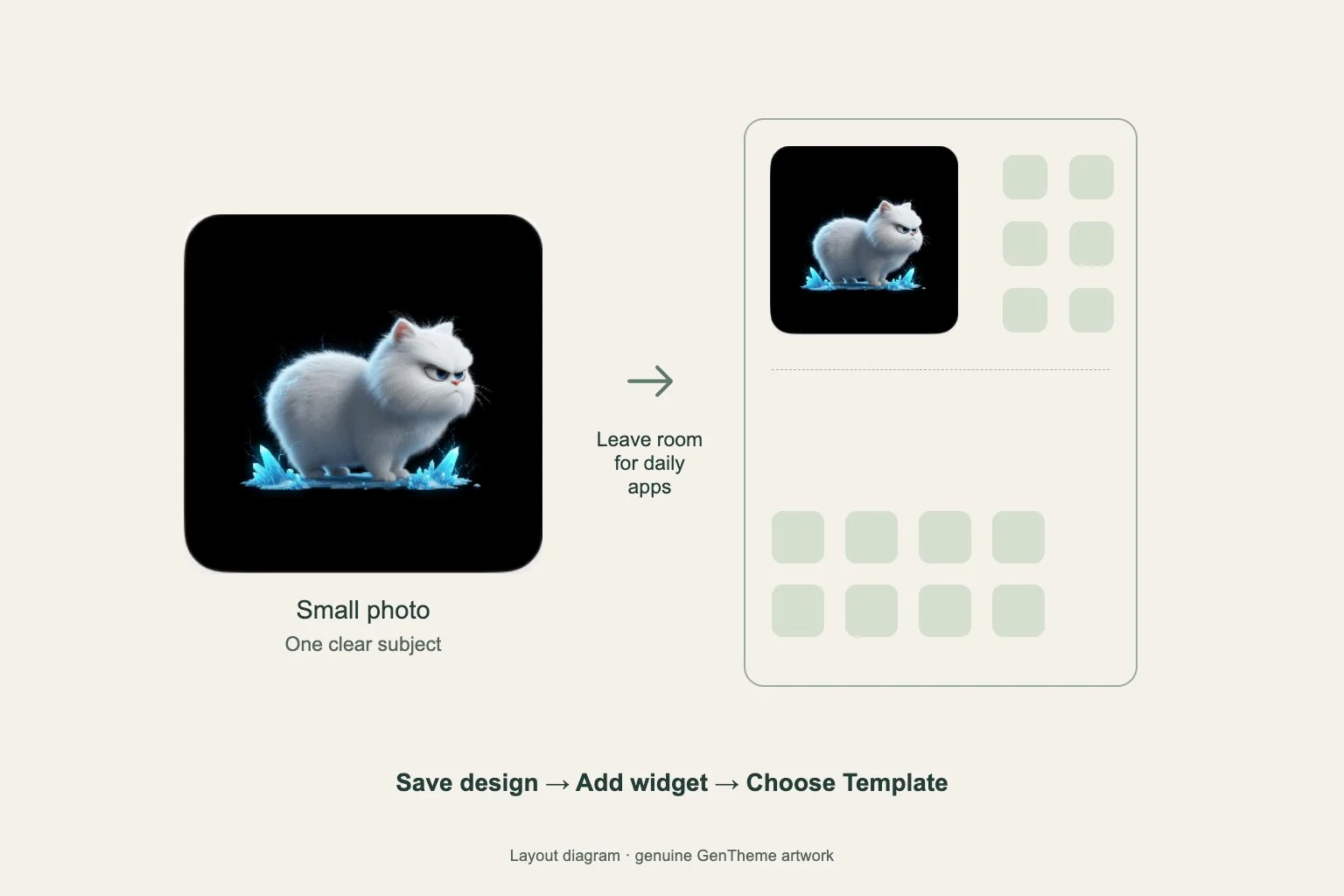
A photo-style widget can give the page a compact visual focus without using a detailed picture across the whole wallpaper. Choose a preview with a subject you can recognize at a small size. A close flower, simple building or clear silhouette is easier to judge than a crowded scene.
Leave a place for that widget before adding other blocks. Try it beside a short group of everyday apps, with a calmer background behind both. If your phone also offers a Photos widget from its own photo app, review that app’s selection controls separately when choosing personal-library content.
Save the Gentheme design before placing it
On iPhone, open Gentheme’s widget section and choose Home Widget. Open the preview you want, complete any unlock shown and wait for Widget Added!. The saved design is available in Mine. This gives you the design to select after placing its widget.
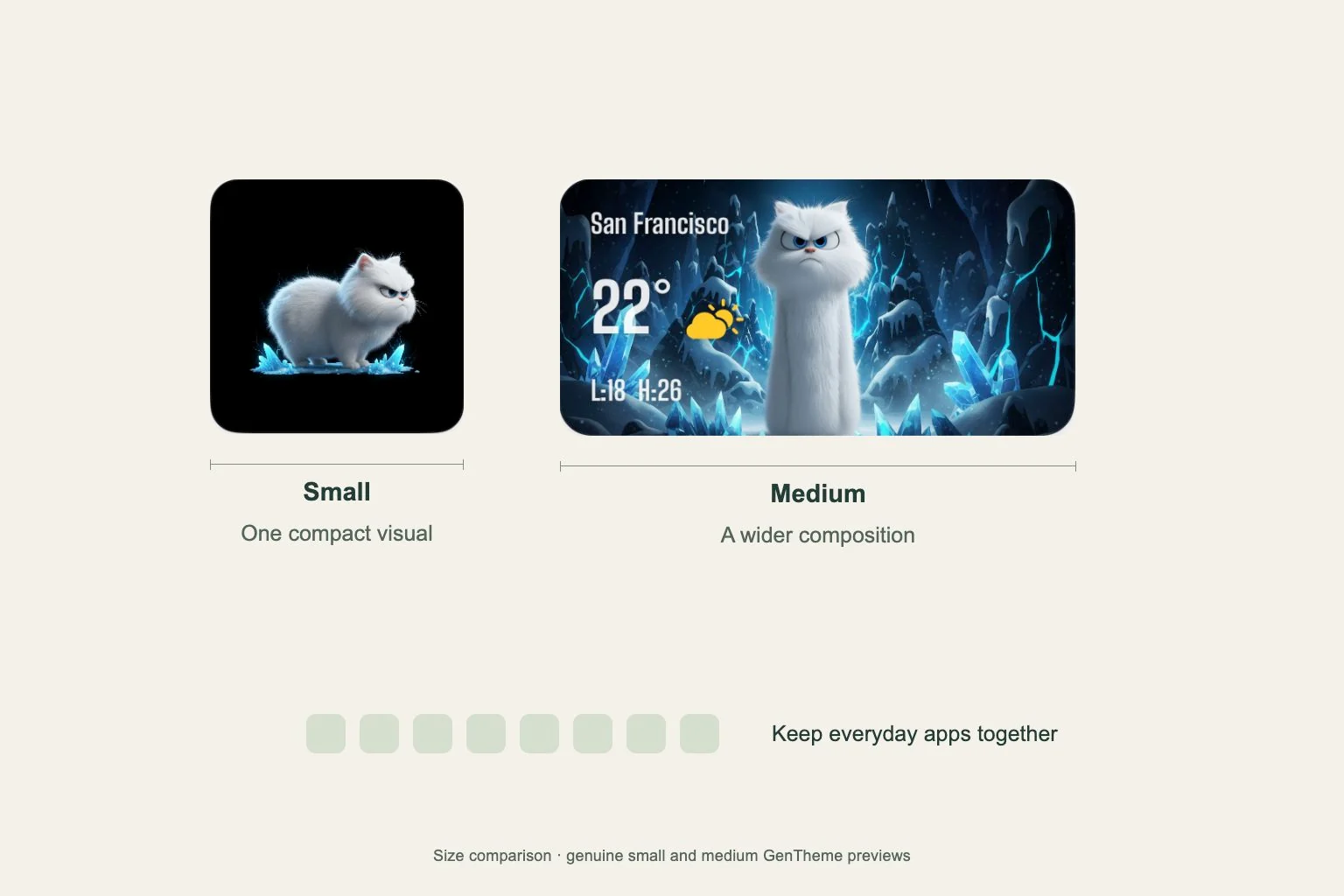
Gentheme’s verified iPhone Home Screen widgets require iOS 17 or later. In the system widget gallery, choose an available supported type and size. Photo variants use the small size. Check the options registered by your app version before planning a larger photo block.
Select the saved Template and background
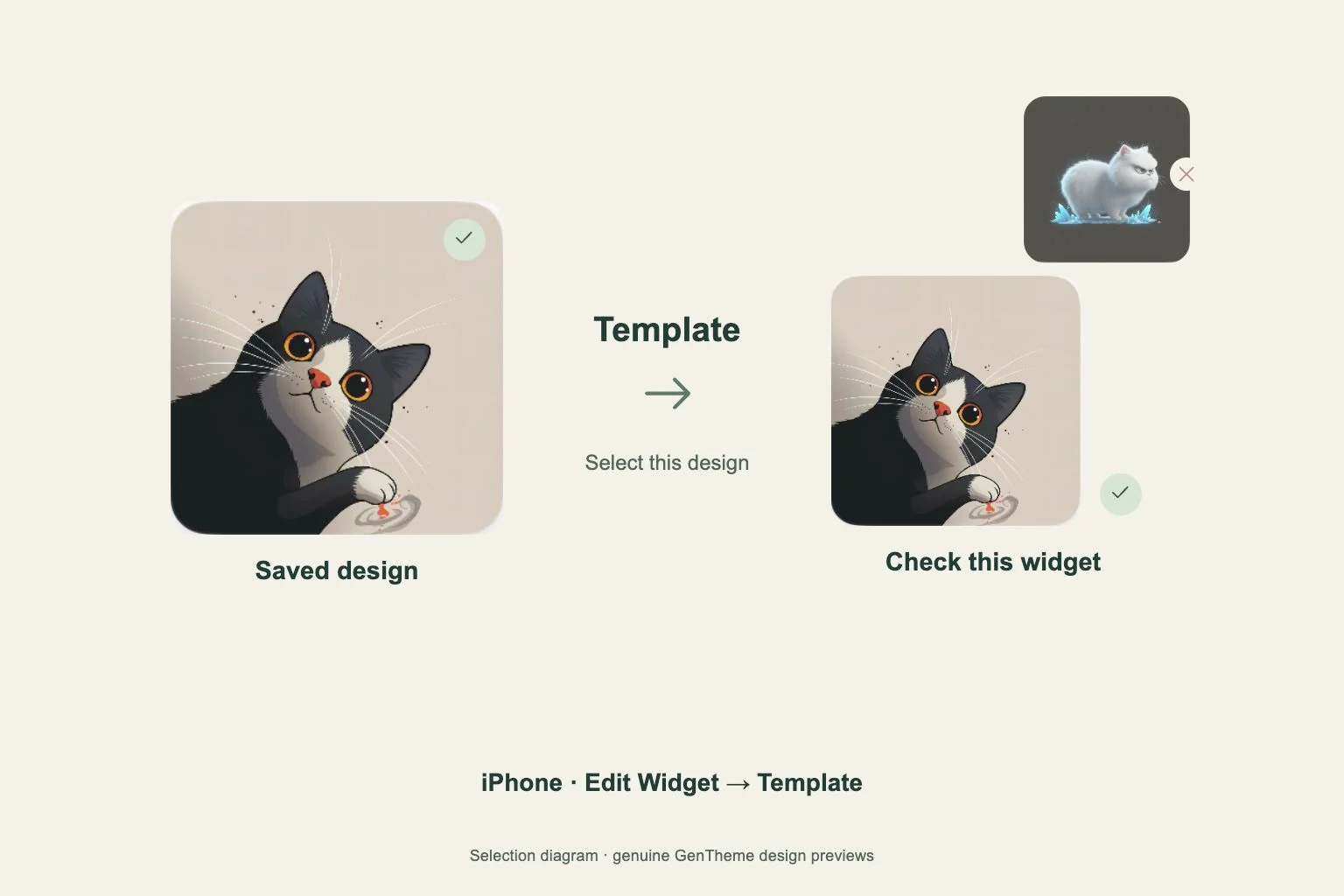
After adding the iPhone widget, touch and hold it, choose Edit Widget and open Template. Select the design you saved. Check the picture displayed on the Home Screen so you know the placed widget is using the intended design.
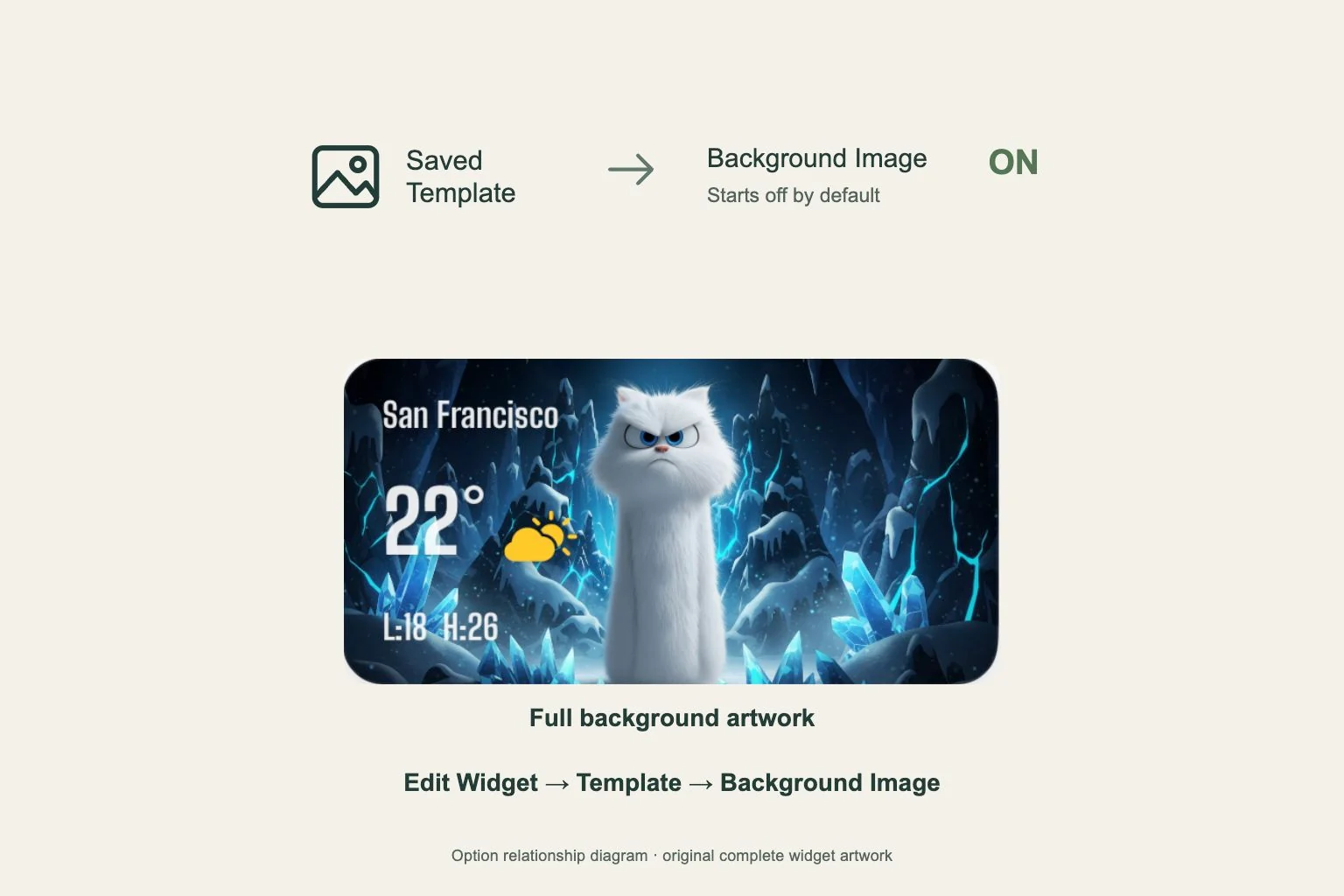
Background Image starts turned off in this widget’s settings. Turn it on if you want the full artwork visible, then compare the result with your wallpaper. A full image can give the widget a stronger boundary, so look at both its crop and the space around its edges.
Complete Android placement and review the page
On Android, open a design in Gentheme’s widget section, tap Apply and complete any unlock. Confirm the launcher’s add-widget request. If it does not appear, open the phone’s widget list and place the matching Gentheme 2×2, 4×2 or 4×4 widget within ten minutes of applying.
If more time has passed, apply the intended design again before adding it. Check the finished picture, nearby app names and the wallpaper together. If the subject is too small or clipped, compare another available preview before moving all the surrounding apps.