Gentheme
Choose a subject with room around it
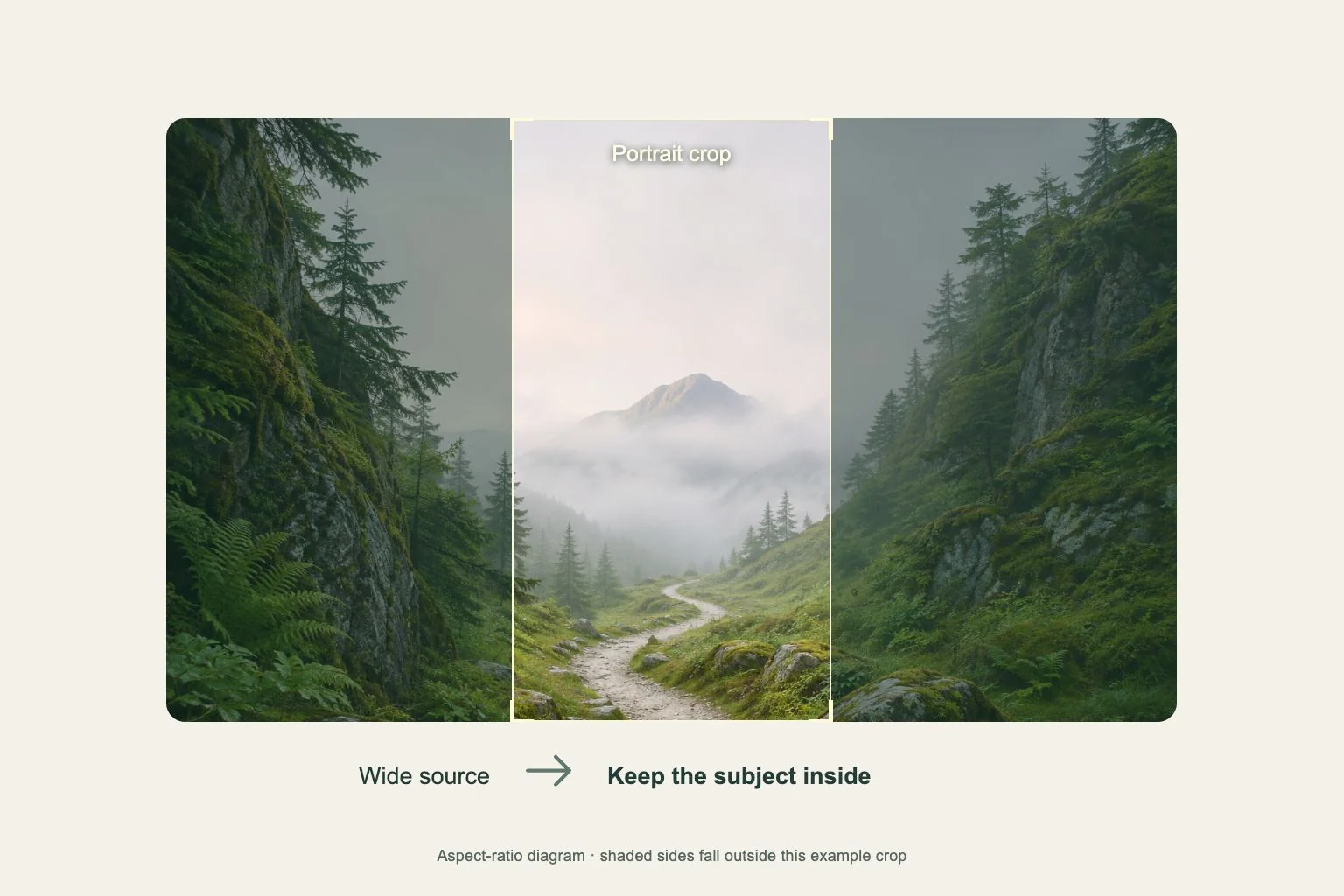
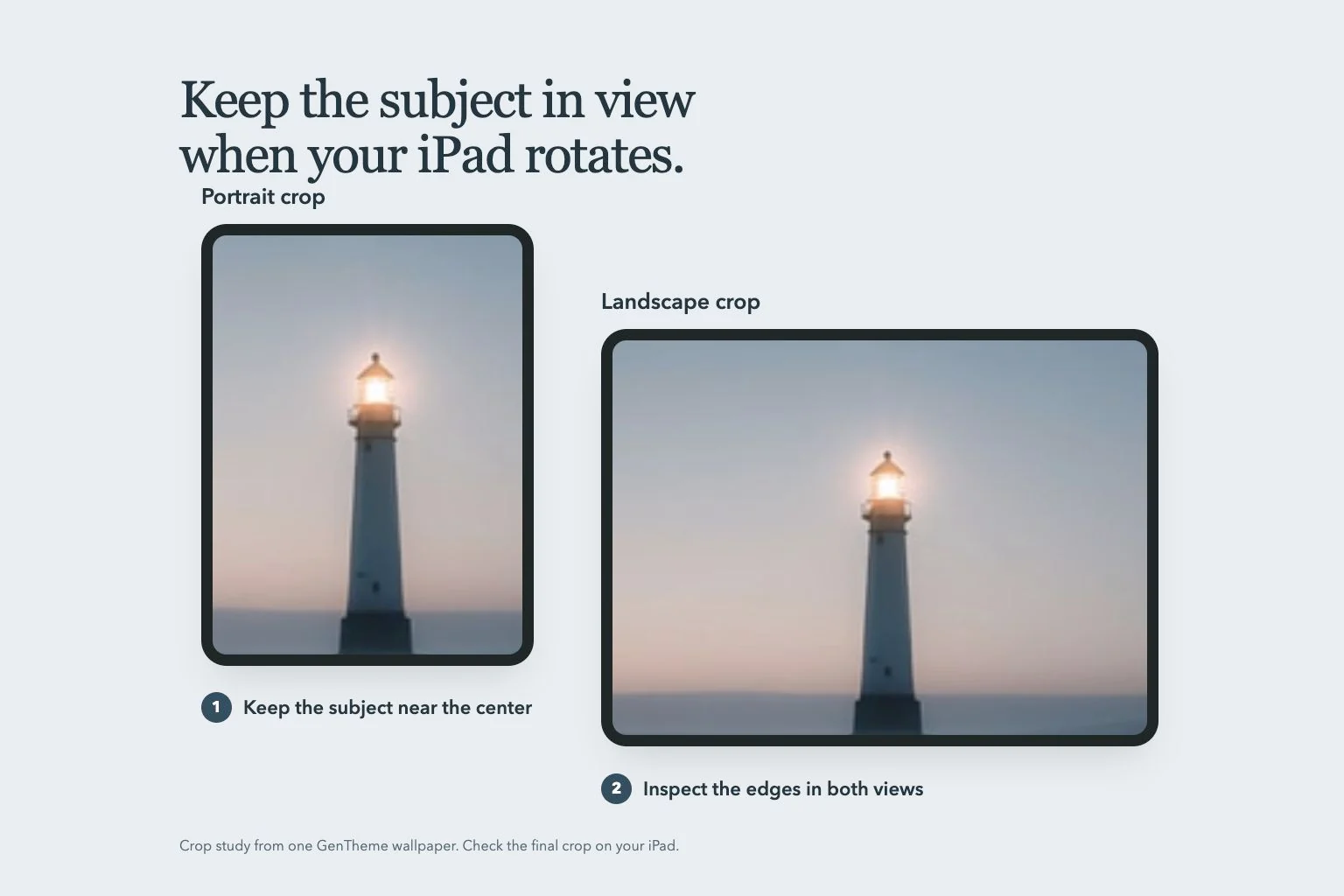
Start with the orientation you use most, then look at the same image in the other direction. A close-up face at the edge or lettering stretched across the frame can be difficult to keep visible in both views.
Prefer a composition with the main subject near the middle and some background around it. A three-by-two image is a starting canvas that the system can crop to the screen. Check the visible area on your own iPad, including the space taken by the clock and dock.
Check the available wide-image choices
On eligible iPads, Gentheme can show an iPad wallpaper entry or Expand for iPad when the service is enabled. Open the wallpaper detail and check whether a landscape result already exists. When two choices appear, select Landscape or Portrait before downloading.
Creating a wider version uses the existing Gems confirmation flow. Read the cost shown in that confirmation before continuing. An existing cached result usually needs only loading and downloading. If a ready image is still loading, give the preview time to appear before requesting another operation.
Set the Lock Screen and Home Screen deliberately
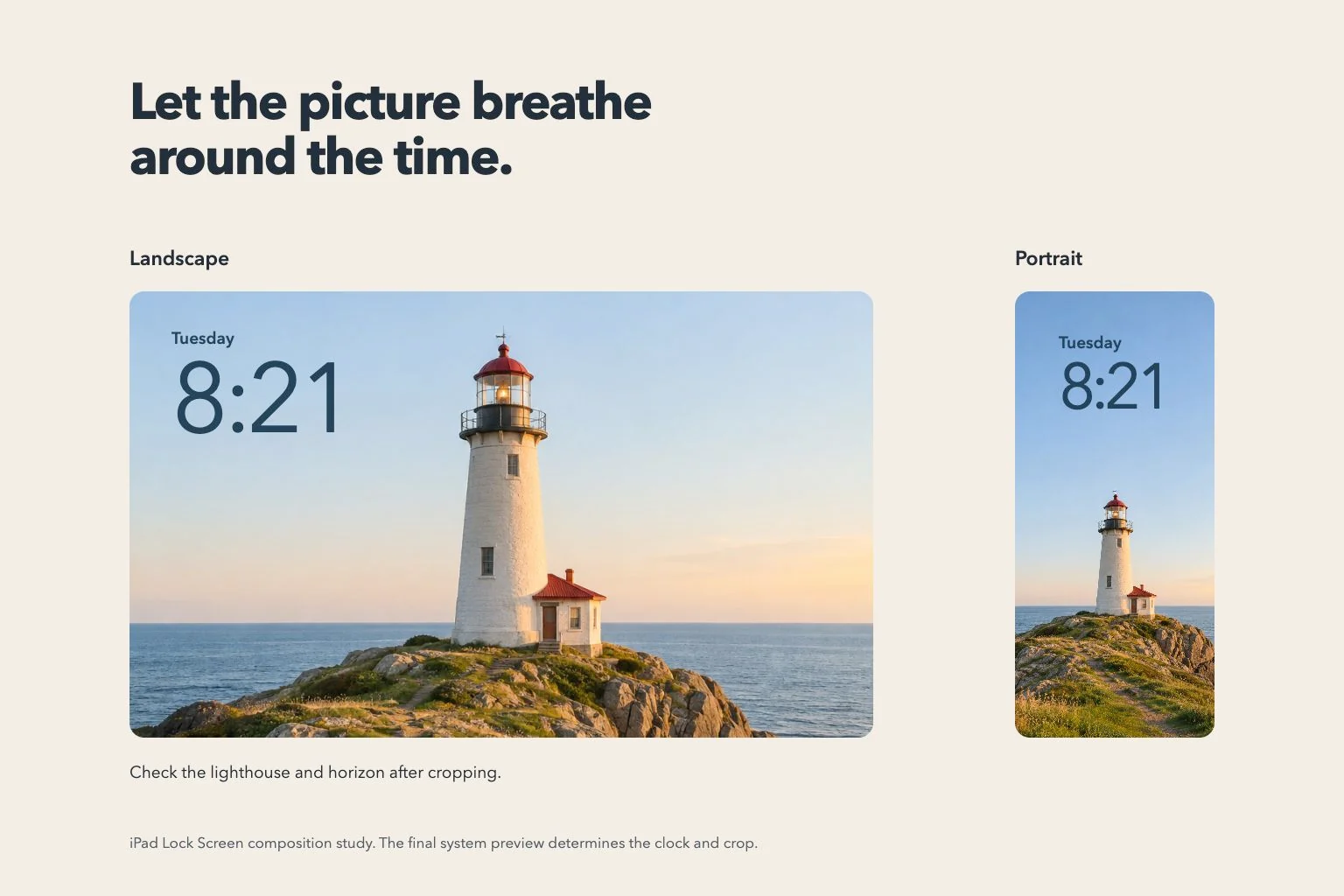
After saving the selected picture, open Settings on iPad, choose Wallpaper, then Add New Wallpaper and Photos. Check where the subject sits behind the time and any Lock Screen widgets before tapping Add.
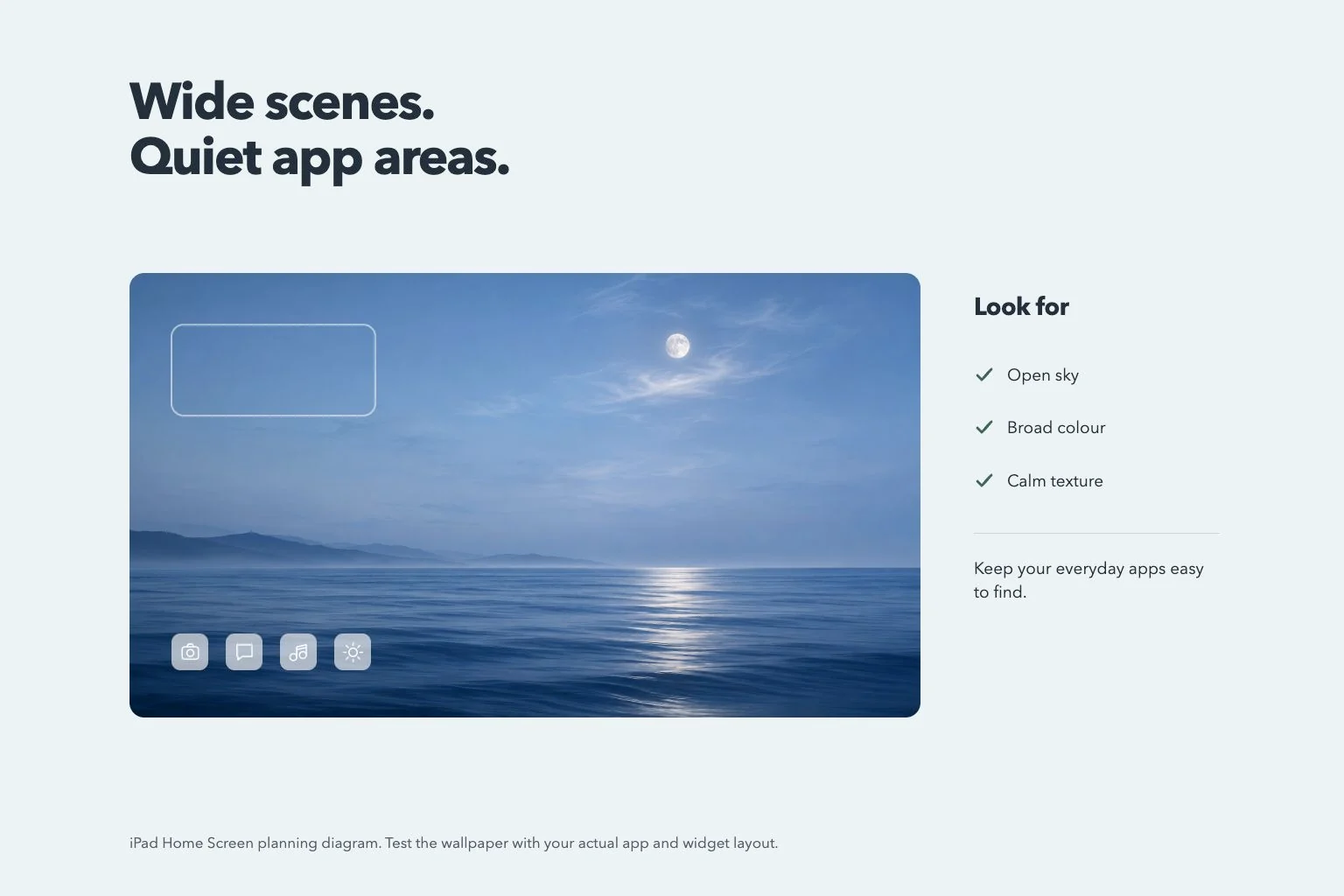
Set as Wallpaper Pair uses the selection on both screens. Customize Home Screen lets you choose a separate photo or use Blur for the page behind your apps. Open a busy Home Screen page to judge whether the wallpaper and icons remain easy to read together.
Rotate and check the finished screens
Review the applied wallpaper in portrait and landscape. Look at faces, text, and the horizon first. Keep important details away from the outer edges and from areas occupied by the clock, widgets, or dock.
If the display stays in one orientation, open Control Center and check Rotation Lock. Apple also suggests testing rotation in an app such as Safari. Once rotation works, repeat the wallpaper check and adjust the crop or choose the other saved image if needed.