Gentheme
Find a sage that works with your photographs
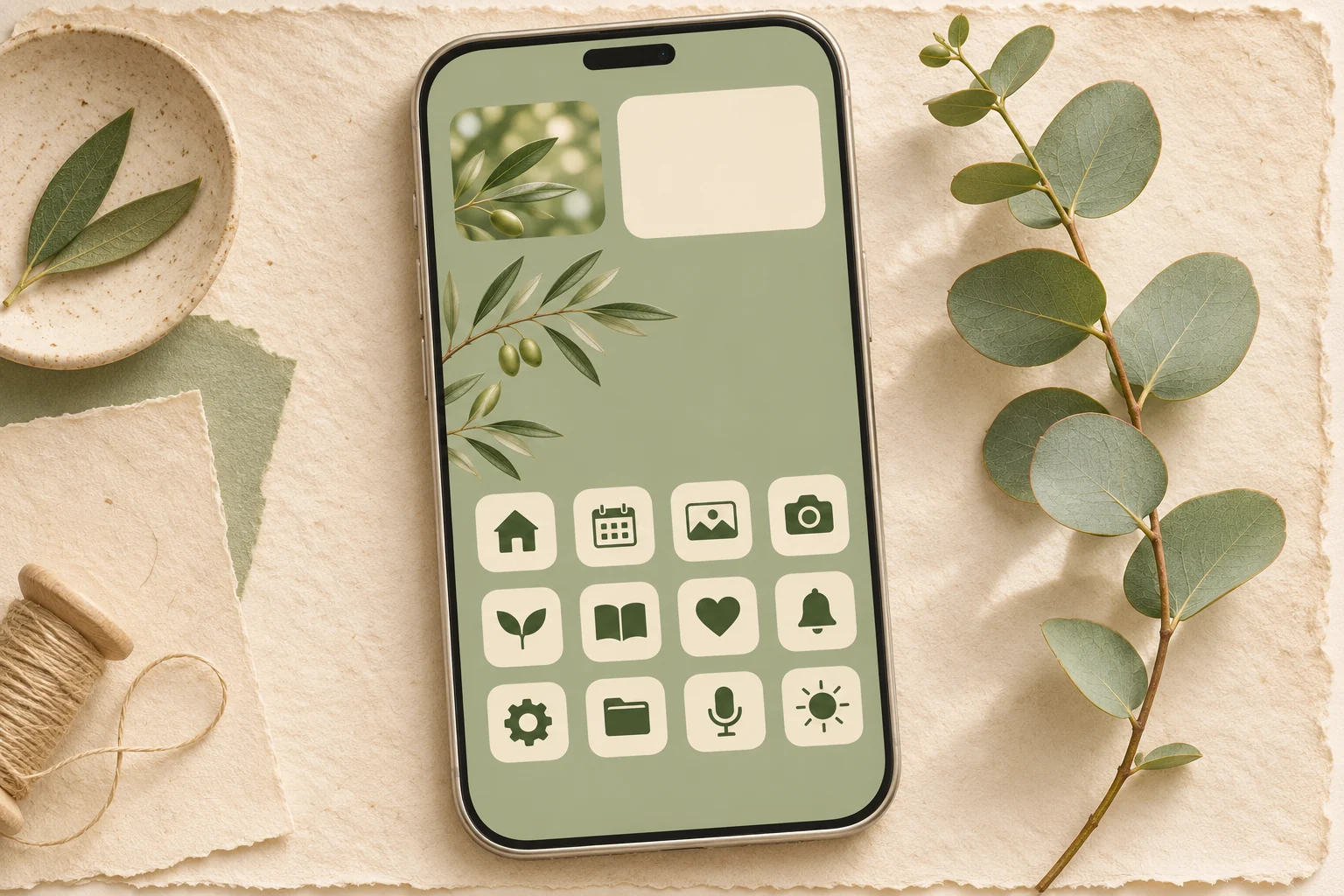
Sage green combines green with a noticeable gray undertone. Try #A7B39A as the main color, warm cream #F3F0E6 as a companion and deep olive #394C3B for symbols. These are starting points you can adjust to the images you already like.
Check a leaf photograph beside the chosen background. Yellow-green foliage can pull the whole page warmer, while eucalyptus can introduce a cool blue cast. Choose photographs under similar light so one widget does not look like it belongs to another season.
Use the edge of a plant as the composition
A fern or olive branch entering from one side can frame the page while leaving the middle available. Choose a stem with a clear silhouette and space between leaves. Its shape should remain understandable when the phone crops the outer edges.
If the wallpaper is a close-up of dense foliage, reserve it for the Lock Screen and use a quieter sage companion behind apps. A broad plain area allows cream icon tiles to stand out and keeps small leaf veins from running through labels.
Make a small garden around useful content
Place one botanical photo widget beside a plain information widget you actually use. Match their background warmth and keep plant imagery concentrated in the photo. A repeated leaf motif on every surface can make the small screen feel crowded.
Use cream icons with dark olive symbols, or deep green tiles with pale symbols. Keep symbol weight consistent across the apps you reach for first. Leave the dock area visually simple so it anchors the page beneath the plant shapes.
Apply a selected set and review the shade
In Gentheme, inspect an icon pack for both color and the specific apps it covers. Follow the icon guide for your phone. On Android, Choose target app lets you match an icon to its installed destination before applying and confirming shortcut requests.
After setup, look at the page in daylight and under your usual indoor lighting. Check whether the sage still looks gray-green beside the cream elements. If one photograph dominates, try a softer crop or a smaller botanical accent while keeping the useful information easy to read.