Gentheme
Identify the item you are removing
To remove a custom iPhone icon, first identify whether it is an added shortcut, a profile-installed web clip or the original app. Touch and hold the item and read the action and confirmation. Similar artwork and labels can make these items look alike.
For an original app, Remove from Home Screen keeps it in App Library, while Delete App removes the app from the iPhone. If you want to keep using the app, choose the Home Screen-only action. Check App Library before cleaning up several similar icons.
Remove one added entry carefully
For a manually added custom shortcut or web clip, use the removal action shown for that Home Screen item and confirm that the dialog identifies the intended entry. Check one icon first, then open the original app from App Library to verify your result.
A workflow created in Shortcuts is a separate item inside that app. If you also want to delete the workflow, select it in Shortcuts and use Delete, then confirm Delete Shortcut. Review what it does before deletion, especially if you use it elsewhere.
Remove a Gentheme icon set by its profile
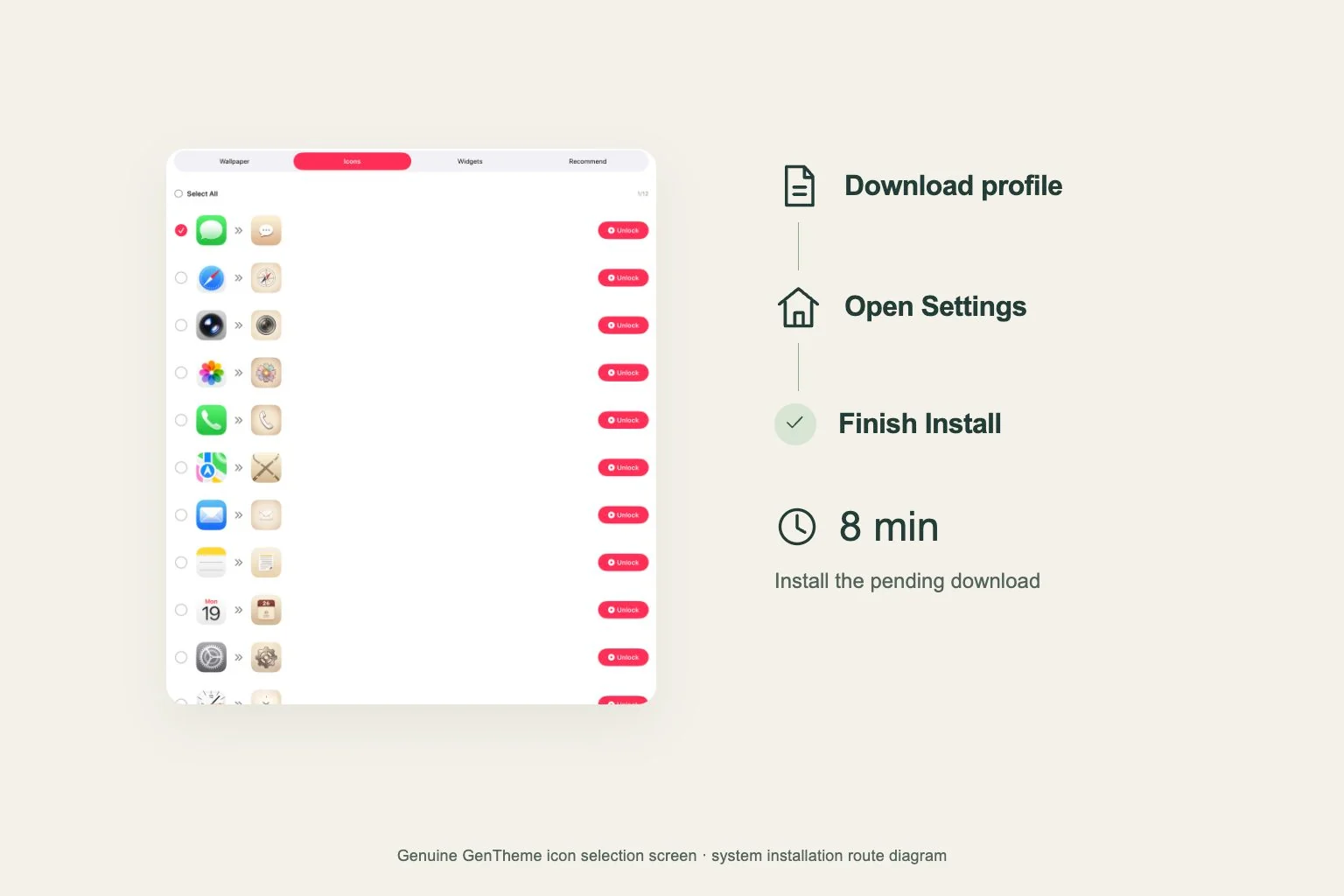
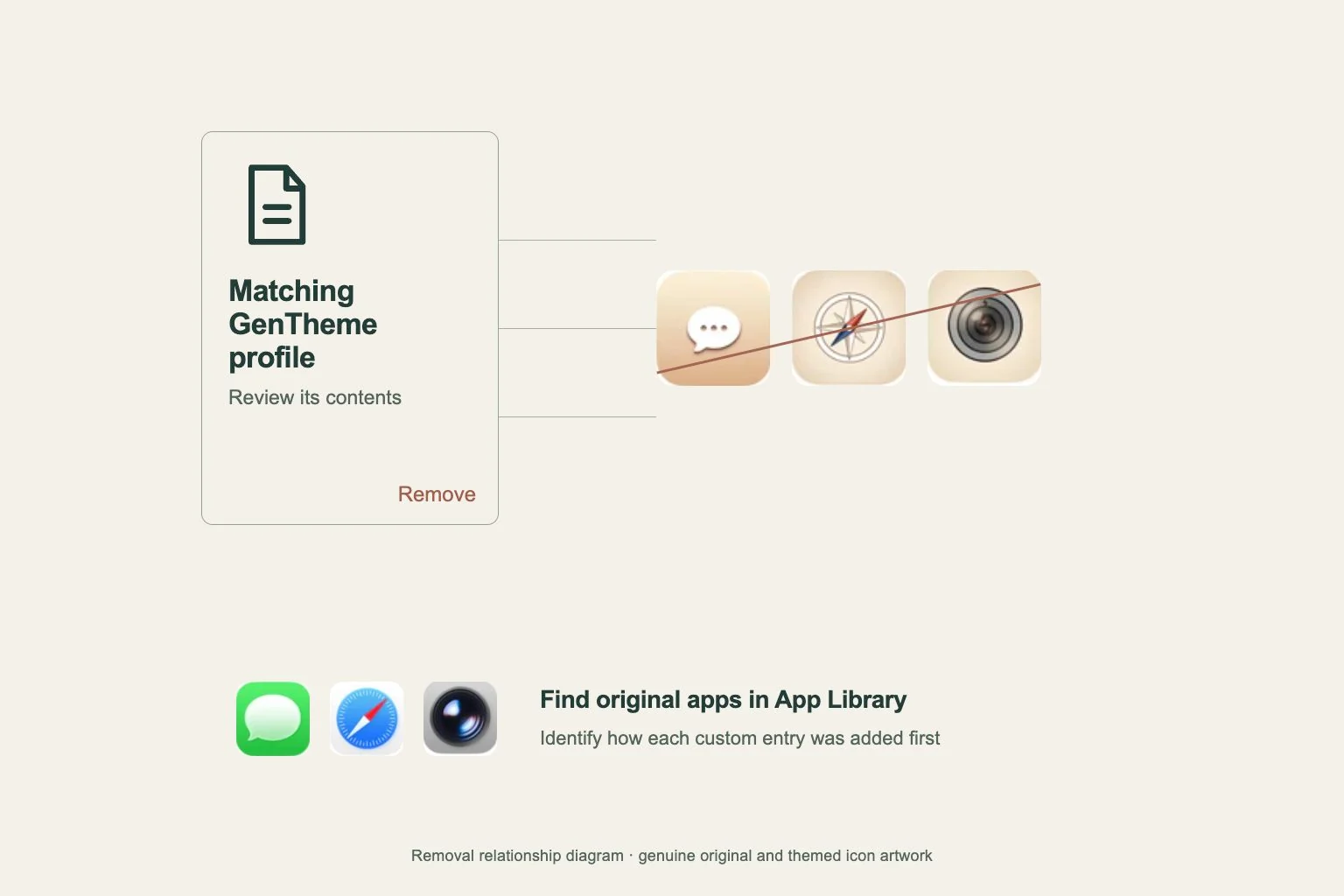
Gentheme’s iPhone icon installation creates a configuration profile containing web clips. To remove that set, open Settings > General > VPN & Device Management, select the matching Gentheme icon profile and inspect its name and contents before choosing Remove Profile.
Complete the system confirmation and passcode request if shown. Profile removal removes the items and settings associated with that profile, including the web clips installed by this Gentheme icon profile. Select only the icon profile you recognize and intend to remove, since profile contents determine the effects.
Restore the original layout gradually
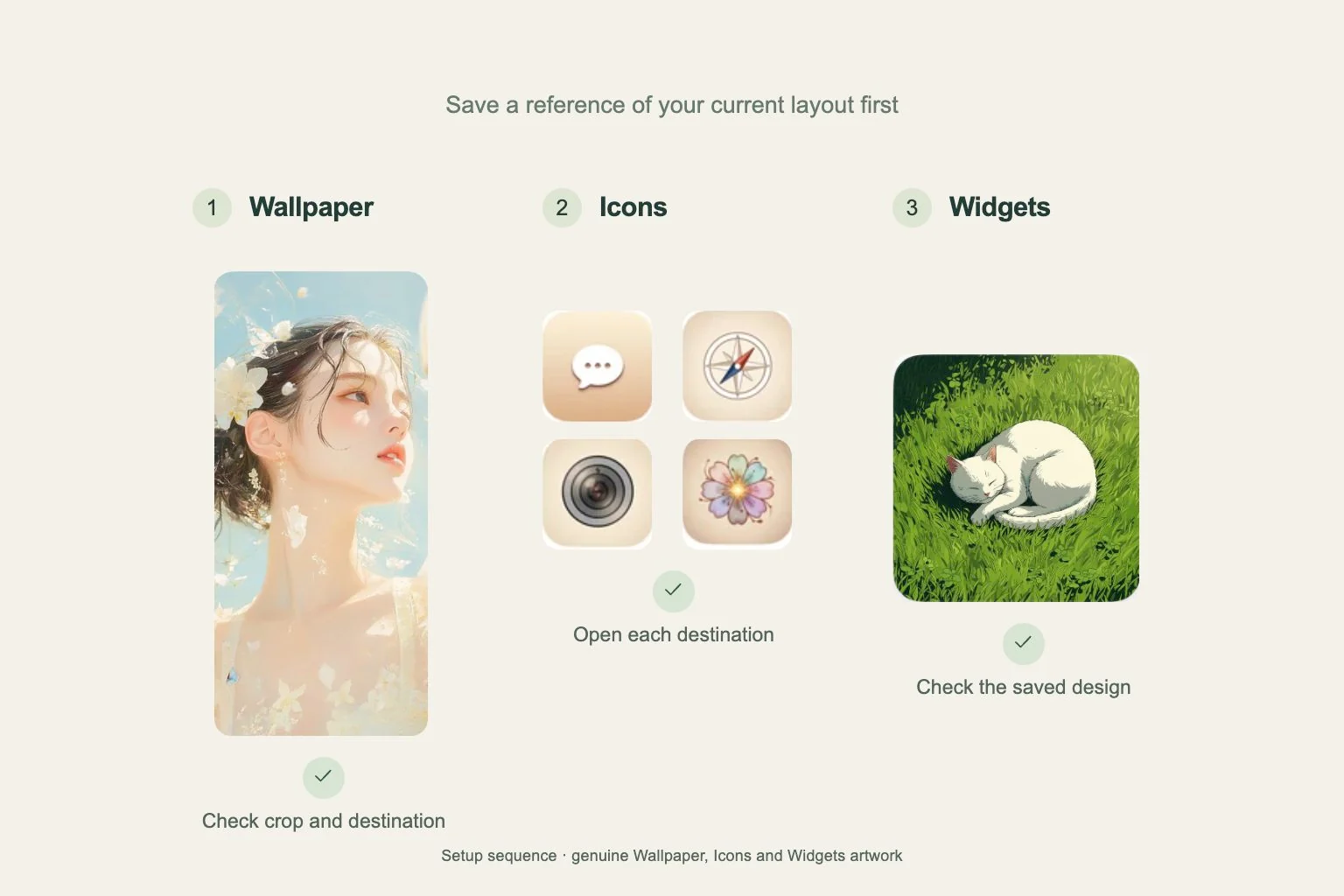
Find the original apps in App Library and drag the ones you need back onto the Home Screen. Start with daily essentials and compare with a screenshot of your earlier layout. Open each restored app so a similar name or symbol does not hide a selection mistake.
If a themed icon remains, identify how that specific entry was installed before removing it. Separate profile installations and manually added entries can coexist. Record the remaining icon’s label and the profile you removed so you can resolve duplicates without repeating a broad cleanup.