Gentheme
Open the picture you intend to save
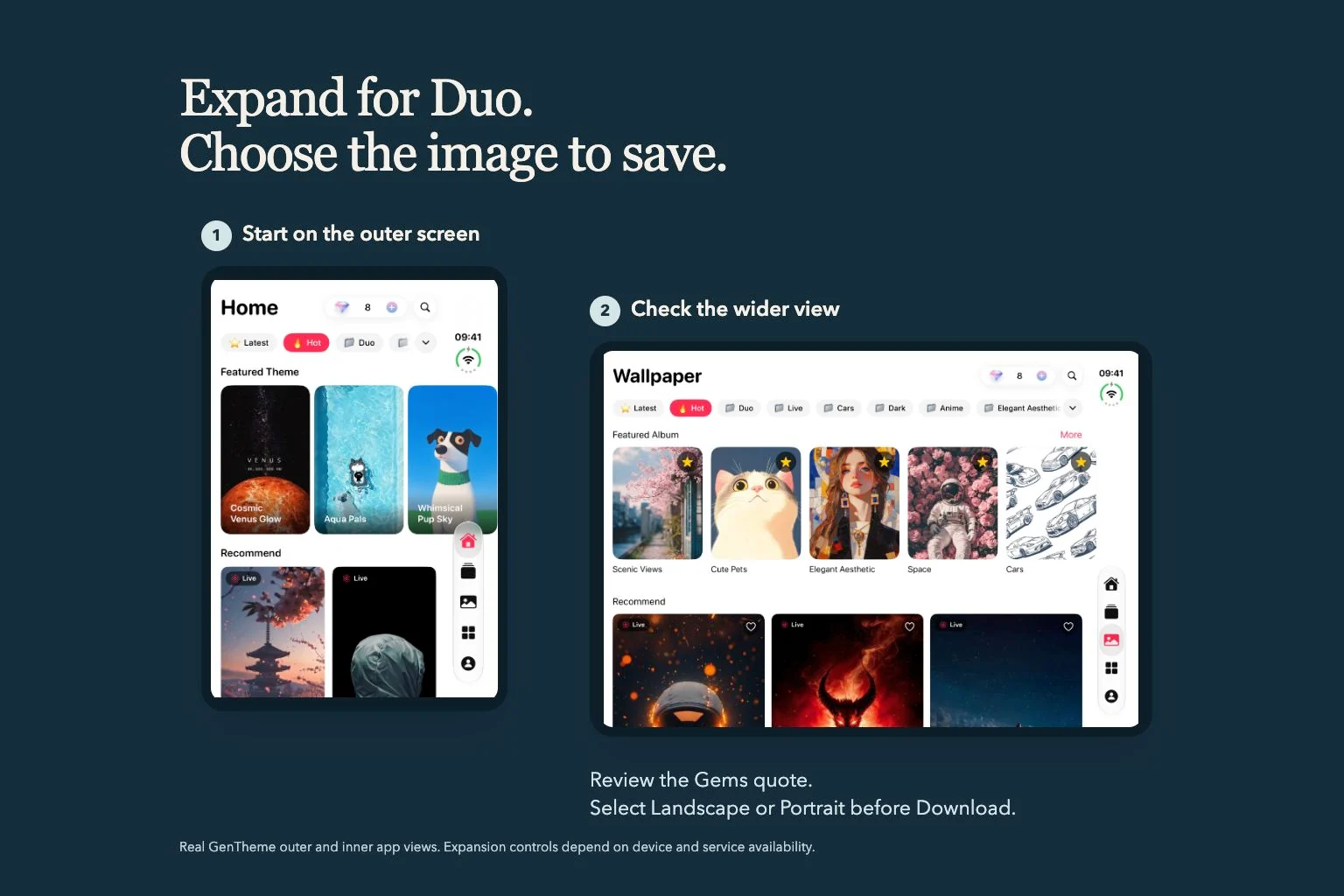
When a wallpaper has a wide version available, inspect both the expanded image and the original portrait. Look for the same subject so you can tell the versions apart. Decide whether you want the surrounding landscape or the closer original composition before beginning the saving flow.
An existing wide result can be opened directly when available. If the result still needs generating, use the applicable expansion control and review the current Gems confirmation. The expansion article covers that operation. Here, start from a ready picture and check the version you want to keep.
Select Landscape or Portrait before Download
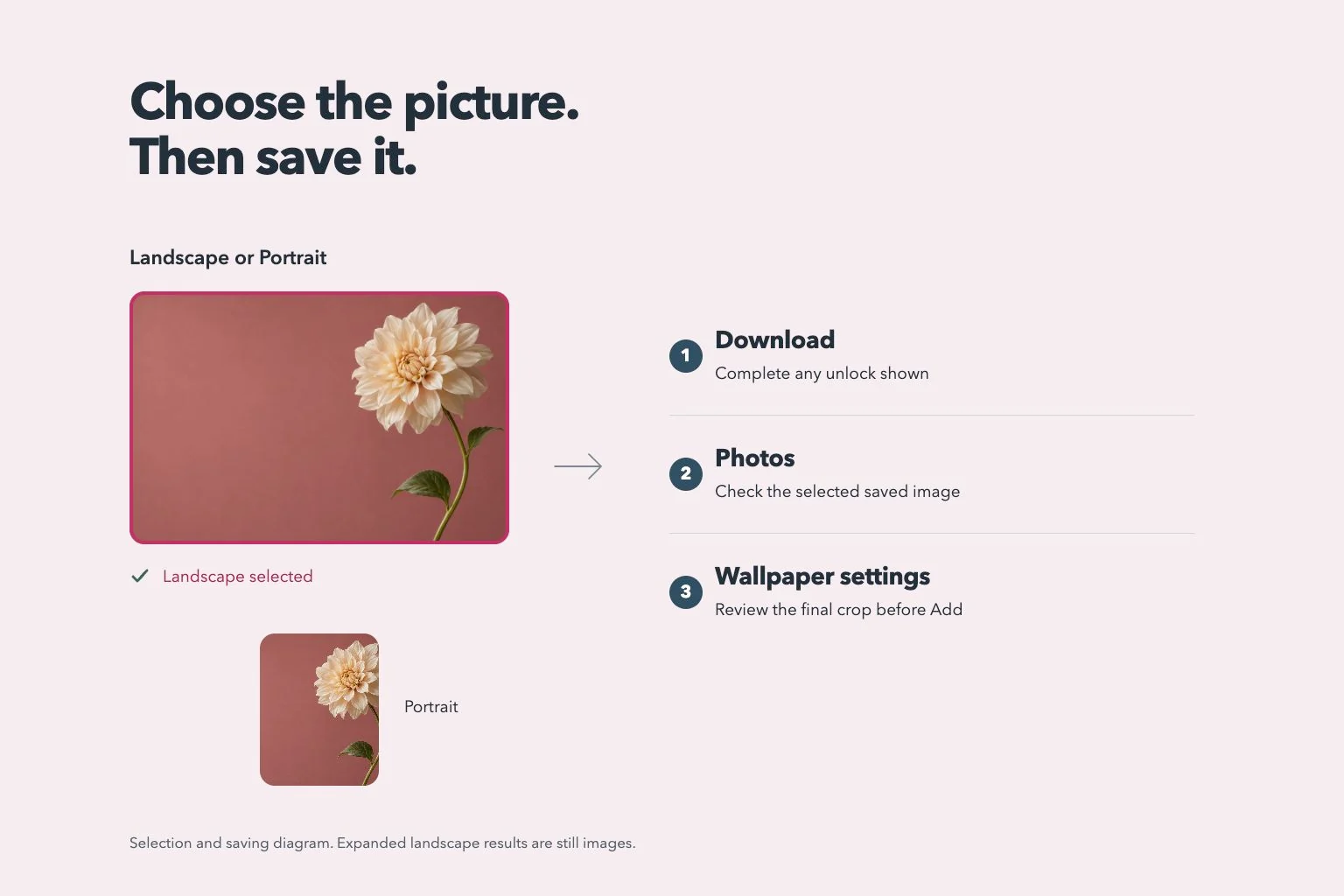
In the version chooser, tap Landscape for the wide still image or Portrait for the original. Inspect the selection mark and the preview together. A picture appearing on screen is easy to confuse with the active choice if you switch between versions quickly.
Then follow Download and the confirmation or unlock shown for that wallpaper. Let saving finish before leaving the flow. If you want both files, complete one selection first, check it in Photos and return to save the other version with its own selection.
Inspect the saved file in Photos
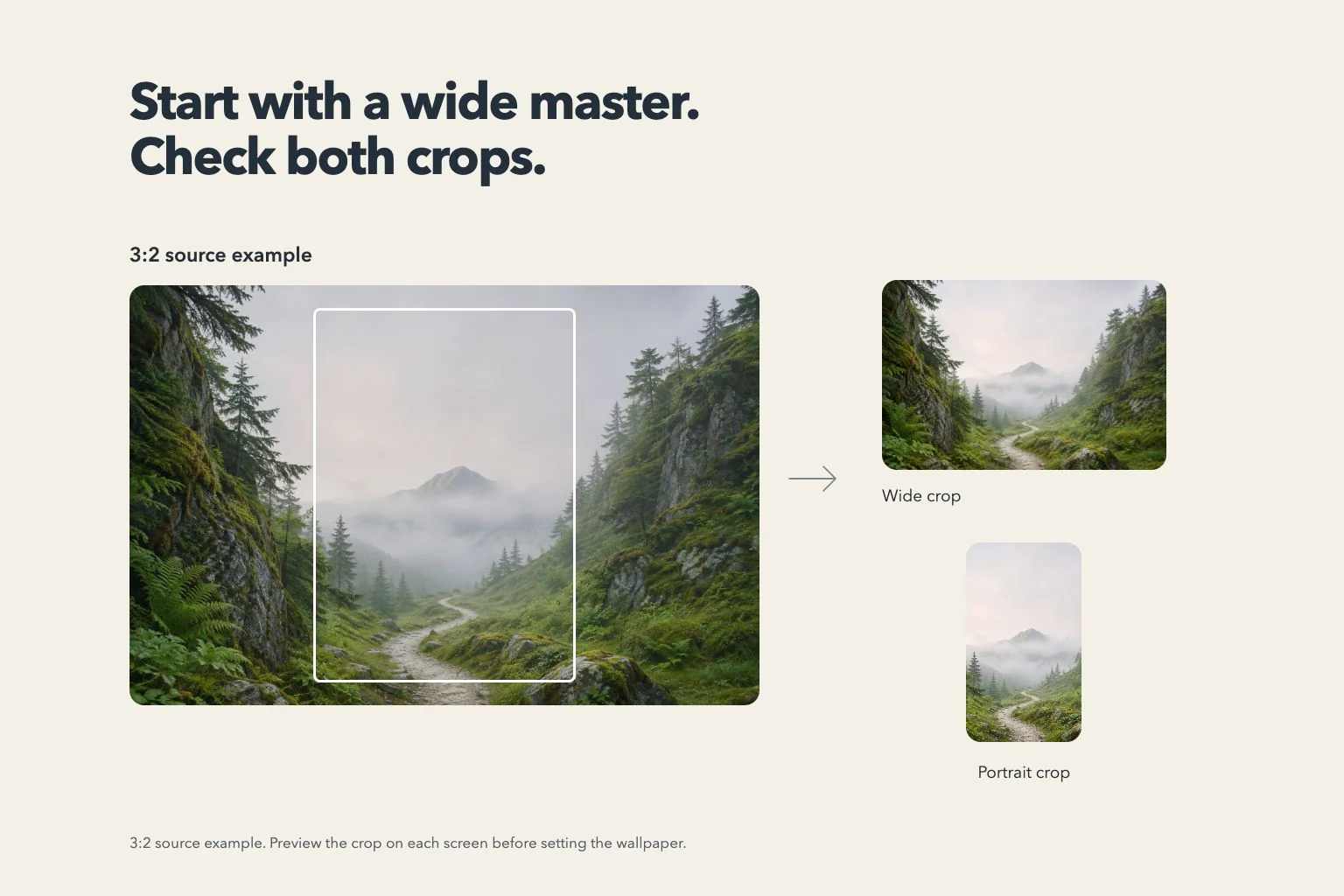
Open the newly saved picture and confirm its orientation, subject and edge details. Two copies can share a name or similar colors, so compare the visible surroundings. Keep the full saved image available while you experiment with system wallpaper crops on different screen shapes.
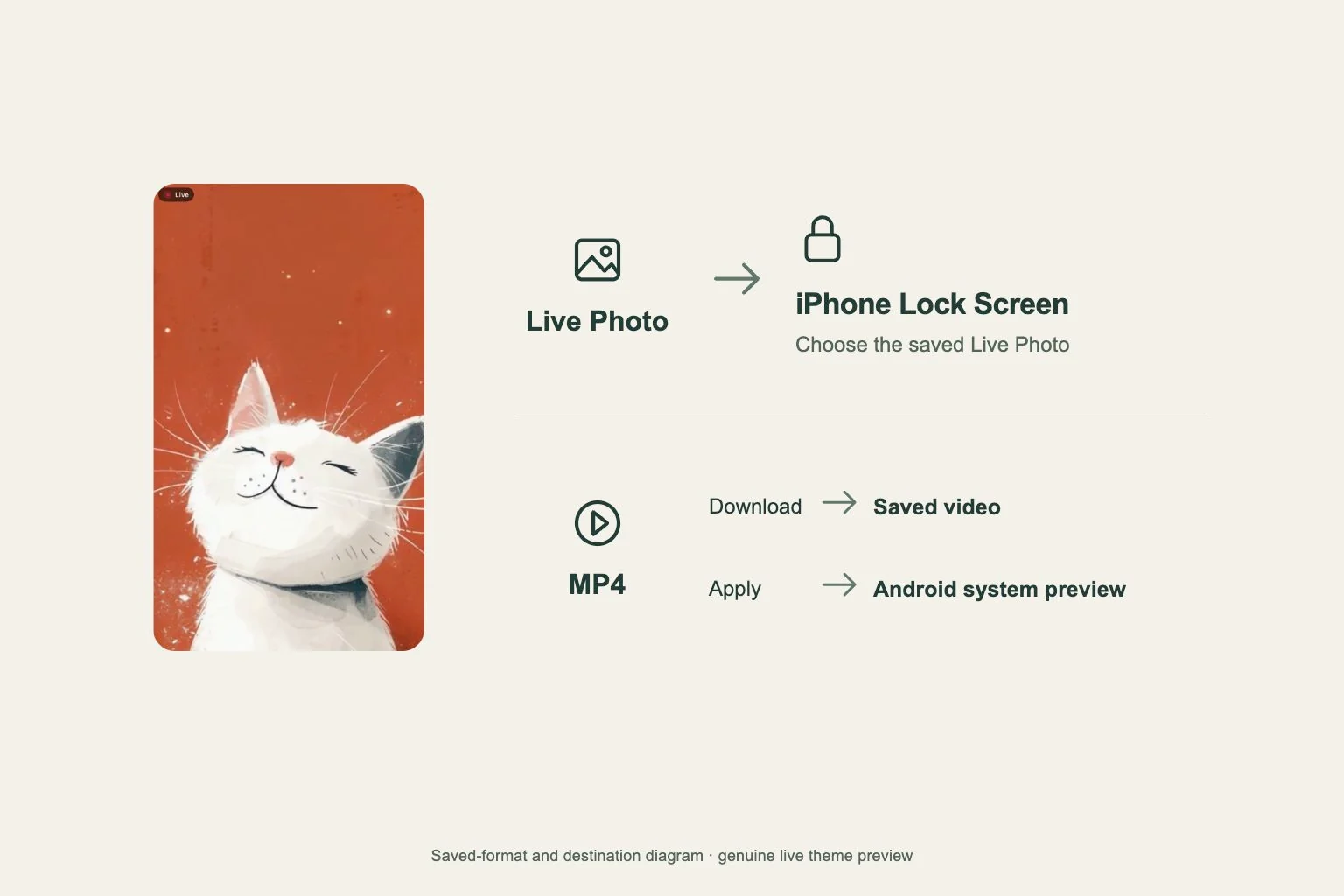
The expanded landscape result is a still image. If the original wallpaper offers motion, follow its separate Live Wallpaper flow for the supported format. Check the file you actually saved before expecting movement, and use the live wallpaper troubleshooting guide when motion needs a separate check.
Finish with the system wallpaper preview
Use the saved picture in the system wallpaper settings and inspect the destination you select. Compare the crop with the complete file in Photos. A close view that removes the scene’s edges may come from fitting and zoom, so check those controls before downloading another copy.
If Download reports an error, keep the selected version in mind and follow the displayed message. Reopen the same wallpaper and inspect any ready result before starting a fresh expansion. For a support request, record the selected version, app version and the stage where saving stopped.