Gentheme
Choose a system appearance
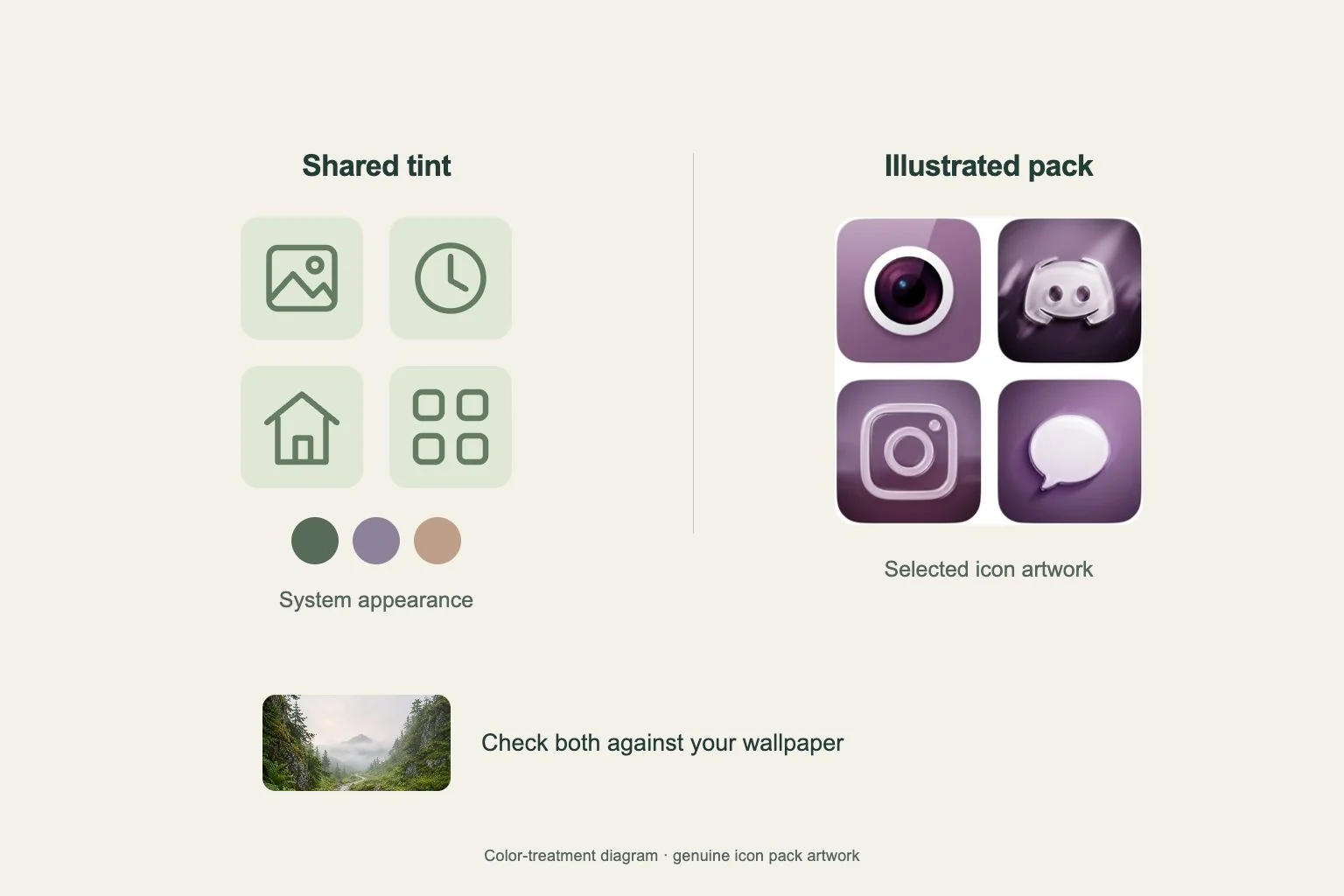
To change iPhone app icon colors, touch and hold an empty Home Screen area, tap Edit and choose Customize. Use the appearance options offered by your iOS version. Tinted lets you choose a shared color, while Light, Dark or Automatic provide other appearance choices.
Begin with one populated page so you can see the effect on apps you actually use. If a color changed unexpectedly after changing wallpaper or appearance, revisit this panel before replacing images. A system appearance choice can alter the visual result of an otherwise familiar layout.
Pick a tint from the wallpaper carefully
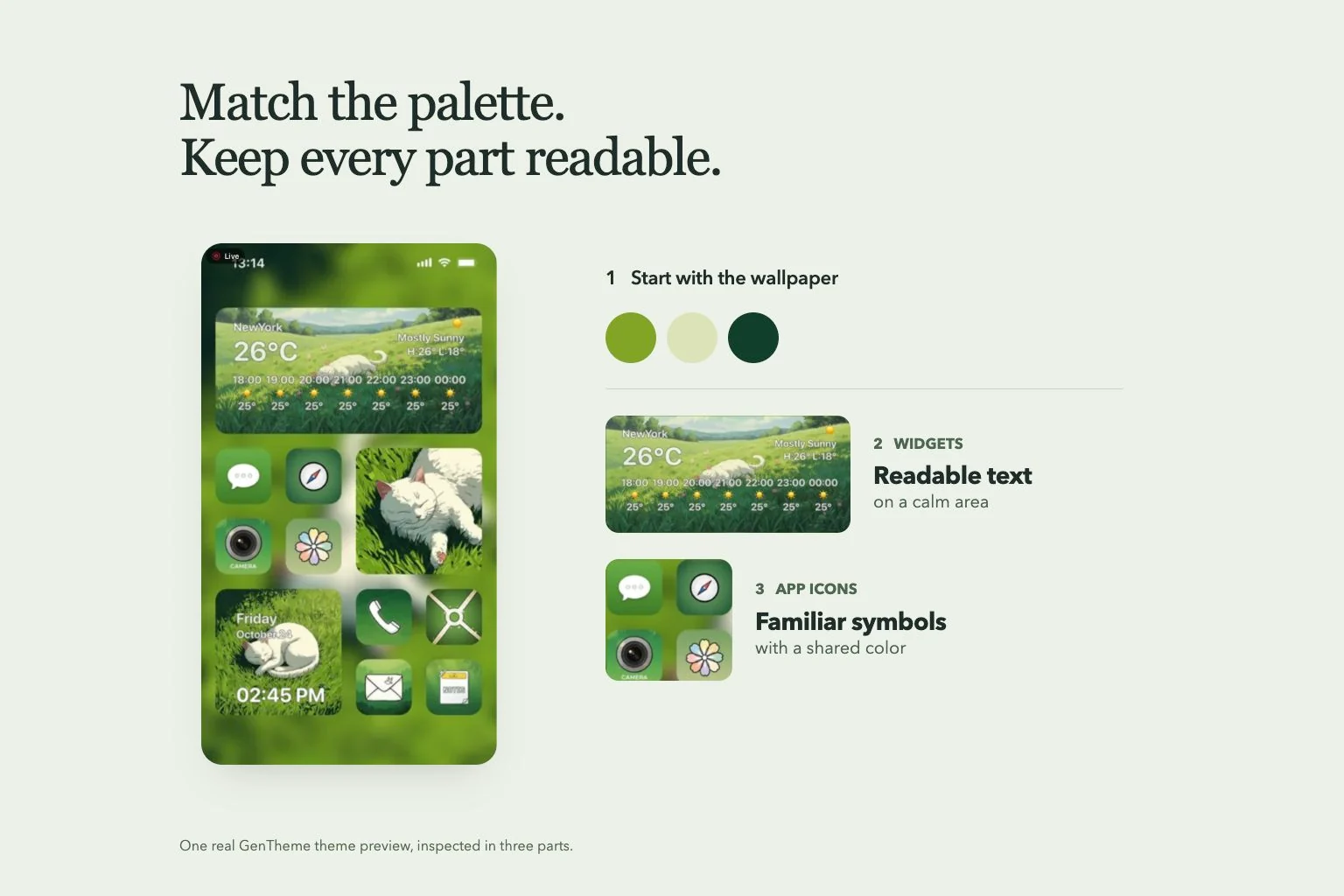
When Tinted is available, adjust the color and saturation controls or use the eyedropper to select a wallpaper color. Sample a broad background area first. A tiny bright highlight can produce a much stronger color impression when repeated across every visible app row.
Compare the page at normal brightness and read the labels below your busiest row. If neighboring icons become difficult to distinguish, lower the intensity or choose another tone. Keep a screenshot of the previous state so you can compare recognition as well as the palette.
Decide when an icon pack fits
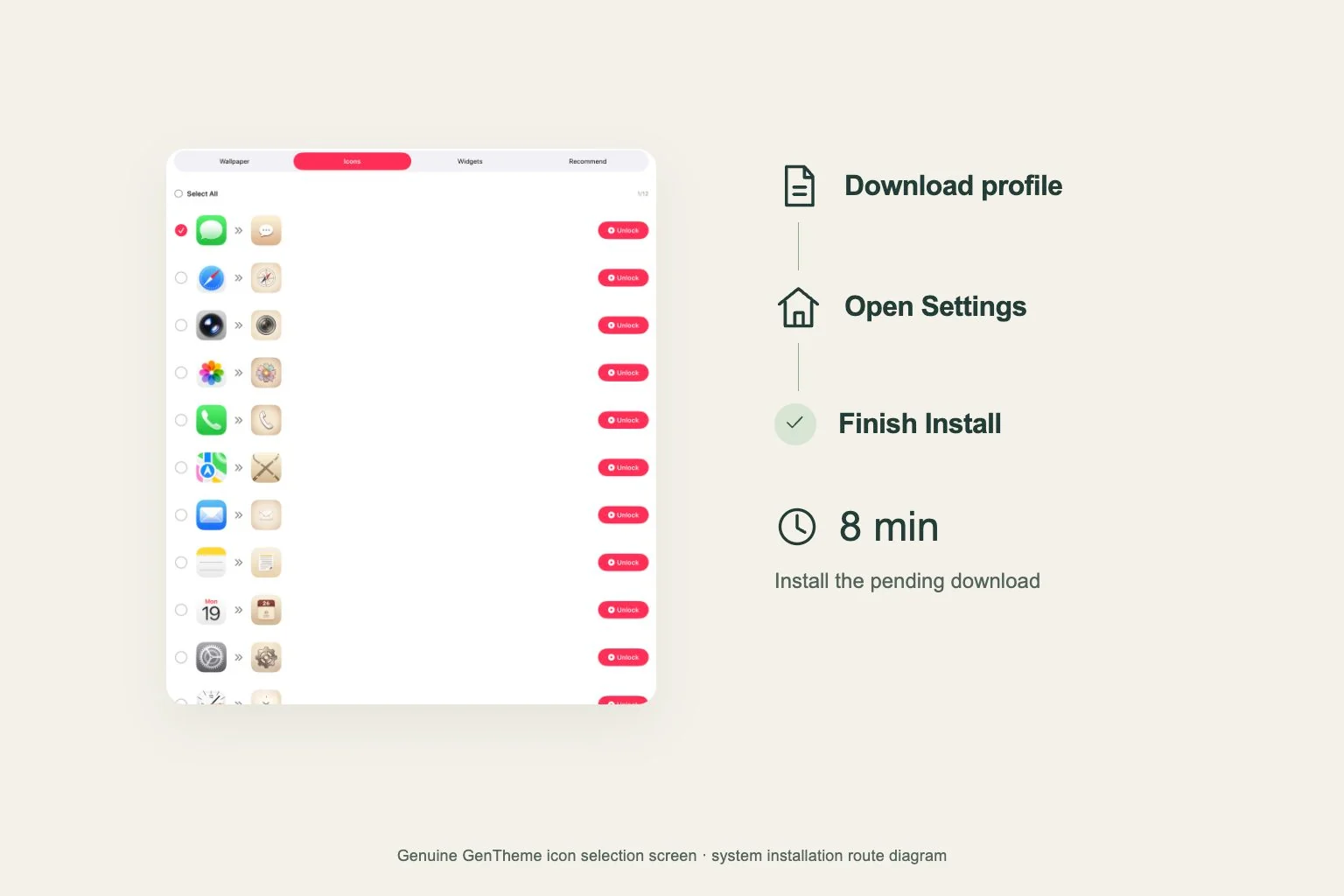
A shared tint changes the overall appearance. A Gentheme icon pack provides selected illustrated icon images through the app’s profile installation flow. Choose according to whether you want a common color treatment or a particular drawing, border and symbol style for your page.
Before installing a whole set, inspect the pack’s previews and identify the apps you need. Follow the icon guide for selection and system confirmation. Check the added icons on the same wallpaper, since a pack preview and your full page can have different background contrast.
Check icons and widgets together
Inspect a native app icon, an added themed icon and a widget side by side. Their artwork and display behavior can differ. Choose an appearance that keeps the elements you rely on recognizable, and test the added icons to confirm their destinations before rearranging the page.
If you use Large icons, Apple notes that app names disappear. Check whether you still recognize similar symbols without labels. Finish by checking another Home Screen page so a color choice made for one curated page also works with your remaining everyday apps.