Gentheme
Find a quiet area for the time
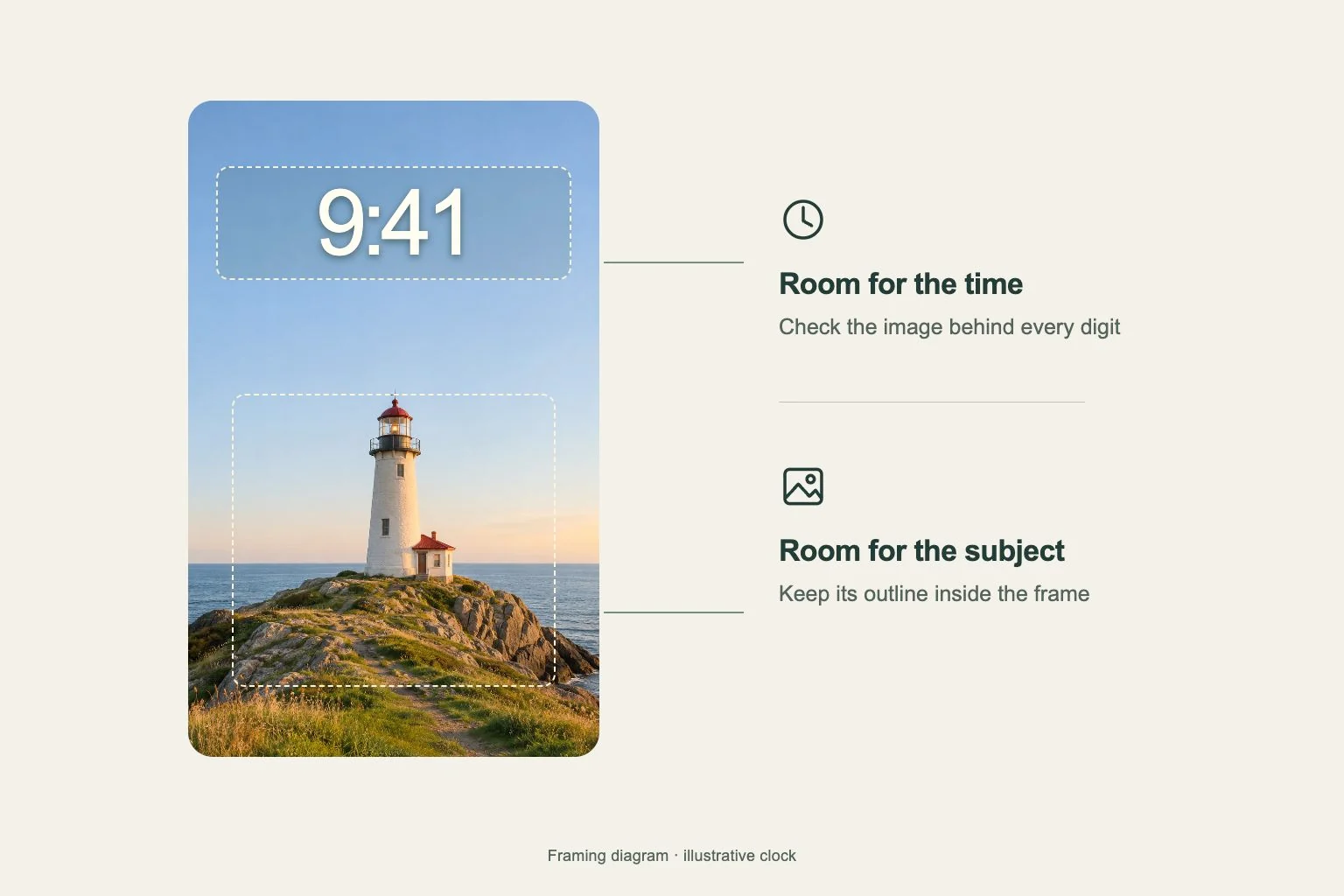
Look for a stretch of sky, a broad wall or an even patch of color near the top of the image. Large digits need a reasonably steady background. A bright line crossing one numeral can become distracting even when the rest of the picture feels calm.
Try a mountain image with the ridge below the main time area, leaving pale mist above. For a darker setup, use a building silhouette beneath a broad navy sky. Compare the local background behind the digits instead of choosing a text color from the whole image’s average tone.
Give the subject an outline that survives the crop
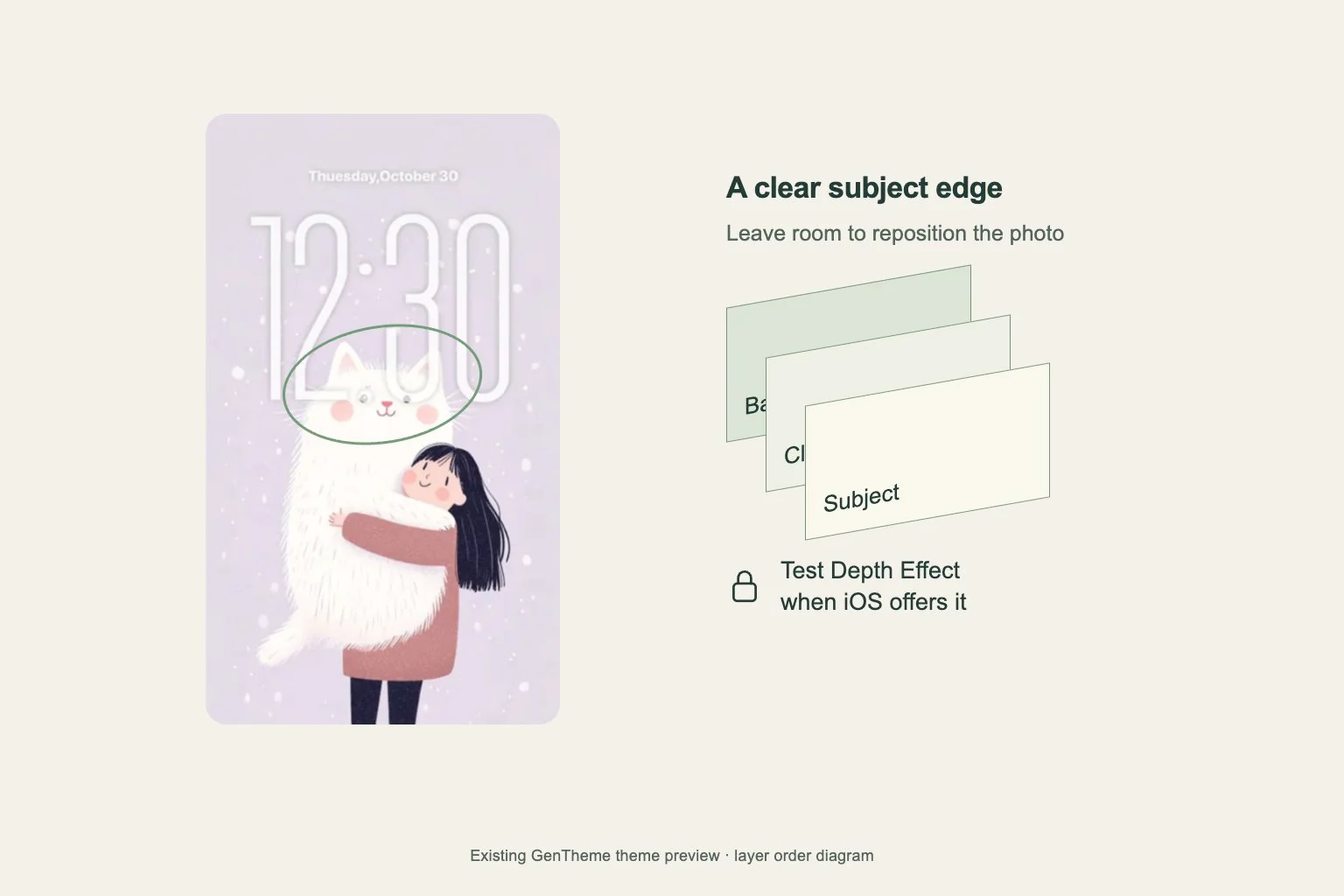
A clear head, flower or architectural shape helps the composition stay recognizable in different views. Keep a little space around the top of the subject. Avoid a crop where a thin branch, tall antenna or another small detail becomes the only connection between two larger shapes.
If you want a layered appearance, inspect the options offered by the system for that photo and device. Keep the subject understandable before experimenting with those controls. A photograph with a clean silhouette gives you a clearer starting point for comparing the available results.
Review the wide and tall versions separately
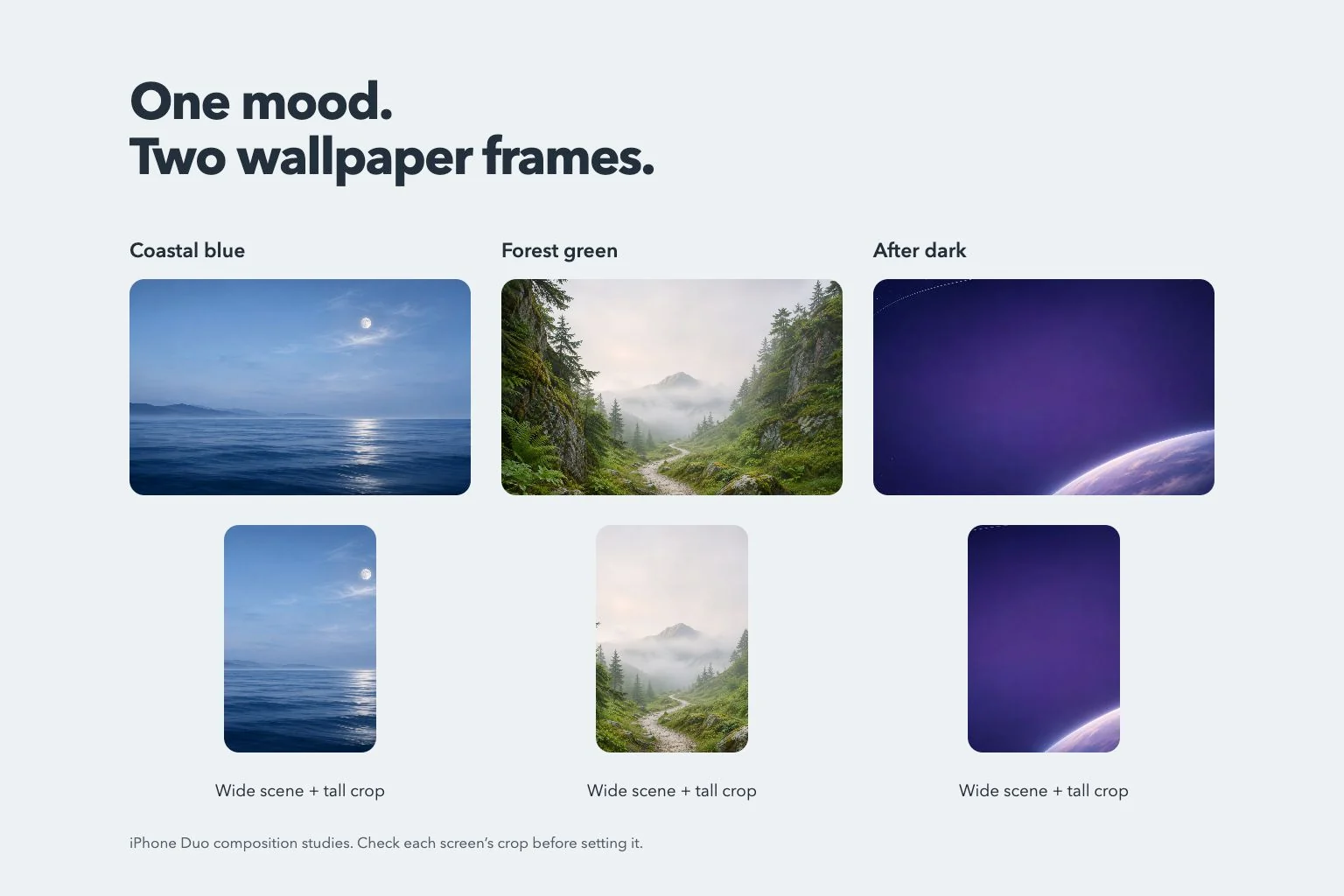
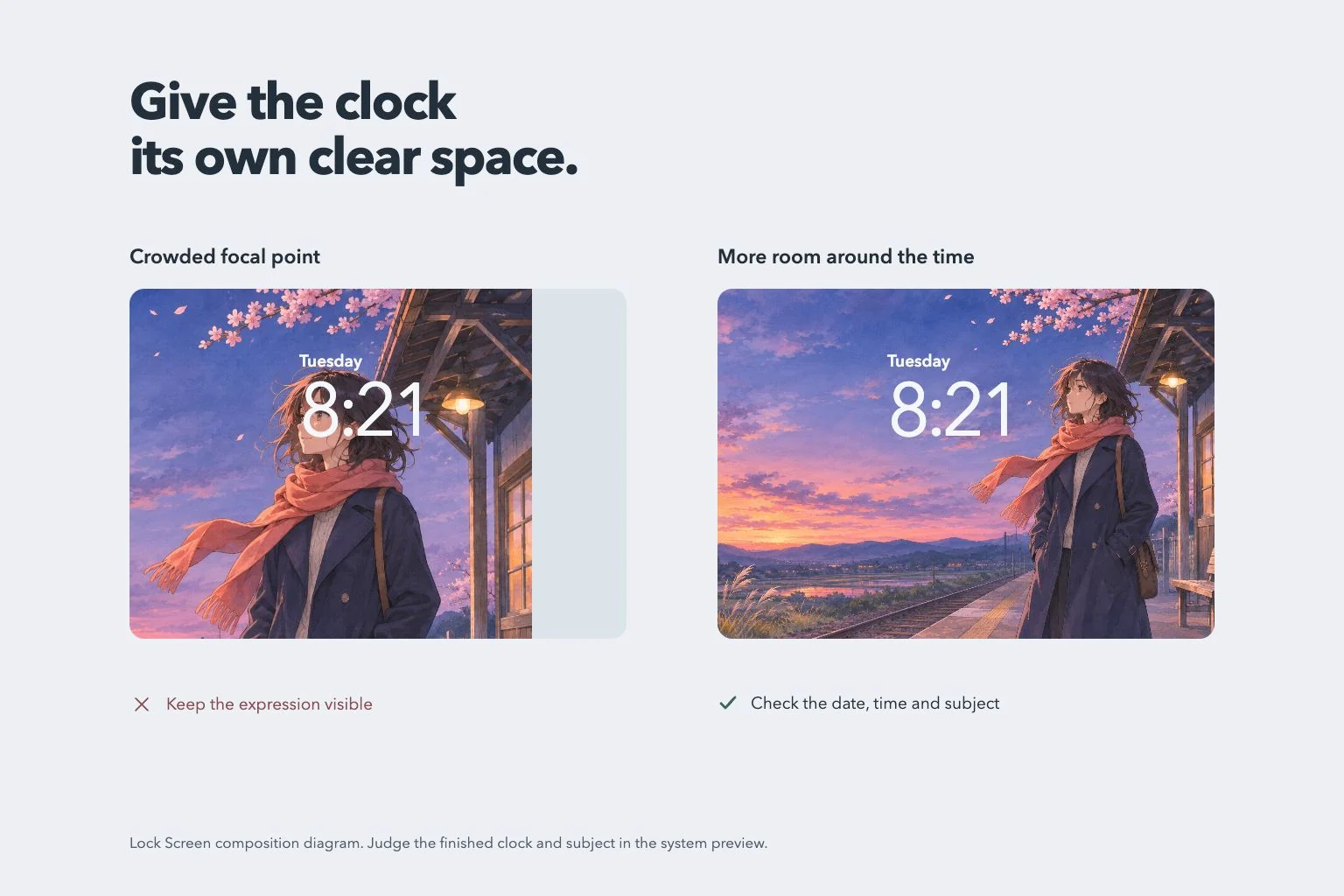
A wide picture can leave the clock comfortable while putting the subject too close to an edge in the tall crop. Check the face, hands and any important accessory after switching views. Keep the original portrait available when that version has the stronger composition.
In Gentheme, a saved wide theme preview can help you judge the overall look. Inspect the wallpaper itself too. Download the selected image and use your device’s Lock Screen customization to check the clock size, color and other options actually available for your setup.
Check a normal day’s Lock Screen
After setting the wallpaper, wake the phone and look at it from your usual distance. Then review it with ordinary notifications present. A subject placed beautifully in an empty preview may lose its expression or outline when the lower part of the screen becomes occupied.
Finish with one crop or clock adjustment at a time. Compare the result in the lighting you normally use, including a dim room. Keep the source image and your preferred portrait version saved so the next change begins with the composition you already tested.