Gentheme
Set the pink and ivory balance
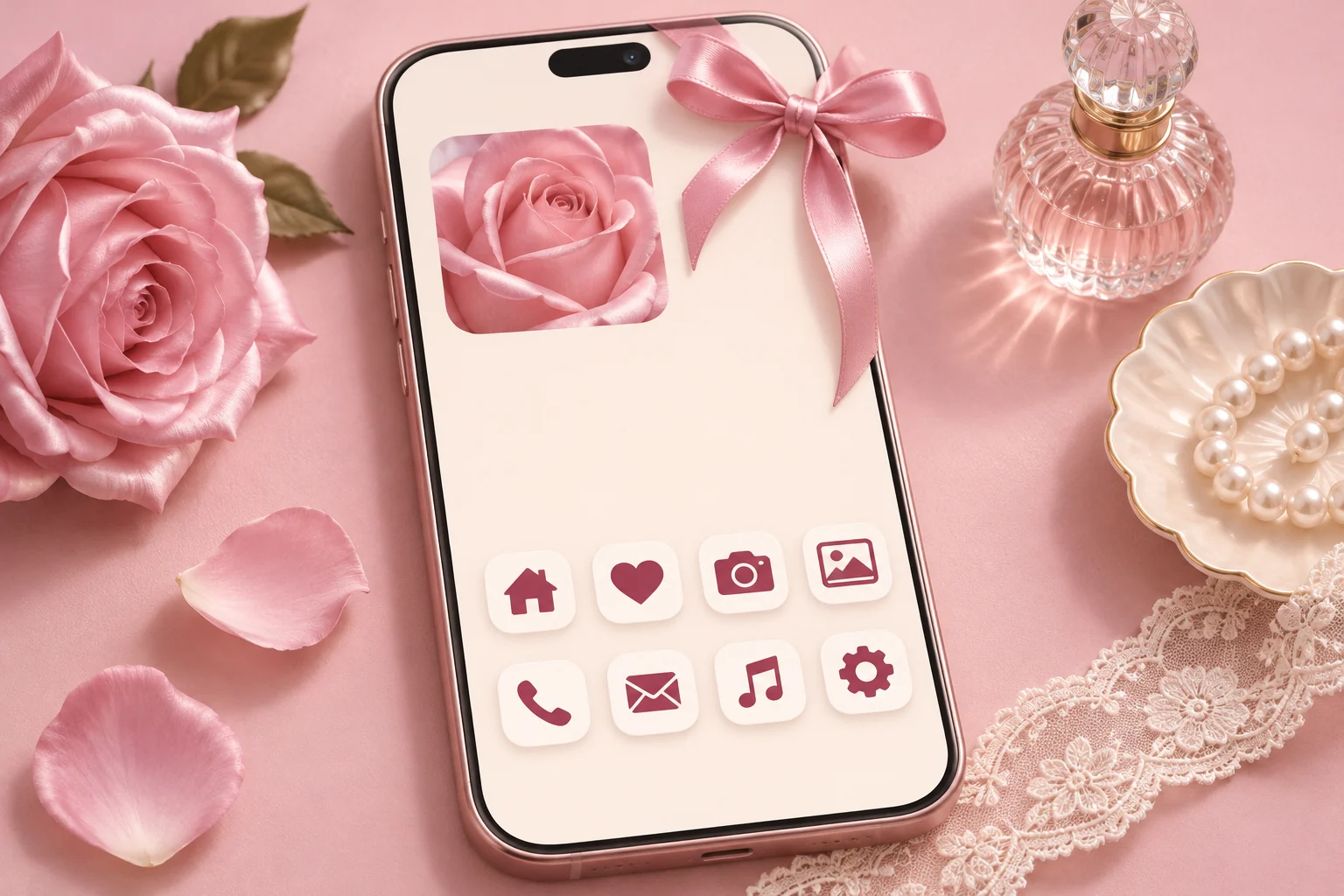
Start with a blush background around #F6DCE5, ivory around #FFF8F0 and a deeper rose around #9A4965. These suggested colors give ribbon details definition. Use the deepest shade for small symbols or lettering so the pale pink has a clear supporting role.
Decide how delicate you want the page to feel. Ivory with one pink bow feels airy. A dusty-rose base with pearl-colored details feels richer. Keep the pink temperature consistent across wallpaper and widgets, especially when mixing photographs with illustrations.
Let the ribbon fit around the screen
Choose a wallpaper with a bow near a corner or a ribbon running along one edge. Leave the center available for the clock on the Lock Screen. A small repeating bow pattern can work on the Home Screen if the bows stay well separated.
Lace, gingham and ribbon can each add texture. Pick one to cover the larger area. If lace is the main background, use a plain widget face. If a gingham widget is the accent, choose wallpaper with a broad area of solid ivory.
Make the icons easy to recognize
An ivory icon background with dark rose symbols can hold the look together. Compare several symbols at their actual Home Screen size. A delicate camera outline should still look different from a shopping bag or a calendar when you glance at the page.
Place daily apps in familiar positions and keep their labels visible while you learn the new artwork. One small photo widget can show a satin detail or a flower close-up. Leave some pink background visible between that widget and the app groups.
Install and check the finished page
When choosing a Gentheme icon pack, inspect the actual icons available before planning your layout. On iPhone, Install Icons starts the profile flow. Finish the downloaded profile installation in Settings, then open the added icons and check their destinations.
Set the wallpaper separately and inspect the crop after the icons are in place. If a ribbon seems to run through a label, shift the crop or choose a simpler companion image. Check the page in your usual lighting so pale bows and ivory panels remain distinguishable.