Give your Android home screen your own rhythm.
A clear layout starts with the things you use every day. Find a wallpaper, coordinated app icons and useful widgets in Gentheme, then build your screen one element at a time.


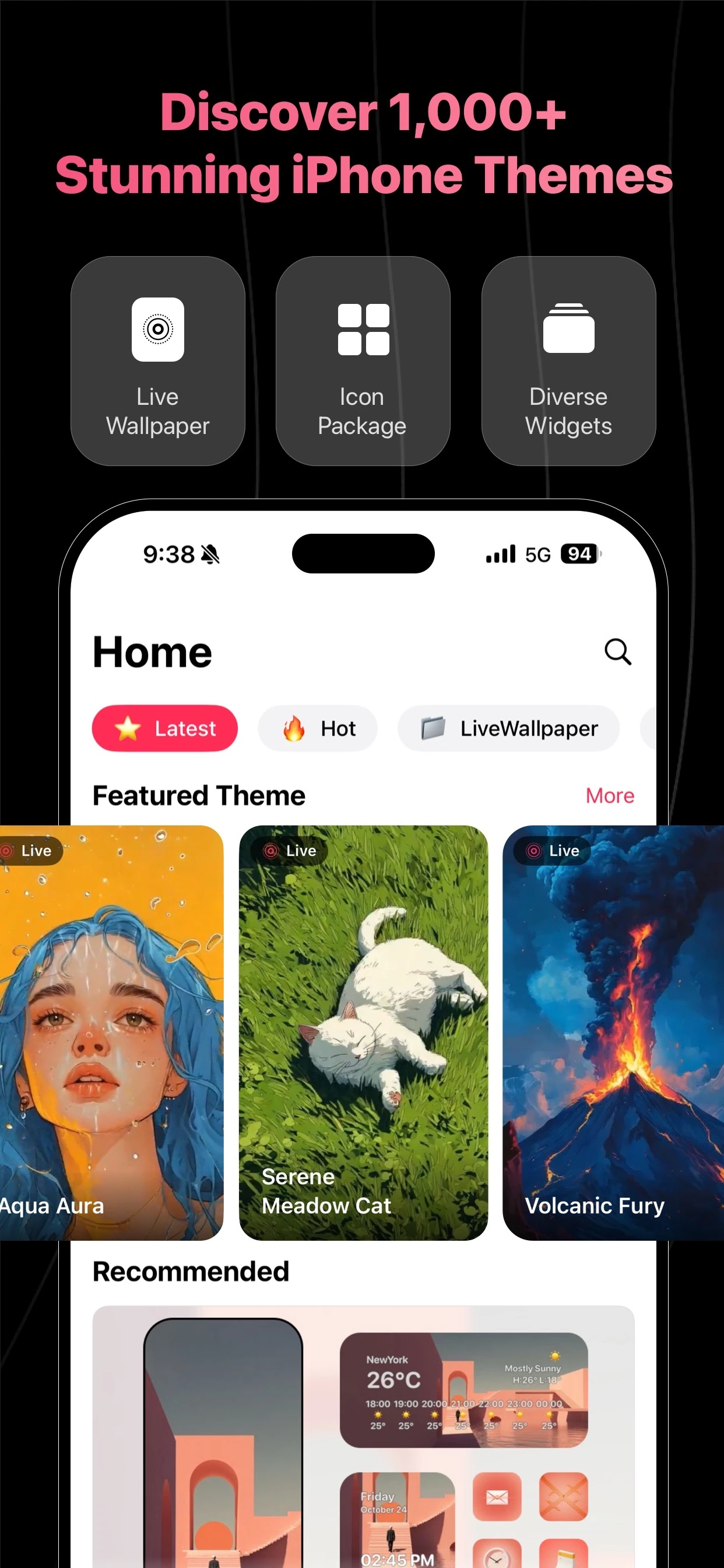
1. Pick a background and destination
Open a wallpaper in Gentheme and follow the Apply steps. For static images, choose the available home, lock or both-screen option. Check the crop on your phone before settling on the finished look.
2. Add matching app icons
Choose a pack that includes the apps you use, then follow the in-app setup and any confirmation from your home-screen app. Keep familiar positions and check each new icon after adding it.
3. Arrange widgets around your routine
Choose a photo, weather or clock widget and follow Gentheme’s placement guidance. Leave enough space for readable information and easy taps. Supported sizes and setup behavior vary by Android version and manufacturer.
A few useful answers
Will the steps be identical on every Android phone?
Android home-screen features differ by manufacturer, system version and home-screen app. Use the options shown on your device and follow Gentheme’s guidance for the element you are installing.
How do I set a live wallpaper on Android?
Choose supported live wallpaper content in Gentheme and follow the app into the system wallpaper picker. Confirm the preview there. Available screen destinations and animation behavior depend on your device.

Get Gentheme
Themes, wallpapers, widgets & icons