Gentheme
Check where the download stopped
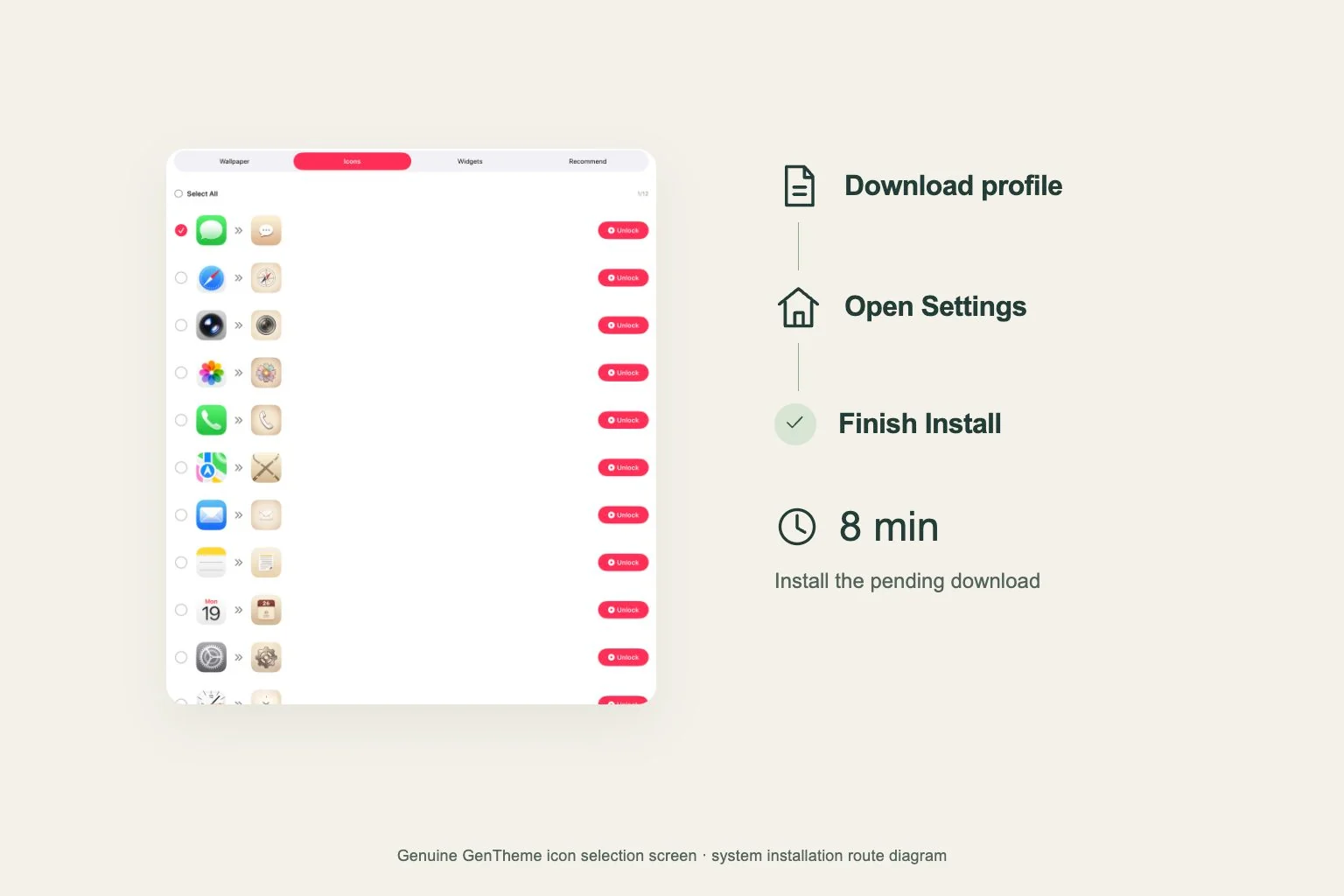
In a Gentheme icon pack, Install Icons opens the installation page in the app’s Safari browser after any required unlock. Download description file starts the profile download, and Allow accepts the iPhone download request.
Once that stage finishes, open Settings and look for Profile Downloaded. The profile needs its system installation there. Tap Install, enter your device passcode if asked and complete the remaining onscreen installation prompts.
Download again after 8 minutes
Apple automatically deletes a downloaded profile if it has not been installed within 8 minutes. If Profile Downloaded has disappeared after a delay, return to Gentheme and download the icon profile again.
Then go directly to Settings and finish Install. Keeping the browser and Settings stages close together helps you complete the current download before it expires. Check the Home Screen after the system confirms that installation is complete.
Keep track of the latest selection
iPhone keeps one downloaded profile ready for installation at a time. Downloading a second profile replaces the earlier pending download. If you changed packs, check the profile information in Settings before confirming Install.
For icons from a theme, open the theme’s circular download arrow, choose Icons, select the icons you want or use Select All, then tap Apply. Continue through the same Download description file and Settings flow.
Check the added web clips
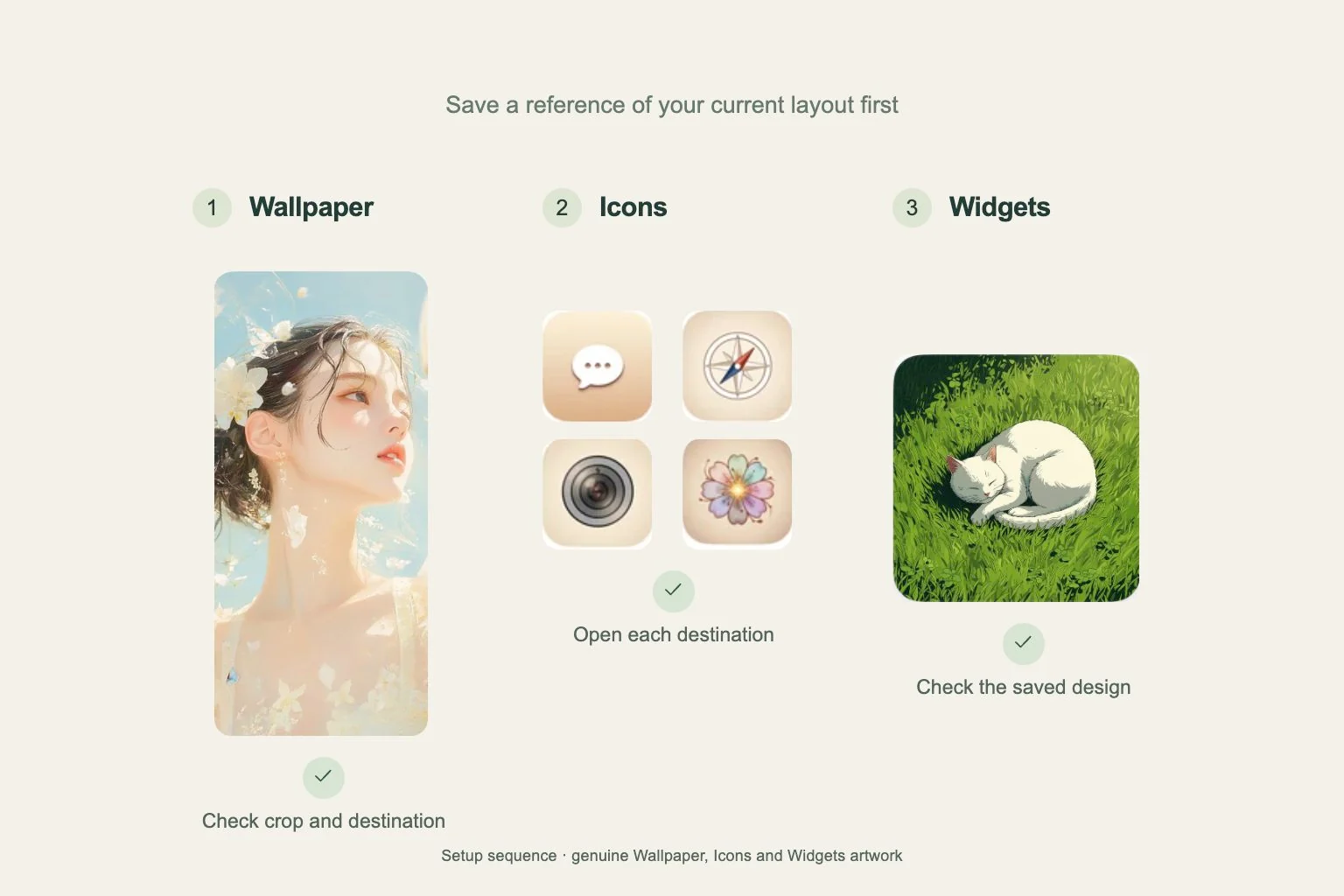
Gentheme’s profile adds web clips to the iPhone Home Screen. A web clip uses an icon to open a link. After installation, open the added icons you plan to use and check where each one takes you.
Opening behavior depends on the destination link and iOS handling. Some destinations may show a browser or another transition. Check the result for each app you use regularly before arranging a full page around the new icons.
Find the installed profile
To review an installed icon profile, open Settings > General > VPN & Device Management and select the Gentheme profile you installed. Use the profile information to identify the correct icon set if several profiles are present.
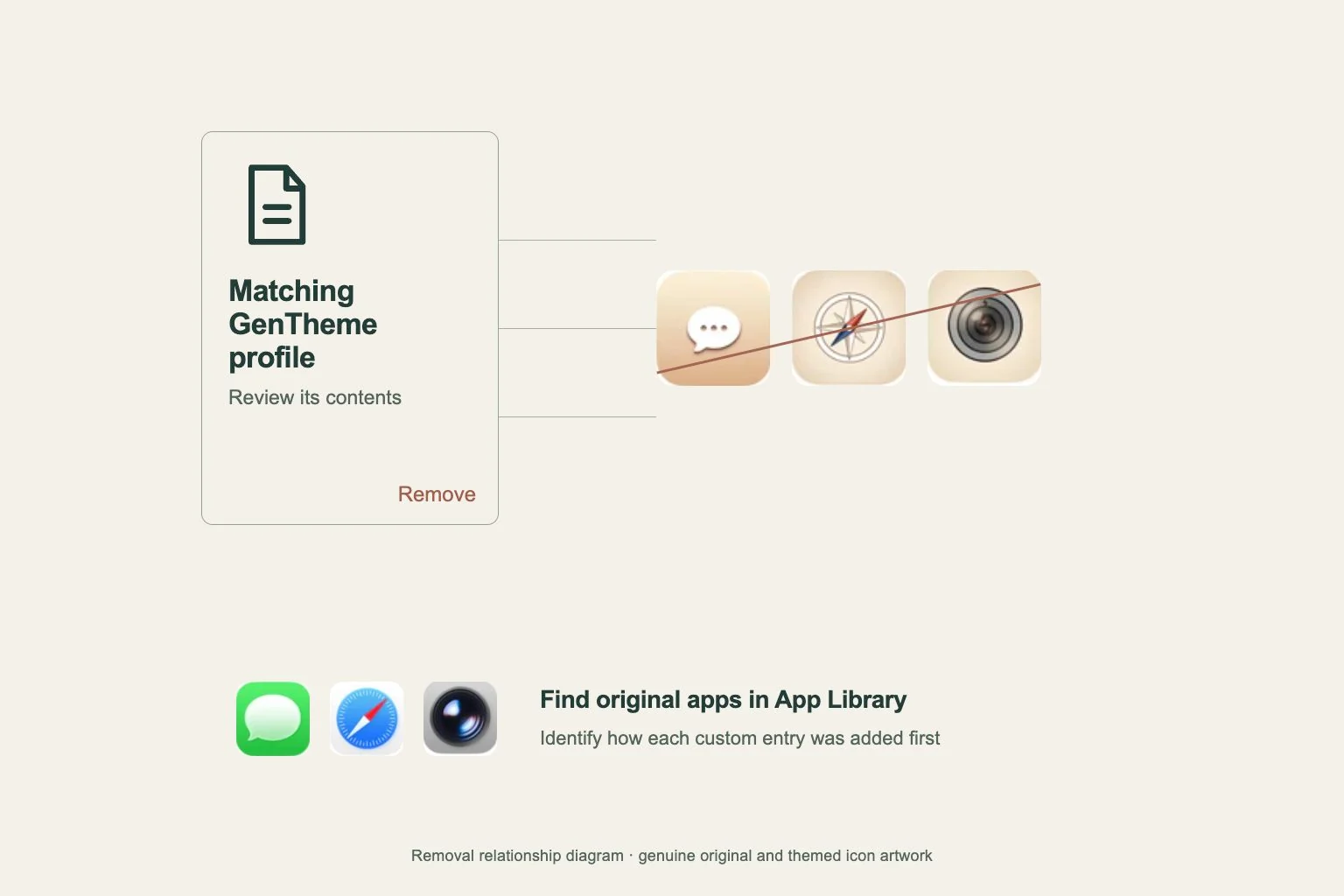
When you want to remove that set, remove the selected Gentheme icon profile and follow the system prompts. Its associated web clips are removed from the Home Screen. Check the profile’s contents before confirming removal.