Gentheme
Make the cherries the focal point
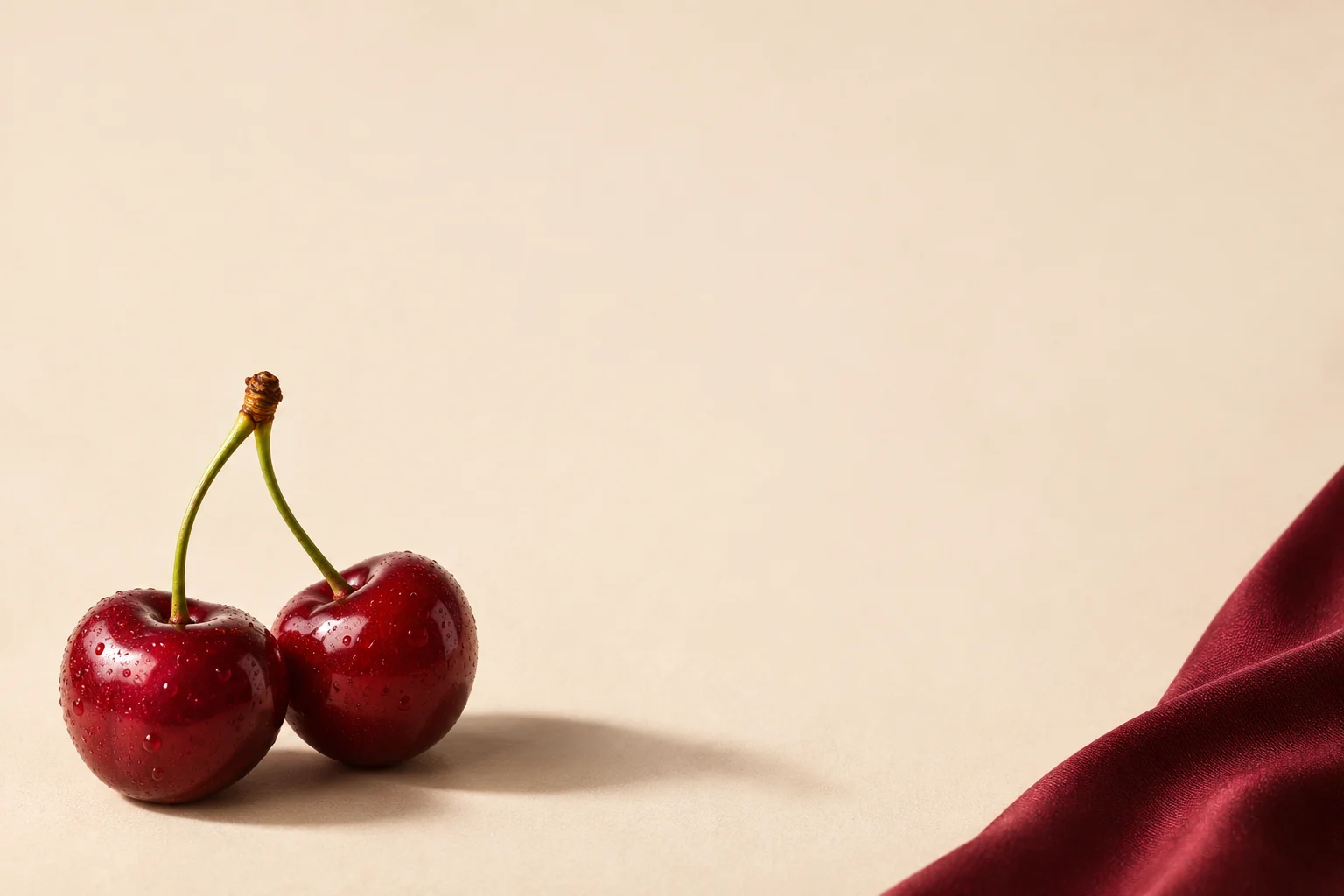
Start with a photograph showing one pair of cherries and their complete stems. Their rounded shape is recognizable even when the image appears as a small thumbnail. A broad cream background makes the red feel deliberate and gives you more freedom when positioning the wallpaper.
Try the fruit near a lower corner with a soft shadow leading toward the center. Keep enough room around both stems so a portrait crop can preserve them. If you prefer a repeated cherry pattern, compare a widely spaced version before choosing a dense print.
Choose between bright red and burgundy
Bright cherry red creates a sharper contrast with ivory, while a deeper burgundy feels quieter beside tan or warm gray. Pick the version that suits your everyday screen, then repeat the same red in one small detail such as a widget border or an icon symbol.
Inspect the brightest reflections on the fruit at normal phone size. A white highlight directly behind a pale app name can make a single letter disappear. Move the image slightly or use a cream companion background for the Home Screen if the photograph needs more uninterrupted space.
Give the two screens different levels of detail
Keep the complete still life on the Lock Screen and try a simpler crop behind your apps. A burgundy fabric edge, a plain ivory field or a small cherry in one margin can carry the same palette without placing fruit behind every row of labels.
For a coordinated page, keep familiar app positions while changing the background first. Add one small photo-style widget only if it leaves the fruit visible. Check red notification badges against the wallpaper so you can still distinguish a new message from a decorative red dot.
Set the selected image and review its edges
In Gentheme, open the wallpaper you want and follow its Download flow, including any unlock shown. Use the wallpaper guide for your platform. Check the saved image in your photo library before selecting it in the phone’s wallpaper settings and adjusting the final crop.
Read the time, open your usual app page and inspect the bottom corners after applying it. Both cherries should remain recognizable, and the dock should leave the composition balanced. Keep the original image so you can change the frame later without relying on a screenshot of your finished screen.