Gentheme
Check that the iPhone design reached Mine
Open the intended preview in Home Widget and complete any unlock shown. Wait for Widget Added!, then check Mine. This confirms that the design is available for selection when you edit a Home Screen widget.
If that confirmation never appeared, return to the preview and finish saving it first. Keep the intended artwork in mind so you can identify it among other designs already saved in Mine.
Choose Template on the widget you are viewing
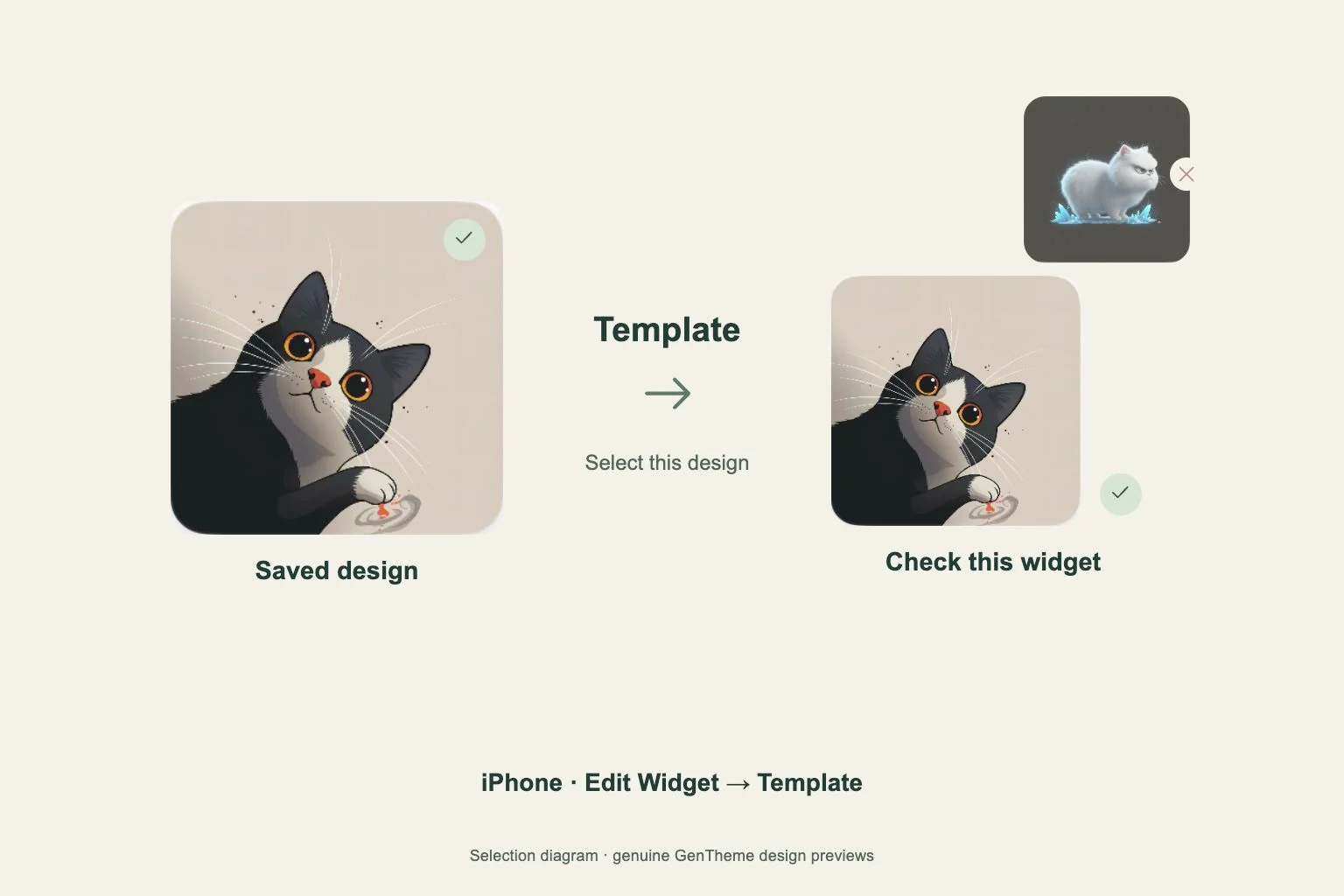
Touch and hold the mismatched widget on your iPhone Home Screen. Choose Edit Widget, open Template and select the design you saved. Tap outside the settings to return to the screen and check the result.
With several Gentheme widgets on one page, edit the specific widget that needs correction. Work through them one at a time so each position displays the intended design.
Match the type and size
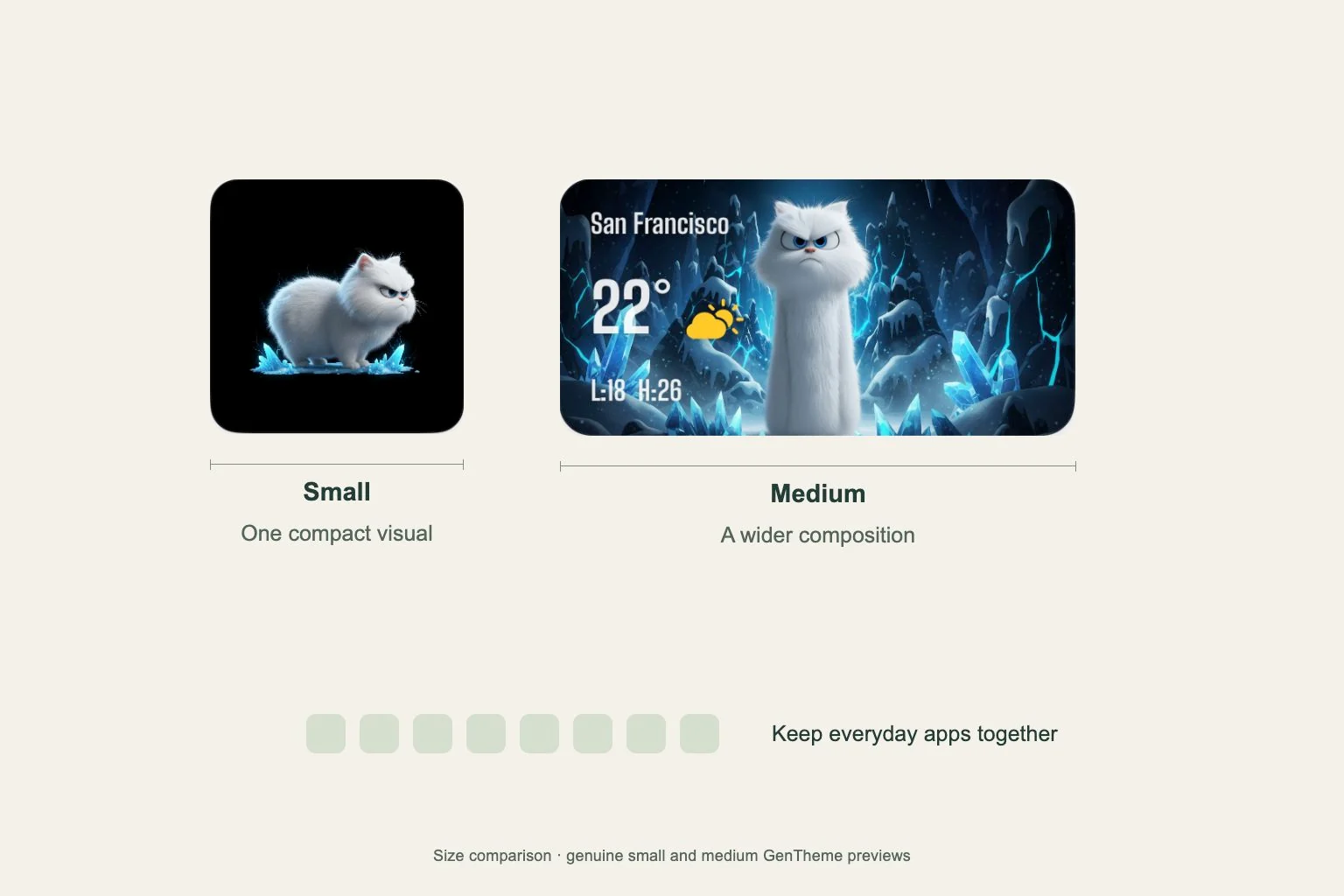
In the iPhone widget gallery, Gentheme offers Clear Widget and Liquid Glass Widget in available small and medium sizes. Photo variants use the small size. Compare the placed widget with the type and size you intended to use.
If you need another type, add the matching option from the gallery, then choose its Template. These Home Screen widgets require iOS 17 or later. Available choices also depend on the installed app version.
Refresh the Android design before adding
On Android, reopen the design you want, tap Apply and finish any unlock. Confirm the home-screen app’s add-widget request while that design is pending. Gentheme keeps the pending selection ready for 10 minutes.
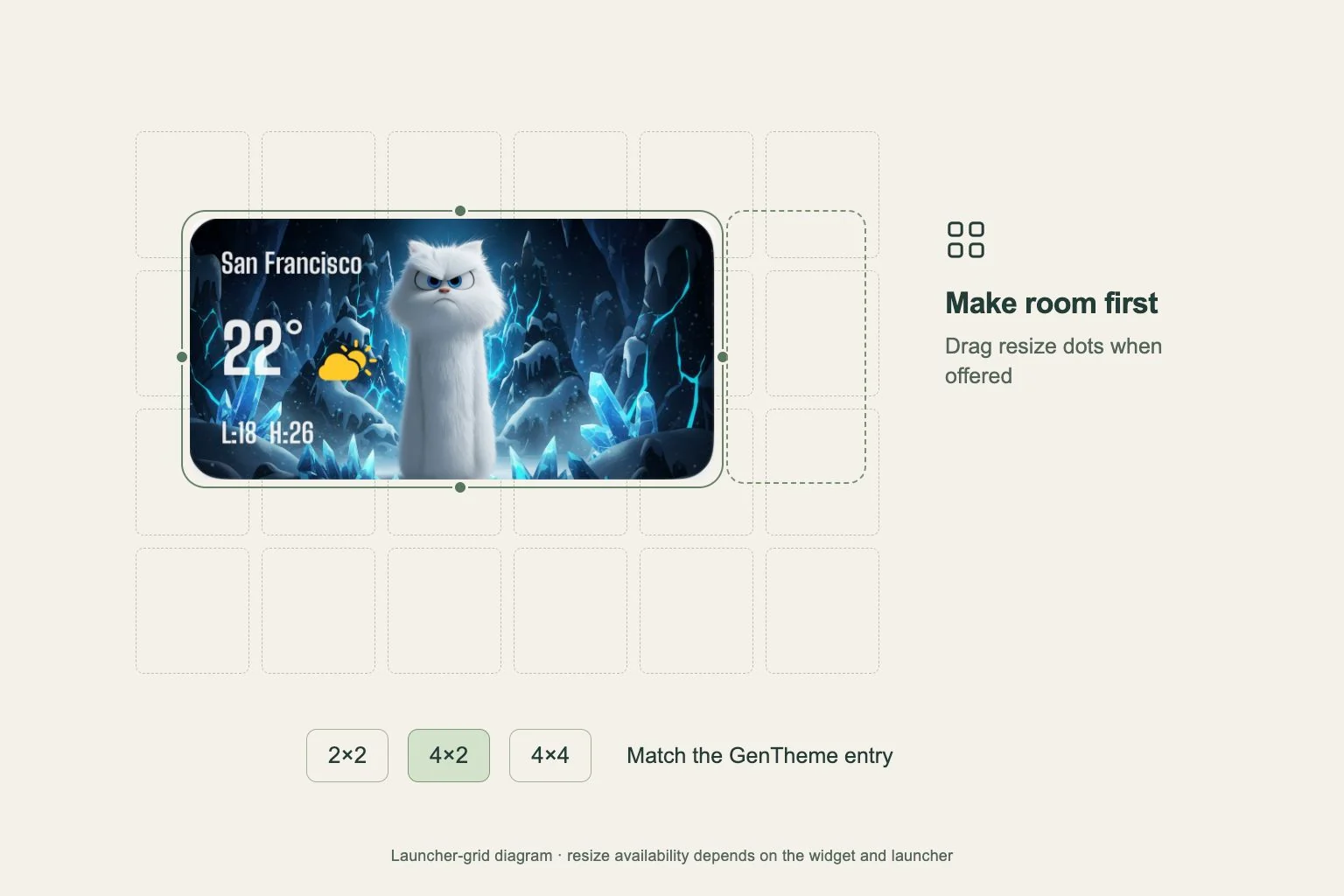
After 10 minutes, tap Apply again before adding the widget. If the confirmation dialog is absent, open the phone’s Widgets list, find Gentheme and place the matching 2×2, 4×2 or 4×4 widget.
Check the visible widget after the change
Return to the exact Home Screen page where you saw the mismatch. On iPhone, a widget inside a stack may rotate with other widgets. Swipe through the stack to find the Gentheme widget you edited.
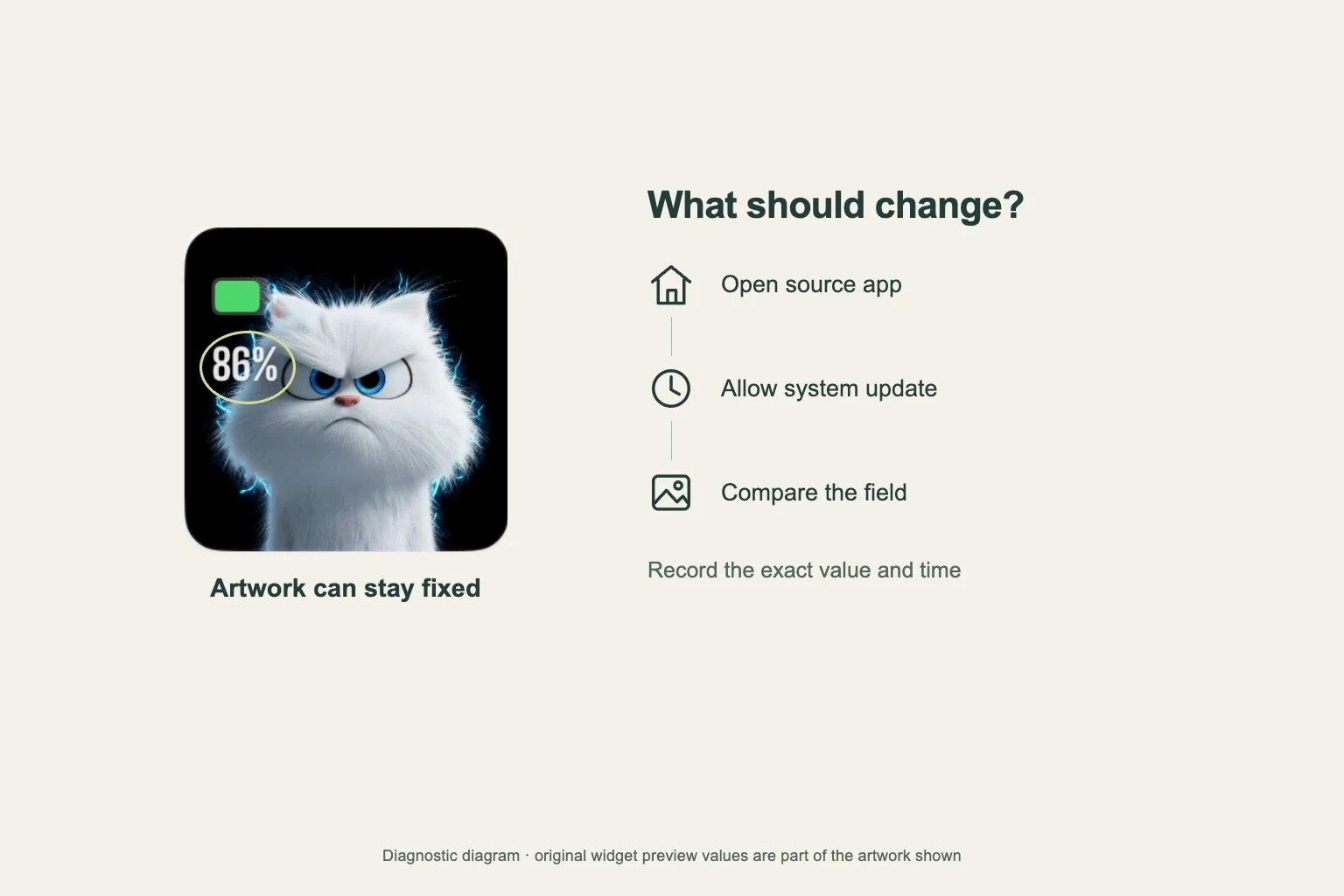
If the design is correct but its full artwork is missing on iPhone, check Background Image in Edit Widget. That option starts turned off. Turn it on when you want the complete background image displayed.