 Gentheme
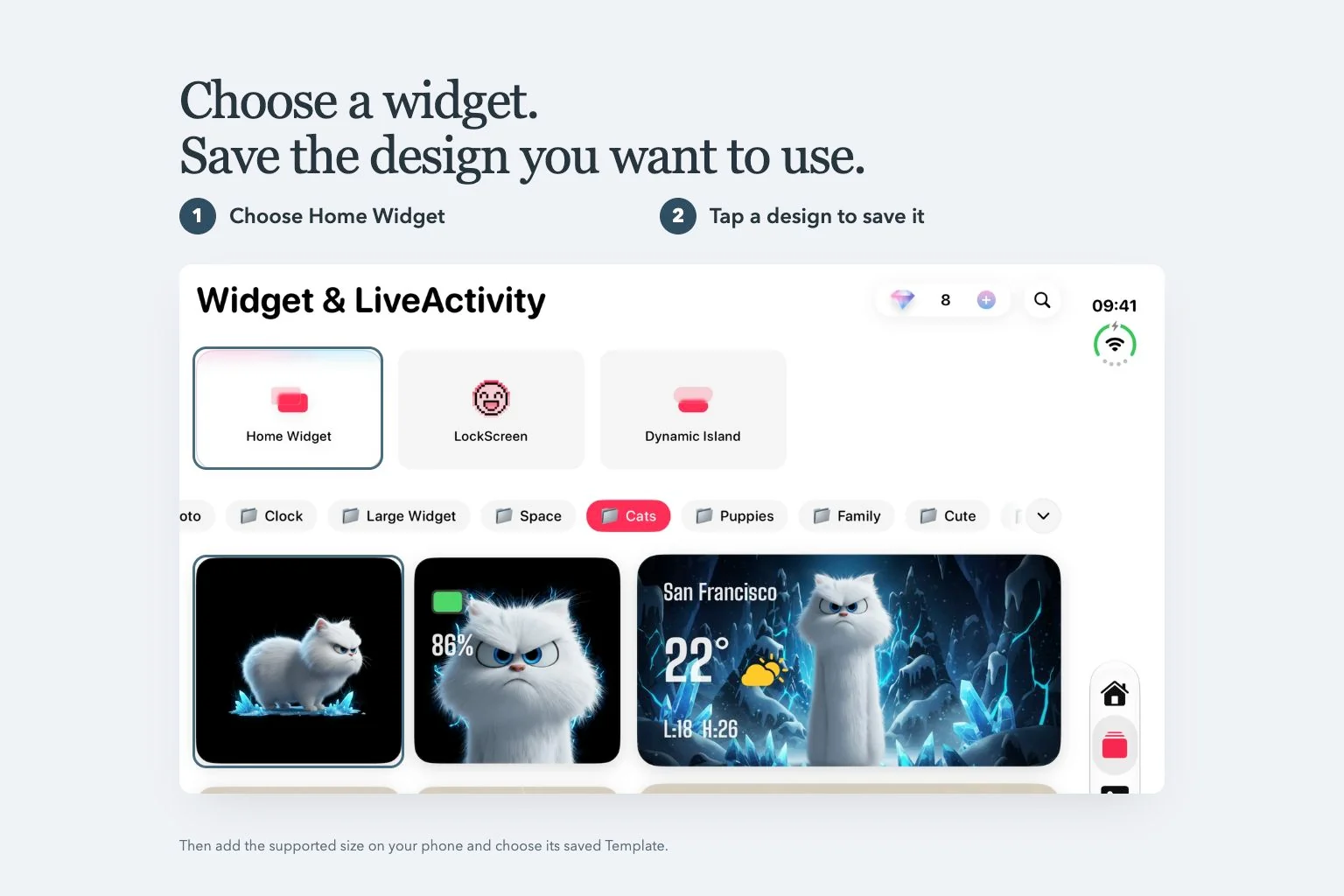
iPhone & iPad
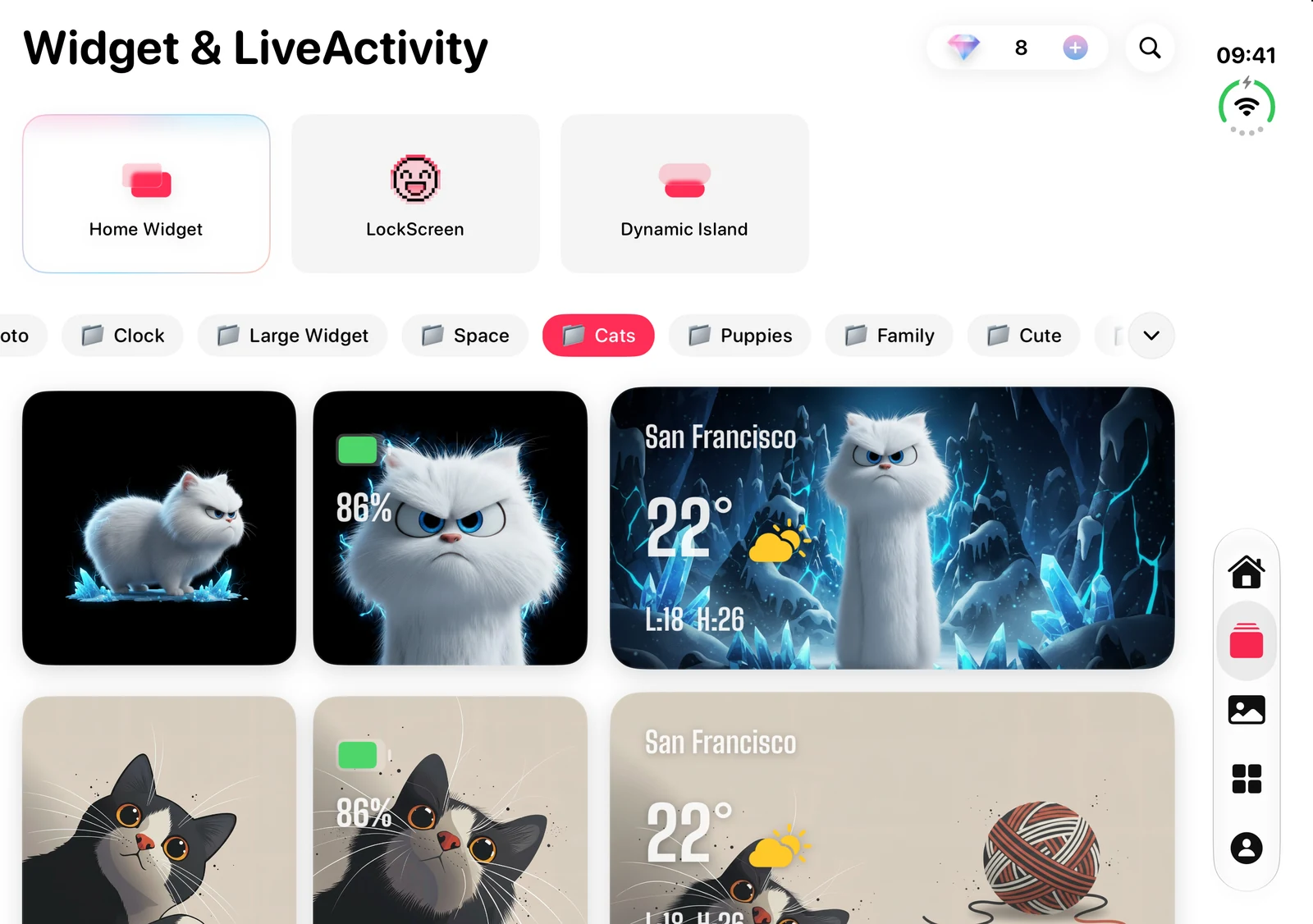
In the app · iPhone Duo
- Choose Home Widget.
- Tap a design to save it.
Save a Home Widget design
Open Home Widget
Tap the stacked-rectangles widget icon in the main navigation, then choose "Home Widget".
Choose a preview
Tap the widget preview you want and complete any unlock shown.
Check that it was saved
Wait for "Widget Added!". The design is now available in "Mine" for selection when editing a widget.
From a theme, tap the circular download arrow over its preview, open Widgets, select the previews and tap "Apply" first.
Place the widget on your Home Screen
Open the widget gallery
Touch and hold an empty Home Screen area. Choose Edit > Add Widget and search for Gentheme.
Choose the widget type and size
Choose an available small or medium Clear Widget or Liquid Glass Widget. Photo variants use the small size.
Add it to the screen
Tap Add Widget and place it on your Home Screen.
Select your saved design
Touch and hold the added widget, choose Edit Widget and open "Template". Select the design you saved in Gentheme.
Show the full background if wanted
Turn on "Background Image" in the widget’s settings to show the full artwork. This option starts turned off.
These Home Screen widgets require iOS 17 or later. The gallery shows the types and sizes registered for your app version.
Set up a Lock Screen signature or text widget
Open the Lock Screen category
In Gentheme’s widget section, choose "LockScreen" and open "Signature Widget" or "Custom Text Widget".
Prepare its content
For Signature Widget, choose a star and tap "Apply Signature". For Custom Text Widget, enter "Line 1" and "Line 2", choose fonts and tap "Apply Text".
Open Lock Screen customization
Touch and hold the iPhone Lock Screen, choose Customize and tap the widget area.
Add the matching Gentheme widget
Choose Gentheme and add Signature or Custom Text to match the content you prepared.
Android
Add a widget through the confirmation dialog
Choose a widget design
Open Widget, choose "Home Widget" when that row is shown and open a design.
Apply the design
Tap "Apply" and complete any unlock shown.
Confirm the home-screen request
Confirm the add-widget dialog from your home-screen app, then check the widget on your Home Screen.
For a theme, open its download-arrow installation page, choose Widgets and tap "Add" for each design individually. Android’s "LockScreen" category also creates Home Screen widgets. Allow location access if you want local weather.
Add manually if the dialog does not appear
Open your phone’s widget list
After applying the design, open your Home Screen. Touch and hold an empty area, choose Widgets and find Gentheme.
Place the matching widget
Choose the matching 2×2, 4×2 or 4×4 widget and drag it onto the screen.
Finish while the design is ready
Complete the addition within 10 minutes of applying the design. If more time has passed, open that design in Gentheme and tap "Apply" again before adding it.
Need a hand?
Why is the widget showing a different design?
On iPhone, hold the widget, choose Edit Widget > "Template" and select your saved design. On Android, apply the intended design again and add the matching widget within 10 minutes.
What if I cannot find or add the widget?
On iPhone, check that you have iOS 17 or later, save a design in Gentheme and reopen Add Widget to search for Gentheme. On Android, use the manual Widgets > Gentheme steps if the add dialog is absent.

