 Gentheme
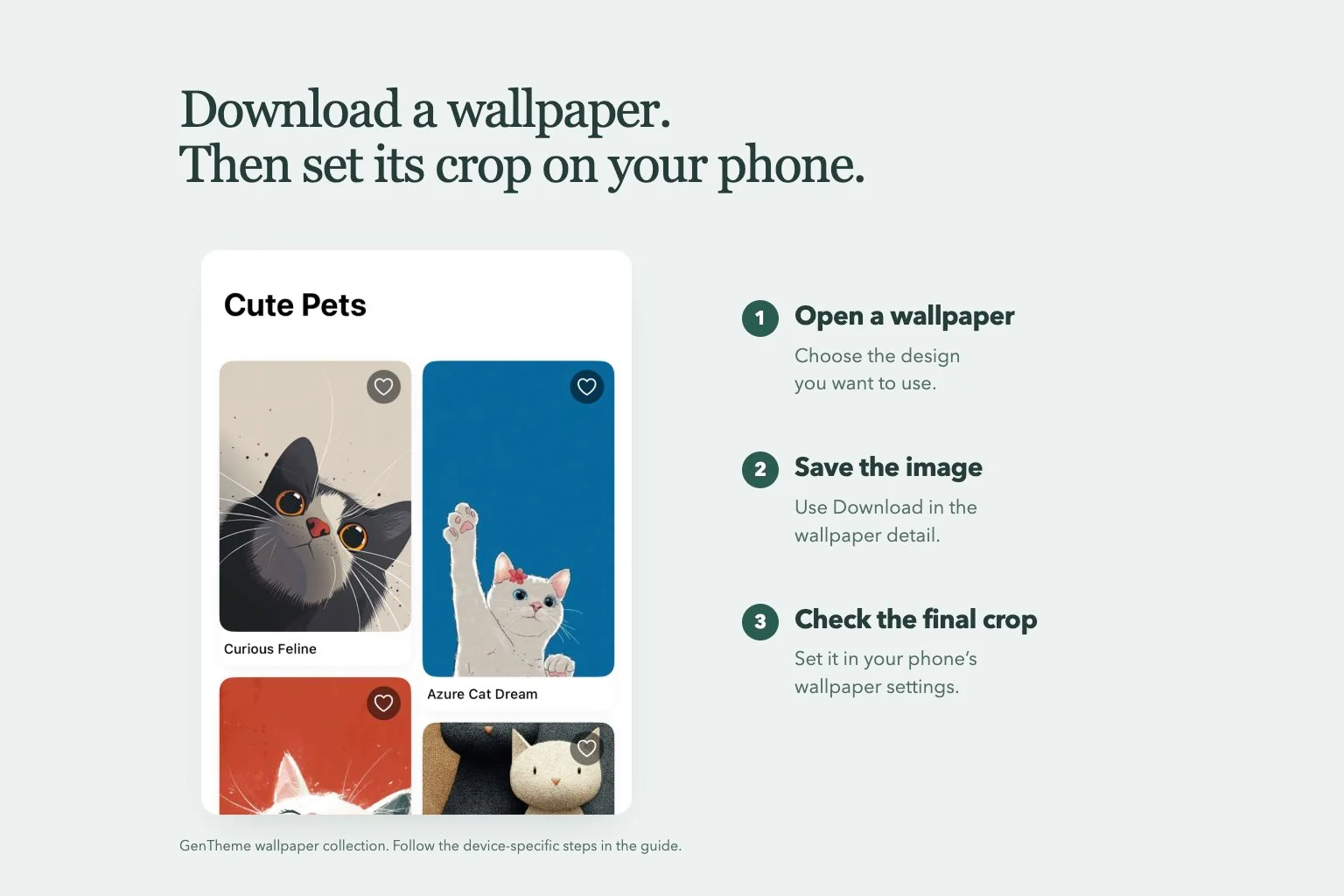
iPhone & iPad
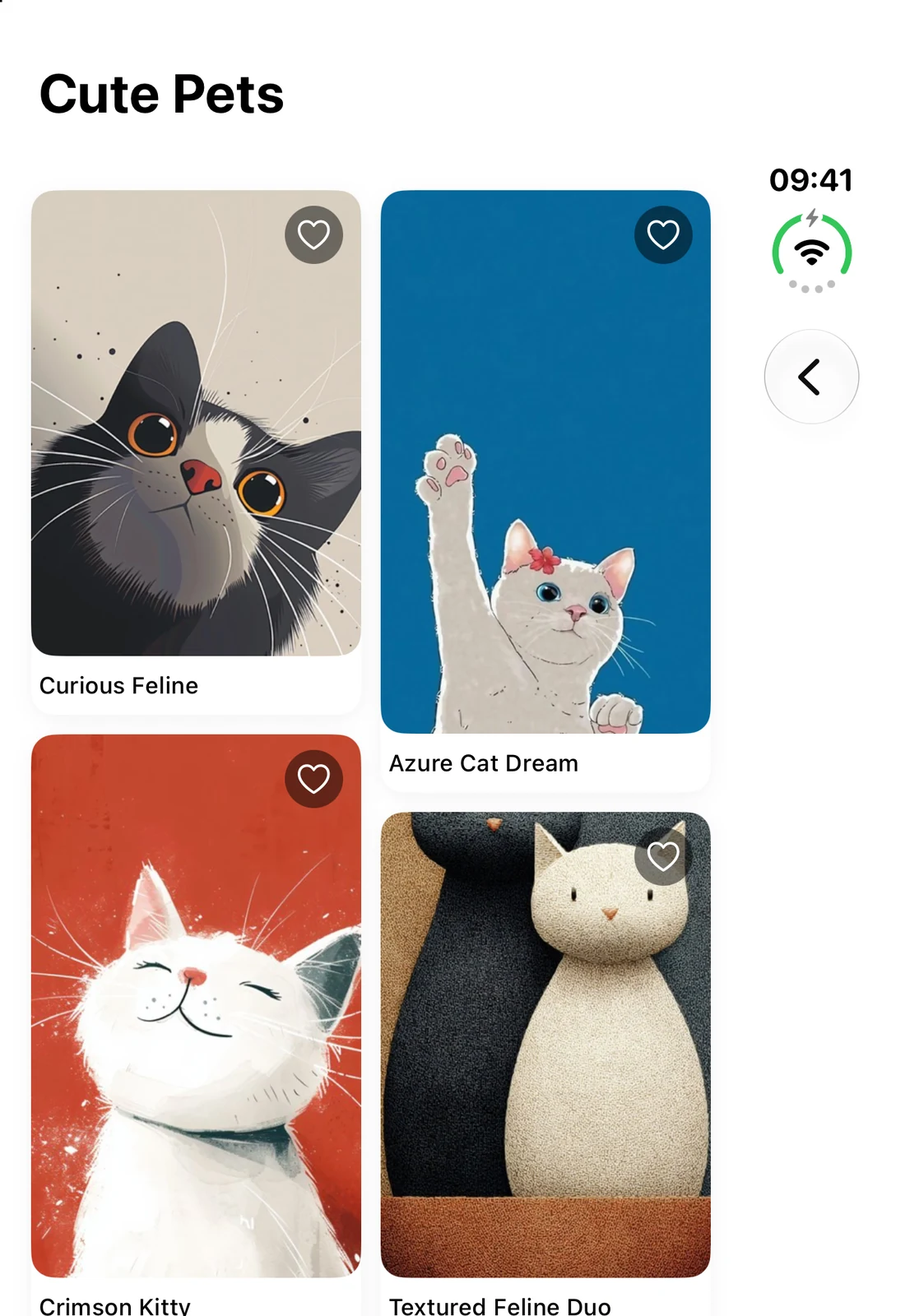
In the app · iPhone Duo
- Open the wallpaper you want.
Save and set a still wallpaper
Open the wallpaper collection
Tap the photo icon in the main navigation, then open a wallpaper you want to use.
Save the first image
Tap "Download", complete any unlock shown and allow Photos access when requested. Wait for the 480P image to save.
Save the higher-resolution version
In the follow-up prompt, tap "Get 2K HD Wallpaper". Complete any unlock shown and wait for the image to save to Photos.
Set it in iPhone Settings
Open Settings > Wallpaper > Add New Wallpaper > Photos. Choose the saved image, adjust its crop and tap Add. Choose Set as Wallpaper Pair or Customize Home Screen.
For a theme, open it from Home and tap the circular download arrow over its preview. Select Wallpaper in the installation tabs and tap "Apply" to start its wallpaper flow.
Save and set a Live Photo when available
Reach the live download option
Open a live wallpaper and tap "Download". Continue through "Get 2K HD Wallpaper", then tap "Get Live Wallpaper" and complete any unlock shown.
Choose the moment if prompted
If the clip selector appears, choose a 2.5-second moment and tap "Confirm Selection".
Wait for the Live Photo to save
Keep the conversion running until Gentheme confirms that the Live Photo has been saved to Photos.
Choose it in wallpaper settings
Open Settings > Wallpaper > Add New Wallpaper > Live Photos. Choose the saved Live Photo and complete the wallpaper setup.
Motion depends on your iPhone model, iOS version and wallpaper settings. Check the motion option in the system preview.
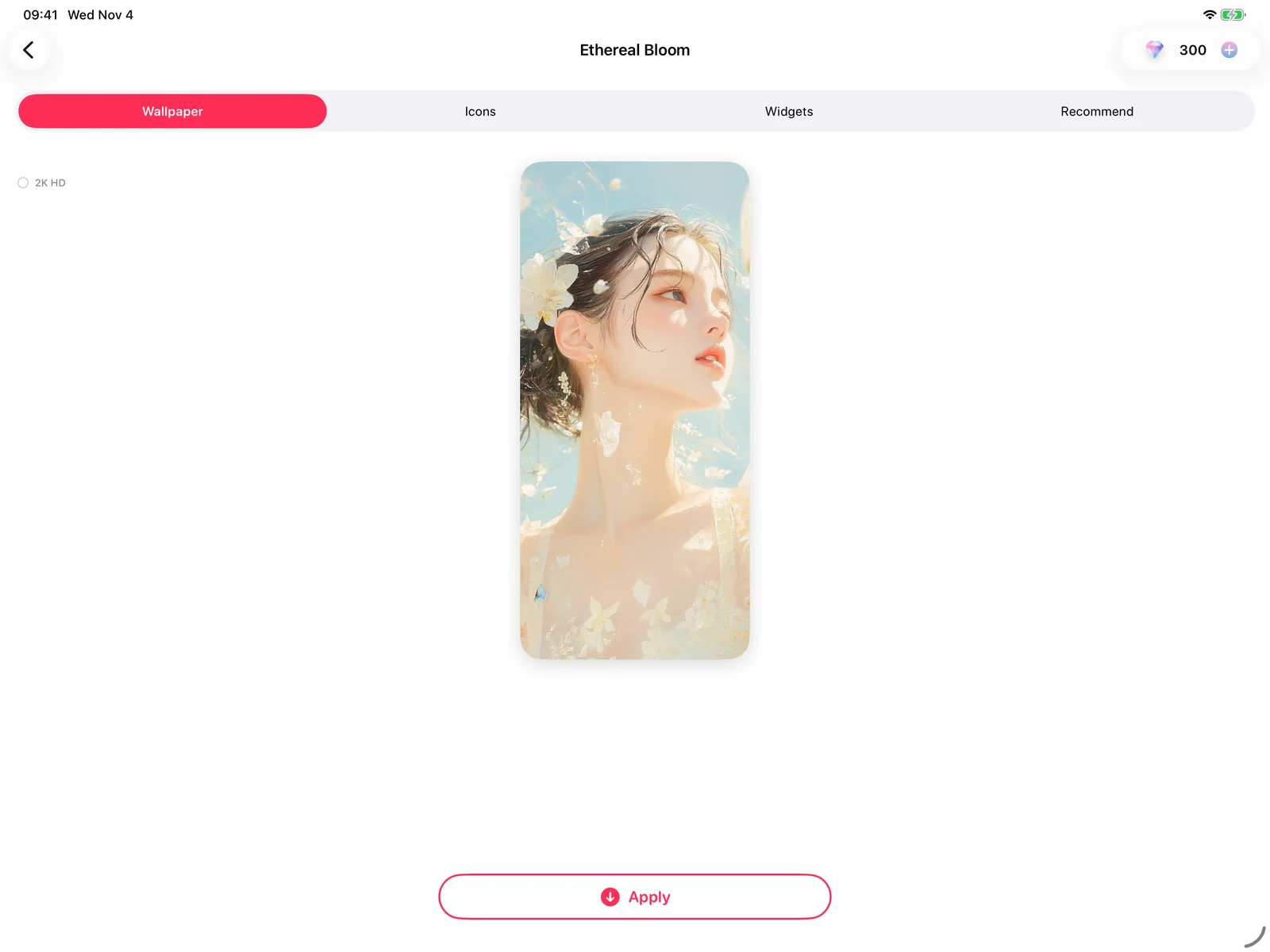
Installing from a theme · iPad
- Select Wallpaper.
- Tap Apply to start saving.
Android
Apply or save a still wallpaper
Start with a design
Open the Wallpaper tab, choose a design and tap "Apply". Complete any unlock shown.
Choose the 480P action
If the "480P Wallpaper" sheet appears, choose "Apply Wallpaper" to set the image or "Download Wallpaper" to save it.
Finish applying or saving
For Apply, choose "Home Screen", "Lock Screen" or "Both" in "Set as Wallpaper". Wait for Gentheme to finish. For Download, complete any system save choice shown.
Get the high-resolution version if wanted
When the HD prompt appears, tap "Get 2K HD Wallpaper" and complete any unlock shown.
Apply or save the 2K image
In "2K HD Wallpaper", choose "Apply Wallpaper" or "Download Wallpaper". For Apply, choose the screen again. Wait for the result before continuing.
Older app versions can open the screen choices directly after "Apply". Recent versions offer separate Apply and Download actions. For a theme, open it from Home, tap the circular download arrow over the preview and select Wallpaper > "Apply".
Apply or save a live wallpaper when available
Continue to the live stage
After the still-image stage, tap "Get Live Wallpaper" when offered. You can close the HD prompt to skip 2K and reach the live prompt.
Choose the live action
Complete any unlock shown. In "Live Wallpaper", choose "Apply Wallpaper" or "Download Wallpaper".
For Apply, confirm the system preview
Wait for the download and your phone’s live wallpaper preview. Use its confirmation control and choose a destination if offered.
For Download, finish saving the video
Wait for the MP4 video to save to your gallery, or complete the system share/save chooser if shown.
Older versions may open the live preview directly after "Apply". The system confirmation label, supported destinations and motion behavior vary by manufacturer and Android version.
Need a hand?
Where is the wallpaper I saved?
On iPhone, check Photos and Gentheme’s Photos permission, then retry "Download" if needed. On Android 10 or later, look in the gallery’s Gentheme album. On Android 8–9, complete the system share/save chooser. Wait for the chosen download to finish.
Why does my live wallpaper stay still?
On iPhone, choose the saved Live Photo in wallpaper settings and check the motion option. On Android, complete the system live wallpaper preview confirmation. Motion support depends on the device and system.

